


You will encounter this window after filling in the Application Details. The main goal here is to fill in the path to your Clarion directory. The window looks like this:
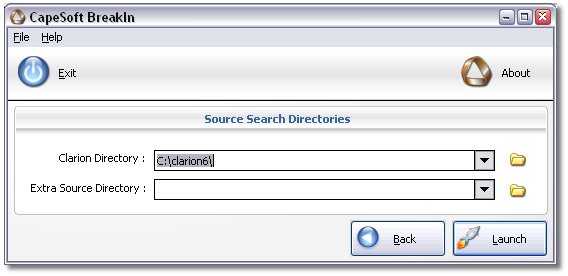
You are required to provide the following information:
- Clarion Directory: Fill in the path to your Clarion directory.
- Extra Source Directory (Optional): This field is optional and is rarely used. Use it only if your program makes use of a DLL for which you have the source available, but where that source resides in a directory other than the Clarion directory. If this is the case, fill in the path to this directory here. Note: If certain source lines are not being displayed in the Stack Trace and Procedure Source list boxes on the main BreakIn window and you think they should be, you may want to check whether those source files reside in your Clarion directory. If not, fill in the location here.
Upon completing the above field(s), you can choose to press one of the following two buttons:
- Back: Oops, you must have suddenly remembered that something you filled in on the Application Details window was incorrect or incomplete. Press this button to take you back there.
- Launch: All's done and its a-for-away! Press this button to start up your Clarion Program.
When you press the Launch button, the Loading Source Files window will appear.



