


This is where the real magic happens. After pressing the Break button when your program hangs (or for any other reason), your BreakIn window will change slightly and will look as follows:
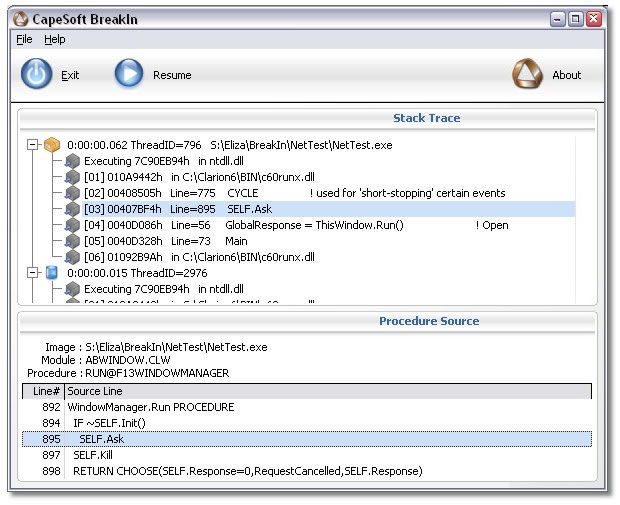
You will see that once you have pressed the Break button, your application is rendered entirely non-responsive and non-active. It in fact stops your program dead in mid-operation. But now there is more information available in the list boxes:
- Stack Trace: The Stack Trace box still displays all the information as explained in the Monitoring your Program section. In addition, it now lists the
return stack procedures for each thread of your application. You will notice that this list now has a tree structure, with the top-level items being the threads of your application. If you click to expand an item, you will get the stack trace for that thread.- The top item of the trace gives you library and the address at which the thread was executing at the time you pressed the Break button.
- The rest of the stack for that thread is displayed underneath. For every item in the stack you get the address it was executing at, and either the line of source code that was being executed, or the name of the library that was being executed.
- The source for a module will only be displayed if it is available. If the source is not in your specified Clarion directory, you would have had to specify its location in the Extra Source entry on the Source Details window. You also need to make sure that your program was compiled in debug mode.
- Procedure Source: When clicking on an item in the stack trace of a thread that contains a source line, this list box will be populated with information regarding the procedure that the source line belongs to:
- Image: The executable or DLL calling the procedure.
- Module: The source module that the line belongs to.
- Procedure: The name of the procedure that the source line belongs to.
- Source Lines: Depending on whether the source code is available (see the notes under Stack Trace above), this will list the source code for the entire procedure to which the source line belongs
There have been some changes to the buttons on the window as well:
- Resume: Once you have studied the list boxes above, you may want your program to continue running as normal. If so, press this button.
Note that the two list boxes on this window can be resized by clicking and dragging on the gap between them, for your convenience.



