


When starting up CapeSoft BreakIn, the first window you are confronted with asks you to enter the details of the Clarion program you want to monitor. It looks like this:
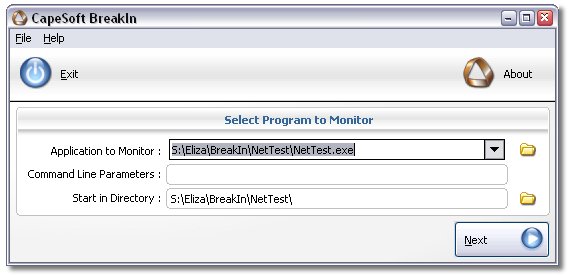
You are expected to provide the following information:
- Application to Monitor: The name, including the path, of the Clarion program you want to monitor. Note: For optimal use of BreakIn, make sure that your program was compiled in debug mode. If this is not the case, you may find that the information available in the Stack Trace and Procedure Source upon Breaking In will be very limited.
- Command Line Parameters: If your program runs from the command line and needs command line parameters, enter these here.
- Start in Directory: Enter the directory in which you would like BreakIn to start your Clarion program in.
When you have entered all of these details, click next. You will be taken to the Source Details window.



