Note:ClarioNet is now
completely supported by HyperActive (version 1.6 onwards).
Introduction
How many times have I added the "About..." screen to
my app and wished that users could just click and go straight to our
website? Or that they could click on the

and the new mail message would
open up and they could write directly to us. Or have a list of suppliers
with their e-mail addresses and web-URLs in the columns and be able to
click on the URL and go directly to their website?
If you're feeling the same way, then HyperActive is for you! This
easy-to-use and quick-to-add template adds the powerful object
functionality, allowing you to make any control a URL. Your HyperActive
control can be a string, a button, a field in a Drop List, combo or list
box, a region, an entry field, a text field, an image or a panel. The
HyperLink can even change color as the mouse crosses over it (for strings,
and list fields), as well as cursor changes. It will take you less than a
minute to add the necessary templates to your application and make the
respective controls HyperActive.
But that's not all...! HyperActive interfaces with your Windows Registry,
so any file, which has a
browser/viewer/editor associated with its extension, can be run with one
click. So you can run video clips, music/wav files, open text documents,
etc straight from your application just like you would from your Windows
Explorer.
There's still more! You can make the most of the functionality of
HyperActive and Capesoft's File Explorer combined to open URLs inside your
application.
Features
- One Click Hyperlink Controls - Make any
existing control on your window a Hyperlink to a web page/file/e-mail
address.
- Hyperlinks in a List Box - Make a column
in your list/browse HyperActive to link to your browser/mailer.
- File Explorer compatible - Make the
HyperActive controls send their URLs to your CapeSoft File Explorer
OLE control.
- Color Highlights - Make your HyperActive
string and/or listbox control fields change color as the mouse passes
over the HyperLink.
- Mouse Cursor changes - Make your mouse
cursor fields change to the hand cursor as the mouse passes over the
HyperLink.
- Supports all file types - HyperActive
interfaces with your Windows Registry, so any
file, which has a browser/viewer/editor associated with its
extension, can be run with one click. So you can run video clips,
music/wav files, open text documents, etc. straight from your
application just like you would from your Windows Explorer.
- Easy email creation - HyperActive comes
with a small code template that make it easy for you to create a full
email (supports Outlook Express, Outlook and Netscape) when your user
clicks the HyperActive control.
- Supports ClarioNet and WebBuilder.
- Makes handcoding simple - whether you're
an avid handcoder - or not, the HyperActive object's methods and
properties are very easy to code in.
- Registry checks - HyperActive can check
the registry to make sure that there is a registered to run your
HyperActive control's URL before making it 'Hyper'Active.
Installation
Run the supplied installation file.
Adding HyperActive
to your Application
NB: You must not call your
application Hyper.app.
Making a window control HyperActive is easy.
- Open your application and from the application window click the Global button.
- In the Global Properties window click the Extensions
button.
- In the Extension and Control Templates window click the Insert
button and select the Activate CapeSoft's
HyperActive template from the list that appears
- You can read more about the Global
Extension Template options further down - but lets leave the
defaults as is for the moment.
- You will now need to add the local
extension template to the required windows in your application.
Making a control on a window
HyperActive
If you have not done so already, place the control(s)
that you would like to make as Hyperlinks on the window.
- From the application window, open the Procedure Properties window
for that procedure.
- Click the Extensions button on the Procedure Properties Window.
- Click Insert and select Capesoft
HyperActive Control from the Class HyperActive.
- Change to the Options tab and use the
List box on the HyperLinks tab to enter the
controls to be used for the Hyperlinks. Check out the Options
for the HyperActive control for more details.
- To customise some of the HyperActive features, you set these on the
Options Tab.
- To ensure that HyperActive operates correctly with some other
3rdparty templates, you may need to specify settings for those
templates on the Other
Products tab in the template.
Options for the HyperActive Control
Select the Control to make HyperActive.
String Controls:
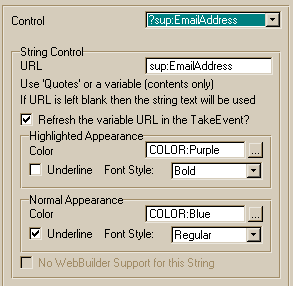
Control is the label of the control that you want to make HyperActive
(i.e. set to respond like a URL link).
All controls can be made a Skype URL. Use the
URL is
Skype function drop down to enable one of the Skype functions,
otherwise leave the
URL is Skype function set
to 'None'. TIP: If you want to use the Call option to a local number, then
the local number must be prefixed with + and the countrycode.
You can set the highlight color and style of the string control (in the
Highlighted Appearance group) as the mouse passes
over it, as well as the normal color and style (in the
Normal
Appearance group). You can also set the
URL
for the string control. If you don't use quotes then the contents of the
variable will be used as the URL.
If the string is a variable, then you need to set the positional width to
'Default' (in your window properties editor) for that control. This will
enable the control to resize, thus ensuring that the control is only
HyperActive when the mouse is over the text (because the control is the
same size as the text).
You should check the
Refresh the Variable URL in the
TakeEvent? (variable URLs only) so that the HyperActive control's
properties are correct.
Button, Combo and Item Controls:
The only option for the HyperActive button control is the URL, a string
constant (in quotes) or a variable (the contents of the variable will be
used as the URL). If no URL is specified, then the text of the
Button/Item/Combo is used for the URL.
Entry Controls:
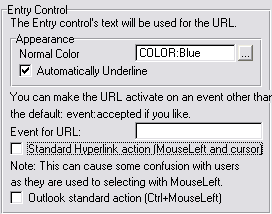
You can set the appearance of the control (i.e. the font color and
underline property). There is no region properties on the Entry Control so
the Font will not change as the mouse goes over the control.
The control will use the entry as the URL, and when the control receives
an
EVENT:ACCEPTED, it will run the browser/
mail for the URL that the user entered. You can override this default
method in the following ways:
- You can specify an Event for the URL in which case it will use the
specified event instead of the EVENT:ACCEPTED
event.
- You can check the Standard Hyperlink action
(Mouseleft and cursor) checkbox - which will treat the entry
control as a normal Hyperlink - so the cursor will be displayed as the
mouse enters the entry control's area. If you click on the entry
control, then the URL will be activated. If the control is not
selected, then the first mouse left click will select the entry
control, and subsequent ones will activate the URL.
- You can check the Outlook standard action
(Ctrl+MouseLeft) checkbox in order to imitate the Outlook
manner of running Hyperlinked URL (similar to (2) except using
Ctrl+Mouseleft instead of MouseLeft).
Text Controls:
You may specify the URL that is used when the control receives an
EVENT:ACCEPTED.
DropList and List
Controls:
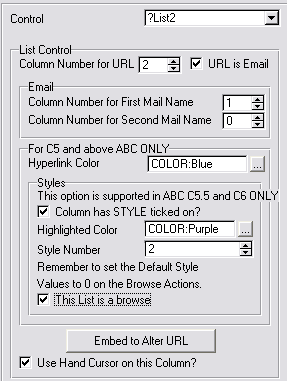
You need to specify which column contains the URL (
Column
Number for URL), and if the URL is an e-mail address (
URL
is Email).
Although the object will defer an e-mail address in a web column to your
mailer, when you select the Email option for the URL type, it allows you
to select a column containing the first and second names of the addressee.
Thus when you click on the Email URL, it will send the names and the Email
address to your mailer.
You can also set the
Hyperlink Color here, and
if you're working in Clarion 5.5 or later, you can select a
Highlighted
Color, which will be the highlight color the URL changes to as
your mouse passes over it. In this case you need to set a
Style
Number, and if the list is a browse control, then you need to
check the
This List is a browse checkbox as
well.
This is only for ABC applications.
NB: You will need to check the style option
on in your List Box Formatter window for the URL column. You cannot use
this feature with cell colors as well, so you need to turn the color
option off in your List Box Formatter window.
You may require to add something to the URL that is contained in the list
box (like a path). You can use the
Embed to Alter URL
embedbutton to code the necessary changes. The variable that contains the
URL that will be used is ReturnValue (which has just been returned from
the GetListURL method). So if you would like to add a path to the URL,
then you can just do the following:
if ~instring('\',ReturnValue,1,1)
ReturnValue = path() & '\' & ReturnValue
end
You can enable Handcursor use for this specific column here by checking
the
Use Hand Cursor on this Column? checkbox.
The checkbox is will be disabled if you have unchecked the
Allow
Hand cursor use here? checkbox on the
Details tab of the local extension template.
Region Controls:
You must specify the URL to use and you can turn the IMM property on here.
If you leave the IMM off, then the mouse cursor will not change as the
mouse passes over the control.
Other Controls:
You must specify the URL to use.
General Options for all controls
You can also override any keycode restrictions that were set on the
Options
tab in the local template (by checking the
No
keycode restriction on this control).
Details for the
HyperActive Controls associated with this window
On the
Options tab:
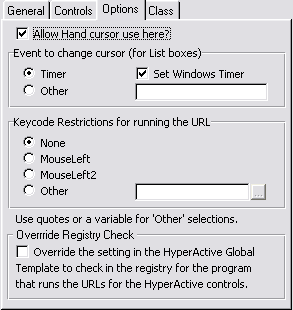
| 1.1. |
You can specify whether you would like to use the HandCursor in
this window or not (list box cursor changes are restricted to ABC
based programs) |
| 1.2. |
You can select the event to trigger the cursor change. If the
timer event is not used, then you may prefer to use this event
(which will be set to 8 - if you check the Set
Windows Timer checkbox). Although this is not the most
robust method, it is the quickest and easiest. If you are using
WinEvent, then you can use one of the windows events to trigger
the cursor change. |
| 2.1. |
You can also choose to place a keycode restriction on the
HyperActive controls (which can be overridden for each control). |
| 2.2. |
Thus if you want the HyperActive URL to be activated only on a
left click, then you can select the MouseLeft
radio button. |
| 3. |
If you have checked the Always check in the
Registry for the Program checkbox on the Global extension
template, and you don't want the registry checked here, then check
the Override the setting in the....
checkbox. Otherwise if you leave it clear, the registry will be
checked for valid URLs. |
Extending your
HyperActive Controls
Extending your Email URLs
You can easily enlarge your e-mail URLs to contain a full email message
(with subject, body, etc.). You can either re-route it through a Clarion
3rdparty Email device (like one of the NetTalk objects) or use your
default email server (like Outlook Express).
Included in HyperActive is a small code template to aid you in doing this
(called the 'Capesoft HyperActive Construct Complete Email'). In the Code
template:
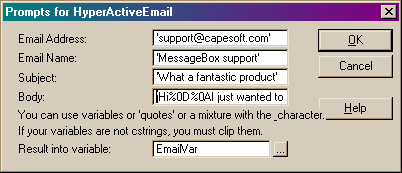
You can fill in all the necessary details in the template variables, which
will format it all and put it into the variable that you specify. Note: if
you have variables in the fields above that will change, you need to
ensure that this code template is in the correct place to refresh the
resultant variable before the URL is called, as it will still contain
previous values.
Tip:
If you want to insert a line break into your Body, then you need to place
the encoded characters for this there: %0D%0A. The <13,10> is not
supported by all mailers.
Note: HyperActive uses ShellExecute
to run your programs. ShellExecute has a limitation of 512 bytes in the
parameters passed, which means that your long emails may be truncated.
The best place would be to place this in the ThisHyperActive.TakeEvent
routine as follows:
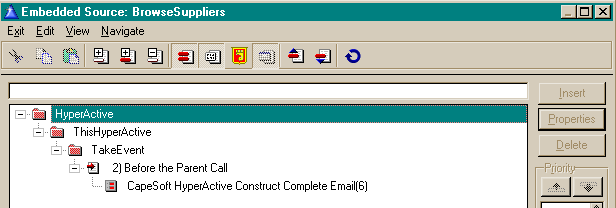
This will ensure that the variable is always correct before the URL is
posted to your mail program.
Alternatively, you can hand code the URL as follows:
EmailLink = EmailName & ' <<' &
EmailAddress & '>' & '?subject=' & EmailSubject &
'&Body=' & EmailBody
Multi-DLL Applications
HyperActive is a local class and so is not affected by
whether the application is a single EXE or a Multi-DLL. You need to add
the HyperActive Global Extension Template to each application that
requires the use of the Local Extension Template. You don't need to add
the Global Extension Template to applications that will not use the Local
Extension Template.
Translating the
HyperActive Messages
You need to derive the HandleError method and put the
translated text you would like in there. Note: the following example code
must be put before the parent call. Like the following:
case pErrorcode
of 32
pError = 'The specified dynamic-link library was not found.
File:|'
of 31
pError = 'There is no application associated with the given file
name extension. File:|'
of 30
pError = 'The DDE transaction could not be completed because
other DDE transactions were being processed. File:|'
of 29
pError = 'The DDE transaction failed. File:|'
of 28
pError = 'The DDE transaction could not be completed because the
request timed out. File:|'
of 27
pError = 'The file name association is incomplete or invalid.
File:|'
of 26
pError = 'A sharing violation occurred. File:|'
of 8
pError = 'There was not enough memory to complete the operation.
File:|'
of 5
pError = 'The operating system denied access to the specified
file. File:|'
of 4
pError = 'The .exe file is invalid (non-Win32� .exe or error in
.exe image). File:|'
of 3
pError = 'The specified path was not found. File:|'
of 2
pError = 'The specified file was not found. File:|'
of 0
pError = 'The Operating system is out of memory/resources.
File:|'
else
pError = 'Unknown ShellExecute Error occured. File:|'
end
The HyperActive
Templates in more detail
The Global Extension
Template
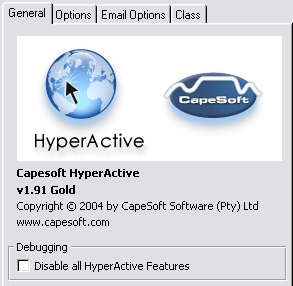
- You can globally prevent all HyperActive code from being generated
by checking the Disable all HyperActive Features
check box in the Debugging group.
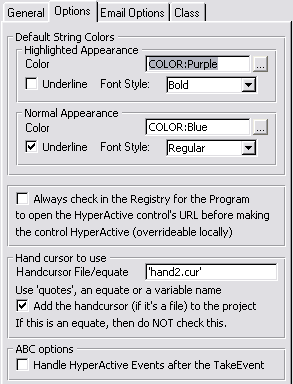
- You can set the default colors and styles for the HyperActive
strings on the Options tab. These will
simply be the default colors when the string control is added to the
HyperActive control list in the local extension template, and won't
override/set existing string control colors. It's a good idea to set
these up here so that your HyperActive controls are consistent
throughout your application.
- You can automatically ensure that your registry is searched for a
program to run your URLs by checking the Always
check in the registry for the Program checkbox. This is
overrideable in the HyperActive local extension template.
- If you would like to specify a different Hand cursor (other than
the default 'Hand2.cur'), then you can enter your own filename (or
equate or variable containing either) in the Handcursor
File/equate entry field. If you entered a filename and you
would like the template to add your file to the project, then check
the Add the handcursor (if it's a file) to the
project checkbox, otherwise leave it unchecked.
- If you would like to place your HyperActive TakeEvent after the
parent call of the ThisWindow.TakeEvent, then check the Handle
HyperActive Events after the TakeEvent. This will mean that
you can put code to change variable URLs in the TakeAccepted for
buttons, etc. In some older versions of Clarion, if the TakeEvent is
placed after the parent call the code won't run (sporadically).
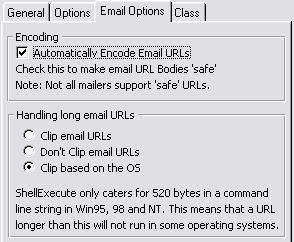
- On the tab you can to turn on email URL encoding (check the Automatically Encode Email URLs to do this).
This is useful to maintain the format of your emails
(linefeeds/carriage returns), but is not supported by all mailers.
Outlook Express, Outlook, Pegasus, and Eudora all support encoded
mails, but Incredimail does not and the encoded characters are not
filtered. Netscape does not support it, although the encoded
characters are not displayed, simply filtered out.
- HyperActive uses ShellExecute to post URLs to the various programs.
ShellExecute has a limitation of 520 characters in older OSs - Win95,
Win98 & WinNT. You can force your email URLs to be clipped, or not
or let HyperActive decide based on the OS. Use the options in the Handling long email URLs to select which option
you would like (Clip based on the OS is the
default).
- If you would like to use your own class (derived from the
HyperActive class) then switch to the Class
tab
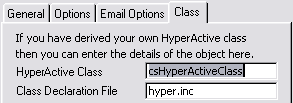
and enter the name of the class in the HyperActive
Class field and the Class header file name in the Class
Declaration File field.
Using HyperActive
with Other Templates
Using HyperActive with
WebBuilder (C55 Users Only)
You can use HyperActive in WebBuilder applications from version 1.3
onwards. At present, the following controls are supported: strings, images
and buttons. You can make any of these controls HyperActive in the normal
way without having to alter the controls on the WebBuilder template.
If you are using images and/or buttons then
you
must run the HAConv.exe application (or
edit the htm source yourself) that ships with HyperActive. There are
some changes required in the default htm files for buttons and images.
This application is found in your c55\3rdparty\bin directory. You will
need to run the changes for each button/image htm file that your
application/s use. The default htm files are in the
c55\bin\skeleton\default directory. Run the HAConv program and you will
see menu on the menubar: 'Convert File'. This menu allows you to select
either the Button or the Image file to convert. Once clicking either item,
a FileDialog box will appear allowing you to select the file to convert.
If the conversion has already been performed on the file, then the
conversion is not attempted. You will be informed by a message box. If the
file has been corrupted or some critical HTML lines have been
removed/changed, then the conversion will be aborted informing you that
the htm file cannot be converted.
Steps in Implementing the use of WebBuilder
(assuming you have already implemented both templates in the documented
fashion):
- In the Global Properties window of your
application, click the Extensions button
and highlight the Activate Capesoft's HyperActive
template in the list.
- On the General tab, ensure that the Allow
WebBuilder Support check box is checked.
- Click OK a couple of times to return to the Application Tree
window.
- The WebBuilder support will now (by default) be active on all the
supported controls that are HyperActive.
- You can disable each control individually from being supported by
WebBuilder if you like. There is a check box on each supported
control's HyperLink window, which you can check. By default, the check
box is not checked (i.e. WebBuilder supported).
If you want to edit the
html source files yourself (instead of using the HAConv program) you must
do the following: In the image.htm file you need to place the following
lines of html code:
<TSSCRIPT tag=a attr=href
value="ImageLink">
</TSSCRIPT>
In the button.htm file you need to place the following lines of html code:
<TSSCRIPT tag=input attr=type
value="ButtonType">
<TSSCRIPT tag=input attr=onClick value="onEvent">
<TSSCRIPT
omit="Icon != ''"><TSSCRIPT tag=input
attr=name value="Name">
</TSSCRIPT>
</TSSCRIPT>
<input type="SUBMIT" value="Text"
name="NAME">
Using HyperActive with
FileExplorer (C55 Users Only)
You can set up HyperActive to use your File Explorer control instead of
your browser. Your URL will then be opened directly in your app using File
Explorer. You must have the HyperActive and the File Explorer controls on
the same window, but not all of your HyperActive controls need to send
their URLs to File Explorer. You may send all of your controls to File
Explorer or select which ones use File Explorer and which ones use your
browser.
Steps in Implementing the use of File Explorer:
- Open your Procedure Properties Window
for the procedure which has the File Explorer Document Viewer Control
Template and the HyperActive Extension template populated.
- Click on the Extensions button and
highlight the CapeSoft HyperActive Controls
local extension template in the Extension and
Control Templates window that appears.
- Click on the Other Products Support tab.
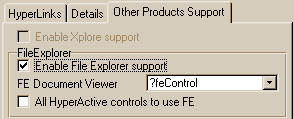
- Check the Enable FileExplorer support
check box.
- Select the File Explorer OLE control from the drop list. You must
have already added the File Explorer Document Viewer Control template
to this window or there will be no controls in the drop list.
- You can either check the All HyperActive
controls to use FE, in which case all the HyperActive
controls will use the File Explorer OLE to browse the document, or you
can leave this unchecked and activate each control that you require to
use the File Explorer OLE to send the URL.
- If you would like to activate individual controls, then go back to
the HyperLinks tab and select the controls
(one at a time) and click on the Properties
button. In the HyperLinks window that appears, you will notice the
File Explorer support for this control group with a check box in it.
Check this check box (This Control uses FE)
in order to force this control to use File Explorer only.
Using HyperActive with
XPlore
You can set up HyperActive to support XPlore features in list boxes. This
pertains specifically to column order swapping at this stage. Thus when
columns are swapped, then the HyperActive will "follow" the column that
has been changed. Xplore does not support Styles at the moment, so the hot
style effect available in C5.5 will not be available when using Xplore
concurrently.
Steps in implementing the use of XPlore:
- Open your Procedure Properties window
for the procedure which has the Xplore template and the HyperActive
Extension template populated.
- Click on the Extensions button and
highlight the Capesoft HyperActive Controls
local extension template in the Extension and
Control Templates window that appears.
- Click on the Other Products Support
tab.
- Check the Enable XPlore support check
box.
- Nothing else is necessary.
Using HyperActive with
ClarioNET
HyperActive supports ClarioNET almost completely. It is very simple to add
the necessary modifications to cater for the ClarioNET support. The
Hyperlinks will be activated in the client, care must be taken that when
links to files are activated, the files are in the correct places
according to the directory specified.
As with normal applications, you can hyperlink almost any control -
strings, entry controls, images, list boxes, drop combos, drop lists, etc.
You can make your HyperActive controls contain weblinks, email addresses,
files, etc., whereas if you use the native ClarioNET hyperlink control,
you can only use a button, and the hyperlink must be to a web URL. If you
are running you server out of ClarioNET mode, then the HyperActive control
will still behave normally.
Steps in implementing the use of ClarioNET:
- Open your Global Properties window for
the server application and click the Extensions
button to bring up the Extension and Control
Templates window.
- Highlight the Activate CapeSoft's HyperActive
template in the list on the left and check the Enable
support for ClarioNET checkbox that appears on the General
tab on the right.
- Press OK a couple of times to get back to the application tree and
save and quit your application.
- Load your ClarioNET Client application.
- Open your Global Properties window for
the client application and click the Extensions
button to bring up the Extension and Control
Templates window.
- Select the ClarioNet client extension template (you must do this
first, because this refreshes the template list in the IDE - otherwise
you will not be able to perform the next step).
- Click the Insert button and select the GloHyperActiveForCN - Activate Capesoft's HyperActive
for ClarioNET Client template.
- If this is a multi-DLL application, then you need to check the
relevant settings on the Multi-DLL tab.
- If you are using an object derived from the HyperActive class, then
you need to set the file, class and object name that you are going to
use on the Class tab.
- Press OK a couple of times to return to the Application Tree.
Limitations when using ClarioNET:
- You cannot use the cursor change feature that is native to
HyperActive, as ClarioNET does not support the timer event, and it
does not support cursor files for cursor changes.
- Great care must be taken when hyperlinking to files, that those
files are in the correct place on the client.
- In Clarion 5.5, the style feature is not supported, so the
HyperLinks in a list box will not change color as the mouse goes over
them.
- The Registry check feature is not implemented in conjunction with
ClarioNET as yet.
Example
There are 2 examples in your \Clarionx\3rdParty\Examples\HyperActive
directory (one for legacy and one for abc).
In Clarion 5.5 (and up) there are additional examples showing the
interface between HyperActive and FileExplorer (one for legacy and one for
abc) in the \Clarionx\3rdParty\Examples\HyperActive\HyperActive&FileExplorer
directory, and the relationship between HyperActive and WebBuilder in the
\Clarionx\3rdParty\Examples\HyperActive\HyperActive&WebBuilder
directory.
You will be able to see how to select the FileExplorer control depending
on the file type in the HyperActive and File Explorer example exe.
Using the HyperActive
Objects
Methods
| AddItem |
(LONG HyperControl, STRING HyperURL,
<LONG NormalColor>, <LONG BrightColor>, <LONG
Features>,
byte UseStdAction=0) |
This method creates a queue containing each HyperActive control
and it's relative details. Parameters:
HyperControl - the field ID of the control.
HyperURL - the column (in a list box) or URL string of the URL to
run.
NormalColor - the normal color of the control.
BrightColor - the bright/highlighted control of the URL control
Features :-
List Controls - the style number for the normal color. If
negative, then the Handcursor will be used for this HyperActive
column.
UseStdAction - for entry controls. Make Entry Controls behave like
Std HyperLinks. |
| AddString |
(LONG HyperControl, STRING HyperURL,
<LONG NormalColor>, <LONG BrightColor>, <LONG
NormalStyle>, <LONG BrightStyle>, <LONG
Reserved>) |
This method creates a queue containing each HyperActive control
and it's relative details for strings and prompts. Parameters:
HyperControl - the field ID of the control.
HyperURL - the string of the URL to run.
NormalColor - the normal color of the control.
BrightColor - the bright/highlighted control of the URL control
NormalStyle - the style attributes of the control normally
BrightStyle - the style attributes of the control when
highlighted.
Reserved - for later use. |
| Init |
(<LONG UseHandCursor>,
byte pOptions=0) |
Sets up the links to the browsers, and mailers. Sets up the
Event to use for the Handcursor and whether the handcursor is to
be used. Initializes each of the controls using the InitControl
method. Parameters:
UseHandCursor - the event to use for changing the cursor when the
mouse is on the URL (lists). Omit or clear if HandCursor is not
required.
pOptions - a bit loaded flag, b0 does not perform the prop:buffer
setting. |
| TakeListEvent |
() |
Changes the cursor to the handcursor (if required) if the
control is a list and the mouse is over the URL in the list. It
also changes the cell's fontstyle (for C55 and if required) to the
Bright style. |
| Refresh |
(LONG HyperControl=0) |
Must be called after the window is resized/ moved. Calls
SetControlProperties to move/resize the regions around the
HyperActive controls that do not receive events
(strings/prompts/images/etc) and set other changed properties. If
HyperControl is passed, it just refreshes the passed control. |
| Run |
(<LONG HyperControl>,
,long limitURL=0) |
Runs the URL set in the self.URLToRun property (this must be set
before this method is called). It first checks whether the URL is
a web or mail address. The HyperControl parameter is useful if you
would like to change a URL based on the HyperActive Control.
LimitURL - Clear for no limit, else indicate the characters to
limit to, set to -1 to let HyperActive decide based on OS. |
| SetStyle |
(LONG HyperControl, LONG ListColumn, LONG
ListRow,LONG Style) |
Does not perform anything in the parent method, but places a
method for the template to generate some source locally. |
| TakeEvent |
() |
Handles the various events that HyperActive requires. The
MouseIn and MouseOut events are used for changing styles. The
Sized event is used for calling the Refresh method. The Accepted
event is used for running the URL (by calling the Run method). |
| GetListURL |
(LONG HyperControl, STRING HyperURL,
<STRING FirstEmailName>, <STRING LastEmailName>)
,STRING |
Assemble Email URL from the columns provided. If the HyperURL
parameter does not contain the '@' character, then the HyperURL is
simply returned unchanged. Once assembled the form will be
"FirstName LastName <URL>". If the URL is a web address,
then the URL is passed as is to the Run method. This method also
adjusts the URL according to which default Mailer is used. Returns
the correctly formatted mail URL. |
| ChangeURL |
(LONG HyperControl, <STRING URLLink>) |
This method is used to change the URL of a control (not
applicable for list box controls). Hypercontrol is the field USE
variable, and URL is the string to change the URL to. If the URL
is different from the existing one, then the Refresh (for that
control) method is called automatically. If the URLLink is omitted
or clear, then the URL (for the HyperControl) is cleared. |
| GetHTMLString |
(STRING StringSent, <LONG Options>,
<STRING Reserved>), STRING |
This method is used to ensure that a normal web URL is correctly
syntaxed. This function is used to support WebBuilder.
StringSent is the Std URL (like 'www.capesoft.com').
Options determines how the URL passed is formatted. (See comments
in the object source for details). The correctly syntaxed URL is
returned. |
| ChangeColumn |
(LONG Control,<STRING
OldColumns>,<STRING NewColumns>,<LONG
Options>),LONG |
This method is used to save changes to the order of the columns
in a list box. This will ensure that the correct colours and
hyperlinks are activated as the column orders change.Parameters:
Control - index Number of the List box
OldColumns - a group of longs containing the changed columns (if
omitted, the method does an auto check based on the Header of the
column to see which columns have changed)
NewColumns - a groupo f longs containing the new columns that the
OldColumn group should be changed to. It is imperative that the
column correct order is used for both parameters passed.
Options - reserved for later use.
Returns: 0 for no error, or else returns the errorcode (2 for
failing to substitute columns). |
| SetControlProperties |
(LONG HyperControl, <LONG
CreateRegion>) |
This method is sets the properties(e.g.. hide, disable, font,
etc.) of the HyperActive controls that require them. It is
advisable to use the Refresh method rather than this one.
Parameters:
HyperControl - index No of the control
CreateRegion - flag to indicate whether this is initialising or
just updating the settings. |
| SaveFormat |
(LONG HyperControl, <LONG
FreshQueue>) |
This method is used to save the format of the list box. It
stores the details of each column header in a queue for reference
by the ChangeColumn method. Parameters:
HyperControl - index No of the control
FreshQueue - bit loaded options flag. B0 - add/update, B1 -
free/Nofree |
| SetActive |
(LONG HyperControl, BYTE ActiveFlag=1)
,LONG |
This method is used to set the HyperControl to an active or
inactive state. Parameters:
HyperControl - index No of the control
ActiveFlag - 1 to set the control active and 0 to de-activate the
URL.
Returns a 1 for success and a 0 for failed. |
| RegCheck |
(string FileName,
<long options>),long |
This method is used to check a URL to see if there is a program
to run it in the registry. Parameters:
FileName - the name of the URL to be tested.
Options - Reserved for later use.
Returns a 1 if a registry entry exists to run that URL and a 0 for
a failed registry check. The OpenProgram property contains the
Program that will run the file. If the Filename contains a WebLink
or an Email address, then the HyperBrowser or the HyperEmail
properties will be also contain the OpenProgram property. |
| FormatString |
(string ToBeFormatted,
string Surround),string |
This method is used to retrieve a string inside quotes,
brackets, etc.
Parameters:
ToBeFormatted - the string to be formatted
Surround - the encasement character(s)
Returns the string encased in the Surround characters. |
| HandleError |
(long pErrorcode,
string pError,
string pHeader) |
This method is used to handle an error when running the URL.
Parameters:
pErrorcode - the errorcode of the error occurring
pError - the label of the error that occurred
pHeader - the header to display on the message. |
Properties
| URLStringSize |
equate(4096) |
The global size used for URLs in this object. |
| ItemQtype |
queue,type |
A list of all the controls with hyperlinks |
| Control |
long |
Control Index Number (field equate of the control) |
| URL |
string(URLStringSize) |
Fixed URL for the Control |
| Normal |
long(color:none) |
Normal Color for list cells and strings. |
| Bright |
long(color:none) |
Bright color for list cells and string. |
| InActiveColor |
long(color:none) |
The color to use when a control is InActive. |
| Style |
long(0) |
Style Number (for column) for list controls |
| Column |
long(0) |
Column number of the cell containing the URL in a list control |
| Underline |
byte(0) |
Indicates whether to underline a string control or not. |
| UseEvent |
long(0) |
Indicates the event to trap to run the URL (by default,
event:accepted). |
| Working |
long(0) |
Indicates the current row that the mouse is over in a list box |
| Handcursor |
byte(0) |
Indicates whether the handcursor is required for the control
or not. |
| NormalStyle |
long(0) |
The style attributes for a string/prompt control |
| BrightStyle |
long(0) |
The style attributes for a string/prompt control when
highlighted. |
| Active |
byte0) |
The Active byte is used to disable the URL (for e.g. if an
invalid URL is applied). |
| UseStdAction |
long(0) |
The keycode to use (for Entry controls) if event:accepted is
not used to run the URL. |
|
end |
|
| TrackerQtype |
queue,type |
A list of all the columns in a list Box - used for tracking
column order changes |
| Control |
long |
Control Index Number (field equate of the control) |
| OldFormatCol |
string(255) |
Header of the Column |
| ColumnNo |
long |
Current column Number |
|
end |
|
| ItemQ |
&ItemQType |
An instance of the ItemQType, because you can't declare queues
within a class structure. |
| HyperBrowser |
cstring(256) |
Web browser call (now obsolete) |
| HyperEmail |
cstring(256) |
Email call |
| HandCursor |
long(0) |
Flag to indicate (if not 0) which event must be used for the
cursor change. |
| ListURL |
string(URLStringSize) |
The URL that is obtained from the cell that is clicked. |
| Inited |
byte(0) |
Indicates that the PreInit method has been run. |
| URLToRun |
string(URLStringSize) |
This is the string used for the URL that is run. It is set in
the TakeEvent method. |
| TrackerQ |
&TrackerQType |
An instance of the TrackerQType, because you can't declare
queues within a class structure. |
| OpenProgram |
cstring(256) |
This contains the Program that is used to run the URL. This
variable is populated by the RegCheck method - for information
only. |
| CheckURLs |
byte(0) |
Set to auto-check URLs inside the objects (URLs checked in the
Refresh method). |
| EncodeEmails |
byte(0) |
Set this to encode emails to maintain the format in the
subject (linefeeds/carriagereturns). Not all mailers support
encoded URLs. |
| LastFieldSelected |
long |
The last HyperActive control that was selected/activated. For
internal use. |
| HandCursorToUse |
string(255) |
This property contains the filename (or equate) of the cursor
to use when passing over the HyperActive controls. |
| LimitURL |
long |
To clip the length of an email URL set this property to the
desired length. To use the maximum length for the OS used, set
this property to -1. If 0, then no clipping is applied to the
email URLs. |
| URLisNotAnEmail |
long |
If you set this property, then URLs containing the '@'
character will not be treated as email URLs, but will forced to
the browser. |
Source Code Examples [NB for
Handcoders]
| ThisHyperActive.HandCursorToUse =
'~hand2.cur' |
|
| ThisHyperActive.Init(event:timer) |
|
| ThisHyperActive.CheckURLS = 1 |
|
ThisHyperActive.AddString(?MyString1,
'www.capesoft.com',color:purple,
color:blue,FONT:Regular+FONT:Underline,
FONT:Bold) |
|
ThisHyperActive.AddItem(?MyList,2,
color:purple,color:blue,4) |
|
| Capesoftweb='www.capesoft.com' |
|
| ThisHyperActive.AddItem(?MyImage,
Capesoftweb) |
|
| case message('Use the co.za Site?',
'Question',icon:question, button:yes+button:no) |
|
| of button:yes |
|
ThisHyperActive.ChangeURL(?MyImage,
'www.capesoft.co.za') |
|
| end |
|
| ThisHyperActive.Refresh() |
|
In the TakeEvent method you must have a call to the HyperActive
TakeEvent method as follows:
ThisHyperActive.TakeEvent()
If you have a variable registered as your URL for a particular control,
like your AddItem call is:
ThisHyperActive.AddString(?MyTestString,,color:purple,color:blue,FONT:Underline)
Then you need to have a call to change the URL when the screen text
changes, e.g.:
ThisHyperActive.ChangeURL(?MyTestString,?MyTestString{prop:text})
If you would like to manually check the URL, you can issue a call to the
RegCheck method as follows:
if ThisHyperActive.SetActive(?MyTestString,|
ThisHyperActive.RegCheck(?MyTestString{prop:text}))
end
You must also have a call to the HyperActive Kill method (before you
return from the procedure) as follows:
ThisHyperActive.Kill()
If you would simply like to run a URL at some point in your program,
then you can just use the following code to do this. In this case it is
not necessary for any of the above methods to be called, unless you are
using an Email URL. The only code (unless in the case of the exception
described) required is the following:
ThisHyperActive.UrlToRun = 'www.MyWebsite.com'
ThisHyperActive.Run()
Frequently Asked Questions
Check out general product
CompilerErrors.
Email URL issues:
General URL issues:
Window Behavioral Errors:
General:
1.1.
Can I add an attachment to my email URLs?
Answer: No - this is not possible (using ShellExecute - which is
the technology that HyperActive uses).
1.2.
How can I use name data not in the list box with HyperActive's email
capability?
Answer: You can place the following (example) code in the embed
before the call to the parent.run method. This Embed will normally be the:
HyperActive | ThisHyperActive | Run | 2) Before the Parent Call.
if instring('@',self.URLTORun,1,1)
if self.URLTORun[1] <> '"'
self.URLTORun = '"' & NameToUse & '
<<' & clip(self.URLTORun) & '>"'
end
end
1.3.
Which Email packages does HyperActive support?
Answer: Outlook, Outlook Express, Netscape, IncrediMail, Pegasus
and Eudora. If your mailer is incompatible with HyperActive, please
contact:
.
1.4.
When I click on an e-mail Hyperlink in my browse/list box I get the
following Outlook/Outlook Express error:
"The command line argument is not valid. Verify the switch you are using".
Answer 1: Your Email package is not set-up to
receive standard parameters. Go to your HyperActive Global Extension and
on the Email Options tab, check the
Automatically
Encode Email URLs checkbox.
- OR -
Answer 2: Your Email package is not set-up to
receive the standard Outlook and Outlook Express parameters. When you
check the
"URL is Email"
check box in the list box's HyperActive properties, the URL will
attach the data in the column(s) specified in the Mail Name fields as the
addressee's name. Thus, the addressee's name will appear in the 'To:'
field instead of the e-mail address. If you uncheck the "URL is Email"
check box in the list box's HyperActive properties the problem will
disappear, but the addressee's e-mail address will appear in the 'To:'
field (instead of their name).
1.5.
How do I format an email string containing 2 addresses?
Answer: You need to insert the comma ',' and
space ' ' characters between each address.
1.6.
How do I place a Carriage-Return/Line-feed into the body text of my
mail?
Answer: Encode
them.
1.7. The
Hyperactive
template seems to change the CR/LF pairs from <10,13> to %0D%0A in
my email text. How do I stop this?
Answer: You
can turn email encoding off on the Global
Extension
Template. Most email clients don't require their mail to be
encoded, but some do. By default encoding is turned on - if you turn
encoding off, then some email clients will not support your messages.
1.8.
How can I redirect my email URLs to run another program (other than my
default mailer)?
Answer: In your procedure (with the HyperActive
Local Extension template), go to the embeds, and find the ThisHyperActive
| Run | Before the Parent Call embed and place the following code:
if instring('@',self.URLToRun,1,1)
RunMyownMailer()
else
In your procedure (with the HyperActive Local Extension template), go to
the embeds, and find the ThisHyperActive | Run |�After the Parent Call
embed and place the following code:
end
1.9. My
email
text is being chopped off in my mailer.
Answer: Some mailers (like Eudora) chop text off
after an & or ? character. Even if you encode these characters, the
mailer will still chop the rest of the text off. Change the &
character in your text to 'and' and the ? to some other character.
1.10. I've got an '@' in
a URL that's not an email address. How do I tell HyperActive?
Answer: You need to set the URLIsNotAnEmail
property before the HyperActive.Run parent command is called. You can
either do this in the derived ThisHyperActive.run method (before the
parent call), or else in your code after setting the URL. This property is
not cleared in the HyperActive classes at all, so you can set it once for
the whole procedure (if all your URLs are not email URLs). Otherwise you
need to clear it after the parent.run method in the derived
ThisHyperActive.run class to avoid your true email URLs being classified
as false email URLs.
1.11. I've installed
Office 2007, but have kept Windows Mail as my default MailClient - yet my
HyperActive email URLs keep trying to open Outlook.
Answer: Windows Mail does not set itself
correctly as the default mail client. If you try any mailto URL from other
programs (like your browser) - then it will behave in the same manner -
i.e. attempt to use Outlook as the default mail client rather than Windows
Mail.
1.12. I get a Shell
Execute Error(5) when running a email URL.
Answer: You're probably exceeding the limit of
the maximum number of characters for an email URL (see
http://blogs.msdn.com/oldnewthing/archive/2003/12/10/56028.aspx for
details). If you have 'Automatically Encode Email URLs' (a checkbox in the
HyperActive global extension template) checked, then your email URLs are
being bloated with the encoded characters, so if this is not required, you
can turn this off to reduce the number of characters used in an email URL.
2.1.
How can I tell HyperActive to differentiate between valid and invalid
URLs in the list box so that invalid URLs don't appear as links?
Answer: You can place the following (Example) code in the
HyperActive | ThisHyperActive | Run | 2) Before the Parent Call embed.
(This is so that the links don't run)
if self.RegCheck(self.URLTORun)
parent.Run (HyperControl)
else
end
exit
Then place the following (example) code in the HyperActive |
ThisHyperActive.Refresh | After the Parent Call embed. (This is so that
the cells don't appear as HyperLinks)
loop X# = 1 to records(Queue:Browse:1)
Get(Queue:Browse:1,X#)
if ~self.RegCheck(Queue:Browse:1.sup:EmailAddress)
Queue:Browse:1.sup:EmailAddress_Style = 1
put(Queue:Browse:1)
end
end
2.2. How
do I alter a URL in list's column after it is clicked on?
Answer: There is an EMBED point which you can
access via the
Local
Extension Template, where you can code the necessary changes.
For example, if you wanted to add a subject to an Email URL, you could
place the following code in this embed:
ReturnValue = clip(ReturnValue) & '?subject=My
subject'
2.3.
When the highlighter moves over the
browse, the web site urls are replaced with numbers.
Answer: It looks like the
Column
has STYLE ticked on? (this is checkbox in the HyperActive Local
Extension Template), but you do not have the Style attribute for the list
ticked on. ;
- Open the window formatter window and right click on the list.
- Select the List box format... from the
menu that appears.
- In the List box formatter, highlight the HyperActive field. and make
sure that the Style is checked.
If this is a handcoded (not a template driven) list box, then you'll need
to add a LONG variable to your queue (that is displayed in the list) as
follows:
MyListQueue queue
MyURL string(255)
MyURLStyle long !Add this variable
end
2.4. I
only want my Hyperlinks to be HyperActive if they are valid hyperlinks -
can I do this?
Answer: You can automatically ensure that your
registry is searched for a program to run your URLs by checking the
Always check in the registry for the Program
checkbox in the
Global Extension
Template. This is overrideable in the HyperActive local extension
template.
2.5.
I want to modify the URL in a List box before HyperActive runs the
link. How do I do this?
Answer: ThisHyperActive.GetListURL is the method
where you can put your code. The code that the template puts there is (for
example):
if (HyperControl = ?Browse:1)
Get(Queue:Browse:1,choice(?Browse:1))
HATempVar = ?Browse:1{proplist:mouseupfield}
case ?Browse:1{proplist:FieldNo,HATempVar}
of where(Queue:Browse:1,Queue:Browse:1.sup:WEBSITE)
ReturnValue =
parent.GetListURL(HyperControl,Queue:Browse:1.sup:WEBSITE)
end
end
You can put your own code before the template generated code. Return
directly from your code with the changed link.
For example:
if (HyperControl = ?Browse:1)
Get(Queue:Browse:1,choice(?Browse:1))
HATempVar = ?Browse:1{proplist:mouseupfield}
case ?Browse:1{proplist:FieldNo,HATempVar}
of where(Queue:Browse:1,Queue:Browse:1.sup:WEBNAME)
Return
(parent.GetListURL(HyperControl,Queue:Browse:1.sup:WEBSITE))
end
end
2.6. I
want to run a URL from source (without being linked to a control). How do
I do this?
Answer: Simply code the following where you want
to run the URL:
ThisHyperActive.URLToRun = MyURL
ThisHyperActive.Run()
2.7. I
want to modify a URL before it is run. How do I do this?
Answer:
You can replace (or modify) the URL that is run by putting the following
code (for example) in the �ThisHyperActive.Run� embed �before the parent
call�.
If Clip(PROLIN:LINK) <> ''
Case HyperControl
Of ?PROLIN:Description
Self.URLTORun = PROLIN:LINK
End
End
2.8. I
can't get my web url to run. It keeps coming up with a Shell Execute
error: The specified file was not found.
Answer: You're probably using a non-standard web
URL like support.capesoft.com. You should always use the correct syntax
http:// as a prefix to your web URLs. HyperActive will recognise www. as a
web URL (without the http:// prefix) - but with non-standard URLs you need
to specify the Http:// - otherwise it thinks that the URL is a file.
2.9. HyperActive loads the
incorrect browser when I click on a weblink. What am I doing wrong?
Answer: The place to check is your Windows
Registry to make sure that your browser has been registered correctly.
- Run Regedit (Windows-R, and type in Regedit and hit enter).
- In the HKEY_CLASSES_ROOT\.htm section you'll find a default value
(for FireFox it'll be FirefoxHTML) - we'll call this the
<webbrowserdefaultname>.
- Find the
HKEY_CLASSES_ROOT\<webbrowserdefaultname>\shell\open\command
(for FireFox: HKEY_CLASSES_ROOT\FirefoxHTML\shell\open\command). The
default value should point to the name of your browser's exe. For
FireFox this will be: C:\PROGRA~1\MOZILL~1\FIREFOX.EXE -url "%1"
-requestPending
2.10. I can't get my URL
to run on a splash window.
Answer: Splash windows don't take events, so you
can't put a HyperActive control on a splash procedure, as hyperActive
needs events to activate the links.
3.1. My
tool
tips are inoperable when adding the HyperActive local extension template.
Answer: You need to add controls to the
HyperActive controls list. If don't require HyperActive controls on this
window, then delete the HyperActive local extension template.
3.2.
When I resize my window, the HyperActive controls (like the
strings,etc .) are misplaced. What must I do?
Answer: Some third party tools interfere with
HyperActive's repositioning of the regions underneath the passive controls
(strings, prompts, images, etc). You need to place the following line of
code after other resizing has taken place:
ThisHyperActive.Refresh()
4.1.
I am using the Registry checking feature, but my string URLs are not
HyperActive.
Answer: You are probably using a variable for your URL. You need
to check the 'Refresh the URL in the TakeEvent?' checkbox on the
HyperActive local extension template details for that control, or place a
call to the
ChangeURL method when the URL must
be changed (see
Source Code Examples
for details).
4.2.
I have a region which I have made HyperActive. The URL works, but the
cursor does not change as the mouse goes over the region.
Answer: You need to set the IMM property of the
region control. You can do this in your Window Formatter window or in the
HyperActive Extension entry for that control (see
details).
4.3.
I have a string control with a variable as the text (e.g. a
HotField/locator on a browse). HyperActive does not work on this control.
I can't click on the control, the cursor does not change and the string's
font is the same. What must I do?
Answer: HyperActive creates a region 'under'
controls that don't receive events like string controls, prompts, images,
etc. When the string control is created, it initially has a size 0 (unless
you fixed the size in the string controls position properties), thus the
region will also be of size 0. If you have a hotfield associated with a
list, then you can simply check the '
Refresh the
variable URL in the TakeEvent' check box on the string control's
entry in the HyperActive local extension template. Alternatively, when the
string's text property changes, you need to place a call in your code for
the method 'ThisHyperActive.ChangeURL'. This will ensure that the size of
region created around the control is the same as the control's. NB: You
must also set the width of the string to default (this will ensure that
the control's width is the same size as the string text).
4.4.
I have a HyperActive string control on a window. When I click the
control it generates an error: ?(2) The specified file was not found. File
s60?. What am I doing wrong?
Answer: This probably means that you have not
filled the correct information into the URL on the local extension
template for that string control. You need to enter the variable or
constant to inform HyperActive of the URL that must be run.
Check the Clarion docs on FORMAT and the use of the style attribute
(specifically).
4.5.
I have a legacy application and my list box URLs don't change color
when I pass the cursor over them.
Answer: The styling in lost boxes is only
available in ABC applications.
4.6. I
would like to use another cursor other than the default 'hand2.cur'. How
do I do this?
Answer: You can set a different default cursor
in the
Global Extension Template
- which will force your cursor to be used throughout your application
(instead of the default hand2.cur).
4.7. I'm
cannot
implement ABC Greenbarring and HyperActive styles conjointly. How do I do
this?
Answer: Basically you need to override the code
that the ABC greenbarring template puts into the source module in 2
places. If you go into your embeditor and find the BRWx.Fetch method you
will find something like the following template generated code after the
parent call:
LOOP GreenBarIndex=1 TO RECORDS(SELF.Q)
GET(SELF.Q,GreenBarIndex)
SELF.Q.sup:Name_Style = CHOOSE(GreenBarIndex % 2,1,2) ! -
SELF.Q.sup:WEBSITE_Style = CHOOSE(GreenBarIndex % 2,1,2) ! -
SELF.Q.sup:EmailAddress_Style = CHOOSE(GreenBarIndex % 2,1,2) ! -
SELF.Q.sup:Phone_Style = CHOOSE(GreenBarIndex % 2,1,2) ! -
SELF.Q.sup:MirrorWebsite_Style = CHOOSE(GreenBarIndex % 2,1,2) ! -
PUT(SELF.Q)
END
Between this and the parent call, enter the following:
LOOP GreenBarIndex=1 TO RECORDS(SELF.Q)
GET(SELF.Q,GreenBarIndex)
SELF.Q.sup:Name_Style = CHOOSE(GreenBarIndex % 2,1,2) ! -
!SELF.Q.sup:WEBSITE_Style =
CHOOSE(GreenBarIndex % 2,1,2) ! - HyperActive Style overrides this
style
!
SELF.Q.sup:EmailAddress_Style =
CHOOSE(GreenBarIndex % 2,1,2) ! - HyperActive Style overrides this style
SELF.Q.sup:Phone_Style =
CHOOSE(GreenBarIndex % 2,1,2) ! -
!SELF.Q.sup:MirrorWebsite_Style =
CHOOSE(GreenBarIndex % 2,1,2) ! - HyperActive Style overrides this style
PUT(SELF.Q)
END
return
Similarly, If you go into your embeditor and find the BRWx.SetQueueRecord
method you will find something like the following template generated code
after the parent call:
!----------------------------------------------------------------------
SELF.Q.sup:Name_Style = CHOOSE(CHOICE(?Browse:1) % 2,1,2) ! -
SELF.Q.sup:WEBSITE_Style = CHOOSE(CHOICE(?Browse:1) % 2,1,2) ! -
SELF.Q.sup:EmailAddress_Style = CHOOSE(CHOICE(?Browse:1) % 2,1,2) ! -
SELF.Q.sup:Phone_Style = CHOOSE(CHOICE(?Browse:1) % 2,1,2) ! -
SELF.Q.sup:MirrorWebsite_Style = CHOOSE(CHOICE(?Browse:1) % 2,1,2) ! -
!----------------------------------------------------------------------
Between this and the parent call, enter the following:
SELF.Q.sup:Name_Style = CHOOSE(CHOICE(?Browse:1) %
2,1,2) ! -
!SELF.Q.sup:WEBSITE_Style =
CHOOSE(CHOICE(?Browse:1) % 2,1,2) ! -
!
SELF.Q.sup:EmailAddress_Style =
CHOOSE(CHOICE(?Browse:1) % 2,1,2) ! -
SELF.Q.sup:Phone_Style =
CHOOSE(CHOICE(?Browse:1) % 2,1,2) ! -
!SELF.Q.sup:MirrorWebsite_Style =
CHOOSE(CHOICE(?Browse:1) % 2,1,2) ! -
return
In your HyperActive template, you need to make sure that you have set the
Style number (that each control is set to use) >= 3 as the ABC
greenbarring uses styles 1 and 2 (and these are not presetable).
4.8. How do I disable
HyperActive at runtime?
Answer: Anywhere in your procedure you can set
the disable property to immediately disable HyperActive functionality for
that procedure:
ThisHyperActive.Disable = 1
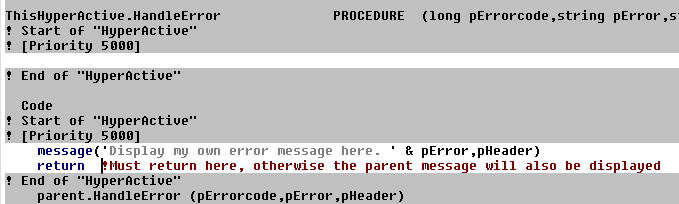
4.9. How can I customize
the "File not found" message when running an invalid URL?
Answer: You can override the HandleError method
in the derived HyperActive class. If you open the procedure (containing
the HyperActive class), in the Embeditor (Source), do a search for the
'.HandleError ' phrase (exclude quotes) and insert the following (before
the parent call):
What the Users are saying about
HyperActive
Nardus Swanevelder (in a
Clarionshop review - 20 January 2003):
Adding HyperLinks to your app has never been this easy.
Greg Fasolt (in a Clarionshop review - 20 January
2003):
A real timesaver and the support couldn't be better.
Mark Segnari (in a return email - June 12, 2002):
Long story short, it's one of the easiest templates to implement! I
had a help/about screen up and running with web access and e-mail in about
10 minutes. In another 15 minutes I had a small data entry screen finished
for a user to compose an e-mail message! Very easy, very quick, and makes
everyone perk up when you mention e-mail or internet! .... is much more
robust than I ever expected! Keep up the great work!
John Martin (in a return email - April 2, 2002):
Fantastic! Thank you, .... I have found your product to be very
reliable and easy to use. Thank you again.
Darron Pitman (in a return email - February 12, 2002):
Excellent thank you......Really looks the biz.....
James Cooke (a support email - December 26, 2001):
I enjoy this product, thanks and well done.
License & Copyright
This template is copyright © 2023 by CapeSoft
Software. None of the included files may be distributed. Your programs
which use HyperActive can be distributed without any HyperActive
royalties.
This product is provided as-is. CapeSoft Software and CapeSoft Electronics
(collectively trading as CapeSoft), their employees and dealers explicitly
accept no liability for any loss or damages which may occur from using
this package. Use of this package constitutes agreement with this license.
This package is used entirely at your own risk.
Use of this product implies your acceptance of this, along with the
recognition of the copyright stated above. In no way will CapeSoft , their
employees or affiliates be liable in any way for any damages or business
losses you may incur as a direct or indirect result of using this product.
Source Code Policy
We have chosen to ship HyperActive as source code,
rather than as a compiled DLL. This makes it much easier for you to
modify, but it also makes it much easier for you to pirate. We ask you to
please consider the effort involved in writing this product, before you
choose to hand it on to any other developers.
If you received this program illegally (i.e. if you didn't pay for it, or
you didn't buy it from CapeSoft, ClarionShop, or one of their respective
dealers) then we ask you to contact us so that we can remedy this
situation. Without the revenue generated from products such as this it is
impossible for us to create new products.
This next bit is optional - and is included for the benefit of programmers
wishing to inspect, or alter, the HyperActive object.
We welcome any suggestions from users regarding new features that might be
added to HyperActive.
Support
Version History
Download latest version
here
Version 2.34: 16 October 2023
- Fix: Hand Cursor on browses had stopped working.
Version 2.33: 23 May 2023
- Add: If an "open" fails, with "no associated app" then the RUN
method tries again in "edit" mode before giving up. (Thanks to Tony
Hotelier).
Version 2.32: 14 February 2022
- Fix: Template UI on global template, Email Options tab.
Version 2.31: 10 February 2022
- Add: Translate method to class.
Version
2.30: 16 September 2021
- Add: Support for TEXT controls to behave the same as ENTRY controls.
Version 2.29: 24 May 2021
Version 2.28: (27 March 2020)
- Update: Shortened LinkMode and DLLMode compile switch names.
Starting to encounter limits in the project system.
Version 2.27: (8 August 2019)
- Update: Removed code that checks the registry for the default
browser. Often returns the wrong answer (IE) and the alternative
approach seems more reliable.
Version 2.26: (2 August 2019)
- Update: All code that looks for HTTP should look for HTTPS as well.
- Update: Better interactions with Runscreen.
Version 2.25: (16 Oct 2018)
- Fix: Renamed sw_shownormal equate so
as not to generate warning if SVAPI.Inc
is used.
Version 2.24: (14 Sept 2018)
- Add: Clarion 11 to install.
Version 2.23: (8 Nov 2017)
- Add: Folder names can be opened in Windows Explorer by clicking on
them.
Version 2.22: (19 Jan 2017)
- Change: Moved Hyperactive init code to before AnyFont code because
Hyperactive can add styles.
Version 2.21: (13 October 2015)
- Suppress error on duplicate %NoRestrictTmpStr
Version 2.20: (25 February 2015)
- Installer support for Clarion 10
Ver 2.19: Released 24 November
2014
- Fix for FileExplorer support (missing template variables).
Ver 2.18: Released 3 November 2014
- Suppress possible "Error Redeclaration of %NormalStringAttribs"
template warning.
- Fix if runscreen is added, but disabled does not generate the
runscreen code.
Ver 2.17: Released 11 July 2014
- Minor template improvement: URL is now an expression.
Ver 2.16: Released 31 January 2014
Ver 2.15: Released 11 October 2013
- Fix: Regression caused by Runscreen support if Runscreen was not
being used.
- Fix: Improvement to getting name of cursor file added to project.
Ver 2.14: Released 7 October 2013
- Add: Support for RunScreen template
- Add: Trace method to class.
- Add WhereIsColumn and WhatIsAtColumn methods.
- Added column number to control list.
- Changed default Style number on list controls from 2 to 10.
- Refactor: removed conditional compiles for old clarion versions and
16 bit support.
- Template work-around for C9 - does not support a template function
in the #project.
Ver 2.12: Released April 30, 2013
- Changed to Ver4 object/template management system. IMPORTANT
READ
THIS.
- Add: support for Multi-Proj in C8
Ver 2.11: Released March 14, 2013
- Changed to Ver4 object/template management system. IMPORTANT
READ
THIS.
- Add: support for Multi-Proj in C8
Ver 2.10: Released January 24, 2013
- Clarion 8 support for Multi-Proj (adds the Hyper.clw file to the
compiled files).
Ver 2.09: Released August 10, 2011
- New property: ThisExeToRun. Specifies the exe to run the URL.
Ver 2.08: Released January 29, 2010
- Fix for template regression introduced in 2.07.
Ver 2.07: Released January 28, 2010
- Fix for clarion 7.1 (not displaying blue links) - template uses
%cwversion rather than %cwtemplateversion.
Ver 2.06: Released January 4, 2010
- Forces the Run method to call ShellExecute with the Open attribute.
Ver 2.05: Released January 26, 2008
- Includes the HyperActive object header file once.
Ver 2.04: Released November 24, 2008
- Tweaks for Clarion 7 support in the template.
Ver 2.03: Released November 10, 2008
- Clarion 7 compatible install.
- Change entry fields in the mail code template to EXPRs.
Ver 2.02: Released August 20, 2007
- Feature - new property. URLisNotAnEmail property allows you to force
a URL to point to an email if it does not contain the @ character.
- Feature - new property. Disable property allows HyperActive to be
disabled at runtime (locally for each instance of the class).
- Feature - Cursor is changed over the icon in the column of a list
that is HyperActive.
- Fix - link local extension template to the template chain (as well
as the Global extension template).
- Fix - make HyperActive embeds start at the first position (on the
left).
Ver 2.01: Released November 10, 2006
- Workaround - for Hyperlinks in Column 1 of a list box (when
right-clicking on a browse an accepted event is posted to the browse
with MouseUpField set to 1)
- Fix - if a Skype field is blank, then don't perform the Skype
functionality.
Ver 2.00: Released June 7, 2006
- Fix - for SkypeAddress link URL (in list box URL types).
- Fix - for spurious %EmailOrWeb template error.
Ver 1.97: Released June 7, 2006
- Feature - supports SkypeAddress link URL.
- Fix - was selecting the incorrect details for web URLs in list boxes
with multiple webURL columns.
Ver 1.96: Released October 27, 2005
- Feature - allow prop:buffer suppression in the Global Extension
template.
- Clarified docs FAQ for Outlook error.
Ver 1.95: Released July 18, 2005
- Fix regression introduced in 1.94 - was opening Internet Explorer
for all URLs.
Ver 1.94: Released July 13, 2005
- Opens a new window in Internet Explorer when the URL is activated.
Ver 1.93: Released 24 January, 2005
- Class fix - if @ exists in a webURL, then don't try and open the
mailer.
- Includes copyright include.
Ver 1.92: Released 10 December, 2004
- Template Fix - Make compatible with new FileExplorer release.
Ver 1.91: Released 27 October, 2004
- Template Change - New template look.
- Template Change - Setup global defaults correctly.
Ver 1.90: Released 7 September, 2004
- Template Change - Support for Multi-Proj (when a cursor is used)
fixed.
- Template Change - Improved legacy browse field handling.
Ver 1.89: Released 17 August, 2004
- Template Change - Procedurename display for C6 as well as C55.
- Template Fix - clipped heading to allow for Proc and Exe name to fit
into heading text.
- Template Fix - removed unrequired ALIAS to a FileExplorer template
variable.
- Class workaround - in C6 - proplist:mouseupfield was not being read
correctly.
Ver 1.88: Released 31 May, 2004
- Template Change - Added the Ability to Move the call to the
HyperActive.TakeEvent after the ThisWindow.TakeEvent.
- Template Change - Allow equates to be used for the HyperActive
cursor (not only a file).
- Template Change - Don't allow RegCheck if this is a ClarioNet or
WebBuilder application.
Ver 1.87: Released 23 April, 2004
- Object & Template change - fix for ClarioNet support (bug
introduced in 1.80 - prop:buffer in Init method).
Ver 1.86: Released 13 April, 2004
- Object & Template change - allows a different cursor to be used
(for HyperActive controls).
Ver 1.85: Released 9 March, 2004
- Object & Template change - supports the cursor in legacy list
boxes.
Ver 1.84: Released 15 January, 2004
- Object Change - removed "s from encoded emails (causing grief with
Outlook). Tested OK with OutlookExpress, Netscape and Outlook.
Ver 1.83: Released 15 December, 2003
- Object Change - Save InActive color of Entry controls for use if
control is inactive.
- Object Fix - Change UseStdAction to a long (was byte) - Event for
use was not being stored correctly.
- Object Change (New HandleError method) - Allows user control of
error messages (called instead of direct use of MESSAGE()).
- Object Change - Use OutputDebugString for debugging.
- Object Fix - Clear UseStdAction between control additions.
- Object Fix (refresh and TakeEvent methods) - Do active check on
entry controls.
- Object Fix (TakeEvent method) - select only for StdHyperlink mode
for entry controls.
- Object Fix (SetControlProperties method) - allow resetting of FONT
attributes to combo, text and entry controls (dependent on whether
they are active or not).
- Template Fix - add class file correctly to the project (Multi-DLL
apps).
Ver 1.82: Released 18 September, 2003
- Object Change - made module data properties - ensures that
HyperActive is thread safe for Clarion6.
- Object & Template Change - allows a HyperActive entry control to
behave as an Outlook hyperlinked entry control.
Ver 1.80: Released 1 September, 2003
- Object Change (AddItem) - allows Entry controls to behave as normal
HyperLinks - although this
- Object Change (Init) - set prop:buffer. This stops image flickering,
when the cursor crosses the image.
- Object Change (TakeEvent) - for List URLs - use the string returned
by GetListURL, instead of the property (ListURL - obsolete).
- Template Change - EmbedButton (on the Local Extension Template) when
making a List HyperActive, to enable you to change the URL (add or use
a different column's contents).
- Template Change - Make #at commands into groups - makes template
code more legible.
- Template Fix - ReturnValue declaration is generated correctly.
- Template Change - Generate all procedures as PROCEDUREs (instead of
the legacy FUNCTION)
- Template Change - Changed description of the GetListURL embed.
Ver 1.7i: Released 10 April, 2003
- Object Change (AddItem) - allows Entry controls to behave as normal
HyperLinks - although this can be confusing as the left click is used
to select an entry as well.
- Object & Template Change (Run) - only limits Email URLs if
required. Can detect the OS and limit based on OS.
- Object Change (ChangeColumn) - Changed parameter label from Control
to HyperControl. Was causing duplicate errors (where control is
already used).
- Template Fix - corrected FileExplorer object calls - if you get
compile errors, you need to upgrade your FileExplorer to the latest
version.
Ver 1.7g: Released 21 January, 2003
- Template change - support for Clarion6.
- Object Change - correctly prototyped 16bit windows functions.
- Object Change - used variables instead of control properties
(specifically prop:pos) for comparing mouse location. (Problem occurs
in Clarion6 and Clarion4)
Ver 1.7f: Released 2 December, 2002
- Object & Template Change - allows encoding of email subjects.
Note: Not all mailers support encoding, so this feature is (by
default) off.
Ver 1.7e: Released 18 November, 2002
- Object Change - limited email URLs to 520 chars (ShellExecute
limitation), includes the Program run command.
- Object Change - Email URL called directly with the mailto:, not the
the program name.
- Example update - includes newer features (Make Email, etc.)
Ver 1.7d: Released 14 November, 2002
- Template Change - supports Multi-Proj
- Object Change - only adds mailto: if mailto: is not in URL (for
Emails)
- Object Fix - fixed the way mail URLs were passed to their mailers.
Now supports IncrediMail and Pegasus.
- New method - FormatString (used in the Run method for retrieving the
mailer command and the mailer parameters)
- Template Change - added clipping to the email code template (if
strings are used instead of cstrings)
- Template Change - removed WinEvent option from the Cursor change
option.
Version 1.7c: Released 12 September, 2002
- Object fix - Sets HyperActive region control properties correctly.
- Object change - Setcursor() calls omitted, so only prop:cursor is
used.
- Object Change - Only Hand2.cur is used, not hand.cur as well.
- Template & Object - Included debugging tool for HyperLinks (new
method - debug)
- Template change - made template image an 8/3 filename.
- Template Change - supports c5.5f regression (%cwtemplateversion
template symbol)
Version 1.7b: Released 28 June, 2002
- Object Fix - catered for NT bug. Different method of determining if
no mailer registered.
Version 1.7a: Released 24 June, 2002
- Template & Object Fix - Before calling parent.Run, change the
string URL to prop:screentext, not prop:text (for strings that use the
screentext as the URL).
- Object Fix - Do fontcolor changes in SetControlProperties only
(fixed flickering) (Takeevent, SetcontrolProperties changed)
- Object Fix - Only set the created region's position after the
string's font properties have been set.
- Template & Object Change - Set the timer from the template (if
required) rather than from the object.
Version 1.7: Released 6 June, 2002
- Object Change - Clears Browser/Email properties if no
Browser/Mailer.
- Object Change - New property (in the ItemQ) to activate/deactivate
items in the queue.
- Object Change - Display()s refreshed item (when refresh is called
for a specific control).
- Object Change - Perform a registry check (new method - RegCheck) if
there is program to run the URL (performed in refresh if self.CheckURL
property is set) - Note: Not available for ClarioNET and WebBuilder
programs (as yet).
- Object Change - sets the style in the refresh method.
- Object Change - refreshes all controls when an event:accepted is
received on a list. (caters for Hotfields)
- Object Change - in ChangeURL, only performs URL change if the URL
has changed (optimized)
- Object Change - setcursor in the SetControlProperties method
- TPL Change - Globally set an Option to perform registry check
automatically (overrideable in the local template).
- TPL Change - Option to refresh variable hyperlinked strings in the
TakeEvent method.
- Object Change - New method - SetActive - activates/de-activates a
HyperActive control.
- TPL Change - Moved Init stuff to LAST on the AfterOpeningWindow
embed point (for MessageBox compatibility).
Version 1.6a: Released May 10, 2002
- TPL Change - Code template to simplify construction of an email
hyperlink (with subject and body)
Version 1.6: Released April 2, 2002.
- TPL Change - Allows ClarioNET support in server apps and a new
template created for ClarioNET client apps.
- TPL Change - tidied up the enabling for various product support.
Version 1.5: Released February 22, 2002.
- TPL & Object Change - Allows style changes for strings. Setable
in the Local Template with defaults in the Global Template. New
AddStrings method.
- Object Change - Fixed 'shimmering' on string controls when no mouse
cursor changes used.
- TPL Change - Removed %HandCursor error that appears when adding
template to XPlore supported apps.
Version 1.4: Released January 10, 2002.
- Object & TPL Change - Allows individual columns to turn off the
HandCursor.
- TPL change - Allows you to disable the Handcursor for the entire
procedure.
- Object Change - Allows you to change the column order of lists
(XPlore support - partially completed, does not support styles at this
stage - awaiting XPlore update) (ChangeColumn method).
- Obj & Tpl change - Colors' setting for entry and combo in tpl
and object
- Obj & Tpl change - Allows different event to trigger an entry
control's URL (new UseEvent property)
- Object Change - workaround for Netscape (v4.79)
- Object change - workaround for C4 bug- not setting strings fontcolor
initially.
- Object change - won't run Blank URLs.
- Object & TPL Change - Allows restriction by keycode for
Hyperlinks. Individual controls can have the restriction disabled.
- Object & TPL Change - moved hot field refreshing from the TPL to
the object.
- Object Change - disabled font set correctly, also if a group is
enabled, then controls within group match disabled status.
Version 1.3: Released October 18, 2001.
- Object & TPL change - supports hyperlinks in WebBuilder
(strings, buttons and icons). Buttons and icons require htm source
change of the default htm source.
- Object Change - supports Emailing in NT4 (32 bit only).
Version 1.2: Released September 19, 2001.
- Object change - supports Emailing in Win2K. Was using the run
command for emailing, now uses the ShellExecute command.
- Template Change - Added support for FileExplorer's Media Control
template.
- Object Change - supports Emailing using OutLook (from Browses).
Parameter passing is different in Outlook to Outlook Express.
- Object Change - When 'URL is Email' is off in a HyperActive Browse
and Email sent, simply passes address on to Run. This makes Emailing
from the Browse more generic.
- Object Change - Fixed a browse's associated HotField string
colouring and underlining.
- Template and Object Change - Allows you to set default colors from
your Global Extension template for your new HyperActive strings. This
will not override existing colors. You can also set the normal color
of the individual HyperActive string from the local extension
template.
Version 1.1: Released August 17, 2001.
- Template Change - 'This List has an associated string control' check
box added to the List control entry in the HyperActive Local Extension
Template. This automatically refreshes HyperActive string controls
that are HotFields to the list.
- Object Change - Fixed missed size refreshing of HyperActive created
regions when the window is resized.
Version 1.0 Gold: Released August 6, 2001.
- Template Change - Allows you to automatically set the IMM property
of a region in the template.
- Template bug fix - Allows you to disable HyperActive code from being
generated into a procedure if you check the "No HyperActive code here"
check box. Similarly for the No HyperActive Code switch in the Global
Extension Template, which prevents all HyperActive code from being
generated throughout your entire application.
Version 1.0 beta 2: Released July 16, 2001.
- Object Change - work around for Clarion Bug. MouseIn and MouseOut
events not always received (like if a window loses focus). Affects
cursor changes and string color changes.
- Template Change - Object procedure embeds changed to after procedure
routines. Solved 'routine not defined' errors when using ezHelp and
other products with local procedure routines.
- Object Change - sorts HyperControl Q before getting (in the
AddItem). Resolves Clarion4 issue where get was not finding the queue
entry - sometimes not underlining strings.
- Object Change - sorts HyperControl Q before getting (in the
TakeEvent). Resolves Clarion4 issue where get was not finding the
queue entry for running URLs (occasional).
- Doc change - FAQ added.
- Examples Updated.
Version 1.0 beta 1: Released July 10, 2001