|
 |
||
 |
|||
 www.capesoft.com |
 |
||
 |
Microsoft Word Functionality |


 Templates
| Add_MSWord_Object | ||||||||||||
|
||||||||||||
| Office Inside Spell Checking | |||
| Summary | |||
| Extension Template Requires the Add_MSWord_Object extension to have been added to the procedure. Important for Clarion 5.5 users Important for Clarion 6 users |
|||
| What does it do? | |||
| This template adds
Spell Checking support to a window. Simply add it to a window procedure
and you will be able to press F7 (or which ever key you select) and the
currently selected field will be "spell-checked". |
|||
| Prerequisites | |||
Notes:
|
|||
| How do I implement it? | |||
|
|||
|
What are my options? |
|||
|
Keycode to alert for: This is the key that Office Inside will watch for, which will invoke the Spell Checker. Typically this defaults to 'F7Key'. Include All Controls Except... Allows all controls that support spelling checking to be checked by default, except those specified Exclude All Controls Except... Does not spell check any controls, except those specified. Spell Checking Window The Windows procedeure that will be called to interact with the user. Normally this would be the oiSpellingSuggestions window imported using the ShowSpellingSuggestions utility template.
|
|||
| C55 RTF Controls | |||
For Clarion 5.5 you need to populate the 'Office Inside Spell Check for C55 RTF' control template onto your window for each RTF control. You must have added a Word object to your procedure in order to use this control template.
You can optionally specify the maximum size for the spelling checking string (this defaults to 256K), and whether or not a message should be shown to the user when spell checking is complete (defaults to on) |
|||
| Clarion RTF Controls | |||
A Checkbox has been added to the Global Extension that should be checked in order to use spell checking on a Clarion 6 RTF control. This has been added becuase in order to use spell checking on Clarion 6 RTF controls the RtfControlClass needs to have a line modified. If you have ticked this box to enable spell checking of Clarion 6 RTF controls, then open the rtfctl.inc file in your Clarion6\libsrc directory and change the lines that reads: CtlRTF SIGNED,PROTECTED to: CtlRTF SIGNED!,PROTECTED The PROTECTED attribute needs to be commented out in order to allow Office Inside to identify which control the object is associated with. |
|||
Classes
This section describes the various classes which make up "Office Inside".
Each class contains methods and properties, which are documented below.
Each method is documented by giving the method name, the parameters, an example
of how to code the method, a list describing what the method does, and additional
comments below.
 The
oiWord Class - Introduction
The
oiWord Class - Introduction
The oiWord class is a "wrapper" class, which is used by the templates
and by other classes as the "communication" layer between Office Inside
and MS Word. Should you wish to write code which communicates "directly"
with MS Word, this is the class you're looking for.| oiWord Class Methods | ||||||||||||||||||||||||||||||||||||||||||||||||||||||||||||||||||||||||||||||||||||||||||||||||||||||||||||||||||||||||||||||||||||||||||||||||||||||||||||||||||||||||||||||||||||||||||||||||||||||||||||||||||||||||||||||||||||||||||||||||||||||||||||||||||||||||||||||||||||||||||||||||||||||||||||||||||||||||||||||||||||||||||||||||||||||||||||||||||||||||||||||||||||||||||||||||||||||||||||||||||||||||||||||||||||||
|
||||||||||||||||||||||||||||||||||||||||||||||||||||||||||||||||||||||||||||||||||||||||||||||||||||||||||||||||||||||||||||||||||||||||||||||||||||||||||||||||||||||||||||||||||||||||||||||||||||||||||||||||||||||||||||||||||||||||||||||||||||||||||||||||||||||||||||||||||||||||||||||||||||||||||||||||||||||||||||||||||||||||||||||||||||||||||||||||||||||||||||||||||||||||||||||||||||||||||||||||||||||||||||||||||||||

AlignCenter
( ) ,byte,proc
|
|
AlignJustify ( ) ,byte,proc MyWord.AlignJustify () TempByte = MyWord.AlignJustify ()
|
|
AlignLeft ( ) ,byte,proc MyWord.AlignLeft () TempByte = MyWord.AlignLeft ()
|
|
AlignRight ( ) ,byte,proc MyWord.AlignRight () TempByte = MyWord.AlignRight ()
|
|
Bold
( byte pOption=oiw:BoldToggle ) ,byte,proc MyWord.Bold (oiw:BoldOn) TempByte = MyWord.Bold (oiw:BoldOn)
|
|
CentimetersToPoints ( string pCentimeters ) ,string loc:Points = MyWord.CentimetersToPoints(1.5) MyWord.Update(oiw:PageLeftMargin, MyWord.CentimetersToPoints(1.5))
|
|
CheckGrammar ( *string pText ) ,byte TempByte = MyWord.CheckGrammar (StringVar)
|
|
CheckSpelling
( string pText, byte pSilent ) ,byte,proc StringVar = 'This is spelld wrongg' TempByte = MyWord.CheckSpelling (StringVar) if MyWord.CheckSpelling (loc:Var1, false, false) = true
|

DocumentStatistics
(long statistic), long
Loads the entire contents of a file into a string. If the string passed is not
large enough the required size is returned.
Parameters
| long statistic | Indicates the statistic to be retrieved. Must be one of the
following values:
|
Return Values
The method returns -1 for failure, or the requested statistic if it succeeds.
Example
numWords		long
pExcel			class(oiExcel)
			end
  code
    numWords = pExcel.DocumentStatistics(iw:StatisticWords)
    if numWords < 0
        Message('Could not fetch the word count.')
    else
        Message('The document contains ' & numWords & ' words.')
    end
See Also
StringToFile - write the content of a string to a file on disk.
| Cut
( ) ,byte,proc MyWord.Cut() TempByte = MyWord.Cut()
|
| FindText
(string pText), long Searches the document for the passed strings and returns 1 and selects the string if found, or returns zero and does not change current selection if the string does not exist in the document. This can be called multiple times to find each instance of the string in the document (for example to make each instance of the string bold - see the example below). Parameters string pText: The string to search for in the document Return Values Returns 1 if successful and selects the string that was found, or if the string cannot be found it returns zero. Examples ! Find all instances of the
word 'Hello' and make them bold.
|
|
GetFileName
(), string Returns the full path and name of the current file. If the document has not been save, it will return the name of the document, such as 'Document1'. Parameters None Return Values Returns the full path and name of the current document on disk, for example 'C:\Documents\Personal\Accounts.doc'. If there is an error, or not document has been opened then a blank string is returned. If the current document has not been saved (and hence does not exist on disk) then the current name of the document is returned, for example: 'Document1' Examples Message('Current document file name
is: ' & myWord.GetFileName)
|
|
ErrorTrap( string pErrorString, string pFunctionName ) MyWord1.ErrorTrap
PROCEDURE (string
pErrorString, string
pFunctionName)
|
|
GetFontColor
( ) ,long TempLong = MyWord.GetFontColor()
|
|
GetFontName
( ) ,string TempString = MyWord.GetFontName()
|
|
GetFontNames
( ) ,byte,proc MyWord.GetFontNames ()
|
|
GetFontSize
( ) ,long TempLong = MyWord.GetFontSize()
|
| GetInfo
( byte pOption ) ,string,proc TempString = MyWord.GetInfo (oiw:GetUserName)
|
|
GetNameOfDictionary
( ) ,string TempString = MyWord.GetNameOfDictionary()
|
|
GetSelectionEnd ( ) ,long
TempLong = MyWord.GetSelectionEnd()
|
|
GetSelectionStart
( ) ,long TempLong = MyWord.GetSelectionStart()
|
| GetText
( byte pScope=oiw:GetText_All ) ,byte,proc if MyWord1.GetText (oiw:GetText_CurrentSelection) = true stop(MyWord1.TempCString) end
|
|
Moves the cursor to the end of the current document. Return Values Returns true (1) if no problems were experienced. Examples MyWord.GotoEndOfDoc() See Also
|
|
GotoItem
(long pItem, <long pDirection>,
<long pName>, <long pCount>),
long, proc Moves the cursor to a location within the document, based on the parameters which you pass. Can be used to navigate to a position in the document based on a line, paragraph, bookmark, character position etc. The pItem parameter is used to specify which item to go to, and the pDirection parameter specifies which one of those items to go to (the first, last etc.). You can set the pDirection to oiw:GotoAbsolute and then use the pCount parameter to specify the number of the item to go to (for example the 4th line in a document). Note: If the pItem parameter is oiw:GoToBookmark, oiw:GoToComment, oiw:GoToField, or oiw:GoToObject, this parameter specifies a name and the pName field must be passed to specify which item is referred to. Parameters long pItem: The item to go to. Can be one of the GoTo equates:
long pDirection: Specifies which items to go to, can be used in combination with the pCount parameter. For example if pDirection is set to oiw:GoToPrevious, then the count parameter can specify how many previous to go to (setting it to 4 will go to 4 items previous to the current one). May be one of the following values:
Returns Values Returns true (1) if no problems were experienced and false (0) if an error occurs. In the case of an error the ErrorTrap method will be called with a string indicating what error occurred. Examples ! Go to the last line in the
document
|
|
HideToolbar
( long pToolbar ) ,byte,proc MyWord.HideToolbar (oiw:ToolbarStandard) TempByte = MyWord.HideToolbar (oiw:ToolbarStandard)
|
|
InchesToPoints
( string pInches ) ,string loc:Points = MyWord.InchesToPoints(1.6875) MyWord.Update(oiw:PageLeftMargin, MyWord.InchesToPoints(1.6875))
|
|
Init
( byte StartVisible=1, byte EnableEvents=1 ) ,byte,proc MyWord.Init() TempByte = MyWord.Init()
|
|
InsertBreak
( long pBreakType=oiw:PageBreak ) ,byte,proc MyWord.InsertBreak () MyWord.InsertBreak (oiw:PageBreak) MyWord.InsertBreak (oiw:TextWrappingBreak)
|
|
InsertPicture
( string FileName ) ,byte,proc MyWord.InsertPicture ('c:\mypic.bmp') TempByte = MyWord.InsertPicture ('c:\mypic.bmp')
|
|
InsertTable
( long NumColumns, long NumRows ) ,long,proc MyWord.InsertTable (6, 3) TempByte = MyWord.InsertTable (6, 3)
|
|
InsertText
( string pText, byte pOption=0 ) ,byte,proc or
( *cstring pText, byte pOption=0 ) ,byte,proc MyWord.InsertText ('Hello World') TempByte = MyWord.InsertText ('Hello World')
|
InsertTextbox ( string pText ) ,byte,proc Inserts a textbox into the current document. A Word textbox can be used to create complex layouts, and position blocks of text anywhere on the document. Before calling this method, you need to set up several properties, as shown in the example code above. This lets you set up exactly how the TextBox will be drawn when you finally call the InsertTextbox method. The self.Textbox.TextOrientation property
can be set to any equate listed here.
Return Values Returns true (1) if no problems were experienced. Example: MyWord.Textbox.BoxAlignment = oiw:ShapeCenter
|
| Italic
( byte pOption ) ,byte,proc MyWord.Italic (oiw:ItalicToggle) TempByte = MyWord.Italic (oiw:ItalicToggle)
|
| Kill
( byte UnloadCOM=1 ) ,byte,proc MyWord.Kill() TempByte = MyWord.Kill()
|
|
LinesToPoints ( string pLines ) ,string loc:Points = MyWord.LinesToPoints(5) MyWord.Update(oiw:PageLeftMargin, MyWord.LinesToPoints(5))
|
|
MailMergeGetRecord
( byte pOption=0 ) ,byte,proc MyWord.MailMergeGetRecord ()
|
|
MailMergeRun
( ) ,byte,proc MyWord.MailMergeRun() TempByte = MyWord.MailMergeRun()
|
| MailMergeSetDataSource
( string DataSourceName, string ConnectionString, string SQLStatement
) ,byte,proc MyWord.MailMergeSetDataSource ( (longpath() & '\Addresses.mdb'), 'TABLE Office_Address_List', 'SELECT * FROM [Office_Address_List]' )
|
|
MillimetersToPoints ( string pMillimeters ) ,string loc:Points = MyWord.MillimetersToPoints(10) MyWord.Update(oiw:PageLeftMargin, MyWord.MillimetersToPoints(1.10))
|
| MoveDown
( byte pUnit=oiw:UnitLine, long pCount=1, byte pExtend=oiw:Move
) ,byte,proc MyWord.MoveDown() ! move down one line
|
| MoveLeft
( byte pUnit=oiw:UnitCharacter, long pCount=1, byte pExtend=oiw:Move
) ,byte,proc MyWord.MoveLeft() ! move left one character
|
|
MoveRight
( byte pUnit=oiw:UnitCharacter, long pCount=1, byte pExtend=oiw:Move
) ,byte,proc MyWord.MoveRight() ! move right one character
|
| MoveUp
( byte pUnit=oiw:UnitLine, long pCount=1, byte pExtend=oiw:Move
) ,byte,proc MyWord.MoveUp() ! move up one line
|
| NewDoc
( <string TemplateName> ) ,byte,proc MyWord.NewDoc() TempByte = MyWord.NewDoc() MyWord.NewDoc ('MyTemplate.dot') ! assumes system default template directory MyWord.NewDoc (longpath() & '/templates/MyTemplate.dot')
|
| NextLine
( ) ,byte,proc MyWord.NextLine() TempByte = MyWord.NextLine()
|
| OpenDoc
( string pFileName, byte pReadOnly=false, byte pAddToRecentFiles=false,
<string pPassword> ) ,byte,proc MyWord.OpenDoc('c:\test.doc') TempByte = MyWord.OpenDoc('c:\test.doc')
|
||||||||||||||||||||||||||||||||||||||||||||||||||||||||||||||||||||||||||||||||||||
|
OpenFooter
( ) ,byte,proc MyWord.OpenFooter()
|
||||||||||||||||||||||||||||||||||||||||||||||||||||||||||||||||||||||||||||||||||||
|
OpenHeader
( ) ,byte,proc MyWord.OpenHeader()
|
||||||||||||||||||||||||||||||||||||||||||||||||||||||||||||||||||||||||||||||||||||
|
PageSetup
(string pSetting, string pValue) ,byte,proc Allows the Page Setup attributes to be set for the current document (such as left margin, bottom margin, and paper size). Sizes are passed in points unless otherwise specified (see the notes below for the methods provided to convert units). For values than can be either True or False oi:True (-1) or oi:False(0) must be passed. Passing Clarion style Boolean values will result in incorrect behaviour. Parameters string pSetting A string specifying the settings to modify. Can be one of the following values:
string pValue The value to set the passed setting to. See the Settings descriptions above for valid values for each setting.
Returns True (1) if successful, or False (0) for failure. The ErrorTrap method will be called with error information in the event of a failure. Notes Important: For values than can be either True or False, oi:True (-1) or oi:False (0)must be passed. Word uses Points to specify sizes, and OfficeInside provides methods to convert various units to points (and vice versa). See:
|
||||||||||||||||||||||||||||||||||||||||||||||||||||||||||||||||||||||||||||||||||||
| Paste
( ) ,byte,proc MyWord.Paste() TempByte = MyWord.Paste()
|
||||||||||||||||||||||||||||||||||||||||||||||||||||||||||||||||||||||||||||||||||||
|
PicasToPoints ( string pPicas ) ,string loc:Points = MyWord.PicasToPoints(8) MyWord.Update(oiw:PageLeftMargin, MyWord.PicasToPoints(8))
|
||||||||||||||||||||||||||||||||||||||||||||||||||||||||||||||||||||||||||||||||||||
|
PixelsToPoints ( string pPixels, byte pVertical=false ) ,string loc:Points = MyWord.PixelsToPoints(15) MyWord.Update(oiw:PageLeftMargin, MyWord.PixelsToPoints(15))
|
||||||||||||||||||||||||||||||||||||||||||||||||||||||||||||||||||||||||||||||||||||
|
PointsToCentimeters
( string pPoints ) ,string loc:Points = MyWord.PointsToCentimeters(6) MyWord.Update(oiw:PageLeftMargin, MyWord.PointsToCentimeters(6))
|
||||||||||||||||||||||||||||||||||||||||||||||||||||||||||||||||||||||||||||||||||||
|
PointsToInches
( string pPoints ) ,string loc:Points = MyWord.PointsToInches(14) MyWord.Update(oiw:PageLeftMargin, MyWord.PointsToInches(14))
|
||||||||||||||||||||||||||||||||||||||||||||||||||||||||||||||||||||||||||||||||||||
|
PointsToLines
( string pPoints ) ,string loc:Points = MyWord.PointsToLines(8) MyWord.Update(oiw:PageLeftMargin, MyWord.PointsToLines(8))
|
||||||||||||||||||||||||||||||||||||||||||||||||||||||||||||||||||||||||||||||||||||
|
PointsToMillimeters
( string pPoints ) ,string loc:Points = MyWord.PointsToMillimeters(14) MyWord.Update(oiw:PageLeftMargin, MyWord.PointsToMillimeters(14))
|
||||||||||||||||||||||||||||||||||||||||||||||||||||||||||||||||||||||||||||||||||||
|
PointsToPicas
( string pPoints ) ,string loc:Points = MyWord.PointsToPicas(12) MyWord.Update(oiw:PageLeftMargin, MyWord.PointsToPicas(12))
|
||||||||||||||||||||||||||||||||||||||||||||||||||||||||||||||||||||||||||||||||||||
|
PointsToPixels ( string pPoints, pVertical=false ) ,string loc:Points = MyWord.PointsToPixels(13) MyWord.Update(oiw:PageLeftMargin, MyWord.PointsToPixels(13))
|
|
PrintDialog
( ) ,byte,proc MyWord.PrintDialog() TempByte = MyWord.PrintDialog()
|
|||||||||||||||||||||||||||||||||||||||||||||||||||||||||||||||||||||
|
PrintMe (<string pPages>, byte pRange=oiw:PrintAllDocument, long pCopies=1, byte pPageType=oiw:PrintAllPages, byte pBackground=false, <string pPrinterName>) ,byte,proc Prints the currently loaded document. This method has been replaced by the PrintOut(), which expands the supported options and is currently in Beta (see below). Parameters
Notes In order for the pPages parameter to work, pRange
needs to be oiw:PrintRangeOfPages.
If you pass a value in pPages, and also pass anything other than
oiw:PrintRangeOfPages
in pRange, we will simply ignore what you pass in pRange.
We do this so that the following code will work, even though
pRange is going to default to oiw:PrintAllDocument, which wouldn't ordinarily work: If you're wanting to print a document to a printer other than the system default printer, the "safest" way to do this seems to be it is done in the "Two Printers" example. Notes can be found in that example. Examples TempByte = MyWord.PrintMe ()
|
|||||||||||||||||||||||||||||||||||||||||||||||||||||||||||||||||||||
|
PrintOut (*oiwPrintProperties printSettings, string printerName) The PrintOut method expand on the simple PrintMe() method and exposes all the properties supports by Word. The oiwPrintProperties group type is provided to allow the setting to be easily set and passed. Parameters *oiwPrintProperties printSettings A oiwPrintProperties group that contains the settings to be used for printing. See below for a description of the group type and fields. This is a TYPE'd group and can be used to create your own PrintSettings groups as follows: myPrintSettings
group(oiwPrintProperties) string printName The name of the printer to use for printing. See the PrintOut example, which uses the oiUtil class to enumerate all printers on the system. Return Values Returns 1 for success and zero if the COM interface encountered an error. Data Types
|
|||||||||||||||||||||||||||||||||||||||||||||||||||||||||||||||||||||
|
PrintPreview
( ) ,byte or ( byte pOption ) ,byte,proc
TempByte = MyWord.PrintPreview () ( TempByte will be 1 if on, 0 if not ) MyWord.PrintPreview (1) ! turn print preview on MyWord.PrintPreview (0) ! turn print preview off MyWord.PrintPreview (2) ! toggle print preview TempByte = MyWord.PrintPreview (1) ! turn print preview on ! TempByte will return 1 if passed, 0 if an error occurred
|
|||||||||||||||||||||||||||||||||||||||||||||||||||||||||||||||||||||
| Protect (long
protectionType, string pPassword),
long Enables document protection. This limits what changes may be made to the document unless document protection is turned off. If a password is specified then that password must be used to turn document protection off. Once you enabled document protection the same limits that apply to the end user also apply to other methods called. For example if you enabled document protection and set the document to Read Only, you will not be able to modify the document by calling any of the oiWord methods until oiWord.Unprotect is called to remove the protection. Parameters long protectionType: Type of protection to enabled. Can be one of the following values:
string pPassword: The password used to protect the document. This password will be needed to remove the protection. A blank string may be specified, which means that the protection can be removed without setting any password. Return Values Returns 1 for success and zero for failure. Examples MyWord1.Protect(oiw:AllowOnlyComments,
'capesoft')
|
|||||||||||||||||||||||||||||||||||||||||||||||||||||||||||||||||||||
|
Redo ( ) ,byte,proc MyWord.Redo() TempByte = MyWord.Redo()
|
|||||||||||||||||||||||||||||||||||||||||||||||||||||||||||||||||||||
ReplaceText (string pFindText, string pReplaceText, byte pReplaceAll=false), byte, proc Search and replace method, locates a string in the document and replaces it with the specified string. This method searches the currently loaded document for the text you pass as the pFindText parameter, and then replaces that text with the text which you pass as the pReplaceText parameter. The pReplaceAll parameter determines whether the first instance the word / text is replace, or whether all instances are replaced. Important: Word limits the size of the strings being replaced and the replacement text to 256 characters. There are two ways of replacing strings larger than 256 characters:
Note: Replacement text inherits the formatting of the text it replaces in the document. For example, if you replace the string "abc" with "xyz," occurrences of "abc" with bold formatting are replaced with the string "xyz" with bold formatting. This also applies to case, in that if you replace "acb" with "xyz" you will get "xyz", but if you replace "ABC" with "xyz" you will in fact get "XYZ". This is actually pretty useful once you understand how it works, in that you can lay out the same search string in a document, multiple times, and each string can have its own formatting (case, bold, underlined etc) which is preserved when you replace. Parameters string pFindText: The text to find in the document. This will be replace by the pReplaceText string if it is found. string pReplaceText: The text to replace the pFindText string with byte pReplaceAll: An optional parameter specifying that all instances of the pFindText string in the document should be replaced by the pReplaceTextString. The default is false (only replace the first occurrence). Setting this to true (1) will replace all occurrences.
Return Values Returns true (1) if no problems were experienced (Note: A return value of true does not indicate that any text was actually replaced. In other words, if the text you are searching for is not found, the method can still return true). Examples MyWord1.ReplaceText('Cape', 'Soft')
! replace
"Cape" with "Soft"
|
|||||||||||||||||||||||||||||||||||||||||||||||||||||||||||||||||||||
|
RestoreSnapShotOfWindowPos
( ) ,byte,proc MyWord.RestoreSnapShotOfWindowPos ()
|
|||||||||||||||||||||||||||||||||||||||||||||||||||||||||||||||||||||
| Save
( ) ,byte,proc MyWord.Save() TempByte = MyWord.Save()
|
|||||||||||||||||||||||||||||||||||||||||||||||||||||||||||||||||||||
| SaveAs
( <string pFileName>, long pFileFormat=oiw:SaveFormatDocumentDefault, <string
pOpenPassword>, <string pEditPassword> ) ,byte,proc Saves the current document. If the FileName parameter is passed as an empty string (''), or is omitted, then a normal Save will be done. The pFileFormat parameter can be one of the values (equates) listed below. Important:
Parameters pFileName The name and path of the file to open. If no path is specified, then OfficeInside will prefix the file name with the current application path. pFileFormat Word 2007 and later changes the meaning of a number of equates. In these cases the new version of the equate is show in bold below and highlighted oiw:FormatDocument equate(0) ! Microsoft Office Word format. oiw:FormatDocument97 equate(0) ! Microsoft Word 97 document format. oiw:FormatTemplate equate(1) ! Word template format. oiw:FormatTemplate97 equate(1) ! Word 97 template format. oiw:FormatText equate(2) ! Microsoft Windows text format. oiw:FormatTextLineBreaks equate(3) ! Windows text format with line breaks preserved. oiw:FormatDOSText equate(4) ! Microsoft DOS text format. oiw:FormatDOSTextLineBreaks equate(5) ! Microsoft DOS text with line breaks preserved. oiw:FormatRTF equate(6) ! Rich text format (RTF). oiw:FormatEncodedText equate(7) ! Encoded text format. oiw:FormatUnicodeText equate(7) ! Unicode text format. oiw:FormatHTML equate(8) ! Standard HTML format. oiw:FormatWebArchive equate(9) ! Web archive format. Available in Word 2007 and later oiw:FormatFilteredHTML equate(10) ! Filtered HTML format. oiw:FormatXML equate(11) ! Extensible Markup Language (XML) format. oiw:FormatDocumentDefault equate(16) ! Default document(.docx for Word 2007 and up) oiw:FormatPDF equate(17) ! PDF format. oiw:FormatXMLDocument equate(12) ! XML document format. oiw:FormatXMLDocumentMacroEnabled equate(13) ! XML document format with macros enabled. oiw:FormatXMLTemplate equate(14) ! XML template format. oiw:FormatXMLTemplateMacroEnabled equate(15) ! XML template format with macros enabled. oiw:FormatXPS equate(18) ! XPS format. pOpenPassword Optional parameter that specifies a password to be used to protect the document. If this is passed, then the document will required this password in order to be opened. Can be used in conjunction with the pEditPassword parameter. pEditPassword Optional parameter that specifies a password that allows the document to be edited. If this is specified then the document can still be opened without the password, however changes cannot be saved to the same document (SaveAs can still be used to save to the a new document, but the original file is treated as Read-Only). Can be used in conjunction with the pOpenPassword parameter.
Return Value Returns true (1) if no problems were experienced, and false (0) if an error occurs. In the event of an error occuring the ErrorTrap() method is called with additional information. Examples 1. Use the default format, add default extension automatically In the current app path.
if WordDoc.SaveAs('mydocument')
2. Get the version of Office installed, and pick a file name and extension based on the version. Functionally identical to the approach in example 1.
officeVersion = WordDoc.GetOfficeVersion()
2. Identical to calling Save(). Prompts the user for a file name if the file has not been saved already.
if not WordDoc.SaveAs()
3. Save with a password required to open the file
WordDoc.SaveAs(LongPath() & '\PasswordedDoc', oiw:FormatDocumentDefault, 'openpassword')
4. Save with a password required to open the file, and a password to edit the document
WordDoc.SaveAs(LongPath() & '\PasswordedDoc', oiw:FormatDocumentDefault, 'openpassword', 'editpassword')
|
|||||||||||||||||||||||||||||||||||||||||||||||||||||||||||||||||||||
|
Redraws the screen. This method is useful when screen updating (redrawing) has been turned off using the SetScreenUpdating() method. Turn screen updating off can provide a small performance improvement for batch inserts etc. It is only recommended in cases where the user does not have to see or interact with the document. The same method can be used with the oiExcel object to slightly improve performance. For Excel, a large performance increase can be achieved when doing bulk updates by using the SetCalculations method. Note: There have been some reports of this causing problems with documents that the user opens while this setting is enabled. Considering how small the performance benefit of this option is we suggest using it with caution and ensuring that RefreshScreen() is called periodically and that screen updating is re-enabled once your are done. Parameters none. Return Value Returns 1 if the function succeeds, and zero for failure. If the function fails the ErrorTrap() method is called with information relating to the error. Examples ! Turn off screen updating
|
|||||||||||||||||||||||||||||||||||||||||||||||||||||||||||||||||||||
|
SetBackground
( long pColor=0, <string pFileName> ) ,byte,proc MyWord.SetBackground ( ) ! no fill MyWord.SetBackground (color:yellow) ! fill color MyWord.SetBackground ( , 'c:\images\logo.jpg') ! fill image
|
|||||||||||||||||||||||||||||||||||||||||||||||||||||||||||||||||||||
|
SetFontColor ( long FontColor ) ,byte,proc MyWord.SetFontColor (COLOR:Green) TempByte = MyWord.SetFontColor (COLOR:Green)
|
|||||||||||||||||||||||||||||||||||||||||||||||||||||||||||||||||||||
|
SetFontName
( string FontName ) ,byte,proc MyWord.SetFontName ('Arial') TempByte = MyWord.SetFontName ('Arial')
|
|||||||||||||||||||||||||||||||||||||||||||||||||||||||||||||||||||||
|
SetFontSize
( long FontSize ) ,byte,proc MyWord.SetFontSize(14) TempByte = MyWord.SetFontSize(18)
|
|||||||||||||||||||||||||||||||||||||||||||||||||||||||||||||||||||||
|
SetPageView
( byte pPageView ) ,byte,proc MyWord.SetPageView (oiw:NormalView) TempByte = MyWord.SetPageView (oiw:NormalView)
|
|||||||||||||||||||||||||||||||||||||||||||||||||||||||||||||||||||||
|
SetParagraphFormatting ( long pOption, string pValue, <string pValue2> ) ,byte,proc MyWord.SetParagraphFormatting (oiw:SpacingBefore, 30) MyWord.SetParagraphFormatting (oiw:LeftIndentation, MyWord1.CentimetersToPoints(2)) MyWord.SetParagraphFormatting (oiw:LineSpacing, oiw:LineSpaceSingle) MyWord.SetParagraphFormatting (oiw:LineSpacing, oiw:LineSpaceExactly, 18)
|
|||||||||||||||||||||||||||||||||||||||||||||||||||||||||||||||||||||
SetScreenUpdating (long updateScreen) This method allows screen updating (redrawing) to be turned off and on. Turn screen udpdating off can provide a small performance improvement for batch inserts etc. It is only recommended in cases where the user does not have to see or interact with the document. The same method can be used with the oiExcel object to slightly improve performance. For Excel, a large performance increase can be achieved when doing bulk updates by using the SetCalculations method. Parameters long updateScreen: Set this to 1(true) to turn screen updating on, and to zero (false) to turn screen updating off. Return Value Returns 1 if the function succeeds, and zero for failure. If the function fails the ErrorTrap() method is called with information relating to the error. Examples WordDoc.SetScreenUpdating(false)
|
|||||||||||||||||||||||||||||||||||||||||||||||||||||||||||||||||||||
|
SetSelection
( long pSelectionStart=0, long pSelectionEnd=0 ) ,byte,proc MyWord.SetSelection () ! select everything MyWord.SetSelection (10, 30) ! select from pos 10 to pos 30
OR:
|
|||||||||||||||||||||||||||||||||||||||||||||||||||||||||||||||||||||
|
ShowMessage ( string _pText, string _pCaption, string _pIcon, long _pID ) There are times when it is helpful if Office Inside
displays a message, such as if an Office Application cannot be loaded or
a document which you try to open does not actually exist, or so on.
Because we know how frustrating it can be to have 3rdParty tools
displaying messages in your applications Office Inside has this method,
called ShowMessage. The way it works is as follows: If Office Inside needs to show a
message we call this method, rather than calling the Clarion
Message() or
Stop() function directly. Inside this
method (in our DLL) we call the Clarion
Message function. MyWord1.ShowMessage PROCEDURE (string
_pText, string _pCaption, string _pIcon, long _pID) Notes Every time Office Inside wants to show a message it will call this method, setting _pID to one of the equates listed here. In the code above my "custom" code (shown in red) tweaks which messages I actually allow Office Inside, and which I don't. If the message was to warn that MS Word could not be started (_pID = oiw:Msg_Error_StartingWord), then I do nothing, so Office Inside will show it's message as per default. If the message is to tell the user that the Spell Check is now complete and there were no problems, I've changed the default behavior by showing my own message here, then returning before the parent call so that Office Inside's message does not also show. If the message was to warn that an error occurred during the Spell Check, I have decided that the user should not see that message and simply return before the parent call, so no message will be shown whatsoever. If you are happy to let Office Inside show any messages (we are obviously careful about what messages we show) then there is no need to put any code into this embed point yourself. To change the icon shown in the Office Inside messages use the oi_ChangeDefaultShowMessageIcon funciton.
|
|||||||||||||||||||||||||||||||||||||||||||||||||||||||||||||||||||||
|
ShowToolbar
(
long pToolbar ) ,byte,proc MyWord.ShowToolbar (oiw:ToolbarStandard) TempByte = MyWord.ShowToolbar (oiw:ToolbarStandard)
|
|||||||||||||||||||||||||||||||||||||||||||||||||||||||||||||||||||||
SetPrinter(string printerName) Sets the printer for the current Word document. Also turns off the display of print dialogs by calling the SetAlerts method automatically. This functionality is provide by the PrintOut method, so it not typically called directly. Parameters string printerName The name of the printer. See the PrintOut example application for an example of listing the installed printers. Return Values Returns true for success and false for failure. Examples oiWord.SetPrinter(printerName) See Also
|
|||||||||||||||||||||||||||||||||||||||||||||||||||||||||||||||||||||
|
Sets the alert level (whether Word displays dialogues). Called automatically when PrintOut is used to allow automation of printing. Parameters string alertLevel Can be one of the following levels: oiw:AlertsNone(0), oiw:AlertsMessageBox(-2), or oiw:AlertsAll(-1). Return Values Returns true for success and false for failure. Examples oiWord.SetAlerts(oiw:AlertsNone)
|
|||||||||||||||||||||||||||||||||||||||||||||||||||||||||||||||||||||
|
Refreshes the screen when screen updating has been turned off using the SetScreenUpdating method. Turning off screen updating when the window is hidden or when doing bulk inserts can improve performance by a small amount. Not that you need to call SetScreenUpdating to turn updating back on before calling ScreenRefresh() to refresh the display. Parameters None Return Values None Examples
oiWord.SetScreenUpdating(true) See Also
|
|||||||||||||||||||||||||||||||||||||||||||||||||||||||||||||||||||||
SpellCheckString (*string checkText, long silent=1, long htmlText=0), long, proc Note that the template provides spell checking, and these methods are the underlying code that is used. If you use the provided spell checking templates you do not need to implemented these methods yourself. Spell checks the passed string (checkText) and allows the user to correct the spelling, while providing suggestions (much like Word, Outlook Express etc. would). Office Inside provides a Utility Template to add a Spell Checking window to your application. This procedure (oiShowSpellingSuggestions) provides a user interface for spell checking. For each word that may be misspelled this procedure calls the SpellWord procedure, which is generated into the procedure that you have added spell checking to. You should call your oiShowSpellingSuggestions from the SpellWord procedure (copy the bold line below to before the parent call): oiWord.SpellWord
Procedure (string pWord, *oiwWordsQ WordsQ, *long pCommand) If you are using the Spell Checking template this can be done automatically by the template. Parameters *string checkText: The string to spell check. There should be sufficient room in this string for any corrections (the corrected text may be longer than the passed text). long silent: Determines if the procedure displays a "Spell Checking Done" message box when spell checking of the string is complete. The default value is 1, which would not display a message, set this to zero in order to display the message. long htmlText: Indicates that the passed text comes from HTML and may contain HTML escape codes (such as ) and URL encoded characters (such as %A1). You cannot pass HTML to this method, you should pass HTML to the SpellCheckHTML method, this setting is only for specific characters that occur in HTML. The default value is zero. This setting would not typically be used unless you are replacing the SpellCheckHtml method with a version of your own and are passing the text portions of the HTML, excluding any tags etc., to this method. Return Value The function returns 1 for success or zero if an error occurred. Example case
Choice(?SheetMailEdit) See Also
|
SpellCheckHtml (*string checkHtml, long silent=1) Note that the template provides spell checking, and these methods are the underlying code that is used. If you use the provided spell checking templates you do not need to implemented these methods yourself. Spell checks the passed string (checkHtml) and allows the user to correct the spelling, while providing suggestions (much like Word, Outlook Express etc. would). This function is identical to the SpellCheckString, except that it handles HTML content in the string. HTML tags, JavaScript, HTML escape codes and URL encoded characters are all ignored. This method provides spell checking support for File Explorer. Office Inside provides a Utility Template to add a Spell Checking window to your application. This procedure (oiShowSpellingSuggestions) provides a user interface for spell checking. For each word that may be misspelled this procedure calls the SpellWord procedure, which is generated into the procedure that you have added spell checking to. You should call your oiShowSpellingSuggestions from the SpellWord procedure (copy the bold line below to before the parent call): oiWord.SpellWord PROCEDURE (string pWord, *oiwWordsQ WordsQ, *long pCommand) If you are using the Spell Checking template this can be done automatically by the template. Parameters *string checkHtml: The string to spell check. There should be sufficient room in this string for any corrections (the corrected text may be longer than the passed text). This string contains the contents of an HTML file. For checking text rather than HTML call the SpellCheckString method. long silent: Determines if the procedure displays a "Spell Checking Done" message box when spell checking of the string is complete. The default value is 1, which would not display a message, set this to zero in order to display the message.
Return Value The function returns 1 for success or zero if an error occurred. Example case Choice(?SheetMailEdit)
See Also
|
SpellWord (string pWord, *oiwWordsQ WordsQ, *long pCommand) This virtual method is called for each word that may be incorrect when CheckSpelling is called. This method provides a place for embed code to be added to display a spell checking user interface. If you are using the Spell Checking template this can be done automatically by the template. oiWord.SpellWord PROCEDURE (string pWord, *oiwWordsQ WordsQ, *long pCommand) We recommend using the oiShowSpellingSuggests method that the templates provide and modifying it according to your specific needs. Parameters *string pWord: The word being spell checking that may be incorerct oiwWordsQ WordsQ: A list of spelling suggests that Word has made to replace the current word
Return Value The action that is to be performed, which can be one of the following values: oiw:Replace (0) Example oiWord.SpellWord PROCEDURE (string pWord, *oiwWordsQ WordsQ, *long pCommand) See Also SpellCheckString, SpellCheckHtml
|
TableAutoFormat (long tableNumber, long tableStyle), long Formats the specified table using one of the styles provided by Word. These styles apply formatting to both the table and table contents. When new columns and rows are added the automatic formatting may not be applied to them, in which case the TableUpdateAutoFormatting method may be called to apply the same formatting to any new rows and columns. Parameters long tableNumber: The number of the table to format. Word numbers the first table in the document as 1, and each successive table increments that table number. Note that the tables are numbered in the order that they occur in, not in the order that they were added to the table, so if you have two tables and insert a new one between them the last table is numbered 3, rather than 2. long tableStyle: An equate that specifies one of the build-in styles provided by Word. May be one of the following values:
Return Values Returns 1 if successful and zero if it fails. In case of an error the ErrorTrap method will be called with the error description. Examples oiWord.TableAutoFormat(1, oiw:TableFormatProfessional) See Also
|
|
ShowToolbar
( long pToolbar ) ,byte,proc MyWord.ShowToolbar (oiw:ToolbarStandard) TempByte = MyWord.ShowToolbar (oiw:ToolbarStandard)
|
|
TableCountColumns
( long TableNumber=1 ) ,long TempLong = MyWord.TableCountColumns () ! Table 1 TempLong = MyWord.TableCountColumns (3) ! Table 3
|
|
TableCountRows
( long TableNumber=1 ) ,long TempLong = MyWord.TableCountRows () ! Table 1 TempLong = MyWord.TableCountRows (3) ! Table 3
|
| TableGetCellBackgroundColor
( long TableNumber=1, long ColumnNumber, long RowNumber ) ,long
TempLong = MyWord.TableGetCellBackgroundColor (1, 3, 4) ! table 1, cell C4
|
| TableGetCellForegroundColor
( long TableNumber=1, long ColumnNumber, long RowNumber ) ,long
TempLong = MyWord.TableGetCellForegroundColor (1, 3, 4) ! table 1, cell C4
|
|
TableGetCellTexture
( long TableNumber=1, long ColumnNumber, long RowNumber ) ,long
TempLong = MyWord.TableGetCellTexture (1, 3, 4) ! table 1, cell C4
|
|
TableGetColumnWidth
( long TableNumber=1, long ColumnNumber ) ,long TempLong = MyWord.TableGetColumnWidth (1, 3) ! table1, column3
|
|
TableGetInsideBordersLineStyle
( long TableNumber=1 ) ,byte TempByte = MyWord.TableGetInsideBordersLineStyle (3) ! table 3
|
|
TableGetOutsideBordersLineStyle
( long TableNumber=1 ) ,byte TempByte = MyWord.TableGetOutsideBordersLineStyle (3) ! table 3
|
|
TableInsertRowAtEnd
( long TableNumber=1 ) ,byte,proc MyWord.TableInsertRowAtEnd () ! table 1 TempByte = MyWord.TableInsertRowAtEnd (3) ! table 3
|
|
TableMergeSelectedCells ( ) ,byte,proc
! Merge cells B2 and C2 if MyWord.SetSelection (1, 2, 2) ! select cell B2 in table 1 MyWord.MoveRight (oiw:UnitCharacter, 1, oiw:Extend) ! select the cell to the right also (C2) MyWord.TableMergeSelectedCells() ! merge the two cells MyWord.SetSelection (1, 1, 1) ! deselect (select A1) end
|
|
TableSetCellAlignCenter
( long TableNumber=1, long ColumnNumber, long RowNumber ) ,byte,proc
MyWord.TableSetCellAlignCenter (1, 3, 4) TempByte = MyWord.TableSetCellAlignCenter (1, 3, 4)
|
|
TableSetCellAlignJustify
( long TableNumber=1, long ColumnNumber, long RowNumber ) ,byte,proc
MyWord.TableSetCellAlignJustify (1, 3, 4) TempByte = MyWord.TableSetCellAlignJustift (1, 3, 4)
|
|
TableSetCellAlignLeft
( long TableNumber=1, long ColumnNumber, long RowNumber ) ,byte,proc
MyWord.TableSetCellAlignLeft (1, 3, 4) TempByte = MyWord.TableSetCellAlignLeft (1, 3, 4)
|
|
TableSetCellAlignRight
( long TableNumber=1, long ColumnNumber, long RowNumber ) ,byte,proc
MyWord.TableSetCellAlignRight (1, 3, 4) TempByte = MyWord.TableSetCellAlignRight (1, 3, 4)
|
|
TableSetCellBackgroundColor
( long TableNumber=1, long ColumnNumber, long RowNumber, long pColor
) ,byte,proc MyWord.TableSetCellBackgroundColor (1, 3, 4, color:red) TempByte = MyWord.TableSetCellBackgroundColor (1, 3, 4, color:red)
|
|
TableSetCellBold
( long TableNumber=1, long ColumnNumber, long RowNumber, byte pBold=255
) ,byte,proc MyWord.TableSetCellBold (1, 3, 4, oiw:BoldOn) TempByte = MyWord.TableSetCellBold (1, 3, 4, oiw:BoldOn)
|
|
TableSetCellFontColor
( long TableNumber=1, long ColumnNumber, long RowNumber, long FontColor
) ,byte,proc MyWord.TableSetCellFontColor (1, 3, 4, color:Green) TempByte = MyWord.TableSetCellFontColor (1, 3, 4, color:Green)
|
|
TableSetCellFontName
( long TableNumber=1, long ColumnNumber, long RowNumber, string FontName
) ,byte,proc MyWord.TableSetCellFontName (1, 3, 4, 'Arial') TempByte = MyWord.TableSetCellFontName (1, 3, 4, 'Arial')
|
|
TableSetCellFontSize
( long TableNumber=1, long ColumnNumber, long RowNumber, long FontSize
) ,byte,proc MyWord.TableSetCellFontSize (1, 3, 4, 12) TempByte = MyWord.TableSetCellFontSize (1, 3, 4, 12)
|
|
TableSetCellForegroundColor
( long TableNumber=1, long ColumnNumber, long RowNumber, long pColor
) ,byte,proc MyWord.TableSetCellForegroundColor (1, 3, 4, color:red) TempByte = MyWord.TableSetCellForegroundColor (1, 3, 4, color:red)
|
|
TableSetCellItalic
( long TableNumber=1, long ColumnNumber, long RowNumber, byte pItalic=255
) ,byte,proc MyWord.TableSetCellItalic (1, 3, 4, oiw:ItalicOn) TempByte = MyWord.TableSetCellItalic (1, 3, 4, oiw:ItalicOn)
|
|
TableSetCellTexture
( long TableNumber=1, long ColumnNumber, long RowNumber, long pTexture
) ,byte,proc MyWord.TableSetCellTexture (1, 3, 4, oiw:TextureCross) TempByte = MyWord.TableSetCellTexture (1, 3, 4, oiw:TextureCross)
|
|
TableSetCellUnderline
( long TableNumber=1, long ColumnNumber, long RowNumber, byte LineStyle=255
) ,byte,proc MyWord.TableSetCellUnderline (1, 3, 4, oiw:UnderlineSingle) TempByte = MyWord.TableSetCellUnderline (1, 3, 4, oiw:UnderlineSingle)
|
|
TableSetColumnWidth
( long TableNumber=1, long ColumnNumber, long ColumnWidth ) ,byte,proc
MyWord.TableSetColumnWidth (1, 3, 40) TempByte = MyWord.TableSetColumnWidth (1, 3, 40)
|
|
TableSetInsideBordersLineStyle
( long TableNumber=1, byte LineStyle ) ,byte,proc MyWord.TableSetInsideBordersLineStyle (1, oiw:LineStyleDouble) TempByte = MyWord.TableSetInsideBordersLineStyle (1, oiw:LineStyleDouble)
|
TableUpdateAutoFormat (long tableNumber), long The TableAutoFormat method formats the specified table using one of the styles provided by Word. These styles apply formatting to both the table and table contents. When new columns and rows are added the automatic formatting may not be applied to them, in which case the TableUpdateAutoFormatting method may be called to apply the same formatting to any new rows and columns. Parameters long tableNumber: The number of the table to format. Word numbers the first table in the document as 1, and each successive table increments that table number. Note that the tables are numbered in the order that they occur in, not in the order that they were added to the table, so if you have two tables and insert a new one between them the last table is numbered 3, rather than 2. Return Values Returns 1 if successful and zero if it fails. In case of an error the ErrorTrap method will be called with the error description. Examples oiWord.TableUpdateAutoFormat(1) See Also
|
|
TableSetOutsideBordersLineStyle
( long TableNumber=1, byte LineStyle ) ,byte,proc MyWord.TableSetOutsideBordersLineStyle (1, oiw:LineStyleDouble) TempByte = MyWord.TableSetOutsideBordersLineStyle (1, oiw:LineStyleDouble)
|
|
TableWriteToCell
( long TableNumber=1, long ColumnNumber, long RowNumber, string pText
) ,byte,proc MyWord.TableWriteToCell (1, 3, 4, "Cell C4") ! table 1 TempByte = MyWord.TableWriteToCell (3, 3, 4, "Cell C4") ! table 3
|
TakeEvent
( string pEventString1, string pEventString2, long pEventNumber=0, byte
pEventType=0, byte pEventStatus=0 )
|
|
TakeSnapShotOfWindowPos
( ) ,byte,proc MyWord.TakeSnapShotOfWindowPos ()
|
|
Underline
( byte LineStyle ) ,byte,proc MyWord.Underline (oiw:UnderlineDouble) TempByte = MyWord.Underline (oiw:UnderlineNone)
|
| Undo
( ) ,byte,proc MyWord.Undo() TempByte = MyWord.Undo()
|
|
Unprotect (string pPassword),
long Removes document protection. Protection limits what changes may be made to the document unless document protection is turned off. If a password is specified then that password must be used to turn document protection off. Once you enabled document protection the same limits that apply to the end user also apply to other methods called. For example if you enabled document protection (by calling oiWord.Protect()) and set the document to Read Only, you will not be able to modify the document by calling any of the oiWord methods until oiWord.Unprotect() is called to remove the protection. Parameters string pPassword: The password that was used to protect the document. This password will be needed to remove the protection. A blank string may be specified, if the protection was added with a blank password. Return Values Returns 1 for success and zero for failure. Examples MyWord1.Unprotect('capesoft')
! Unprotect a password protected document
|
| Update (byte pOption, string pValue),
long, proc This is a wrapper method which can update one of several "properties" or "settings", depending on the parameters which you pass.
Example MyWord.Update (oiw:StatusBar, 'Hello World')TempByte = MyWord.Update (oiw:WindowState, oiw:MinimizeWindow)
|
 Properties
of the oiExcel class.
Properties
of the oiExcel class.
This section lists the properties of the Excel class and their use. This section is a work in Progress and will be fleshed out in the next few releases.
| oiWord Class Properties | ||||||||||||||||||||||||||||||||||||
|
||||||||||||||||||||||||||||||||||||
dontCloseOnKill
The property should be set after the call to the Init() method, and before the call to Kill().
Example:
! Clean up the object and COM interface, but leave Word open:
myWord.dontCloseOnKill = 1
myWord.Kill()

The
oiWord Class - Equates
"Update / GetInfo" Equates
( used in the GetInfo and Update methods )
|
||||||||||||||||||||||||||||||||||||||||||||||||||||||||||||||||||||||||||||||||||||||||||||||||||||||||||||||||||||||||||||||||||||||||||||||||||||||||||||||||||||||||||||||||
| "Goto" Equates
( used in the GotoItem method ) This section of the documentation is deprecated. Please refer to the new GotoItem method documentation for a full list of equates and descriptions of each value and how they can be used.
|
||||||||||||||||||||||||||||||||||||||||||||||||||||||||||||||||||||||||||||||||||||||||||||||||||||||||||||||||||||||||||||||||||||||||||||||||||||||||||||||||||||||||||||||||
| "LineStyle" Equates
Used in the TableGetInsideBordersLineStyle, TableGetOutsideBordersLineStyle, TableSetInsideBordersLineStyle, TableSetOutsideBordersLineStyle methods. oiw:LineStyleNone oiw:LineStyleSingle oiw:LineStyleDot oiw:LineStyleDashSmallGap oiw:LineStyleDashLargeGap oiw:LineStyleDashDot oiw:LineStyleDashDotDot oiw:LineStyleDouble oiw:LineStyleTriple oiw:LineStyleThinThickSmallGap oiw:LineStyleThickThinSmallGap oiw:LineStyleThinThickThinSmallGap oiw:LineStyleThinThickMedGap oiw:LineStyleThickThinMedGap oiw:LineStyleThinThickThinMedGap oiw:LineStyleThinThickLargeGap oiw:LineStyleThickThinLargeGap oiw:LineStyleThinThickThinLargeGap oiw:LineStyleSingleWavy oiw:LineStyleDoubleWavy oiw:LineStyleDashDotStroked oiw:LineStyleEmboss3D oiw:LineStyleEngrave3D oiw:LineStyleOutset oiw:LineStyleInset
|
||||||||||||||||||||||||||||||||||||||||||||||||||||||||||||||||||||||||||||||||||||||||||||||||||||||||||||||||||||||||||||||||||||||||||||||||||||||||||||||||||||||||||||||||
|
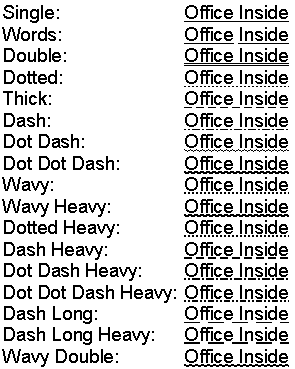
"Underline" Equates Used in the TableSetCellUnderline, Underline methods. See the reference titled MS Word Underline Styles for graphical examples of these styles. oiw:UnderlineNone oiw:UnderlineSingle oiw:UnderlineWords oiw:UnderlineDouble oiw:UnderlineDotted oiw:UnderlineThick oiw:UnderlineDash oiw:UnderlineDotDash oiw:UnderlineDotDotDash oiw:UnderlineWavy oiw:UnderlineWavyHeavy oiw:UnderlineDottedHeavy oiw:UnderlineDashHeavy oiw:UnderlineDotDashHeavy oiw:UnderlineDotDotDashHeavy oiw:UnderlineDashLong oiw:UnderlineDashLongHeavy oiw:UnderlineWavyDouble oiw:UnderlineToggle
|
||||||||||||||||||||||||||||||||||||||||||||||||||||||||||||||||||||||||||||||||||||||||||||||||||||||||||||||||||||||||||||||||||||||||||||||||||||||||||||||||||||||||||||||||
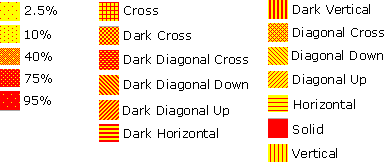
| "Texture" Equates Used in the TableGetCellTexture, TableSetCellTexture methods ) See the reference titled MS Word Textures for graphical examples of these equates. oiw:TextureNone oiw:Texture2Pt5Percent oiw:Texture5Percent oiw:Texture7Pt5Percent oiw:Texture10Percent oiw:Texture12Pt5Percent oiw:Texture15Percent oiw:Texture17Pt5Percent oiw:Texture20Percent oiw:Texture22Pt5Percent oiw:Texture25Percent oiw:Texture27Pt5Percent oiw:Texture30Percent oiw:Texture32Pt5Percent oiw:Texture35Percent oiw:Texture37Pt5Percent oiw:Texture40Percent oiw:Texture42Pt5Percent oiw:Texture45Percent oiw:Texture47Pt5Percent oiw:Texture50Percent oiw:Texture52Pt5Percent oiw:Texture55Percent oiw:Texture57Pt5Percent oiw:Texture60Percent oiw:Texture62Pt5Percent oiw:Texture65Percent oiw:Texture67Pt5Percent oiw:Texture70Percent oiw:Texture72Pt5Percent oiw:Texture75Percent oiw:Texture77Pt5Percent oiw:Texture80Percent oiw:Texture82Pt5Percent oiw:Texture85Percent oiw:Texture87Pt5Percent oiw:Texture90Percent oiw:Texture92Pt5Percent oiw:Texture95Percent oiw:Texture97Pt5Percent oiw:TextureSolid oiw:TextureDarkHorizontal oiw:TextureDarkVertical oiw:TextureDarkDiagonalDown oiw:TextureDarkDiagonalUp oiw:TextureDarkCross oiw:TextureDarkDiagonalCross oiw:TextureHorizontal oiw:TextureVertical oiw:TextureDiagonalDown oiw:TextureDiagonalUp oiw:TextureCross oiw:TextureDiagonalCross
|
||||||||||||||||||||||||||||||||||||||||||||||||||||||||||||||||||||||||||||||||||||||||||||||||||||||||||||||||||||||||||||||||||||||||||||||||||||||||||||||||||||||||||||||||
| Toolbar Equates Used in the ShowToolbar and HideToolbar methods. oiw:ToolbarStandard oiw:ToolbarFormatting oiw:ToolbarTablesAndBorders oiw:ToolbarDatabase oiw:ToolbarDrawing oiw:ToolbarForms oiw:ToolbarFullScreen oiw:ToolbarEditPicture oiw:ToolbarVisualBasic oiw:ToolbarStopRecording oiw:ToolbarMailMerge oiw:ToolbarMasterDocument oiw:ToolbarMicrosoft oiw:ToolbarHeaderAndFooter oiw:ToolbarOutlining oiw:ToolbarPrintPreview oiw:ToolbarWordForWindows2Point0 oiw:ToolbarReadMail oiw:ToolbarSendMail oiw:ToolbarExtendedFormatting oiw:ToolbarAutoText oiw:ToolbarWeb oiw:ToolbarWordArt oiw:Toolbar3DSettings oiw:ToolbarShadowSettings oiw:ToolbarPicture oiw:ToolbarDrawingCanvas oiw:ToolbarOrganizationChart oiw:ToolbarDiagram oiw:ToolbarReviewing oiw:ToolbarAutoSummarize oiw:ToolbarExitDesignMode oiw:ToolbarControlToolbox oiw:ToolbarTextBox oiw:ToolbarOutlookReadMail oiw:ToolbarOutlookSendMail oiw:ToolbarFunctionKeyDisplay oiw:ToolbarWebTools oiw:ToolbarWordCount oiw:ToolbarJapaneseGreetings oiw:ToolbarMenuBar oiw:ToolbarRefresh oiw:ToolbarFrames oiw:ToolbarTaskPane oiw:ToolbarDropCaps oiw:ToolbarEndnotes oiw:ToolbarFields oiw:ToolbarDisplayFields oiw:ToolbarFieldDisplayListNumbers oiw:ToolbarFormFields oiw:ToolbarFootnotes ! oiw:ToolbarFrames equate !duplicate oiw:ToolbarHeadings oiw:ToolbarLinkedHeadings oiw:ToolbarScriptAnchorPopup oiw:ToolbarLists oiw:ToolbarInlinePicture oiw:ToolbarInlineCanvas oiw:ToolbarHorizontalLinePopup oiw:ToolbarTables oiw:ToolbarTableCells oiw:ToolbarTableHeadings oiw:ToolbarTableLists oiw:ToolbarTablePictures oiw:ToolbarTableText oiw:ToolbarWholeTable oiw:ToolbarLinkedTable oiw:ToolbarText oiw:ToolbarLinkedText oiw:ToolbarFontPopup oiw:ToolbarFontParagraph oiw:ToolbarFormatInspectorPopupInNormalMode oiw:ToolbarFormatInspectorPopupInCompareMode oiw:ToolbarSpelling oiw:ToolbarGrammar oiw:ToolbarGrammar2 oiw:ToolbarFormatConsistency oiw:ToolbarBackgroundProofingStatusBar oiw:ToolbarTrackChanges oiw:ToolbarFrameProperties oiw:ToolbarHyperlinkContextMenu oiw:ToolbarAutoSignaturePopup oiw:ToolbarFieldAutoText oiw:ToolbarDocumentMap oiw:ToolbarShapes oiw:ToolbarCurve oiw:ToolbarCurveNode oiw:ToolbarCurveSegment oiw:ToolbarFloatingPicture oiw:ToolbarCanvasPopup oiw:ToolbarOLEObject oiw:ToolbarActiveXControl oiw:ToolbarWordArtContextMenu oiw:ToolbarRotateMode oiw:ToolbarComment oiw:ToolbarOrganizationChartPopup ! oiw:ToolbarDiagram ! duplicate oiw:ToolbarConnector oiw:ToolbarTrackChangesIndicator oiw:ToolbarChineseTranslation oiw:ToolbarAddressBlockPopup oiw:ToolbarGreetingLinePopup oiw:ToolbarInlineActiveXControl oiw:ToolbarAutoShapes oiw:ToolbarCallouts oiw:ToolbarFlowchart oiw:ToolbarBlockArrows oiw:ToolbarStarsAndBanners oiw:ToolbarLines oiw:ToolbarBasicShapes oiw:ToolbarConnectors oiw:ToolbarFillColor oiw:ToolbarInsertShape oiw:ToolbarLineColor oiw:ToolbarAlignOrDistribute oiw:ToolbarRotateOrFlip oiw:ToolbarOrder oiw:ToolbarNudge oiw:ToolbarBorders oiw:ToolbarFontColor oiw:ToolbarShadingColor oiw:ToolbarCellAlignment oiw:ToolbarTextWrapping oiw:ToolbarClipboard oiw:ToolbarEnvelope oiw:ToolbarSystem
|
||||||||||||||||||||||||||||||||||||||||||||||||||||||||||||||||||||||||||||||||||||||||||||||||||||||||||||||||||||||||||||||||||||||||||||||||||||||||||||||||||||||||||||||||
| Callback Event Equates
Used in the TakeEvent method. oiw:EventStartup oiw:EventQuit oiw:EventDocumentChange oiw:EventDocumentOpen oiw:EventDocumentBeforeClose oiw:EventDocumentBeforePrint oiw:EventDocumentBeforeSave oiw:EventNewDocument oiw:EventWindowActivate oiw:EventWindowDeactivate oiw:EventWindowSelectionChange oiw:EventWindowBeforeRightClick oiw:EventWindowBeforeDoubleClick
|
||||||||||||||||||||||||||||||||||||||||||||||||||||||||||||||||||||||||||||||||||||||||||||||||||||||||||||||||||||||||||||||||||||||||||||||||||||||||||||||||||||||||||||||||
| SaveFormat Equates See the SaveAs method documentation for a full list of equates.
|
||||||||||||||||||||||||||||||||||||||||||||||||||||||||||||||||||||||||||||||||||||||||||||||||||||||||||||||||||||||||||||||||||||||||||||||||||||||||||||||||||||||||||||||||
| Break-Type Equates ( used in the InsertBreak method ) oiw:SectionBreakNextPage oiw:SectionBreakContinuous oiw:SectionBreakEvenPage oiw:SectionBreakOddPage oiw:LineBreak oiw:PageBreak oiw:ColumnBreak oiw:LineBreakClearLeft oiw:LineBreakClearRight oiw:TextWrappingBreak
|
||||||||||||||||||||||||||||||||||||||||||||||||||||||||||||||||||||||||||||||||||||||||||||||||||||||||||||||||||||||||||||||||||||||||||||||||||||||||||||||||||||||||||||||||
| Text Orientation Equates ( used in the InsertTextbox method ) oiw:TextOrientationMixed oiw:TextOrientationHorizontal oiw:TextOrientationUpward oiw:TextOrientationDownward oiw:TextOrientationVerticalFarEast oiw:TextOrientationVertical oiw:TextOrientationHorizontalRotatedFarEast
|
||||||||||||||||||||||||||||||||||||||||||||||||||||||||||||||||||||||||||||||||||||||||||||||||||||||||||||||||||||||||||||||||||||||||||||||||||||||||||||||||||||||||||||||||
| Z-Order Equates ( used in the InsertTextbox method ) oiw:BringToFront oiw:SendToBack oiw:BringForward oiw:SendBackward oiw:BringInFrontOfText oiw:SendBehindText
|
||||||||||||||||||||||||||||||||||||||||||||||||||||||||||||||||||||||||||||||||||||||||||||||||||||||||||||||||||||||||||||||||||||||||||||||||||||||||||||||||||||||||||||||||
| ShowMessage Equates ( used in the ShowMessage method ) oiw:Msg_Error_StartingWord oiw:Msg_Confirm_SpellCheckComplete oiw:Msg_Error_SpellCheckFailed |


Dll
Functions
At this time we have documented all functions for all the Office components in the "main" OfficeInside.htm document. Click here to go to that section.
Useful
References
How
to add Spell Checking to your Applications
-
Load your application
-
Choose Template Utility from the IDE's Application menu
-
Choose ShowSpellingSuggestionsABC (found under Class OfficeInside), and click the Select button
You should now see a new procedure in your application called oiShowSpellingSuggestions. This window is called by Office Inside when it checks your spelling from within other procedures in your application. The reason we need this window in your application (rather than just making it part of our dll) is so that you can tweak it to fit the cosmetics of your application. The instructions from here on might change with future builds of Office Inside (we are still in beta), but for now proceed as follows:
-
Select a procedure in your application that you want to add Spell Checking support to
-
Right-click on the procedure and choose Extensions
-
If you already have an Add an MS Word object to this procedure extension template listed for this procedure, skip to point 8, otherwise:
-
Click Insert. Choose Add_MSWord_Object and click Select.
-
Select the Add an MS Word object to this procedure extension, and then click the Insert button
-
Choose Word_SpellChecking and click the Select button
-
Click OK and compile your application!
As stated above, these steps might change in future releases. It would be idea if we could simply tick an option on the Global Extension template to add spell-check support throughout your entire application, and that may come in a future build of Office Inside. The current approach (above) involves adding the Word_SpellChecking extension template to every procedure in your app that you want to add spell check support to. This extension template needs to "hang off" a Add an MS Word object to this procedure extension template. More to come, watch this space...
Tips
& FAQs
This section contains Tips and Frequently Asked Questions pertaining only to the MS Word parts of Office Inside. For Tips and FAQ's pertaining to the product as a whole, or to other components, please click here.
|
|
MyWord.OpenDoc is not working... |
|
|
|
Users have reported cases where passing filenames that do not contain a drive letter fail on certain machines ( e.g. \folder1\folder2\test.doc ) | |
| 2. |
Compile error: "No matching prototype available" on calling "oiShowSpellingSuggestions" function |
|
|
|
We changed the oiShowSpellingSuggestions procedure in version 1.65. Please delete your "oiShowSpellingSuggestions" procedure, and run the template utility again (Application --> Template Utility --> Class OfficeInside --> ShowSpellingSuggestions) | |
| 3. |
Can I use RGB color values rather than Clarion color equates with MS Word? |
|
|
|
Yes! You can either pass in a standard Clarion equate (e.g. color:blue), or you can pass in the BGR long (returned by the ColorDialog function for example), or you can use the oi_RGBToBGRLong function to get a long from three individual RGB values, and pass that in! | |
| 4. | When using editable reports, I get the compile errors "Syntax error: Field Not Found: ADDITEM" and "Syntax error: Unknown procedure label". | |
|
|
If you
are using Legacy and would like to use the Editable Report Word and Excel
templates you need to ticked on "Enable the use of ABC classes" checkbox under Global Settings on the Classes tab. |
|
| 5. | I get a compile error "Invalid use of private data" on a line using an RTFControl.CtlRTF property | |
|
|
A Checkbox has been added to the Global Extension that should be checked in order to use spell checking on a Clarion 6 RTF control. This has been added becuase in order to use spell checking on Clarion 6 RTF controls the RtfControlClass needs to have a line modified. If you have ticked this box to enable spell checking of Clarion 6 RTF controls, then open the rtfctl.inc file in your Clarion6\libsrc directory and change the lines that reads: CtlRTF SIGNED,PROTECTEDto: CtlRTF SIGNED!,PROTECTEDThe PROTECTED attribute needs to be commented out in order to allow Office Inside to identify which control the object is associated with. |
How do I get a procedure that sends Mail not to check the spelling on each document ?
This is an Outlook Spelling options setting and is independent
of OfficeInside - it will do it for all mail sent if you select the "Always
check spelling before sending" check box in the settings (On the File tab, click
Options, and then click Mail).
There is no programmatic access to this setting, the only way
to change it is via the registry:
'HKEY_CURRENT_USER\Software\Microsoft\Office\12.0\Outlook\Options\Spelling\C
heck"
'0 = disabled
'1 = enabled
The setting is read on startup, so you cannot change it while Outlook is running, and the key may not be entirely consistent between versions.
About
using "Mail Merge"
Before implementing Office Inside's Mail Merge features, we would recommend that
you familiarize yourself with the basics of using MS Word's Mail Merge functionality.
The MS Word help files cover this topic extensively, but here's a starter to get
you going ( although we would recommend spending some time in MS Word learning
about Mail Merging before adding this feature into your apps ).
In a nutshell, Mail Merging consists of reading data from a Data Source ( a file
that contains the information to be merged into the Main Document ); then inserting
data from the data source into the Merge Fields ( placeholders in your main document
) which you have created in your Main Document ( the document that contains the
text / graphics / merge fields ).
MS
Word Underline styles
Below is an example of each of the types of underlining
that MS Word offers. See also the Underline
method, and the Underline Equates.
MS
Word Textures
Below is an example of the various textures used in methods such as SetCellTexture, as listed in the Texture Equates. These examples show the various textures, using a background color of yellow ( see SetCellBackgroundColor ) and a foreground color of red ( see SetCellForegroundColor
).