Introduction
After completing a major Clarion project thoughts naturally turned towards
adding
the usual Windows help. After a short investigation we decided that for
most help
requirements the standard Windows help format is simply too difficult to
implement.
Sure, there are great tools available to make it easier, but at the end of
the
day there are major amounts of overhead in terms of administration,
synchronization
and compiling.
We decided there had to be an easier way! A way that allowed you to do the
minimum
possible amount of overhead. A way that allowed you to spend your "help"
time writing help - not managing it. Out of this need, Ezhelp was born.
We decided to implement the new look of Windows help - but at the same
time make
it possible to create and edit the help tips while your application is
running.
We also wanted the help to be more than just text so we added the ability
to send
messages back to your application, to run other programs, and to jump to
any page
on the Web by using the users installed browser.
We also made it absurdly simple to add Ezhelp to your existing application
- because
it's usually the last thing a developer thinks of. All the code is done in
a couple
of simple extension templates, and the developer has to do no hand-coding
at all.
Ezhelp Features
Ezhelp will have the following visible effects on your Clarion
application...
- Enable the familiar Windows
"Question Mark" button on the top right corner of the screen.
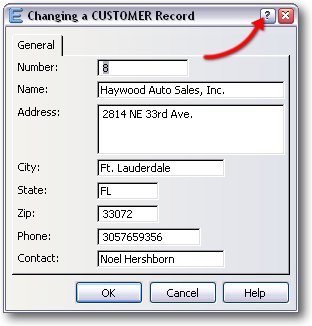
- Enable a popup-menu, containing
a "What's This" message when the user right clicks on a control.
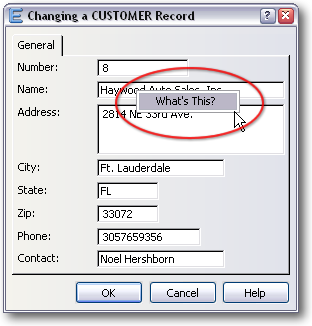
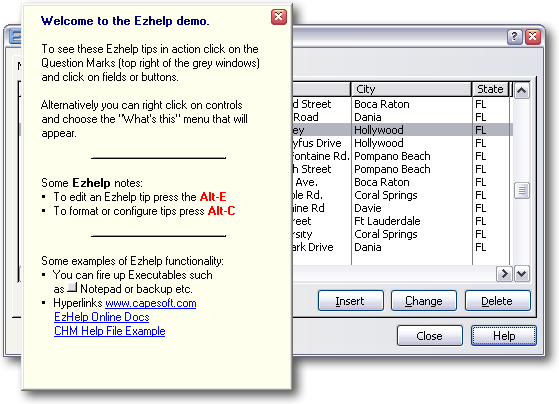
- Using
either of these methods your user can open an Ezhelp window. The user
can
then read the help for that specific control - and edit it if he wants
to.
You can write any text you like in this window, format it, use bullets
etc.
You can also place Buttons, Html links and Windows Help links in the
window.
No compiler is required here, so your user can add his own comments
and
links if he wants to as well.
- Default
Help Tips can be defined per Control Type (e.g. Button, Entry, List
etc..)
or Control Name (e.g. ?Help, ?OK, ?Close) or Control Name \ Procedure
Name.
This mean you can quickly Help Tip enable your application and then go
on
to do specific Help Tips where needed.
- Allows you to have Cue
Cards in your application. This means when the user lingers
on a field
for a few seconds or so, then the Ezhelp tip is automatically
displayed.
Ezhelp In Action
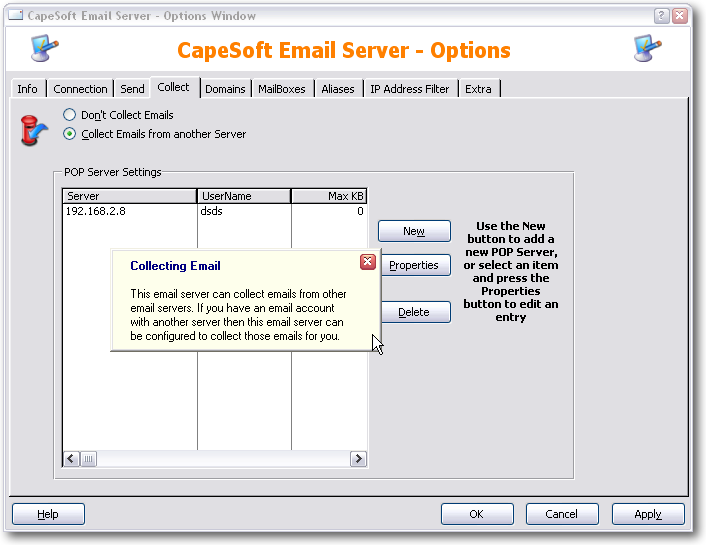
Adding Ezhelp to an application
To add Ezhelp to an existing (or new) application, do the following.
- Add the required global Ezhelp extension template. To do this ...
- Open
the Clarion IDE
- Open
your application
- Click
on Global, and then Extensions
- Choose
the "ezHelpPrompt - Ezhelp Global Application Settings" template
OR:
- Go to each window in your application in turn and add the EzHelpTips
extension. To do this ...
- Open
the Clarion IDE
- Open
you application
- Click
on a procedure that has a window (e.g. a Browse, Form, Window
etc.)
- Click
on Extensions, then on Insert, then choose the "EzHelptips"
template
There are a number of options you can set on each window, but they are
mostly
used for special cases. For most of the time the default choices will be
fine
for your use. If you get errors when you compile your app then have a look
in
the
FAQ section for some possible problems and
solutions.
For Multi-DLL applications, you need to add the ezHelp Global Extension to
each application.
Viewing help when your application runs
To view a help tip when your application is running, do one of the
following...
- Click on the Windows "?"
button at the top right corner of the window, and then click on the
control
that you want to see the tip for. So if you wanted to see the help for
say
an OK button, then you would click on the "?" button and then
on the OK button.
- Right click on the interesting
control, and then choose "What's This'.
- Give the interesting control the focus
(by selecting it with the mouse, or tabbing to it) and then press F1.
- If CueCards are enabled, and a control
has the focus for a few seconds, then the tip will automatically be
displayed.
After you've just started using Ezhelp there will obviously be no tips
entered,
and you will see a message saying there is no help for that control. To
see how
to add, and format the help, read the next section.
Editing Tips at runtime
To edit the tips at runtime, you need to bring up the tip (using
Right-Click What's This, F1 or the Question Mark icon) and then use the
following hot-keys to do the necessary editing:
Alt-E - to edit the tip
 Alt-C
Alt-C - to format or configure the tip
Editing
Tips
To get to the first screen press
Alt-E (for
Edit) while viewing a tip.
You will see a regular looking memo box which contains the tip for the
text.
Apart from typing in the actual text, this is where you can also place
buttons,
hyperlinks, web links, highlighted text, horizontal lines etc. Each of
these
items is discussed below.
- Bullets
To place a bullet in the text use <T>.
Note: You must have a space after the bullet (before entering text)
otherwise you will get a �Control not completed Line xx� message.
- Buttons
To place a button inside the text, put the following in the text.
<B1>
For the second button use
<B2> etc.
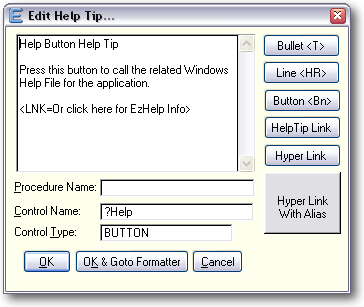
To configure the action of the button. Go to the Format/Configure
window (Alt-C)
and then left click on the button, then right click to see the menu,
choose
Properties and then configure what you would like the button to do.
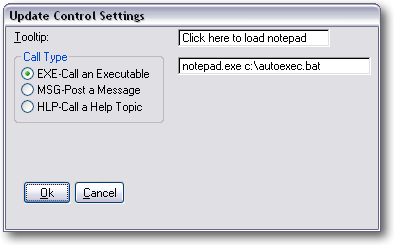
For more options on how to configure button see the Configuration
information.
- Horizontal lines
You can break up your tip using horizontal lines. To place a
horizontal line
in your tip, place the following on a line by itself
<HR>
- Internet Web Page links
To place an active hyperlink to a web page place the page's URL inside
sharp
brackets, like this:
<www.capesoft.com>
<https://www.capesoft.com>
<C:\myHtmlPage.htm>
You can provide a short name for your links like this. (Only the short
name
is displayed in the tip window)
<S"CapeSoft
website"www.capesoft.com">
- CHM Files
<myChmHelpFile.chm>
<myChmHelpFile.chm::/myHtmlPage.htm#myTopic>
You can provide a short name for your links like this. (Only the short
name
is displayed in the tip window)
<S"More
Info"myChmHelpFile.chm::/myHtmlPage.htm#myTopic>
A chm file is made up of a whole lot of little htm files (compiled
into the
chm file). The myHtmlPage.htm is the
little htm
file that you're wanting to refer to, and the #myTopic
is the bookmark name (in the myHtmlPage.htm).
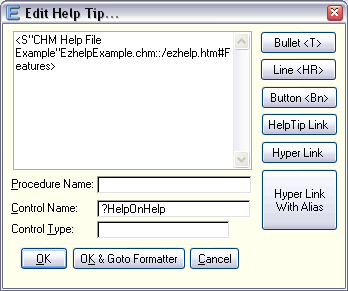
If you want your help to go direct to the CHM file (and not via the
Ezhelp
tip window) when the user clicks on the help for that item, then just
place the
CHM URL for that particular help item as follows:
- Hyperlink
to another Ezhelp Tip
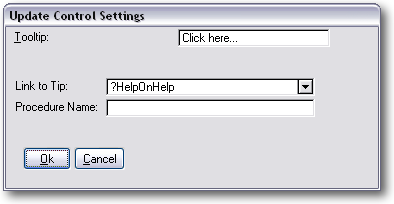
To place an active hyperlink to another Ezhelp tip on the tip add the
following;
<LNK=Page 2>
where the text on the right of the equals sign is the active text. The
active
text will be concatenated together to form a name for the new tip.
To configure the details of the page go to the Format/Configure window
(Alt-C)
and then left click on the link, then right click to see the menu,
choose Properties
and then configure what you would like the button to do.
- Using
"<" as a normal character?
Use the form <<
and it will not try and open a control and will use the <
as normal text.
Formatting or Configuring Tips
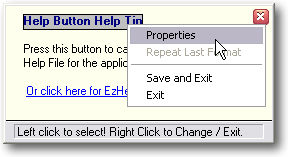
To get to the screen press
Alt-C (for Control)
while viewing the tip.
You can then set the color and font of text, the actions for buttons, the
destinations
of links etc.
Important: To select the control you want
to edit properties for, left click on the control so it becomes
highlighted
and then right click on the control to see the menu. When you have
finished
setting all the properties right click anywhere on the window to Save and
Exit,
or Cancel.
Note: Most of the following is demonstrated
in the Ezhelp example application which is found in your
Clarion/3rdParty/Examples
folder.
- Highlighting & Formatting Text
To format the text, select the text (left click) and then right-click
to get the Popup menu. Choose Properties. You can then edit the font,
color and style of the text by pressing the ... button.
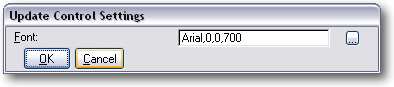
You can also repeat the last format by choosing the Repeat Last Format
option in the Popup menu.
You can also:
Separate a piece of text from the surrounding text, so that it can be
formatted later, place "pipes" around it. Pipes are vertical line
characters (often of the backslash key on the keyboard). They look
like this |. Only do this for highlighting single words or short
phrases. To highlight an entire line, use the formatting method
mentioned above.
So for example if you had the sentence "Click on the OK button to save
the record", then you could prepare the OK button for highlighting by
placing pipes around it, like this -
Click on the| OK| button to save the record
Note that placing pipes doesn't highlight the word, but it allows you
to format that word separately from the text around it later.
Remember you can use the Windows Character Map to copy Wingdings
characters and paste them into the Help Tip text. While formatting the
control you can set the font to Wingdings and suddenly you will have
all sorts of useful pictures!
- Buttons
To place a button inside the text, put the following in the text. <B1> For the second button use <B2> etc.
To configure the action of the button. Go to the Format/Configure
window (Alt-C) and then left click on the button, then right click to
see the menu, choose Properties and then configure what you would like
the button to do.
- Using Ezhelp to post back Events to your
application.
First add a button to the Ezhelp tip by adding something like the
following:
<B1> Press this button
Save this (click OK) and then go to the Formatting Window (Alt-C).
Left click on the button and then right click and choose properties.
You can then configure the button as follows:
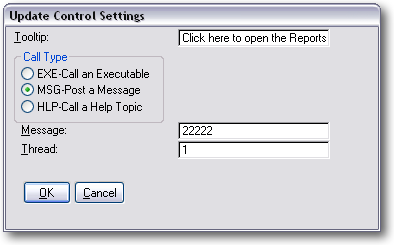
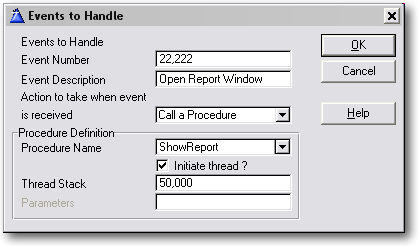
In the case above we have chosen to post event 22,222 to thread 1. So
in your main frame add (if it's not there already) the
ezWindowEventHandler extension and configure it as follows:
- Using Ezhelp to load Help Files.
(This is demonstrated in the example application - on the Browse
Customers window)
First add a button to the Ezhelp tip by adding something like the
following:
<B1> Press this button
Save this (click OK) and then go to the Formatting Window (Alt-C).
Left click on the button and then right click and choose properties.
You can then configure the button as follows:
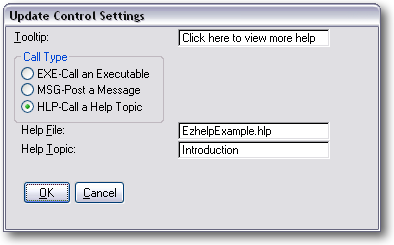
Note: If your application uses
CHM
files.
See the information about calling
CHM files from
Ezhelp.
Note: It is not possible to edit tips that
have been displayed
as a Cue Card. To edit the tip use the Question Mark, or Right-Click
method.
Note2: If the help window only contains an
html / chm or URL link then
hold down the CTRL key while Question Mark or Right-Clicking the button.
This opens the help window instead of linking directly to your URL link.
When viewing a tip there are two possible editing screens to go to. The
first
is where you edit the Content of the tip, and the second is where you edit
the
formatting, and properties of the content.
Deploying
your application
In addition to the files that you normally ship with your application
(i.e.
without Ezhelp added), you need to ship:
- The ezHelp tips file (unless you want the user to create his own
from scratch)
- If your application is compiled in Stand-alone mode, then you need
to ship the Ezhelp DLLs with your application: c6Mshx.dll (for using
an MSSQL tips file), c60HLPx.dll (for non-MSSQL based applications)
and We60x.dll for Clarion6 applications. Replace 60 with 55 for
Clarion5.5 and 70 for Clarion7 applications.
Support
Comments, suggestions and problems from all users are most welcome. You
can contact
us using one of the following methods.
| CapeSoft Support |
| Support Page |
Find support page with various options here |
| Email |
 |
| Telephone |
+27 87 828 0123 |
| Fax |
+27 21 715 2535 |
| Post |
PO Box 511, Plumstead, 7801, Cape Town, South Africa |
CapeSoft Ezhelp may be purchased from:
| CapeSoft Sales |
| Web |
www.capesoft.com
|
| Email |
 |
| Telephone |
+27 87 828 0123 |
| Fax |
+27 21 715 2535 |
| Post |
PO Box 511, Plumstead, 7801, Cape Town, South Africa |
Installation
To install Ezhelp simply run the supplied Installation file.
Examples
Ezhelp ships with example files, which not only demonstrate Ezhelp's
functionality,
but also are a useful resource to aid you in how to implement Ezhelp into
your
application.
These example applications can be found in your Clarion/3rdParty/Examples/Ezhelp
folder.
Template Reference
Code :CallEzHelp
Purpose
Allows you to call the ezTip window directly. Use this template to call up
the
ezTip window using your own method, as opposed to the usual Question mark,
and
right click, methods.
Options
Procedure Name & Control Equate : The
EzHelpTip window is usually
called with the name of the calling procedure, and the equate of the
control.
This identifies which tip should be opened at this point.
Global Extension : EzhelpPrompt
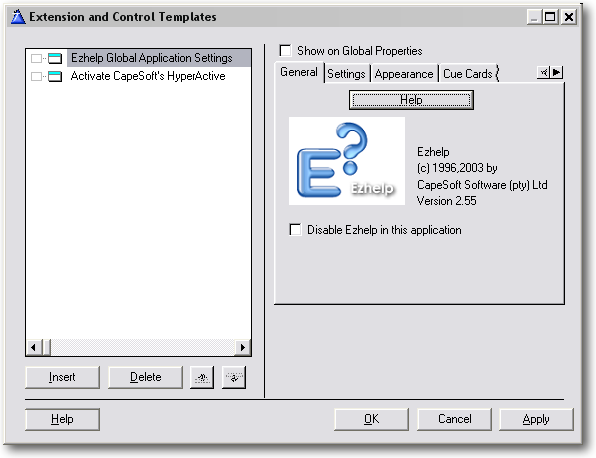
Purpose
The built-in default for the text displayed when the user right-clicks on
a
control is "What's This". If you wish to set this default to something
else then add the EzhelpPrompt extension template to the global extensions
of
your app.
Options
Tip Settings:
| Disable Ezhelp
in this application |
You can tell Ezhelp
not to generate code into your application. |
| Default text for
right-click |
Text for right-click
popup menu. Defaults to '&What''s This?' |
| Use MS-SQL Ezhelp tip driver |
Check this option to make the tip file
part of a MSSQL backend. You'll need to fill in the correct owner
string to
complete the connection:
Connection, Database, User, Password |
| Help file name |
This is the Ezhelp
file that is used to store all the Ezhelp tips. Try something like
'Ezhelp.ezh'.
(It's actually a TPS file) |
| Set edit level |
Controls the editing
level that you want to allow in your application. Options
included:
Allowed - Ezhelp tips can be edited using Alt-E and Alt-C
Command line - Editing only allowed with /EditTips
command line.
No editing - Ezhelp tips can not be edited at run time. |
Default Help Procedure
name
(Not required) |
(Optional) Use this
where the control equate used below is not unique. Specify the
procedure
in which this control equate is found. |
Default Help Control
Name
(Not required) |
(Optional) Leave blank
if no default helptip is required. Specify a control name. You can
provide any unique name if you do not wish to link to an existing
control name. |
| Disable Ezhelp F1- Key |
If this is on the the F1 Key option to open the help will not be
active. |
| Disable Right-Click |
If this is on then the Right-click menu option "What's this"
will not be active. |
| MakeTip Stay Open |
If you check this checkbox
the Window will not close when it loses focus or when the user
clicks
on it, only when the Esc key is press or, if used with the caption
setting
when the user clicks on the close button or uses the system menu
to close
the window. |
| Always on Top |
If you check this option
the Tip will always stay on top of you application. i.e. if you
have Tip
Stay Open on, no matter what other windows open, your tips will
always
stay on top. |
| Make Tip variable
width |
If you check this checkbox
the Tip window will use a variable width and grow dynamically
horizontally
as well as vertically, to get a new line you will need to press
the Enter
key in the text box as the autowrapping will be off.
Note: You need to remove manual
justification (i.e. line breaks) in your
tip text to see the difference between this option being on or
off. |
| Tip Window Caption |
You can give the Ezhelp
tip a windows title bar, by specifying text here (no quotes
needed). Leave
blank for no windows title bar. |
| Tip Window Color |
You can specify the
Tip background color by using a constant e.g. Color:Blue,
0FFEFEFH, 0DFFFFFH
or 0FEFAF5H. Leave it blank for the default Yellow color. |
| Use your frame
icon as the system icon |
Turn this on to set
your system{prop:icon} to the same icon as the icon on your frame.
This
save you having to program the following. |
| Activate Cue Cards |
Turns on Cue
Cards. |
| Various Cue Card
Settings |
Allow you to set the
delay for the Cue Cards, as well as which controls you want Cue
Cards
to work on. |
| Definitely Legacy Templates |
This is almost obsolete - in some older
versions of Clarion, the template cannot detect whether your
application is ABC
or Legacy. Check this checkbox if your application is a legacy
application. |
Extension: EzhelpTips
Purpose
This template enables the usual Ezhelp functionality to your window. It
puts
the familiar Windows question mark at the top right corner of the screen,
and
enables a right-click popup menu for all the controls. It is the minimum
template
that you require on a window for Ezhelp functionality, and the only
template
that is required. The global template adds this template, with no options
set,
to all window functions.
Options
Popup text for this window : You can override
the default popup text
for this window here. The default is
'&What''s
This', or if you have used the Global Extension template ( Ezhelp
Prompt)
then the default is whatever you specified there.
Controls to exclude from right clicking : If you
want a specific control
NOT to get a popup menu when the user right clicks, then you can add that
control
to this list. Note that the Question mark method will still work.
Controls to Ignore : If you want a specific
control NOT to get any Ezhelp
help tip (or right click popup menu), then you can add that control to
this
list.
Disable Question mark: If a specific Window takes some time to
redraw then
you can disable the Question Mark to help things along. Note: Ezhelp 1.1
and
above have been optimized to counter this problem and this should only be
used
where there are a great many controls on a window.
Extension: ezWindow Event Handler
Purpose
One of the abilities of the ezTip window is passing an event back to your
applications
frame. This template allows you to simply handle this event by calling a
procedure.
Options
Events to Handle : This is a list of the events you will receive, and
which procedure
must be called.
Cue Cards
Cue Cards are automatic help tips that appear if the user spends a long
time on
any particular field.
By default Cue Cards are NOT enabled. To enable Cue Cards go to the Ezhelp
Global
Extension, to the Cue Cards tab. Click the "Activate Cue Cards" option
on.
You will also need to set the Delay ( around 800 - which is 8 seconds -
seems
about right ) and then select the controls which will be cued. We
recommend
you start by cueing just Entry controls ( this includes Entry, Text, Spin,
Check
and Radio controls ). If you want to you can also have cues on List boxes,
and Buttons.
One more thing is highly recommended. Go to your Frame procedure, to the
Ezhelp
extension there. Go to the Cue Cards extension. There you will be able to
select
the Use Equate for the Help Menu, as well as an INI file name and INI
Section.
The idea here is to allow your user to easily turn the Cue Cards on and
off. Like most help features it can become very irritating if you are
familiar with
the package and help keeps intruding on you. So Ezhelp will automatically
add an option to your main menu so they can turn the Cues on and off. The
setting will be stored in the nominated INI file so that it is kept from
one session
to another.
IMPORTANT NOTE : In order for the Cue Cards
to work properly your windows
must be MDI windows. In other words the MDI attribute for the Window must
be on.
If the Cue Cards appear different on a particular screen,
then this is a good first thing to check.
NOTE: Set the ini file (for storing the cue
cards settings) in the ezHelp local extension on the frame procedure
Creating a default Help Tip file
New from version 1.7 of Ezhelp is the ability to prime an Ezhelp file with
information
that is already in your application. To do this do the following steps;
- Open your app in the
normal way
- Choose the Template
Utility option on the Application Menu
- Select the Export Defaults utility,
which is in the Ezhelp Class
- Enter the name of the Ezhelp file
as requested and click on Finish.
This will create a default tip file for your application. It will contain
information
taken from the MSG and TIP fields for your controls.
Ezhelp Tip Manager
From version 2.1 the Ezhelp Tip Manager has been removed. We will be
updating
this utility and possibly including it in future releases.
Function Reference
ezCallHelpTip (ApplicationName, ProcedureName, ControlName,
ControlType)
Calls ezCallHelpTipEx
ezCallHelpTipEx (ApplicationName, ProcedureName, ControlName,
ControlType, FEQ)
ezCallHelpTipEx
(ApplicationName, ProcedureName, ControlName, ControlType, FEQ)
Parameters
| Parameter |
Description |
| ProcedureName |
String
This is the name of the procedure doing the call. |
| ProcedureName |
String
This is the name of the procedure doing the call. |
| ControlName |
String
This is the name of the Control doing the call. |
| ControlType |
String
This is the Type of the control doing the call. |
| FEQ |
long |
Returns
Nothing
Description
Calling this function causes the Ezhelp window to appear. The first four
parameters
identify the help screen that is being requested. If a help screen does
not
exist then a default help screen may be opened.
The order of opening screens is as follows:
- Screen identified by ApplicationName, ProcedureName and
ControlName.
- If (1) doesn't exist then it looks for the screen identified by
ControlName
- if (1) and (2) don't exist then it looks for a screen identified
by ControlType
This allows you to create generic screens that work across a whole
control name,
or across a whole control type. For example you can set up a tip for the
OK
Button which will be called for all OK buttons that don't have specific
help.
You can also set up a tip for Button which will be called for all
buttons which
don't have specific help.
NOTE: There is no help available for items (generally) - if you have a
control to display help for an ITEM, then select the controltyp as a
BUTTON.
ezClose
ezClose( )
Parameters
None
Returns
Nothing
Description
This function undoes the actions done by the ezShowHelp function. It
must be
called before the window is closed, if the ezShowHelp function was
called. Failure
to call this function can result in undefined behavior.
ezSetPopUp
ezSetPopUp
(GlobalPopUpString)
Parameter
| Parameter |
Description |
| GlobalPopUpString |
String |
Returns
Nothing
Description
This function allows you to set the global default for the right-click
popup
menu text. If this function is not used then the popup text will default
to
"What's This".
ezShowHelp
ezShowHelp
(<Exclude>,< flag>)
Parameter
| Parameter |
Description |
| Exclude |
String (optional)
This parameter allows you to exclude controls from getting a
right-click menu.
This parameter takes the form of a pipe delimited list
containing a list of
control equate numbers. |
| Flag |
Long (optional)
1 = disable question mark
2 = toolbar alerts
4 = disable cue cards here |
Returns
Nothing
Description
This function initializes a window and prepares it for supporting
Ezhelp. It
activates the Question Mark button on a window (note that only windows
that
don't have a maximize button are allowed question mark buttons). It also
alerts
the right mouse click for all the controls not in the "exclude" list.
Note: This function should be called
after the window is opened, before
the Accept command.
Note: If you call this function then you
must also call the
ezClose()
function before the window is closed. Failure to call the ezClose
function can
result in undefined behavior.
ezSetEdit
ezSetEdit
(EditSetting)
Parameters
| Parameter |
Description |
| EditSetting |
Byte
0 - Can Edit the Help Tip at runtime
1 - Can only edit the Help Tip if there is a command line
parameter /EditTips
2 - Cannot edit the Help Tips at all even if the command line
parameter is there.
|
Returns
Nothing
Purpose
This function allows you to programmatically turn runtime Help Tip
editing off.
Typically this would be used when you don't want the end user to be able
to
change any of the Help Tips. Remember that if you set it to 1 you can
override
it by setting a command line parameter /EditTips
Copyright
Ezhelp is copyright © 2021 by CapeSoft Software.
Each developer needs his own license to use Ezhelp. (Need to
buy
more licenses?)
Ezhelp is provided as is, and you use it at your own
risk. CapeSoft Software
and its employees accept no liability for anything lost because of
Ezhelp.
Use of this product implies acceptance of this condition.
You are authorized to distribute the DLL files free of charge. All other
Ezhelp
files are copyright CapeSoft Software and may not be distributed.
Frequently Asked Questions
Compile Errors
Question Mark Issues
Runtime Problems:
Other Questions:
1) Question: When I compile
Ezhelp I get an error when generating saying
"Unknown Variable %AName".
Answer: You have forgotten to add the Global
Ezhelp
extension template to your app.
2) Question: I am using
PowerBrowse, and when compiling I get an error
like "Unknown Identifier ?Fmt1:Order"
Answer: Some controls are defined on the PB
screen,
but not actually generated in the code. Go to the procedure in question
and add
the control which generated the error to the list of "IGNORED controls".
3)
Question: I have added Ezhelp to a window with lots of controls.
Now
it won't compile because I get an ISL error.
Answer: this is because there are so many
controls the
compiler is having difficulty managing the Ezhelp call to all of them in
one routine.
The solution is to go to the screen with the problem and set the "Maximum
Controls" per routine to say 10. If this doesn't help reduce it further to
5.
4)
Question: I have installed Ezhelp on a screen, but the Question
mark
doesn't appear in the right hand corner.
Answer: Unfortunately Windows does not allow
the question
mark to appear on the same screen as a maximize or minimize button. On
this screen
your users will have to use the "right-click" method to see Ezhelp.
See Question 10 below.
5)
Question: I don't have a maximize or minimize
box, but I still don't get a question mark.
Answer: You must have the "System Menu"
property
for the window switched on for the question mark to appear. (This is a
good idea
anyway because pressing Alt-Minus on a screen without a System menu causes
your
program to crash).
The normal default icon is the clarion blue triangle.

But you can change this 3 ways:
a) Use the "Use application frame icon as system icon" option in the
"Appearance" tab under Global Extensions. This sets the application
frame icon that you have specified as the default system icon for all the
windows
in your application.
b) You can change the Icon on the system menu by adding the following line
to
your Global Program Setup embed point :
system{prop:icon} = 'myicon.ico'
(Note you will need the myicon.ico in your application folder for
this
to work)
c) An improvement on (b) is to include an icon (for example myicon.ico) in
your
"library, object and resource files" section of your Project. And
then add the following line to your
Global Program
Setup embed point
:
system{prop:icon} = '~myicon.ico'
6)
Question: You say I can post a message back to windows using the
button.
What does that mean?
Answer: It means you can post an "event" back
to a thread number (normally the frame: 1). An user defined event is also
called
a user defined message.
7) Question: Exactly how do
I set this up?
Answer: Go to your Main (frame) procedure
extensions
and insert the ezWindow Event Handler. Set this up to "watch" for a
specific embed and to call a procedure when it is found. Then in your help
you
can post that event from a button to thread (1) and the procedure will
start when
that button is pressed.
8)
Question: I am using Netscape and installed it with the standard
install
why won't it spawn my browser from an Internet Link?
Answer: It is tied to the registry and should
pick up
the default browser from "http" \ "https" entry in the Windows
registry. Run regedit.exe and look under
HKEY_CLASSES_ROOT\http\shell\open\command
or HKEY_CLASSES_ROOT\https\shell\open\command, the entry should hold the
path
and exe of your browser. If you find it under another entry, like htmlfile
please
let us know and we will amend it.
9)
Question: I read that you have a way of defaulting tips to
certain buttons.
What is it and where is it? How do I use it?
Answer: While editing the tip text you will
notice you
have three entry fields at the bottom of the window. ProcedureName,
Control Name,
Control Type.
1. If you omit the Procedure name for "AboutMyProgram, ?OK:Button, BUTTON"
you will create a generic tip for ?OK:Button for all procedures
2. If you omit the Procedure Name and Control Name you will create a
generic
tip for all the control type BUTTON for all procedures.
When checking to see what tip to pop we first check
"ProcedureName\controlName"
then "ControlName" and lastly if it still couldn't find a tip we check
"Control Type".
10) Question: The ? button
on the titlebar does not appear when
the window is opened. The ? only appears after the window is redrawn.
Answer: This is caused (in some cases) by using
a
DISPLAY command after the window OPEN command but before the window has
actually
appeared.
A solution is to move the DISPLAY command to the EVENT:OpenWindow embed
point.
11)
Question: What must I do in a Multi-DLL application?
Answer: You need to add the ezHelp global
extension
to each application (where it is required).
12) Question: I have an existing popup menu for
my controls. How do I
merge this functionality into ezHelp?
Answer: Add something like:
Mypopup.additem('-','ezseparator','',1)
Mypopup.additem('&What''s This','whatsthis','',1)
Mypopup.additemEvent('whatsthis',event:EzHelpWhatsThis,?MyField)
to your popup init (to add the 'whatsthis' item to your popup), and then
in your ezHelpRoutine (to disable ezHelp's popup):
ezHelpRoutine Routine
ezfield2 = 0
case Field()
of ?MyField !Add a field here for each field that
you want to override the ezHelp generic behaviour to.
13) When
I click on the 'What's this?' item, then
Ezhelp window doesn't show
or does not receive focus.
Answer: Your window is set to modal. Modal
windows hog the focus and stay
on top, so modal windows aren't supported by ezHelp.
14) I
can't Right-click on the control for <other 3rdparty product>.
Answer: You'll need to get hold of your other
3rdparty supplier and
request a mod for their template in order to accommodate for the alerts
that
ezHelp requires. ezHelp generates alerts for each valid control in the
ezShowHelp function (which is populated by the ezHelp template into your
ThisWindow.Init method).
ezHelp uses the following code to alert the controls for the MouseRight
click:
ControlID{prop:alrt,255} = mouseRight
I'm using visual indicators, but
they don't show
up when the screen opens.
Answer: You need to disable the question mark on
that screen
in order to view the visual indicators on window startup in that
procedure.
There's a bug in the Visual Indicators code that is affected by the API
calls
used by ezHelp in order to place the '?' button next to the Min and Max
buttons.
Nothing happens when I try and
execute a ScreenTip from the HelpButton.
Answer: You need to remove the STD:Help button
type off the button.
When I press Alt-E and edit
changes, it does not save my changes
Answer: If you would like to allow editing, you
need to set this in the template. Also - if you are changing this at
runtime (using the call to ezSetEdit) - then you must make sure that you
set this before the call to the ezStayOpen function. Note: If you have a
multi-dll application, then each application must have the same "Set edit
level to" settings, otherwise you will get spurious results when trying to
edit a tip. In other words, if you want your application to be set to
command line, then set every application in the multi-dll to "Command
Line".
15) I get
a compile error: File not found: c6MSHx.lib
Answer: In order to make the Clarion6 project
more Clarion7
friendly, we needed to change the name so that Clarion7 would change it
automatically to the Clarion7 equivalent. The name changed from c6mshx.lib
to
c60mshx.lib. This means that the old lib is still included (now manually)
in the
project. You can simply delete both included lib files, and the template
will
add the correct one in automatically.
16) How can I display the ? for
some users and
the Max and Min buttons for others?
Answer: The best way would be to turn the Max
and Min
buttons on at runtime using the window's runtime properties - which you
can set
after the window opens:
If UserCondition
0
{prop:max} = true
0{prop:icon} = '~MyIcon.ico'
!Include the icon required in the project.
end
This means that by default, the Ezhelp ? button will display unless these
properties are set on an option selected by the user.
17) I try to remove EzHelp from my
application by removing the global
extension template, but it leaves behind the local extension template.
Answer:
This was an EzHelp issue that was fixed sometime back. Unfortunately the
association (between the ezHelp local and global templates) is created
when ezHelp is added to the application. So updating the template after
the association was created in the template, won't create the association
in your application. Hence deleting the EzHelp global template (without
the association in your application) will leave the local extensions
behind, even though you may be on the latest version of EzHelp.
Version History
Download latest version
here
Version 3.20 (24 May 2021)
- Add: Clarion 11.1 to install.
Version 3.19 (13 September 2018)
- Add: Clarion 11 to install.
Version 3.18 (15 August 2018)
- Refactor: Updated to use WinEvent 5. LIB mode compiles, in apps
with WinEvent as well, are no longer supported.
Version 3.17 (12 December 2016)
- Add: Disable Right-Click option to Global Template, Settings Tab
Version 3.15 (24 February 2015)
- removed unnecessary use of %cwversion. Necessary for C10.
Version 3.15 (24 February 2015)
- Support for Clarion 10
- Supports Insight-Graphing 2 new .popup property.
Version 3.14 (28 January 2015)
- Compile with new WinEvent binaries.
Version 3.13 (20 January 2014)
- C9.1 (10638) compatible binaries
Version 3.12 (28 August 2013)
- C9 10324 compatible binaries
- Template tweak for c7.3 and up - uses fixed names for projecting the
libs (rather than including %V% and %L%)
Version 3.11 (24 April 2013)
- C8 fix - remove %pClassMethod where clause, and use embed point
directly.
- C8 change - use filedriver in c7 and up libs (instead of projecting
the lib name).
Version 3.10 (26 February 2013)
- Tidied up #PROJECTion of libraries and file drivers in C8.
Version 3.09 (21 April 2011)
- C55 DLL compiled in release mode.
- Template fix - don't include deleted excluded and ignored controls
in the suppressed list.
- Project the MSSQL or TPS driver.
- When projecting the drivers in M-Proj uses the template version
symbol (not the fixed clarion version).
Version 3.08 (17 December 2010)
- Fix regression in 3.07. C7.2 was trying to copy the incorrect
winevent DLL.
Version 3.07 (6 December 2010)
- Template tweak for C7.3 support. Copy the correct winevent dll to
the app folder.
Version 3.06 (8 June 2010)
- Fix regression in 3.05. Template was projecting the incorrect dll
and/or lib in Clarion 6.3
Version 3.05 (4 June 2010)
- Excluded and Ignored controls changed to a select list (on the local
template).
- Clarion 7.2 compatible build.
Version 3.04 (13 May 2010)
- Fix for missing DOS driver in the project (when compiled in local
mode).
Version 3.03 (11 May 2010)
- Fix for another Duplicate Symbols of ezHelp internal procedures when
compiled in local mode in clarion 7.1.
Version 3.02 (10 May 2010)
- Fix for Duplicate Symbols of ezHelp internal procedures when
compiled in local mode in clarion 7.1.
- Don't populate call to ezHelpRoutine (local) when a procedure does
not have a window.
Version 3.01 (29 December 2009)
- Small tweak to template to support Clarion 7.1 (project cwsynchc.clw
- for legacy local-mode exe apps)
Version 3.00 (21 December 2009)
- Small tweak to template to support Clarion 7.1 (%cwversion = 71)
- Small tweaks to internal code of DLL to avoid link errors in C7.1
Version 2.99 (9 April 2009)
- Clarion 7 template fix - copy c70we.dll for apps compiled in
stand-alone mode.
Version 2.98 (6 January 2009)
- Clarion 7 template fix - was linking in the incorrect libs - still.
Version 2.97 (25 November 2008)
- Clarion 7 template fix - was linking in the incorrect libs.
Version 2.96 (10 November 2008)
- Clarion 7 compatible install
- Used equates internally in the events rather then fixed values.
- Compiled DLL in release mode (rather than debug mode).
Version 2.95 (14 September 2007)
- Change ezHelp DLL name using the MSSQL driver DLL to c60MSHx.DLL
(rather than c6MSHx.DLL). This makes the switch to Clarion7 much
smoother when compiling a C6 project in C7.
- SQL Helptips file was not created with a primary key. CreateFile
routine now creates a auto-inc ID field and a Primary key with this
field as the component. It will issue an alter table statement adding
the auto-inc field and the Primary Key if the database does not
already have these components in the HelpTips file.
- SQL support - made linktip file declaration the same as the HelpTips
file declaration in SQL.
- Template change - make procedure and control name prompts in the
template 252 chars (instead of 50 chars) long.
- Template change - link in lib files using the template variables (to
make Clarion7 compile smooth).
Version 2.94 (6 August 2007)
- Template Fix - provision for longer owner name for MSSQL use.
- Template Fix - provision for longer event description, popup text,
filename, procedure and control names in the template.
Version 2.93 (6 July 2007)
- Fix - regression in 2.92 - using commandline /EditTips no longer
worked.
Version 2.92 (25 June 2007)
- Opens files in read-only mode when EditTips is disabled.
- Template setable default tip.
- Local Extension Template linked to global extension (means that
local templates aren't duplicated when a window is imported)
Version 2.90 (12 June 2006)
- 1) Users using Clarion6.1 and before - disables the template in
Source procedures, and Clarion6.2 and above - does not populate the
ezHelp tips extension into Source Procedures.
Version 2.89 (6 June 2006)
- Users using Clarion6.1 and before - disables the template in Reports
and Processes.
- Change Global Extension template description.
Version 2.88 (31 May 2006)
- Clarion6 Users - does not populate the template onto Reports and
Processes.
Version 2.86 (14 April 2006)
- Removed font properties from the template prompts (where required)
in order to make the template prompt entries legible in laptops with
ClearType off.
Version 2.85 (16 March 2006)
- Removed Help buttons from the template.
Version 2.84 (12 January 2006)
- Removed Help buttons from the template.
Version 2.83 (24 October 2005)
- Added support for event:EzHelpEditHelpTip and
event:EzHelpFormatHelpTip. Used by the TipLink Tool Suite.
Version 2.82 (5 October 2005)
- Fixed bug in 2.80 & 2.81 where legacy & C55 procedures have
EzField2 variable missing.
- Fixed bug in 2.80 & 2.81 where disabling Insight caused Ezhelp
compile errors.
- Fixed bug in 2.80 & 2.81 where disabling HotDates caused Ezhelp
compile errors.
Version 2.81 (28 September 2005)
- Fixed bug in 2.80, %popupobject not found.
Version 2.80 (27 September 2005)
- Modified popup menu handling to be compatible with Compiled with
Insight, HotDates and BST.
- Fixed bug where on disabling Ezhelp some template variables were
still generated in the code.
Version 2.79 (26 July 2005)
- Compiled with WinEvent 3.29. Now only compatible with WinEvent 3.29
and above.
- Added support for SQL ezHelpTip files.
Version 2.78 (15 December 2004)
- Compiled with WinEvent 3.27. Now only compatible with WinEvent 3.27
and above.
Version 2.77 (6 December 2004)
- Fixed bug in affecting WinEvent's EzHelp version checking routine
when EzHelp disabled.
Version 2.76 (25 November 2004)
- Fixed bug in WinEvent version checking routine.
Version 2.75 (1 November 2004)
- Fixed bug where opening some EzHelpTips would GPF. Clarion 6.1 build
9028 only ???.
- Upgraded to new supercool CapeSoft look.
- Compiled with WinEvent 3.22. Now only compatible with WinEvent 3.22
and above.
Version 2.74 (21 September 2004)
- Fixed bug where listbox "Whats this" on screens with multiple list
boxes caused multiple ezHelpTips and the program to freeze. Clarion
6.1 build 9028 only.
Version 2.73 (17 September 2004)
- Changed the names of the resource icons used by ezhelp to prevent
clashes with user icons.
- Added default helptip functionality for windows such as frames where
no controls are selected and help is invoked. See both global and
local extensions.
- Second attempt to fix the bug where ? button on title bar failed to
appeared.
Version 2.71 (29 July 2004)
- Reversed fix 1 below as this did not fix anything but in fact broke
something else. See FAQ number 10 with regards bug 1 below.
Version 2.70 (23 July 2004)
- Fixed bug where ? button on title bar failed to appeared.
- Fixed bug: List box popup "Whats this" no longer works under Clarion
6.1
Version 2.69 (16 April 2004)
- Modified Ezhelp to use its files as read-only if "access denied" so
that applications can be run off a CD etc.
Version 2.68 (23 March 2004)
- Recompiled with Winevent 3.14.
- Fixed bug where if the F1 is disabled then the ? stopped working.
Version 2.67 (5 March 2004)
- Recompiled with Winevent 3.12.
Version 2.66 (13 January 2004)
- Recompiled with Winevent 3.06. Note now requires the Winevent DLL.
Version 2.64 (11 December 2003)
- Recompiled with Winevent 3.04. Attempting to locate random GPF's
Version 2.63 (22 September 2003)
- Changed EzhelpRoutine priority to 500.
Version 2.62 (28 August 2003)
- Modified Ezhelp to cater for various font sizes. Especially "Large
Fonts".
Version 2.61 (1 August 2003)
- Increased size of string for entering the filespec of the execute a
program button. Now 128 characters allowed.
Version 2.60 (31 July 2003)
- Fixed bug in Ezhelp where alerting the right mouse click on a
droplist caused a GPF.
- Fixed major bug in the spelling of
defintly definately
definitely.
Version 2.59 (10 July 2003)
- Fixed bug in Ezhelp where reports malfunctioned when Ezhelp was
active on the report pause window.
- Fixed bug in Ezhelp where excluded text fields right click menu
stopped working.
Version 2.58 (26 June 2003)
- Addressed chm help (F1) compatibility issue. You can now disable
ezhelp F1 response. See Global Extensions under the Settings tab. This
applies to all windows. For individual window settings see the Ezhelp
tip window functionality extension under the General tab.
- Added ? button support for windows that have icons. This removes the
minimize and maximize buttons and displays the ? button. See the
Ezhelp tip window functionality extension under the General tab.
- Fixed a bug where F1 only worked once.
Version 2.57 (24 June 2003)
- Fixed bug in Ezhelp for Clarion 5.5 where Ezhelp event handler code
was not generated.
- Improvement of documentation and examples.
- Fixed compatibility issue. Added check mechanism into runtime and
compile code. By the way Ezhelp 2.57 is compatible with WinEvent 2.96
(or higher)
Version 2.56 (19 June 2003)
- Fixed bug where ? and F1 keys often would not bring up the
ezhelptip.
- Major improvement of documentation and examples. (Thank
you Jono)
Version 2.55 (9 June 2003)
- Modified error handling where an invalid path for the ezhelp
file is specified. Now gives warning and continues.
Version 2.54 (6 May 2003)
- Fixed bug in Ezhelp where the default help for a control
type was not correctly selected.
- Added buttons to the Ezhelp Edit window for the control sequences
ie. bullets, lines etc.
- Added a button to the Ezhelp Edit window to save changes
and then open the Ezhelp formatter.
- Added a "Repeat last format" menu item within the
Ezhelp formatter window popup menu. This applies the last font size,
colour and style that was set.
Version 2.53 (25 March 2003)
- Fixed bug in Ezhelp where when using Ezhelp and Winevent
together, some events caused the application to GPF.
Version 2.52 (24 March 2003)
- Fixed bug in the formatter where the ProcedureName was not
saved and so the links to other tips would not work.
- Added "Save & Exit | Exit" to close button
on formatter.
- Fixed bug where "Ignored" controls in the Ezhelp
tip window functionality extension under the Exclude tab, still got a
"Whats
this" right click popup menu.
- Updated documentation. The <T>
formatting for bullets does not require a bullet number as in <T1>
<T2> etc. Just use <T>
for a bullet.
- Update documentation. You can provide an ShortName
for your links using the format <S"some
thing short"FollowedByTheFullLinkURL>
Version 2.51 (12 March 2003)
- Fixed bug where multiple list boxes on a window caused
"Redeclaration
of %BrowseClass in same scope" compile error.
- Fixed bug where cancelling the edit window retained changes
made to help tips.
Version 2.5 (26 Feb 2003)
- Added support for Ezhelp on Report and Progress windows.
Especially useful if PAUSE button is used.
- Added support for machines running large fonts
- Fixed bug where a direct call to Ezhelp, using the code template,
might cause a compile error.
- Added support for Multi-Proj
- Fixed bug where controls on the toolbar, with no USE EQUATE
caused a compile error.
- Added feature. If tip contains just "no help for this
topic" then the tip is not displayed via CueCard.
- Support for Clarion 4 terminated. Support for Clarion 6 added.
- Support for 16 bit terminated
- Added support for CHM files.
- Modified help window behaviour. If the window contains
only a html \ chm \ URL link then the link is opened immediately.
- Added a close button to the help windows.

- Fixed the "flash" on opening a help window.
- Fixed bug where cue cards selected but no INI file specified
cause compile error. Now cue cards on / off status is not saved if
no INI file specified.
- Added option "Use application frame icon as system icon"
on the "Appearance" tab under Global Extensions.
- Removed the "Browse Class Names" button from the
"General" tab under the "Ezhelp tip window functionality"
extension. No longer required.
Version 2.0 / 2.1
- The 32 bit Question Mark feature has been fixed, and re-activated.
- Cue Cards have been added. ( Clarion 4 and Clarion 5 ).
- Clarion 5, 32 bit, Local mode compile now working.
- 'Flash' when tip opens fixed
- Better Tip positioning
Version 1.91
- In Clarion 4 and Clarion 5, Online Help Tips ( in the IDE
) have been implemented. In Clarion 2 it's not possible to do this.
- Supports Browse Class renaming.
- Supports the new C4 Browse popup as well as the old popup.
- Support for setting the Runtime Tip Editing is now on the
global extension.
- IMPORTANT : In 32 bit, the Question
Mark feature has
been turned off. This should be temporary, but it seems to be causing
random
GPF's on some machines.
Version 1.9
- Internet hyperlinking fixed.
- Fixed Alert key bug for individual controls.
Version 1.8
- Support for hyperlinking directly to
as well as
and
- Assorted bug fixes
- Removal of Ezhelp wizard ( In Clarion 4 version )- no longer
necessary...
Version 1.7
Version 1.6
- We have fixed some linking problems relating
to links between Tips.
- The Tip Manager will now show the correct controls
in the Control Listbox that match the selected control.
- When variable width is selected for the Tip Window
(check global extension settings), the window can be resized so that
you
can see your text better.
Version 1.5
- Fixed: Linking problems when creating a new link caused by
some back and forth history code.
- Fixed: Tip Manager bugs in the search for Specific Text.
- We have included the following properties in the Global Extension:
New: Set the default tip color (will default to yellow if omitted).
New: Set a caption for the Tip (defaults to no caption)
New: Make the Tip a Toolbox so it will stay on top of all the other
windows
New: Make the Tip stay open will stop it from closing when it loses
focus
or when someone clicks on the tip.
- New: Along with the above amendments in the global extension
we have also included a setting to make the tip a variable width tip.
The
Tip Text will scroll horizontally and will only start a new line when
terminated
by a carriage return \ line feed (Enter Key). The Window in turn will
adjust
to however wide it needs to be to display all the controls that are
created.
Note: The Horizontal Lines will adjust according to the resulting
window
width.
Version 1.4
- The character limit for a Help Tip has been increased from
the original 900 characters to a whopping 10K!
- We have put "forward" and "back"
buttons in on the tip for easy Tip link traversing (like a browser)
- In the Tip Manager we have included a utility to show tips
containing specified text.
- You can now "date" your tips so that in the
Tip Manager you can see tips that have been edited since a particular
date.
- There is also support for the "<" character!
So to get the text " When Date < 1996" you need to specify
a double <<