 |
Microsoft Outlook Functionality |

 Getting Started with Outlook (Quick Start guide)
Office Inside provides a set of templates and objects that makes interfacing
and exchanging data with Microsoft Outlook easy. With Office Inside you can easily:
- Send mail and have it end in the Users Outbox
- Get the mail folders and messages from Outlook, create new folders and messages
- Create new contacts, and import existing contacts
- Synchronize Tasks between your application and Outlook
- Add, edit and delete Calendar entries.
- And much more!
One of the best ways to get acquainted with Office Inside in general, and the
Outlook functionality in particular is the main Office Inside example
application. This demonstrates the basic functionality that you would typically
add to your application, such retrieving, updating, inserting and deleting
Mail, Contacts, Tasks and Calendar entries from Outlook.
Outlook functionality falls into four separate sections:
- Mail
- Address Book (Contacts)
- Calendar (Appointments, events etc.)
- Tasks
Office Inside provides functions to very simply handle each of these
categories, all of which is demonstrated in the Quick Start below!

Quick Start Guides
The classes are much less intimidating than they look, a quick useful application can be built in a few minutes, without a huge amount
of effort:
- Add the global extension
- Add an Office Inside object using the local extension
- Add a few lines of code to do the work….
Now we will look at how to access the various types of data provided by
Outlook in each of the QuickStart Guides below.
 Mail Folders and Messages
Fetching the Folders
- Create a queue using the Folder type provided (oioFolderNamesQType)
- Call.GetMailFoldersQ() to get the folder list
- Call.GetMailItemsQ() to get the folder contents
Fetching a Message
- Call .GetEmailBody() for the HTML and Text parts of each message
Example Code
MailFolders
queue(oioFolderNameQType)
end
MailMessages queue(oioFolderItemsQType)
end
curFolder long
curMail long
messageHtml
&string
messageText
&string
retVal
long
AttachmentsQ queue(oioAttachmentsQ)
end
code
MyOutlook.GetMailFoldersQ(MailFolders)
messageText &= new string(32000)
messageHtml &= new string(64000)
loop
curFolder = 1 to
Records
(MailFolders)
Get
(MailFolders, curFolder) MyOutlook.GetMailItemsQ(MailMessages, MailFolders.EntryID)
loop
curMail = 1 to
Records
(MailMessages)
Get
(MailMessages, curMail)
retVal = MyOutlook.GetEmailBody(MailMessages.EntryID, messageText,
false
)
if
retVal = -1
elsif
retVal > 0
Dispose(messageText)
messageText&= new string(retVal)
retVal = GetEmailBody(MailMessages.EntryID, messageText,
false)
if
retVal <> 0
end
end
retVal = MyOutlook.GetEmailBody(MailMessages.EntryID, messageHtml,
true)
myOutlook.GetMailAttachmetsQ(AttachmentsQ, MailMessages.EntryID)
end
end
Free(MailFolders)
Free(MailMessages)
Dispose(messageText)
Dispose(messageHtml)
Fetching and Saving Attachments
You can fetch a list of all attachments for a particular Mail message using the
GetMailFoldersQ() method, which takes a oioAttachmentsQ queue and populates it with a list
of all attachments for a particular mail:
AttachmentsQ
queue(oioAttachmentsQ)
end
i
long
savePath
string(File:MaxFileName)
code
MyOutlook.GetMailAttachmentsQ(AttachmentsQ, MailMessages.EntryID)
savePath = LongPath() & '\Attachments\'
MyOutlook.SaveAttachment(MailMessages.EntryID, 0, savePath, AttachmentsQ.FileName)
loop i = 1
to Records(AttachmentsQ)
Get(AttachmentsQ, i)
if not Instring('.exe',
Lower(AttachmentQ.FileName), 1, 1)
MyOutlook.SaveAttachment(MailMessages.EntryID, AttachmentsQ._Index,
savePath, AttachmentsQ.FileName)
end
end
Free(MailAttachments)
Sending Mail
There are two ways of sending mail provided by Office Inside:
- oi_SendEmail
() This is a global function, not a method, it can be called from anywhere and creates and destroys the object
each time it is called (not recommended for most scenarios).
- The oiOutlook.SendEmail() method,
which is used by the above class, can be used to send mail using an
oiOutlook object.
While call oi_SendMail makes sending mail simple, because
it creates and destroy the oiOutlook object, and does the initialisation
each time that it is called, it should not be used to send multiple
messages. Call oi_SendMail where you just need to send a single, occational
message. For sending a number of mail messages, or a batch of mail
etc. the SendMail() method is a better alternative.
 Contacts, Tasks and Appointments
Contacts, Tasks and Appointments are all managed in a very similar manner. The
following methods are used to manage the various entries:
- Fetching an entry: GetTask, GetAppointment, GetContact
- Fetching all entries: GetTasksQ, GetAppointmentsQ , GetContactsQ
- Updating an entry: UpdateContact, UpdateAppointmen, UpdateTask
- Deleting an entry: DeleteContact, DeleteAppointment, DeleteTask
- Inserting an
entry: InsertTask, InsertAppointment, InsertContact
As you can see above, for
fetching entries there are two approachs:
- Fetch a specific entry
by calling GetTask(), GetAppointment() or GetContact() and then access the retrieved data using the properties of the class:
oiOutlook.TaskProperties
oiOutlook.AppointmentProperties
oiOutlook.ContactProperties
The entries can then be updated or deleted by using the appropriate
method: UpdateContact(), UpdateAppointment(), UpdateTask()
to update the entry and DeleteContact(), DeleteAppointment(), DeleteTask() to delete
the entry.
- Fetch all entries by calling GetTasksQ(), GetAppointmentsQ()
or GetContactsQ() and use the provided queue types:
oioTasksQType1
oioCalendarQType1
oioContactsQType1
Note: All properties and queues are documented under the relevant
methods, see the specific method documentation for more information.
Example Code for Option
1: Fetching (and updating) specific entries using the class properties.
code
myOutlook.GetTask(TaskEntryID)
if Today() > myOutlook.TaskProperties.StartDate_Date
and
Clock() > myOutlook.TaskProperties.StartDate_Time
myOutlook.DeleteTask(TaskEntryID)
else
myOutlook.TaskProperties.Subject = 'Soccer Ball Collection'
myOutlook.TaskProperties.Body = 'Collect new soccer balls from supplier'
myOutlook.TaskProperties.Importance = oio:ImportanceHigh
myOutlook.TaskProperties.StartDate_Date = Date(12, 10, 2007)
myOutlook.TaskProperties.StartDate_Time = (15*60 + 30)*6000
myOutlook.TaskProperties.ReminderSet = true
myOutlook.TaskProperties.ReminderTime_Date =
Date(12, 10, 2007)
myOutlook.TaskProperties.ReminderTime_Time = (14*60 + 30)*6000
myOutlook.TaskProperties.ReminderPlaySound =
true
myOutlook.TaskProperties.ReminderSoundFile = '.\Reminder.wav'
myOutlook.TaskProperties.LastModificationTime_Date =
Today()
myOutlook.TaskProperties.LastModificationTime_Time =
Clock()
myOutlook.UpdateTask(TaskEntryID)
end
Example Code for Option 2: Fetching all entries using the queue types.
MyCalendar
queue(oioCalendarQType1)
end
MyEvents
queue(oioCalendarQType1)
end
code
MyOutlook.GetAppointmentsQ(MyCalendar)
loop i = 1
to Records(MyCalendar)
Get(MyCalendar, i)
if
MyCalendar.IsRecurring
MyEvents = MyCalendar
Add(MyEvents)
else
if Today() > MyCalendar.End_Date and
Clock() > MyCalendar.End_Time
MyOutlook.DeleteAppointment(MyCalendar.EntryID)
Delete(MyCalendar)
end
end
end
See the documentation for the following methods for more examples and information:
- Fetching an entry: GetTask,
GetAppointment,
GetContact
- Fetching all entries: GetTasksQ,
GetAppointmentsQ ,
GetContactsQ
- Updating an entry: UpdateContact,
UpdateAppointmen,
UpdateTask
- Deleting an entry: DeleteContact,
DeleteAppointment,
DeleteTask
- Inserting an entry: InsertTask,
InsertAppointment,
InsertContact
Outlook Security (important)
Outlook 2007
By default, Outlook 2007 relies on the existence and the
status of an appropriate antivirus software on the client computer to trust
cross-process applications: if Outlook detects that antivirus software is
running with an acceptable status, Outlook will disable security warnings for
the end user. All cross-process COM callers and add-ins will run without
security warnings if all of the following conditions hold:
- The client computer is running Windows XP Service Pack 2 (SP2) or
Windows Vista, and Windows Security Center (WSC) indicates that antivirus
software on the computer is in a "Good" health status.
- The antivirus software installed on the client computer is designed for
Windows XP SP2 or Windows Vista.
- Outlook 2007 is configured on the client computer in one of the
following ways:
- Uses the default Outlook security settings (that is, no Group Policy
set up)
- Uses security settings defined by Group Policy but does not have
programmatic access policy applied
- Uses security settings defined by Group Policy which is set to warn
when the antivirus software is inactive or out of date
For more information, see the "Code Security Changes in
Microsoft Office Outlook 2007" article on MSDN.
Security Options
Windows Group Policy
Administrators can use the Trust Center in Outlook to change
the default behavior. To access the Trust Center, select
Tools and then Trust Center. In the Trust
Center, click Programmatic Access. The
Programmatic Access Security dialog provides options
other than the default behavior.
The three settings in the Programmatic
Access Security dialog are:
- Warn me about suspicious activity when my
antivirus software is inactive or out-of-date (recommended)
This setting is the default, and implements the behavior described above.
This is the recommended setting for all users.
- Always warn me about suspicious activity
This setting will revert Outlook 2007 to behave like Outlook 2003, where
cross-process COM callers and untrusted add-ins will invoke security
warnings.
- Never warn me about suspicious activity (not
recommended)
This setting will never show security warnings and the Object Model Guard
will be disabled. This setting should only be used in controlled
environments where the risk of malicious code running on the computer is
low.
These settings are only available if the current user is an
administrator on the computer. Non-administrator users can see the current
setting but will not be able to change it. Programmatic Access settings can also
be controlled through Group Policy. For more information on configuring Outlook
settings with Group Policy, see the 2007 Office Resource Kit Web site.
Security Form in Exchange Public Folder
Just as in Outlook 2003, administrators can configure
Outlook 2007 to locate the Outlook security form in a public folder. In this
case, Outlook will not leverage the status of antivirus software and will by
default only trust add-ins listed in the security form. There will only be three
prompt behaviors: prompt user, never prompt and automatically allow, and never
prompt and automatically deny.
To take advantage of the new code security behavior based on
the status of antivirus software, administrators must use either the default
Outlook 2007 security settings or configure Outlook to use Group Policy settings
to override this behavior.
Further Reading
See the MSDN article "Code
Security Changes in Outlook 2007" for a full description of the security
module, different options available, what triggers the various security prompts
and so on.
For versions of Outlook prior to 2007, see the MSDN article:
"Avoiding
Excessive Security Warnings when Sending Automated E-mail Messages"
 Examples
The examples demonstrate everything used in the QuickStart guide and much, much
more. The main example is a great place to get acquainted with the functionality
of Office Inside and the Outlook classes. We highly recommend it as a "first
stop", a great deal of the code that you need already exists in the example
application, and it demonstrates how the objects are most commonly used, as
well as provides a good foundation for copying-and-pasting code into your own
application to get started.
You can find the examples in your Clarion\3rdparty\Examples\Office\ folder. The
main example is the Demo example, which demonstrates all the core functionality
of Office Inside. In particular the Clarion 6 version demonstrates all the
latest and greatest features and additions, as well as some Clarion 6 specific
functionality.
 Templates
| |
Summary
|
|
- It is a Procedure Extension Template, so you add it to a
local procedure in order to use and object in that procedure.
- Adds an Outlook object to a procedure for
you, as well as declares the various Virtual methods of the class for
callbacks, embedding code etc.
- Handles calling the Init() and Kill() methods to start Outlook and
close it when done (the template allows you to do this yourself if you
prefer).
- Provides a number of options for how Outlook will
be initialised,
such as whether the Outlook window will be visible and so on.
- It is optional, you can hand code adding and Outlook object if you prefer, however
the template is the most frequent manner in which you will add an Outlook object to a procedure.
- Works with procedures that have a Window. For source code procedures you will
need to add the object and call the Init() and Kill() methods manually.
|
|
What does it do? |
This template is used
to add MS Outlook functionality to a procedure in your app.
|
|
Prerequisites |
You need to have added
the Activate_Office_Inside
global extension template before you can add this template to a procedure.
|
|
How do I implement it? |
- Select the procedure which you want to add this template to.
- Select "Properties..." from the "Edit" menu
- Click the "Extensions" button
- Click on the "Insert" button to add a new extension template
- Select "Add_MSOutlook_Object" ( found under the "Class
OfficeInside" group )
- Click "Select", then "OK", then "OK"
again...
|
|
|
|
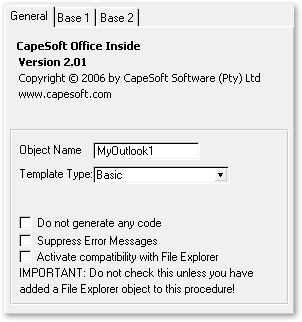
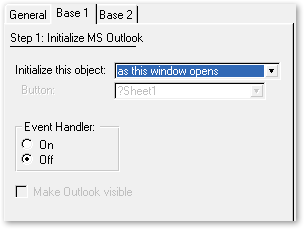
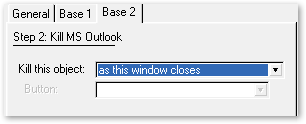
|
General Tab:
Object Name:
This is the name of the Office Inside object that this template will create and implement.
Typically this would default to 'MyOutlook1', but you can change it if you would prefer to call the object something else.
Base1 Tab:
Initialise This Object:
This option allows you to select whether the template will generate code to initialise
the object and when it will be initialised.
Event Handler:
When the Init() method is called it can optionally turn on event handling. This
option allow this to be controlled from the template.
Base2 Tab:
Kill This Object:
The dropdown allows you to choose whether code is generated to Kill() the Outlook
object (and close Outlook), as well as when that code should be called.
|
|
|
| |
|
|
 Classes
This section describes the various classes which make up "Office Inside".
Each class contains methods and properties, which are documented below.
Each method is documented by giving the method name, the parameters, an example
of how to code the method, a list describing what the method does, and additional
comments below.
 The
oiOutlook Class - Introduction
The
oiOutlook Class - Introduction
The oiOutlook class is a "wrapper" class,
which is used by the templates
and by other classes as the "communication" layer between Office Inside
and MS Outlook. Should you wish to write code which communicates "directly"
with MS Outlook, this is the class you're looking for.
The oiOutlook Class - Methods Grouped by Usage
The table below lists methods grouped by usage rather than in alphabetical
order. For example all methods for handling mail are grouped together, all
methods for handling contacts are groups together
and so on. This is a good place to start if you know what you need to do, but
aren't sure what to use to do it.
For an alphabetical listing of the class
methods, see the next section - The oiOutlook Class - Alphabetical Listing of Methods.
The oiOutlook Class - Alphabetical Listing of Methods
The table below list the same class methods as above, but in alphabetical order.
| |
| DeleteAppointment |
Removes an appointment from the Outlook Calendar |
| DeleteContact |
Removes a Contact from the Address Book |
| DeleteTask |
Deletes a task from Outlook |
| DisplayContact |
Displays the Outlook Contact window. |
| ErrorTrap |
Called when an error occurs, to provide additional information for your program
to trap and handle errors |
| EventItemSend |
A callback method, allows you to trap when an item is sent by Outlook and execute
code in your program in response to the event. |
| EventNewMail |
This event callback is called when a new mail is created. |
|
EventOptionsPagesAdd |
Event callback for when the Options window in Outlook is opened. |
| EventQuit |
Event allowing you to trap when Outlook closes. |
| EventReminder |
Event for when Outlook triggers a Reminder. |
| EventStartup |
Event that Outlook fires on startup. |
| GetAppointment |
Fetches a single, specific appointment. |
| GetAppointmentsQ |
Fills a queue with all the Outlook Appointments. |
| GetContact |
Fetchs a single Contact entry. |
| GetContactsQ |
Fills a queue with all the Outlook Contacts. |
| GetEmailBody |
Retrieves the actual body of a specific email (used to get the body of a message
after calling GetMailItemsQ to get mesasge etc.) |
| GetMailAttachmentsQ |
Fills a queue for the attachments for a specific mail message |
| GetMailFoldersQ |
Fills a queue with a list of all mail folders. Can also be used to retrieve a
list of all Outlook folders, as well as just the mail folders. |
| GetMailItemsQ |
Fills a queue with a list of all items in a specific folder. |
| GetTask |
Retrieves a specific Outlook Task entry. |
| GetTasksQ |
Fills a queue with all Outlook Tasks entries. |
| Init |
Called to initialise the oiOutlook function and start Outlook. Sets the default
state of Outlook (whether it is shown and the window position) as well
as whether event callbacks are on etc. |
| InsertAppointment |
Adds an entry to the Outlook Appointments. |
| InsertContact |
Adds an entry to the Outlook Contacts. |
| InsertTask |
Adds an entry to the Outlook Tasks. |
| Kill |
Kills the oiOutlook object, cleans up allocated memory and closes Outlook. |
| SaveAttachment |
Save an attachment from an email in Outlook to a file. |
| SaveAs |
Save the Mail Item to disk in a variety of format.s |
| SendEmail |
Send an email using Outlook. |
| UpdateAppointment |
Update an Outlook Appointment entry. |
| UpdateContact |
Update and Outlook Contact entry. |
| UpdateTask |
Update an Outlook Task entry. |
 Generic
Access to Outlook Items Generic
Access to Outlook Items
| CountItems |
Returns the number of items in the current Items
collection |
|
DeleteAllItems |
Clears the current Items collection |
|
FindChildFolder |
Retrieves the child folder from a parent Folder that
matches the specified name. This performs a recursive search using the
specified parent as the root. |
| FindItems |
Finds an item in the current Items collection (folder)
based on a search string. The FindNextItem method can be used to find
the next matching item. |
| FindNextItem |
Finds the next Item matching the search term use with
the FindItems call |
|
GetDefaultFolder |
Retreives the default Inbox folder as well as the root
folder (Data Store) which contains the Inbox and all other folders for
that store. |
| GetItems |
Retrieves the Items interface which represents items
in a folder |
| GetItem |
Retrieves a specific item |
| GetItemByID |
Retrieve an item from any folder based on the unique
Outlook ID |
|
GetItemByValue |
Retrieves an item from the current Items (folder)
based on the value of the default field for that item (the default
field varies depending on the item type) |
| GetNameSpace |
Retreives the Outlook Namespace. This is the "root"
for all the rest of the data sets stored by Outlook. |
| LastItem |
Retrieve the last item from the current Items
collection |
| MoveItem |
Moves an items from one folder to another in Outlook |
| MoveItems |
Moves all items in the current Items collection to the
specified folder. Allows optional filtering of the items based on a
filter expression. |
| NextItem |
Retrieve the next item from the currently selected
folder (Items collection) |
| PreviousItem |
Retrieve the previous item from the currently selected
folder (Items collection) |
|
RemoveItem |
Removes the item from the Items
collection (this does not delete the actual Item from Outlook). This
is the equivilent of filtering out unwanted records from a record set. |
| Restrict |
Set a record filter for the result set of items being
returned by Outlook. This allows specific items to be retrieved based
on any of the fields in Outlook. |
| ResetColumns |
Resets Outlook to fetch all columns (fields) |
| SetColumns |
Restrict the columns (fields) being retrieved by
Outlook for items. This can improve performance by only retreiving
data required, rather than retrieving all fields that Outlook stores
for each item. This is effectively a View on a database. |
| SortItems |
Sort the items in an Items collection in either
acending or decending order using the Outlook field specified. |
| WithFolder |
Selects a specific folder by name |
|
|
| |
|
|
oiOutlook Class - Method Documentation
This section describes each method listed above, how it is used, the parameters,
return values, date types and related properties of the class that the object
uses. In addition each method has an example of using the method, along with
a list of related methods in the "See Also" section. Where the method uses
specific data types they are listed along with the method, and each field described
where applicable.
|
DeleteAppointment (string
pEntryID)
Deletes the appointment identified by the pEntryID parameter
from Outlook.
Note: This
method does not prompt the user with a "are you sure you want to delete this record" message, you need to do that yourself if you want to, this method simply deletes
the Appointment from Outlook.
Parameters
string pEntryID:
The unique identifier used by Outlook for this entry. The EntryID
is retrieved when calling GetAppointment() or
GetAppointmentQ() and is also returned when you add a new entry by calling the
InsertAppointment() method.
Return Values
Returns 1 for sucess and zero for failure.
Examples
!----------------------------------------------------!
! Example 1: Simply Delete an Appointment using the
! EntryID to identify it.
!----------------------------------------------------!
    MyOutlook.DeleteAppointment(EntryID)


!----------------------------------------------------!
! Example 2: Fetch all appointments, and delete all
! non-recurring appointments that have expired
! (already occurred)
!----------------------------------------------------!
MyCalendar         queue(oioCalendarQType1)
                   end
  code
! Fill a queue with all Calendar entries
    MyOutlook.GetAppointmentsQ(MyCalendar)
    loop i = 1 to Records(MyCalendar)
        Get(MyCalendar, i)
        ! Delete expired, non recurring entries
        if not MyCalendar.IsRecurrings
            if Today() > MyCalendar.End_Date and Clock() > MyCalendar.End_Time
                ! Delete the appointment from Outlook
                MyOutlook.DeleteAppointment(MyCalendar.EntryID)
                ! Delete the appointment from the queue
                Delete(MyCalendar)
                end
        end
    end
See Also
DeleteContact,
DeleteTask, DeleteAppointment

|
|
DeleteContact
(string pEntryID)
Deletes a Contact (Address Book Entry) from Outlook when passed
the unique EntryID that Outlook uses to identify the specific contact.
Note: This method
does not prompt the user with a "are you sure you want to delete this record" message, you need to do that yourself if you want to, this method simply deletes
the Contact from Outlook.
Parameters
string pEntryID:
The unique identifier used by Outlook for this entry. The EntryID is
retrieved when calling GetContact() or
GetContactsQ() and is also returned when you add a new entry by calling the
InsertContact() method.
Return Values
Returns 1 for success, or zero for failure.
Examples
EditContact_EntryID
      string(255)
  code
    ! Delete a selected Contact
end
See Also
InsertContact, GetContact,
GetContactsQ
|
|
DeleteTask (string pEntryID)
Deletes the task identified by the pEntryID parameter
from Outlook.
Note: This method
does not prompt the user with a "are you sure you want to delete this record"
message, you need to do that yourself if you want to, this method simply deletes
the Task from Outlook.
Parameters
string pEntryID:
The unique identifier used by Outlook for this entry. The EntryID is
retrieved when calling GetTask() or
GetTasksQ() and is also returned when you add a new entry by calling the
InsertTask() method.
Return Values
Returns 1 for success and zero for failure
Examples
!--- Fetch all Task, and delete all Tasks that are
!    older than the current date and time
TasksQ             queue(oioTaskQType1)
                   end
  code
    MyOutlook.GetTasksQ(TasksQ)
    loop i = 1 to Records(TasksQ)
        Get(TasksQ, i)
        if (Today() > TasksQ.StartDate_Date and Clock() > TasksQ.StartDate_Time)
            MyOutlook.DeleteTask(TasksQ.EntryID)
            Delete(TasksQ)
        end
    end
See Also
GetTask,
GetTasksQ, InsertTask
|
|
DisplayContact (string
pEntryID)
Displays the Contact with the passed EntryID in
Outlook. This opens the Outlook Contact dialog, allowing the user to
view and modify the Contact using the Outlook dialog itself.
Parameters
string pEntryID:
The unique identifier used by Outlook for this entry. The EntryID is
retrieved when calling GetTask() or
GetTasksQ() and is also returned when you add a new entry by calling the
InsertTask() method.
Return Values
Returns 1 for success and zero for failure
Examples
 if EditContact_EntryID = ''
    Message('Please select a Contact first...', 'Office Inside')
else
    if MyOutlook1.DisplayContact(EditContact_EntryID) = false
        Message('Failed to display the Contact!', 'OfficeInside')
    end
end
See Also
GetTask,
GetTasksQ, InsertTask
|
|
ErrorTrap
(string
pErrorString, string pFunctionName)
This method is called when an error occurs. Office Inside
provides embed points for this method (before parent call, and after
parent call) where you can put code to deal with any errors Office Inside experiences
(see the example code below - note that the text on a grey background
is what the template generates, and the code after the parent call is an example
of custom error handling).
By default any errors that Office Inside encounters will be
dealt with as follows:
- First, this ErrorTrap method is called, where
you can act on the error message as shown in the example code above.
- Second, Outlook might display a message of its
own. You can suppress all messages by ticking the Suppress Error Messages
check box in the procedure extension template.
Note 1: Even
if you suppress error messages the ErrorTrap method will still be called.
Note 2: The Suppress
Error Messages checkbox simply generates a line of code that sets the SuppressErrorMessages property to true.
You can set this property manually if you prefer.
Parameters
string pErrorString: A
string containing the error message that the method passed to ErrorTrap.
You can use this string to display the error to the user, and also
to implement your own error handling based on which error occurred.
string pFunctionName: A
string that contains the name of the Office Inside method that the
error occured in.
Return Values
None. ErrorTrap is called by the class itself, typically
it is only called by the class itself and you would embed code in it,
but not call it yourself.
Examples
MyOutlook.ErrorTrap PROCEDURE(string pErrorString, string pFunctionName)
  code
    case pErrorString
    of 'Init Failed'
        Message (' Sorry but there was an error using Outlook. Error ' |
              & Clip(pErrorString))
        Post( event:closewindow)
    end
    parent.ErrorTrap (pErrorString, pFunctionName)
See Also
|
|
EventItemSend
()
This event callback method is fired when Outlook sends an
item (a Mail Message). You can use this event callback method to add
code to perform some action (such as informing the user) when a send occurs.
This is a virtual method,
which will fire automatically when the event occurs. Microsoft Office fires this event,
which in turn is picked up inside the Office
Inside DLL, which in turn calls this method in your code.
Simply embed code in the provided embed point to deal with this event (if you
wish to do so).
Parameters
None
Return Values
None
Examples
MyOutlook.EventItemSend PROCEDURE()
code
    MessageStore.Sent = true              ! Update a record's sent status
    Access:MessageStore.Update()
See Also
EventItemSend,
EventNewMail,
EventOptionsPagesAdd,
EventQuit, EventReminder,
EventStartup
|
|
EventNewMail
()
This event callback method is fired when a new Mail Message is created
in Outlook. You can use this event callback method to add code to perform
some action (such as informing the user) when a new mail message is
added to Outlook.
This is a virtual method,
which will fire automatically when the event occurs. Microsoft Office fires this event,
which in turn is picked up inside the Office
Inside DLL, which in turn calls this method in your code.
Simply embed code in the provided embed point to deal with this event (if you
wish to do so).
Parameters
None
Return Values
None
Examples
MyOutlook.EventItemSend PROCEDURE()
  code
    MessageStore.Sent = true              ! Update a record's sent status
    Access:MessageStore.Update()
See Also:
EventItemSend
|
|
EventOptionsPagesAdd ()
This event callback method is called when the Options
page (window) in Office is displayed. You can use this (and the other
Event methods) to trap when this even occurs are respond to it in your
code.
This is a virtual method,
which will fire automatically when the event occurs. Microsoft Office fires this event, which in turn is picked up inside the Office
Inside DLL, which in turn calls this method in your code. Simply embed code in the provided embed point to deal with this event (if you
wish to do so).
Parameters
None
Return Values
None
Examples
MyOutlook.EventOptionsPagesAdd PROCEDURE()
  code
    parent.EventOptionsPagesAdd()
    ! An Options page has been added, so take some action here
See Also
EventItemSend,
EventNewMail,
EventOptionsPagesAdd,
EventQuit, EventReminder,
EventStartup
|
|
EventQuit ()
This event callback method is fired when the user exits Outlook
that the oiOutlook started.
This is a virtual method,
which will fire automatically when the event occurs.
Microsoft Office fires this event, which in turn is picked up inside the Office
Inside DLL, which in turn calls this method in your code.
Simply embed code in the provided embed point to deal with this event (if you
wish to do so).
Parameters
None
Return Values
None
Examples
MyOutlook.EventQuit PROCEDURE()
   code
    parent.EventQuit()
    Post(Event:Closewindow) ! The user closed Outlook, so close this window
See Also
EventItemSend,
EventNewMail,
EventOptionsPagesAdd,
EventQuit, EventReminder,
EventStartup
|
|
EventReminder ()
This event callback method is called when Outlook triggers
a Reminder for a task. Reminders can display a message to the user, or
play a sound to inform the user that their is a pending task.
This is a virtual method,
which will fire automatically when the event occurs.
Microsoft Office fires this event, which in turn is picked up inside the Office
Inside DLL, which in turn calls this method in your code.
Simply embed code in the provided embed point to deal with this event (if you
wish to do so).
Parameters
None
Return Values
None
Examples
MyOutlook.EventReminder PROCEDURE()
  code

    parent.EventReminder()
    Message('Check your Outlook Tasks!') ! Inform the user
See Also
EventItemSend,
EventNewMail,
EventOptionsPagesAdd,
EventQuit, EventReminder,
EventStartup
|
|
EventStartup ()
This event callback method is called when Outlook starts
up. You can use this method to execute any code that you want to happen
the Outlook has first started.
This is a virtual method,
which will fire automatically when the event occurs.
Microsoft Office fires this event, which in turn is picked up inside the Office
Inside DLL, which in turn calls this method in your code.
Simply embed code in the provided embed point to deal with this event (if you
wish to do so).
Parameters
None
Return Values
None
Examples
MyOutlook.EventStartup PROCEDURE()
   code

    parent.EventStartup()
    ! Call a routine to display some controls that relate to using Outlook
    Do ShowOutlookOptions
See Also
EventItemSend,
EventNewMail,
EventOptionsPagesAdd,
EventQuit, EventReminder,
EventStartup
|
|
GetAppointment
(string
pEntryID)
Whereas the GetAppointmentsQ method
is used to read all appointments from Outlook into a Clarion
queue, the GetAppointment method can be used to read a single
appointment record, if you know its Outlook ID (which you pass
as pEntryID)
- When you call this method the AppointmentProperties property
is updated, see the Object Properties section below..
- See the Outlook_Calendar procedure
in the offdemo.app example application for more info.
Note: Recurring Appointments
Outlook provides a number
of options for recurring appointments, not all fields need to
be filled in for every recurring appointment,
in fact specific fields apply to specific types of appointments and if
you insert or update an appointment with invalid values it will fail. See
the Object Properties section below for the fields that these
values are used in.
| |
| RecurrenceType |
Properties Used |
Example |
| oio:RecursDaily |
Interval |
10 (Every 10 days)
|
|
DayOfWeekMask |
oio:Monday
+ oio:Friday(Mondays and Fridays)
|
| oio:RecursMonthly |
Interval |
2 (Every
two months)
|
|
DayOfMonth |
8 (The
8th day of every month)
|
| oio:RecursMonthNth |
Interval |
2 (Every
2 months)
|
|
Instance |
1 (The
first Tuesday and Wednesday, the days are specified below,
this is just used for which instance of the days it will
be). This is optional
|
|
DayOfWeekMask |
oio:Tuesday
+ oio:Wednesday(Tuesday and Wednesday)
|
| oio:RecursWeekly |
Interval |
3 (Every three weeks)
|
|
DayOfWeekMask |
oio:Tuesday
+ oio:Wednesday (Tuesday and Wednesday)
|
| oio:RecursYearly |
DayOfMonth |
12 (he 12th day of the month)
|
|
MonthOfYear |
2 (February.
MonthOfYear is a number from 1 to 12 for the months January
to December)
|
| oio:RecursYearNth |
Instance |
3 (The
third time this day occurs in the year, for example the third
Tuesday in the year)
|
|
DayOfWeekMask |
oio:Tuesday
+ oio:Wednesday + oio:Thursday
(Tuesday,
Wednesday and Thursday)
|
|
MonthOfYear |
3 (March.
MonthOfYear is a number from 1 to 12 for the months January
to December)
|
|
|
| |
|
|
Parameters
string pEntryID: The
Unique identifier that Outlook uses for this entry. This value is retrieved
when calling InsertAppointment
, and the EntryID field in the the queue is populated with this value when calling
GetAppointmentsQ.
Return Values
Returns 1 for success and zero for failure.
Examples
This example gets an appointment and then deletes it if
is it older than today's date and time.
  code
    MyOutlook.GetAppointment(appointmentID)    ! Fetch an appointment
    if Today() > MyOutlook.AppointmentProperties.End_Date and |
       Clock() > MyOutlook.AppointmentProperties.End_Time
        MyOutlook.DeleteAppointment(MyOutlook.AppointmentProperties.EntryID)
    end
Object Properties
This method populates the oiOutlook.AppointmentProperties member of the oiOutlook
object with the details of the Appointment. AppointmentProperties is
a group with the following fields:
| |
| Field Name |
Type |
Description |
| Subject |
string |
The Subject of the Task. |
| StartDate_Date |
long |
Standard Clarion date for when the Task
starts (optional) |
| StartDate_Time |
long |
Standard Clarion time for when the Task
starts |
| EndDate_Date |
long |
Standard Clarion date for the Due Date
for the Task |
| EndDate_Time |
long |
Standard Clarion time when this Task
is due |
| CreationTime_Date |
long |
Standard Clarion date when this Task
was created |
| CreationTime_Time |
long |
Standard Clarion time when this Task
was created |
| LastModificationTime_Date |
long |
Standard Clarion date when this Task
was last modified |
| LastModificationTime_Time |
long |
Standard Clarion time when this Task
was last modified |
| Duration |
long |
Duration of this task in minutes |
| Body |
string |
The body text describing this appointment's
details |
| Importance |
byte |
The importance of this appointment,
can be one of three values:
oio:ImportanceHigh
oio:ImportanceNormal
oio:ImportanceLow
|
| AllDayEvent |
byte |
Set this to 1 for an all day event |
| BusyStatus |
byte |
Can be set to one of the following values
indicating the type of appointment:
oio:Free
oio:Tentative
oio:Busy
oio:OutOfOffice |
| IsRecurring |
byte |
Set to 1 if this is a recurring event
(such as birthday, anniversary etc.) |
| Recurrence_Type |
long |
The type of recurrance, once of
the following values:
oio:RecursDaily (once
a day)
oio:RecursWeekly (once
a week)
oio:RecursMonthly (once
a month)
oio:RecursMonthNth (every
N months*)
oio:RecursYearly (once
a year)
oio:RecursYearNth (every
N years*)
*Where N is the number of months/years
between recurrances
Important: Each recurrance type only supports certain fields, and the
field values must be correct, incorrect values will result
in updates or insertion of the appoint failing. See the
note above on Recurring Appointments for the fields used
for each type and their values.
|
| Recurrence_DayOfMonth |
long |
The day of the month on which the Appointment
recurs, a long value that stores the day, for example 15, for
the 15th day of the month. |
| Recurrence_DayOfWeekMask |
long |
The day of the week on which the
Appointment recurs, can be one of the following values:
oio:Sunday
oio:Monday
oio:Tuesday
oio:Wednesday
oio:Thursday
oio:Friday
oio:Saturday
Note that you can add these values
together. For example for an appointment every Monday,
Wednesday and Friday:
Recurrence_DayOfWeekMask
= oio:Monday + oio:Wednesday + oio:Friday
|
| Recurrence_Duration |
long |
Duration of the appointment in minutes |
| Recurrence_Instance |
long |
The instance of the day or of the month
that this appointment recurs on. For example setting this to
3 could recur on the 3rd Tuesday of every month (dependant on
the DayOfWeekMask value) |
| Recurrence_Interval |
long |
The interval with which this appointment
recurs. For example this could be set to 2 for an appointment
that recurs every 2 days, month or years. |
| Recurrence_MonthOfYear |
long |
The month of the year. A value from
1 to 12 representing January (1) to December (12) |
| Recurrence_NoEndDate |
long |
Set to true (1) of the recurrence pattern
has no end date |
| Recurrence_Occurrences |
long |
The number of times this event will
happen. For example setting this to 10 means that this event
will occur 10 times before it expires. |
| Recurrence_PatternStartDate |
long |
The date at which this recurrence pattern
will start |
| Recurrence_PatternStartTime |
long |
The time at which this recurrence pattern
will start |
| Recurrence_PatternEndDate |
long |
The date at which this recurrence pattern
will end |
| Recurrence_PatternEndTime |
long |
The time at which this recurrence pattern
will end |
| ReminderSet |
byte |
Set to true (1) if Outlook displays
a reminder when the appointments occurs |
| ReminderMinutesBeforeStart |
long |
The number of minutes before the appointment
that the reminder is displayed |
| Location |
string |
A string describing where the appointment
takes place |
| EntryID |
string |
A unique identifier for this Outlook
item. Read Only |
|
|
| |
|
|
See Also
InsertAppointment,
GetAppointmentsQ,
DeleteAppointment,
UpdateAppointment
|
|
GetAppointmentsQ
(*oioCalendarQType1
pQueue, <string pEntryID>)
This method is used to read appointments
from Outlook, by filling a Clarion queue (as in the example
code below). The queue filled is a oioCalendarQType1 queue. See Data
Types below for a list of all fields in the queue and a description
of each field and it's values.
Note: You should
declare the queue using the type provided by Office Inside, as these
queues may change in structure with additional field in future versions,
and using the Type rather than redeclaring the queue ensures you maintain
compatibility.
- If you pass an Outlook EntryID in the second (optional)
parameter, then a single record is read and populated into the queue,
we recommend using the GetAppointment method instead.
- See the Outlook_Calendar procedure
in the offdemo.app or offdemo6.app example application for and example of using this method.
Note: Recurring Appointments
Outlook provides a number of options for
recurring appointments, not all fields need to be filled in for every
recurring appointment, in fact specific fields apply to specific types
of appointments and if you insert or update an appointment with invalid
values it will fail.
| |
| RecurrenceType |
Properties
Used |
Example |
| oio:RecursDaily |
Interval |
10 (Every 10 days)
|
|
DayOfWeekMask |
oio:Monday
+ oio:Friday (Mondays and Fridays)
|
| oio:RecursMonthly |
Interval |
2 (Every
two months)
|
|
DayOfMonth |
8 (The
8th day of every month)
|
| oio:RecursMonthNth |
Interval |
2 (Every
2 months)
|
|
Instance |
1 (The
first Tuesday and Wednesday, the days are specified below,
this is just used for which instance of the days it will
be). This is optional
|
|
DayOfWeekMask |
oio:Tuesday
+ oio:Wednesday(Tuesday and Wednesday)
|
| oio:RecursWeekly |
Interval |
3 (Every
three weeks)
|
|
DayOfWeekMask |
oio:Tuesday
+ oio:Wednesday(Tuesday and Wednesday)
|
| oio:RecursYearly |
DayOfMonth |
12 (he
12th day of the month)
|
|
MonthOfYear |
2 (February.
MonthOfYear is a number from 1 to 12 for the months January
to December)
|
| oio:RecursYearNth |
Instance |
3
(The
third time this day occurs in the year, for example the
third Tuesday in the year)
|
|
DayOfWeekMask |
oio:Tuesday
+ oio:Wednesday + oio:Thursday
(Tuesday,
Wednesday and Thursday)
|
|
MonthOfYear |
3 (March.
MonthOfYear is a number from 1 to 12 for the months January
to December)
|
|
|
| |
|
|
Parameters
*oioCalendarQType1 pQueue: A
queue that is filled with the Appointments from Outlook. See the Data
Types section below for a full description of the oioCalendarQType1
queue type, the fields that it contains and a description of each field
and its values.
<string pEntryID>: An
optional string that fills the queue with a single entry containing
the Appointment that matches the passed EntryID. To retrieve a single
record we recommend using the GetAppointment method instead.
Return Value
Returns 1 for success and zero for failure.
Examples
! This example fills a queue with all Appointments, then adds all
! recurring appointments to a new queue (MyEvents). It also deletes
! all appointments that are not recurring and where the appointment end
! date and time are older than today

MyCalendar         queue(oioCalendarQType1)
                   end
MyEvents           queue(oioCalendarQType1)
                   end

 code
    !--- Fill a queue with all Calendar entries
    MyOutlook.GetAppointmentsQ(MyCalendar)
    loop i = 1 to Records(MyCalendar)
        Get(MyCalendar, i)
        ! The queue fields contain the information for this Appointment (calendar entry)
        ! Example: Add recurring events to another queue
        if MyCalendar.IsRecurring
            MyEvents = MyCalendar
            Add(MyEvents)
        else
        ! Example: All expired, non recurring entries could be deleted
            if Today() > MyCalendar.End_Date and Clock() > MyCalendar.End_Time
                MyOutlook.DeleteAppointment(MyCalendar.EntryID)
                Delete(MyCalendar)
            end
        end
    end
Data Types
The oioCalendarQType1 queue type is provided for storing the data
returned by this method. The table below lists the fields contained in
the queue and describes each field.
| |
| Field Name |
Type |
Description |
| Subject |
string |
The Subject of the Task. |
| StartDate_Date |
long |
Standard Clarion date for when the
Task starts (optional) |
| StartDate_Time |
long |
Standard Clarion time for when the
Task starts |
| EndDate_Date |
long |
Standard Clarion date for the Due
Date for the Task |
| EndDate_Time |
long |
Standard Clarion time when this
Task is due |
| CreationTime_Date |
long |
Standard Clarion date when this
Task was created |
| CreationTime_Time |
long |
Standard Clarion time when this
Task was created |
| LastModificationTime_Date |
long |
Standard Clarion date when this
Task was last modified |
| LastModificationTime_Time |
long |
Standard Clarion time when this
Task was last modified |
| Duration |
long |
Duration of this task in minutes |
| Body |
string |
The body text describing this appointment's
details |
| Importance |
byte |
The importance of this appointment,
can be one of three values:
oio:ImportanceHigh
oio:ImportanceNormal
oio:ImportanceLow
|
| AllDayEvent |
byte |
Set this to 1 for an all day event |
| BusyStatus |
byte |
Can be set to one of the following
values indicating the type of appointment:
oio:Free
oio:Tentative
oio:Busy
oio:OutOfOffice |
| IsRecurring |
byte |
Set to 1 if this is a recurring
event (such as birthday, anniversary etc.) |
| Recurrence_Type |
long |
The type of recurrence, once
of the following values:
oio:RecursDaily (once
a day)
oio:RecursWeekly (once
a week)
oio:RecursMonthly (once
a month)
oio:RecursMonthNth (every
N months*)
oio:RecursYearly (once
a year)
oio:RecursYearNth (every
N years*)
*Where N is the number of
months/years between recurrances
Important:
Each recurrance type only supports certain fields,
and the field values must be correct, incorrect values
will result in updates or insertion of the appoint
failing. See the note above on Recurring Appointments
for the fields used for each type and their values.
|
| Recurrence_DayOfMonth |
long |
The day of the month on which the
Appointment recurs, a long value that stores the day, for
example 15, for the 15th day of the month. |
| Recurrence_DayOfWeekMask |
long |
The day of the week on which
the Appointment recurs, can be one of the following values:
oio:Sunday
oio:Monday
oio:Tuesday
oio:Wednesday
oio:Thursday
oio:Friday
oio:Saturday
Note that you can add these
values together. For example for an appointment every
Monday, Wednesday and Friday:
Recurrence_DayOfWeekMask
= oio:Monday + oio:Wednesday + oio:Friday
|
| Recurrence_Duration |
long |
Duration of the appointment in minutes |
| Recurrence_Instance |
long |
The instance of the day or of the
month that this appointment recurs on. For example setting
this to 3 could recur on the 3rd Tuesday of every month (dependant
on the DayOfWeekMask value) |
| Recurrence_Interval |
long |
The interval with which this appointment
recurs. For example this could be set to 2 for an appointment
that recurs every 2 days, month or years. |
| Recurrence_MonthOfYear |
long |
The month of the year. A value from
1 to 12 representing January (1) to December (12) |
| Recurrence_NoEndDate |
long |
Set to true (1) of the recurrence
pattern has no end date |
| Recurrence_Occurrences |
long |
The number of times this event will
happen. For example setting this to 10 means that this event
will occur 10 times before it expires. |
| Recurrence_PatternStartDate |
long |
The date at which this recurrence
pattern will start |
| Recurrence_PatternStartTime |
long |
The time at which this recurrence
pattern will start |
| Recurrence_PatternEndDate |
long |
The date at which this recurrence
pattern will end |
| Recurrence_PatternEndTime |
long |
The time at which this recurrence
pattern will end |
| ReminderSet |
byte |
Set to true (1) if Outlook displays
a reminder when the appointments occurs |
| ReminderMinutesBeforeStart |
long |
The number of minutes before the
appointment that the reminder is displayed |
| Location |
string |
A string describing where the appointment
takes place |
| EntryID |
string |
A unique identifier for this Outlook
item. Read Only |
|
|
| |
|
|
See Also
InsertAppointment,
GetAppointment,
DeleteAppointment,
UpdateAppointment
|
|
GetContact
(string
pEntryID)
Retrieves a specific contact using the passed EntryID.
Whereas the GetContactsQ method is used
to read all contacts from Outlook into a Clarion queue, the GetContact
method can be used to read a single contact record, if you know its
Outlook ID (which you pass as pEntryID). When you call this
method the ContactProperties property is updated, as
demonstrated below (this property is a group and contains numerous
fields). See the Object Properties section below for a description of
each field that the ContactProperties group contains.
Parameters
string pEntryID: The unique identifier used by Outlook
for this entry. For existing Contact entries you can retrieve this
value by calling GetContactsQ, which will retrieve all Contacts, along
with their EntryIDs. For new entries the EntryID is returned as a string
by the InsertContact() method.
Return Value
Returns 1 for success and zero for failure.
Examples
EditContact_EntryID       string(255)
EditContact_FirstName     string(100)
EditContact_LastName      string(100)
EditContact_CompanyName   string(100)
EditContact_Email1Address string(50)
  code
    ! Fetch an existing Contact that has been selected
    ! (and the EntryID populated into EditContact_EntryID)
    if EditContact_EntryID = ''
        Message('Please select a Contact first...', 'Office Inside')
    else
        if not MyOutlook1.GetContact(EditContact_EntryID)
            Message('Error fetching contact', 'Office Inside', Icon:Exclamation)
        else EditContact_FirstName = MyOutlook1.ContactProperties.FirstName
            EditContact_LastName = MyOutlook1.ContactProperties.LastName
            EditContact_CompanyName = MyOutlook1.ContactProperties.CompanyName
            EditContact_Email1Address = MyOutlook1.ContactProperties.Categories
        end
    end
Object Properties
The oiOutlook.ContactProperties group stores the details
for each contact. You can use these fields to get the details for the
contact, as well as updating the fields and then calling UpdateContact
to update the contact itself. Fields that are read-only have been clearly
labelled as such in the description section.
| |
| Field Name |
Type |
Description |
| FirstName |
string |
The first
name of the contact. |
| LastName |
string |
The last name of the contact. |
| CompanyName |
string |
The company name for the contact. |
| Gender |
string |
Gender, one of:
oio:Unspecified
oio:Female
oio:Male |
| _Title |
string |
The title of this contact. |
| Suffix |
string |
Suffix of this contact - a string
that is added after the contact's name. For example: "Bruce Johnson
Esq.", the Suffix would be "Esq.". |
| JobTitle |
string |
Title of this contact's job. |
| Profession |
string |
Profession of the contact. |
| Department |
string |
Department that this contact is
in. |
| AssistantName |
string |
Name of the contact's assistant. |
| ManagerName |
string |
Name of the contact's manager. |
| Language |
string |
Language of the contact |
| Spouse |
string |
Name of the contact's spouse |
| Anniversary |
long |
Standard Clarion date for the contact's
anniversary |
| Birthday |
long |
Standard Clarion date for the contact's
date of birth |
| Children |
string |
String containing the names of any
children |
| Hobby |
string |
String for a hobby |
| Initials |
string |
Contact's Initials |
| MiddleName |
string |
Middle name of the contact |
| NickName |
string |
Nickname for the contact |
| FullName |
string |
Returns or sets a string specifying
the whole, unparsed full name for the contact. Read/write. |
| CompanyAndFullName |
string |
A string representing the concatenated
company name and full name for the contact. Read-only. |
| CompanyLastFirstNoSpace |
string |
A string representing the company
name for the contact followed by the concatenated last name,
first name, and middle name with no space between the last
and first names. This property is parsed from the CompanyName
, LastName , FirstName and MiddleName properties. Read-only. |
| CompanyLastFirstSpaceOnly |
string |
A string representing the company
name for the contact followed by the concatenated last name,
first name, and middle name with spaces between the last,
first, and middle names. This property is parsed from the
CompanyName , LastName , FirstName and MiddleName properties. Read-only. |
| PrimaryTelephoneNumber |
string |
Main telephone number. |
| CompanyMainTelephoneNumber |
string |
Main company telephone number. |
| BusinessTelephoneNumber |
string |
Business telephone number of the
contact. |
| Business2TelephoneNumber |
string |
Second business telephone number. |
| MobileTelephoneNumber |
string |
Mobile number of the contact. |
| HomeTelephoneNumber |
string |
Home telephone number. |
| Home2TelephoneNumber |
string |
Home telephone number of the contact. |
| CarTelephoneNumber |
string |
Car telephone number. |
| CallbackTelephoneNumber |
string |
The callback number of the contact |
| RadioTelephoneNumber |
string |
The radio telephone number. |
| OtherTelephoneNumber |
string |
Any other telephone number for the
contact. |
| AssistantTelephoneNumber |
string |
Telephone number of the contact's
assistance |
| BusinessFaxNumber |
string |
Business fax number. |
| HomeFaxNumber |
string |
Home fax number. |
| PagerNumber |
string |
Page number. |
| TelexNumber |
string |
Telex number. |
| WebPage |
string |
We site address. |
| BusinessHomePage |
string |
Home page of the contact's company
web site. |
| PersonalHomePage |
string |
Home page of the contact's personal
web site. |
| FTPSite |
string |
Address of the contact's FTP server. |
| IMAddress |
string |
Instant Messaging address. Used
for IM clients such as Skype, Google chat, MSN Messenger
etc. |
| SelectedMailingAddress |
byte |
Which one of the addresses is the
selected one. One of the following values:
oio:None
oio:Home
oio:Business
oio:Other |
| BusinessAddress |
string |
Returns or sets a string representing
the whole, unparsed business address for the contact. |
| BusinessAddressCity |
string |
Business address city. |
| BusinessAddressCountry |
string |
Business address country. |
| BusinessAddressPostalCode |
string |
Business address postal code. |
| BusinessAddressPostOfficeBox |
string |
The post office box number portion
of the business address for the contact. |
| BusinessAddressState |
string |
Business address state. |
| BusinessAddressStreet |
string |
Businessa address street. |
| HomeAddress |
string |
Returns or sets a string representing
the whole, unparsed home address for the contact. |
| HomeAddressCity |
string |
Home address city. |
| HomeAddressCountry |
string |
Home address country. |
| HomeAddressPostalCode |
string |
Home address postal code. |
| HomeAddressPostOfficeBox |
string |
Home address PO Box. |
| HomeAddressState |
string |
Home address state. |
| HomeAddressStreet |
string |
Home address street. |
| MailingAddress |
string |
Returns or sets a string representing
the whole, unparsed home address for the contact. |
| MailingAddressCity |
string |
Mailing address city. |
| MailingAddressCountry |
string |
Mailing address country. |
| MailingAddressPostalCode |
string |
Mailing address postal code. |
| MailingAddressPostOfficeBox |
string |
Mailing address PO Box. |
| MailingAddressState |
string |
Mailing address state. |
| MailingAddressStreet |
string |
Mailing address street. |
| OtherAddress |
string |
Returns or sets a string representing
the whole, unparsed address for the contact. |
| OtherAddressCity |
string |
Address city. |
| OtherAddressCountry |
string |
Address country. |
| OtherAddressPostalCode |
string |
Address postal code. |
| OtherAddressPostOfficeBox |
string |
Address PO Box. |
| OtherAddressState |
string |
Address state. |
| Email1Address |
string |
Email address for the contact. |
| Email1AddressType |
string |
Returns or sets a String representing
the address type (such as EX or SMTP) of the first e-mail
entry for the contact. This is a free-form text field, but
it must match the actual type of an existing e-mail transport. |
| Email1DisplayName |
string |
Returns a String representing the
display name of the first e-mail address for the contact.
This property is set to the value of the FullName property
by default. Read-only. |
| Email2Address |
string |
A secondary email address for the
contact. |
| Email2AddressType |
string |
The type of address (see Email1AddressType
above) |
| Email2DisplayName |
string |
The display name of the second email
address (see Email1DisplayName above) |
| Email3Address |
string |
A tertiary email address for the
contact. |
| Email3AddressType |
string |
The type of address (see Email1AddressType
above) |
| Email3DisplayName |
string |
The display name of the third email
address (see Email1DisplayName above) |
| Categories |
string |
Returns or sets a String representing
the categories assigned to the Microsoft Outlook item. |
| CreationTime_Date |
long |
Returns a Date indicating the creation
time for the Outlook item. Read-only. |
| CreationTime_Time |
long |
Returns a Time indicating the creation
time for the Outlook item. Read-only. |
| LastModificationTime_Date |
long |
Returns a Date specifying the date
that the Microsoft Outlook item was last modified. Read-only. |
| LastModificationTime_Time |
long |
Returns a Time specifying the time
that the Microsoft Outlook item was last modified. Read-only. |
| EntryID |
string |
The unique Entry ID for this contact.
Each object in Outlook has a unique EntryID that identifies
it. |
|
|
| |
|
|
See Also
GetContactsQ,
InsertContact,
DeleteContact,
UpdateContact,
GetAppointment,
GetTask
|
|
GetContactsQ (*oioContactsQType1
pQueue, <string pEntryID>)
This method is used to read addresses from Outlook,
by filling a Clarion queue (as in the example code below).
If you pass an Outlook EntryID in the second (optional)
parameter, then a single record is read and populated into the queue,
we recommend using the GetContact method instead. See the
Outlook_AddressBook procedure
in the offdemo.app example application for more info.
Note: You should declare
the queue using the type provided by Office Inside, as these queues may
change in structure with additional field in future versions, and using
the Type rather than redeclaring the queue ensures you maintain compatibility.
The oioContactQType1 queue structure and field description is listed
below in the Data Types section
Parameters
*oioContactsQType1 pQueue: A queue of the type oioContactsQType1
which stores the fields for each contact. The queue should be declared
using the oioContactsQType1, rather than simply declaring a queue that
has the same fields, as the oioContactsQType1 may change between version
as new fields are added etc.
<string
pEntryID>: A optional parameter that limits the method to only fetching the contact with
the EntryID that matches the the pEntryID parameter. For fetching a
single contact it is recommended that you call the GetContact method
instead, which does not require a queue, and simply populates the oiOutlook.ContactProperties
group with the contact data.
Return Value
Returns 1 for success and zero for failure.
Examples
ContactsQ          queue(oioContactsQType1)
                   end
startTime          long
  code
    ! Fetch all contacts
    Setcursor(cursor:wait)
    startTime = Clock()

    Window{prop:text} = 'Please wait, reading addresses...'
    MyOutlook1.GetContactsQ(ContactsQ)
    Sort(ContactsQ, +ContactsQ.FirstName, +ContactsQ.LastName)
    Window{prop:text} = 'Outlook Address Book'

    Message('Read ' & Records(ContactsQ) & ' addresses in ' |
           & ((Clock() - startTime)/100) & ' seconds.', 'Office Inside')
    SetCursor()

    ! If the queue is used to populate a list. select the first
    ! entry now that it has been filled
    Select(?List1, 1)
    Post(Event:Newselection, ?List1)
Data Types
The oioContactsQType1 queue type is provided for storing
the details of Contacts. The table below describes each field in the
queue, as well as it's type and values.
| |
| Field Name |
Type |
Description |
| FirstName |
string |
The first name of the contact. |
| LastName |
string |
The last name of the contact. |
| CompanyName |
string |
The company name for the contact. |
| Gender |
string |
Gender, one of:
oio:Unspecified
oio:Female
oio:Male |
| _Title |
string |
The title of this contact. |
| Suffix |
string |
Suffix of this contact - a string that is added after the
contact's name. For example: "Bruce Johnson Esq.",
the Suffix would be "Esq.". |
| JobTitle |
string |
Title of this contact's job. |
| Profession |
string |
Profession of the contact. |
| Department |
string |
Department that this contact is in. |
| AssistantName |
string |
Name of the contact's assistant. |
| ManagerName |
string |
Name of the contact's manager. |
| Language |
string |
Language of the contact |
| Spouse |
string |
Name of the contact's spouse |
| Anniversary |
long |
Standard Clarion date for the contact's anniversary |
| Birthday |
long |
Standard Clarion date for the contact's date of birth |
| Children |
string |
String containing the names of any children |
| Hobby |
string |
String for a hobby |
| Initials |
string |
Contact's Initials |
| MiddleName |
string |
Middle name of the contact |
| NickName |
string |
Nickname for the contact |
| FullName |
string |
Returns or sets a string specifying the whole, unparsed
full name for the contact. Read/write. |
| CompanyAndFullName |
string |
A string representing the concatenated company name and
full name for the contact. Read-only. |
| CompanyLastFirstNoSpace |
string |
A string representing the company name for the contact
followed by the concatenated last name, first name, and
middle name with no space between the last and first names.
This property is parsed from the CompanyName , LastName ,
FirstName and MiddleName properties. Read-only. |
| CompanyLastFirstSpaceOnly |
string |
A string representing the company name for the contact
followed by the concatenated last name, first name, and
middle name with spaces between the last, first, and middle
names. This property is parsed from the CompanyName ,
LastName , FirstName and MiddleName properties.
Read-only. |
| PrimaryTelephoneNumber |
string |
Main telephone number. |
| CompanyMainTelephoneNumber |
string |
Main company telephone number. |
| BusinessTelephoneNumber |
string |
Business telephone number of the contact. |
| Business2TelephoneNumber |
string |
Second business telephone number. |
| MobileTelephoneNumber |
string |
Mobile number of the contact. |
| HomeTelephoneNumber |
string |
The contacts home telephone number. |
| Home2TelephoneNumber |
string |
Home telephone number of the contact. |
| CarTelephoneNumber |
string |
Car telephone number. |
| CallbackTelephoneNumber |
string |
The callback number of the contact |
| RadioTelephoneNumber |
string |
The radio telephone number. |
| OtherTelephoneNumber |
string |
Any other telephone number for the contact. |
| AssistantTelephoneNumber |
string |
Telephone number of the contact's assistance |
| BusinessFaxNumber |
string |
Business fax number. |
| HomeFaxNumber |
string |
Home fax number. |
| PagerNumber |
string |
Page number. |
| TelexNumber |
string |
Telex number. |
| WebPage |
string |
We site address. |
| BusinessHomePage |
string |
Home page of the contact's company web site. |
| PersonalHomePage |
string |
Home page of the contact's personal web site. |
| FTPSite |
string |
Address of the contact's FTP server. |
| IMAddress |
string |
Instant Messaging address. Used for IM clients such as
Skype, Google chat, MSN Messenger etc. |
| SelectedMailingAddress |
byte |
Which one of the addresses is the selected one. One of the
following values:
oio:None
oio:Home
oio:Business
oio:Other |
| BusinessAddress |
string |
Returns or sets a string representing the whole, unparsed
business address for the contact. |
| BusinessAddressCity |
string |
Business address city. |
| BusinessAddressCountry |
string |
Business address country. |
| BusinessAddressPostalCode |
string |
Business address postal code. |
| BusinessAddressPostOfficeBox |
string |
The post office box number portion of the business
address for the contact. |
| BusinessAddressState |
string |
Business address state. |
| BusinessAddressStreet |
string |
Businessa address street. |
| HomeAddress |
string |
Returns or sets a string representing the whole, unparsed
home address for the contact. |
| HomeAddressCity |
string |
Home address city. |
| HomeAddressCountry |
string |
Home address country. |
| HomeAddressPostalCode |
string |
Home address postal code. |
| HomeAddressPostOfficeBox |
string |
Home address PO Box. |
| HomeAddressState |
string |
Home address state. |
| HomeAddressStreet |
string |
Home address street. |
| MailingAddress |
string |
Returns or sets a string representing the whole, unparsed
home address for the contact. |
| MailingAddressCity |
string |
Mailing address city. |
| MailingAddressCountry |
string |
Mailing address country. |
| MailingAddressPostalCode |
string |
Mailing address postal code. |
| MailingAddressPostOfficeBox |
string |
Mailing address PO Box. |
| MailingAddressState |
string |
Mailing address state. |
| MailingAddressStreet |
string |
Mailing address street. |
| OtherAddress |
string |
Returns or sets a string representing the whole, unparsed
address for the contact. |
| OtherAddressCity |
string |
Address city. |
| OtherAddressCountry |
string |
Address country. |
| OtherAddressPostalCode |
string |
Address postal code. |
| OtherAddressPostOfficeBox |
string |
Address PO Box. |
| OtherAddressState |
string |
Address state. |
| Email1Address |
string |
Email address for the contact. |
| Email1AddressType |
string |
Returns or sets a String representing the address type
(such as EX or SMTP) of the first e-mail entry for the
contact. This is a free-form text field, but it must match
the actual type of an existing e-mail transport. |
| Email1DisplayName |
string |
Returns a String representing the display name of the
first e-mail address for the contact. This property is set
to the value of the FullName property by default.
Read-only. |
| Email2Address |
string |
A secondary email address for the contact. |
| Email2AddressType |
string |
The type of address (see Email1AddressType above) |
| Email2DisplayName |
string |
The display name of the second email address (see
Email1DisplayName above) |
| Email3Address |
string |
A tertiary email address for the contact. |
| Email3AddressType |
string |
The type of address (see Email1AddressType above) |
| Email3DisplayName |
string |
The display name of the third email address (see
Email1DisplayName above) |
| Categories |
string |
Returns or sets a String representing the categories
assigned to the Microsoft Outlook item. |
| CreationTime_Date |
long |
Returns a Date indicating the creation time for the
Outlook item. Read-only. |
| CreationTime_Time |
long |
Returns a Time indicating the creation time for the
Outlook item. Read-only. |
| LastModificationTime_Date |
long |
Returns a Date specifying the date that the Microsoft
Outlook item was last modified. Read-only. |
| LastModificationTime_Time |
long |
Returns a Time specifying the time that the Microsoft
Outlook item was last modified. Read-only. |
| EntryID |
string |
The unique Entry ID for this contact. Each object in
Outlook has a unique EntryID that identifies it. |
|
|
| |
|
|
See Also
GetContact,
InsertContact, DeleteContact,
GetAppointmentsQ, GetTasksQ
|
|
GetEmailBody
(string pEntryID,
*string emailBody, long pHtml)
Returns the body (either the text or html version) for the email
identified by pEntryID. Use the GetMailItemsQ
method to get a list of emails and their EntryID's and
the GetFolderQ method to get a list of all
email folders.
The retrieved message body is stored in the passed emailBody string.
If the emailBody string is too small to store the entire body the then
body contents are truncated to fit the string and the method returns the
required size to allow the application to allocate more memory are call
the method again using a larger string.
This method is used in the Outlook_ReadEmailFolders procedure
in the offdemo.app example application.
Parameters
string pEntryID: A string containing the unique
identifier used by Outlook for this entry (mail message). Each item in
Outlook has a unique identifier that is returned when retrieving items
from Outlook. This property is always created by Outlook as is read
only.
*string emailBody: The string that will contain the
contents of the email body. If the passed string is too small then the
body contents are truncated to fit into the string and the method
returns the required size to store the entire body. This string will
contain either the HTML version, or the text only version, depending on
the value of the last parameter - pHtml.
long pHtml: If set to true (1) then the HTML content
of the email is fetched, if set to false (0) then the Text only version
is retrieved.
Return Value
Returns zero if successful and -1 if an error occurs. If the
passed string is too short to store the message body the function
stores a truncated version in the passed string and returns the
required length (allowing the caller to allocate additional memory
and call the method again).
Examples
emailText     &string
emailHtml     &string
retVal        long
  code
    emailText &= new string(32768)                  ! 32KB string - the base size
    retVal = GetEmailBody(MailID, emailText, false) ! Fetch the text body
    if retVal = -1
        ! An error occured, the COM interface failed to fetch the data
    elsif retVal > 0 ! The emailText string was too small, so it was truncated, resize and fetch again
        Dispose(emailText)
        emailText &= new string(retVal)
        ! Call GetEmailBody again, this time with a large enough string
        retVal = GetEmailBody(MailID, emailText, false) ! Fetch the text body
        if retVal <> 0
            Message('Sorry, but the email body could not be retrieved')
        end
    else
        ! Successfully retrieved the Text body
    end

    ! Fetching the HTML version is indentical, except that you set the last parameter to true:
    retVal = GetEmailBody(MailID, emailHtml, true) ! Fetch the HTML body

    ! You can use Capesoft FileExplorer to display the HTML
    ! version of the email in your Clarion application
See Also
GetMailItemsQ, GetFolderQ,
GetMailAttachmentsQ,
SaveAttachment
|
|
|
GetEmailBody
(string
pEntryID, byte pHtml=false)
This method is limited to 20,000 characters and is
deprecated. Please use the new GetEmailBody method listed above. This
method is included for backward compatibility only.
Returns the body (in text, or html) for the
email identified by pEntryID. Use
the GetMailItemsQ method to get a list of emails and their EntryID's and the
GetFolderQ method to get a list of all email folders.
See the Outlook_ReadEmailFolders procedure
in the offdemo.app example application for more info.
Parameters
string pEntryID: A string containing the unique identifier
used by Outlook for this entry (mail message). Each item in Outlook
has a unique identifier that is returned when retrieving items from
Outlook. This property is always created by Outlook as is read only.
byte pHtml: If set to true (1) then the HTML content of the email is fetched,
if set to false (0) then the Text only version is retrieved.
Return Value
The method returns a string that contains the contents
of the email, either as text, or as HTML, depending on the value of
the pHtml parameter.
Examples
mailText          string(08000h)      ! 512K
mailHtml          string(010000h)     ! 1MB
  code
    mailText = MyOutlook.GetEmailBody (EntryID)       ! plain text
    mailHtml = MyOutlook.GetEmailBody (EntryID, true) ! html

    ! You can use Capesoft FileExplorer to display the HTML
    ! version of the email in your Clarion application
See Also
GetMailItemsQ,
GetFolderQ,
GetMailAttachmentsQ,
SaveAttachment
|
|
GetMailAttachmentsQ
(*oioAttachmentsQ
pQueue, string pEntryID)
This method is used to read the list of email attachments
from an email, by filling a Clarion queue (as in the example
code below).
- See the Outlook_ReadEmailFolders procedure
in the offdemo.app example application for more info.
Note: You should declare
the queue using the type provided by Office Inside, as these queues may
change in structure with additional field in future versions, and using
the Type rather than redeclaring the queue ensures you maintain compatibility.
Parameters
*oioAttachmentsQ pQueue: A queue that contains the list
of all attachments for a particular mail message. The oioAttachmentsQ
queue type is provided for declaring this queue, and the fields are
listed below under Data Type.
string pEntryID: The Outlook unique identifier for this item. Every item in Outlook has a unique
identifier that is created by Outlook. This unique identifier is return
by the Insert methods such as InsertTask,
InsertAppointment and
InsertContact,
as well as when calling the methods to fill a queue with items of a
particular type, such as GetMailItemsQ, which retrieve a list of all
mail messages in a particular folder.
Return Value
Returns 1 for success and zero for failure.
Examples
! This example loops through a queue that would contain mail items
! which would be retrieved using the GetMailItemsQ method, and for
! each mail items shows two ways of saving attachments. Firstly how
! to save a single specific attachment, and secondly how to just save
! all attachments for an email.
AttachmentsQ    queue(oioAttachmentsQ)
                end
MailQ           queue(oioFolderItemsQType)
                end
i               long
a               long
  code
    loop i = 1 to Records(MailQ)
        Get(MailQ, i)

        ! Option 1: Save all attachments
        MyOutlook.SaveAttachment(MailQ.EntryID, 0, '.\Attachments', '')

        MyOutlook.GetMailAttachmentsQ(AttachmentsQ, MailQ.EntryID)

        ! Option 2: Save specific attachments (for example all .zip files)
        loop a = 1  to Records(AttachmentsQ)
            Get(AttachmentsQ, a)
            if Instring('.zip', Lower(AttachmentsQ.FileName), 1, 1)
                MyOutlook.SaveAttachment(MailQ.EntryID, AttachmentsQ._Index, |
                                         '.\Attachments', AttachmentsQ.FileName)
        end
        Free(AttachmentsQ)
    end
Data Types
| |
| Field
Name |
Type |
Description |
| _Index |
string |
The index of this entry, used for passing to the SaveAttachment function |
ParentFolderName
|
string |
The name of the Folder that is the
parent of this folder |
| EntryID |
string |
The unique identifier assigned by
Outlook to this item |
|
|
| |
|
|
See Also
GetMailFolderQ,
GetMailItemsQ,
SaveAttachments
|
|
GetMailFoldersQ
(*oioFolderNamesQType
pQueue, long allFolders = 0)
This method is used to read the names / structures of
the email folders from Outlook, by filling a Clarion queue (as in the
example code below).
Note: You should
declare the queue using the type provided by Office Inside, as these
queues may change in structure with additional field in future versions,
and using the Type rather than redeclaring the queue ensures you
maintain compatibility.
Parameters
oioFolderNamesQType pQueue: Stores
the folder information, you should declare the queue using the provided
Type to ensure changes to the types to not cause compiled errors in
future versions (see below for an example of declaring a queue based
on the provided type).
| |
| Field
Name |
Type |
Description |
| FolderName |
string |
The name of the Folder |
ParentFolderName
|
string |
The name of the Folder that is the
parent of this folder |
| EntryID |
string |
The unique identifier assigned by
Outlook to this item |
|
|
| |
|
|
long AllFolders: Allows
you to list all Outlook folders, include the root folder and non mail
folders such as Contacts, Tasks, Journal etc. By default this is set
to zero to only retrieve Mail folders, setting this to 1 will retrieve
all folders in the Folders tree, including those that store appointments,
contacts etc. You can then manually choose which entries you need from
the queue and delete those that are not needed.
Return Values
Returns 1 if successful, zero if an error occurred.
Example
foldersQ       queue(oioFolderNamesQType)
               end
  code

    myOutlook.GetMailFoldersQ(foldersQ)
    Message('Found ' & Records(foldersQ) & ' mail folders')
See Also
GetMailItemsQ,
GetTasksQ,
GetAppointmentsQ,
GetContactsQ,
SaveAttachment
See the Outlook_ReadEmailFolders procedure
in the offdemo.app example application for more info.
|
|
GetMailItemsQ
(*oioFolderItemsQType
pQueue, <string pFolderID>)
This method is used to read emails from Outlook, by
filling a Clarion queue (as in the example code above). The queue type
is described below in the Data Type section, along with the fields of
the queue. Typically you would call GetMailFolderQ to retrieve a list
of folders, and then call GetMailItemsQ to retrieve a list of all mail
in a specific folder.
If the pFolderID parameter is omitted then the
contents of the Inbox are fetched, otherwise if you pass the EntryID of
the desired folder, the list of mail in that folder is retrieved.
Note: See the Outlook_ReadEmailFolders procedure
in the offdemo.app example application for more info.
Parameters
*oioFolderItemsQType pQueue: A queue of the type oioFolderItemsQType
(see the Data Types section below for the queue fields and description).
This queue will be filled with the details of all mail message in the
passed folder. Use the pFolderID parameter to specify which folder
to enumerate.
<string
pFolderID>: An optional parameter that specific which folder the mail list should be retrieved
for. If this parameter is not passed then the queue is filled with
the list of mail in the Inbox. If you pass an EntryID identifying a
specific folder, then all mail in that folder is enumerated and the
details placed in the passed queue. The EntryID for the folder is typically
retrieved using the GetMailFoldersQ method to retrieve a list of all
mail folders.
Return Value
Returns 1 for success and zero for failure.
Examples
FolderItemsQ       queue(FolderItemsQType)
                   end
  code
    MyOutlook.GetMailItemsQ(FolderItemsQ)                       ! Read the Inbox
    ! Do something with the contents of the queue here ...

    Free(FolderItemsQ)
    MyOutlook.GetMailItemsQ(FolderItemsQ, FolderQ.EntryID)      ! Read a specific folder
    ! Do something with the contents of the queue here ...
Data Types
| |
| Field Name |
Type |
Description |
| SenderName |
string |
The name of the sender of the email. |
SenderEmailAddress
|
string |
The email address of the sender. |
| ToList |
string |
The list of people that the mail was sent to |
| CCList |
string |
The list of addresses that the email was CC'd to (Carbon
Copied). |
| BCCList |
string |
The list of addresses that the email was BCC'd to (Blind
Carbon Copied). Note that this only applies to Sent items.
For received email that was sent with a BCC, the server creates
one email for each person in the BBC list, and the email is
received with the specific address in the TO field. Hence
the carbon copy is "blind", as each recipient only
sees their own address and not who else the mail was sent
to. |
| Subject |
string |
The subject of the email. |
| MessageSize |
long |
The size of the message in bytes. |
| EntryID |
string |
The unique identifier that Outlook assigns to this mail
message. |
| Categories |
string |
Categories assigned to the Outlook item. |
| Companies |
string |
Names of the companies associated with the Outlook item. |
| FlagRequest |
string |
Requested action for a mail item. |
| Importance |
long |
Relative importance level for the Outlook item. |
| IsMarkedAsTask |
long |
Whether the MailItem is marked as a task. |
| LastModificationTime |
long |
Time that the Outlook item was last modified. |
| LastModificationDate |
long |
Date that the Outlook item was last modified. |
| ReceivedByName |
string |
Display name of the true recipient for the mail message. |
| ReceivedDate |
long |
The date on which the item was received. |
| ReceivedTime |
long |
The time at which the item was received. |
| SentDate |
long |
The date on which the item was sent. |
| SentTime |
long |
The time at which the item was sent. |
| ReplyRecipientNames |
string |
Semicolon-delimited String list of reply recipients for
the mail message. |
| SentOnBehalfOfName |
string |
Display name for the intended sender of the mail message. |
| UnRead |
long |
If True, the item has not been opened (read) |
| |
|
|
|
|
| |
|
|
See Also
GetMailFoldersQ,
GetMailAttachmentsQ,
GetEmailBody,
SaveAttachment
|
|
GetTask (string
pEntryID)
The GetTask method retrieves a Task entry using the EntryID
that Outlook uses to uniquely identify each entry.
Parameters
string pEntryID: The
unique Entry ID that Outlook uses to identify this entry. This is a
string and is return by Outlook when using the "Get" methods to fetch entries (GetTask, GetAppointment and GetContact) as well as
when using the Get Queue methods to fill a queue with all entries (GetTasksQ,
GetAppointmentsQ and GetContactsQ). The EntryID is also return by each
of the Insert methods (InsertContact, InsertTask and InsertAppointment).
EntryIDs are created by Outlook and should be treated as read only.
Return Values
The method returns 1 for success and zero for failure.
Information
The GetTasksQ method
can also be used to read all tasks from Outlook into a Clarion queue,
rather than retrieving a single task. When you call this method the
TaskProperties property is updated, as demonstrated above (this property is a group and contains
the fields that store the Task values).
The information for the Task is stored in the oiOutlook.TaskProperties
property of the Outlook class:
| |
| Name |
Type |
Description |
| EntryID |
string |
Outlook's unique identifier for
this Task |
| Subject |
string |
The Subject of the Task. |
Body
|
string |
The body contents of the Task, text
that describes what the task is. |
| Importance |
byte |
The importance of the task, one
of three values for High, Normal and Low:
oio:ImportanceHigh,
oio:ImportanceNormal or
oio:ImportanceLow |
| StartDate_Date |
long |
Standard Clarion date for when the
Task starts (optional) |
| StartDate_Time |
long |
Standard Clarion time for when the
Task starts |
| DueDate_Date |
long |
Standard Clarion date for the Due
Date for the Task (optional) |
| DueDate_Time |
long |
Standard Clarion time for when this
Task is due |
| ReminderSet |
long |
Set to true to
turn the reminder on and
false to turn it off. |
| ReminderTime_Date |
long |
If the reminder is enabled this
is the date that the reminder will trigger |
| ReminderTime_Time |
byte |
If the reminder is enabled this
is the time that the reminder will trigger |
| ReminderPlaySound |
byte |
If set to true (or 1) then a sound
will be played when the reminder triggers |
| ReminderSoundFile |
string |
Specifies a particular sound file
to play when the reminder triggers |
| CreationTime_Date |
long |
The date that this Task was created |
| CreationTime_Time |
long |
The time that this Task was created |
| LastModificationTime_Date |
long |
The last date that this Task was
modified |
| LastModificationTime_Time |
long |
The last time that this Task was
modified |
| Categories |
string |
The catagories for the Task |
| Companies |
string |
Companies for the task |
| Complete |
long |
Whether the task is complete or not |
| IsConflict |
long |
Read Only. Whether a conflict is detected
by Outlook |
| DateCompleted |
long |
Date the Task was completed |
| TimeCompleted |
long |
Time the Task was completed |
| IsRecurring |
long |
Read Only. Whether this is a recurring
Task |
| NoAging |
long |
A non aging Task |
| Owner |
string |
The name of the owner for the Task |
| PercentComplete |
long |
Percentage complete at the current date/time |
| Size |
long |
The size (in bytes) of the Outlook item |
| Status |
long |
The status of the Task (one of the TaskStatus equates) |
| StatusOnCompletionRecipients |
string |
Recipients informed when the Task is completed |
| StatusUpdateRecipients |
string |
Recipients informed when the Task is updated |
| TeamTask |
long |
Boolean that indicates True if the task is a team task |
| TotalWork |
long |
Long indicating the total work for the task |
| UnRead |
long |
Boolean value that is True if the Outlook item has not
been opened (read) |
|
|
| |
|
|
Example
! Fetch a Task, update some of its properties, and update the task:
MyOutlook.GetTask(TaskEntryID)
MyOutlook.TaskProperties.Subject = 'Important Bug Fix'
MyOutlook.TaskProperties.Priority = oio:ImportanceHigh
MyOutlook.UpdateTask(TaskEntryID)
See Also:
InsertTask,
UpdateTask, DeleteTask,
GetTasksQ
For further examples of usage see the
Outlook_Tasks procedure in the offdemo.app or
offdemo6.app example application.
|
|
GetTasksQ
(
*oioTasksQType1 pQueue, <string pEntryID> )
This method is used to read Tasks from Outlook,
filling a Clarion queue with all the Outlook Tasks. Office Inside
provides a queue type to store the tasks, and allows you to synchronise
tasks between Outlook and your application. You can also retrieve a
single specific task by calling GetTask.
If you pass an Outlook EntryID in the second (optional) parameter,
then a single record is read and populated into the queue, we recommend
using the GetTask method instead to read single entries.
Parameters
*oioTasksQType1 pQueue: A queue to be
filled with the Outlook Tasks. The queue must be of the oioTasksQType1
type, or have exactly the same fields. We strongly recommend that you
use the provided types rather than declaring the entire queue structure,
as they may change between versions.
| |
| Name |
Type |
Description |
| EntryID |
string |
Outlook's unique identifier for
this Task |
| Subject |
string |
The Subject of the Task. |
| Body |
string |
The body contents of the Task, text
that describes what the task is. |
| Importance |
byte |
The importance of the task, one
of three values for High, Normal and Low:
oio:ImportanceHigh,
oio:ImportanceNormal or
oio:ImportanceLow |
| StartDate_Date |
long |
Standard Clarion date for when the
Task starts (optional) |
| StartDate_Time |
long |
Standard Clarion time for when the
Task starts |
| DueDate_Date |
long |
Standard Clarion date for the Due
Date for the Task (optional) |
| DueDate_Time |
long |
Standard Clarion time for when this
Task is due |
| ReminderSet |
long |
Set to true to
turn the reminder on and
false to turn it off. |
| ReminderTime_Date |
long |
If the reminder is enabled this
is the date that the reminder will trigger |
| ReminderTime_Time |
byte |
If the reminder is enabled this
is the time that the reminder will trigger |
| ReminderPlaySound |
byte |
If set to true (or 1) then a sound
will be played when the reminder triggers |
| ReminderSoundFile |
string |
Specifies a particular sound file
to play when the reminder triggers |
| CreationTime_Date |
long |
The date that this Task was created |
| CreationTime_Time |
long |
The time that this Task was created |
| LastModificationTime_Date |
long |
The last date that this Task was
modified |
| LastModificationTime_Time |
long |
The last time that this Task was
modified |
| Categories |
string |
The catagories for the Task |
| Companies |
string |
Companies for the task |
| Complete |
long |
Whether the task is complete or not |
| IsConflict |
long |
Read Only. Whether a conflict is detected
by Outlook |
| DateCompleted |
long |
Date the Task was completed |
| TimeCompleted |
long |
Time the Task was completed |
| IsRecurring |
long |
Read Only. Whether this is a recurring
Task |
| NoAging |
long |
A non aging Task |
| Owner |
string |
The name of the owner for the Task |
| PercentComplete |
long |
Percentage complete at the current date/time |
| Size |
long |
The size (in bytes) of the Outlook item |
| Status |
long |
The status of the Task (one of the TaskStatus equates) |
| StatusOnCompletionRecipients |
string |
Recipients informed when the Task is completed |
| StatusUpdateRecipients |
string |
Recipients informed when the Task is updated |
| TeamTask |
long |
Boolean that indicates True if the task is a team task |
| TotalWork |
long |
Long indicating the total work for the task |
| UnRead |
long |
Boolean value that is True if the Outlook item has not
been opened (read) |
|
|
| |
|
|
string pEntryID: Optionally
allows a specific Task to be retrieved by passing the EntryID of the
Task to be fetched. To retrieve a single Task a better approach is
to use the GetTask method.
Return Values
Returns 1 for success and zero for failure (failure generally
indicates an error when calling the COM interface).
Example
This example gets all the Tasks from Outlook and fills a queue.
It then loops through the queue and adds all tasks that are marked as
High importance to a queue called ImportantTasks. It then deletes entries
that that are not High importance and have passed their Due date and
time. These entries are placed in a DoneTasks queue before being deleted.
MyTasks        queue(oioTasksQType1)
               end
ImportantTasks queue(oioTasksQType1)
               end
DoneTasks      queue(oioTasksQType1)
               end
  code
    !--- Fill a queue with all Tasks
    MyOutlook.GetTasksQ(MyTasks)
    loop i = 1 to Records(MyTasks)
        Get(MyTasks, i)     ! The queue fields contain the information for this Tasks
        !--- Example: Add Important tasks to a new queue
        if MyTasks.Importance = oio:ImportanceHigh
            ImporantTasks = MyTasks
            Add(importantTasks)
        else                ! Example: Delete all tasks that are past the due date
            if Today() > MyTasks.DueDate_Date and Clock() > MyTasks.DueDate_Time ! Delete the Task from Outlook
                MyOutlook.DeleteAppointment(MyTasks.EntryID)
                DoneTasks = MyTasks
                Add(DoneTasks)    ! Add to the Done queue
                Delete(MyTasks)   ! Delete from the Tasks queue
            end
       end
    end
See Also
InsertTask,
UpdateTask, GetTask,
GetAppointmentsQ,
GetContactsQ, GetMailItemsQ,
GetMailFoldersQ
See the Outlook_Tasks procedure
in the offdemo.app example application for more info.
|
|
Init
(byte
pStartVisible=0, byte pEnableEvents=0) ,byte,proc
This method initializes the oiOutlook object, and must
be called before you call any other methods in this class.
The pStartVisible parameter
currently has no effect whatsoever, and should be passed as 0 (zero
/ false). The pVisible parameter can be used for other Office Inside classes,
however for Outlook it is not used.
Note: Compatibility with other (non Office Inside) COM Objects:
If you are using other COM objects on the same thread then the COM
interface must only get initialised once and destroyed once. The
Office Inside template provides a "File Explorer Compatibility" option
that allows File Explorer (or another COM object) to do this initialisation
and destruction. This is done by setting the oiOffice.noComInit property
to 1, so that Office Inside does not handle the COM interface. See
Kill for more information.
Parameters
byte pStartVisible: Not used by Outlook. For other Office
Inside object this parameter determines whether the application is
visible or hidden when started by the COM object.
byte pEnableEvents: Set this to one to enable the event callbacks such as
EventItemSend,
EventNewMail,
EventReminder, EventQuit etc.
Return Value
Returns 1 for success and zero for failure.
Examples
MyOutlook.Init(false, true)  ! Start Outlook with events turned on

MyOutlook.Init(false, false) ! Start Outlook with events turned off
See Also
Kill,
EventItemSend,
EventNewMail, EventReminder,
EventQuit
|
|
InsertAppointment (
) , string, proc
Inserts a new appointment into Outlook. Prime whatever
values you want to use in the new appointment before calling this method,
by setting the AppointmentProperties property
(See below for an example as well as the fields in the AppointmentProperties
group).
Note: See the
Recurring Appointments section under
GetAppointment for a full
description of the Recurring fields, and which values need to be set
for each type of recurring appointment.
Parameters
None
Return Value
Every item in Outlook has a unique ID (called an EntryID
in Office Inside), this ID is returned as a string when you call this
method.
Examples
subject             string(100)
startDate           long
startTime           long
endDate             long
endTime             long
body                string(1024)
importance          byte
allDayEvent         byte
busyStatus          byte
reminderOn          byte
reminderMins        long
entryID             long
  code
    ! The variables declared above typically would be displayed on
    ! a window for user input, below are simply example values:
    Subject      = 'PTA Meeting'
    StartDate    = Date(12, 10, 2007)
    StartTime    = (16*60 + 30)*6000   ! 16:03
    EndDate      = Date(12, 10, 2007)
    EndTime      = (19*60 + 30)*6000   ! 19:03
    Body         = 'PTA Meeting and Timmy''s school.'
    Importance   = oio:ImportanceHigh
    AllDayEvent  = false
    BusyStatus   = oio:OutOfOffice
    ReminderOn   = true              ! Turn on the Reminder
    ReminderMins = 120               ! Reminder 2 hours before the event (120 minutes)

    if subject and startDate and startTime and endDate and endTime
        MyOutlook1.AppointmentProperties.Subject    = subject
        MyOutlook1.AppointmentProperties.Start_Date = startDate
        MyOutlook1.AppointmentProperties.Start_Time = startTime
        MyOutlook1.AppointmentProperties.End_Date   = endDate
        MyOutlook1.AppointmentProperties.End_Time   = endTime
        MyOutlook1.AppointmentProperties.Body       = body
        MyOutlook1.AppointmentProperties.Importance = importance
        MyOutlook1.AppointmentProperties.AllDayEvent = allDayEvent
        MyOutlook1.AppointmentProperties.BusyStatus = busyStatus
        MyOutlook1.AppointmentProperties.ReminderSet = reminderOn
        MyOutlook1.AppointmentProperties.ReminderMinutesBeforeStart = reminderMins

        entryID = MyOutlook1.InsertAppointment()
    else
        Message('Please complete all required fields first.', 'Error')
    end
Objects Properties
| |
| Field
Name |
Type |
Description |
| Subject |
string |
The Subject of the Task. |
| StartDate_Date |
long |
Standard Clarion date for when the
Task starts (optional) |
| StartDate_Time |
long |
Standard Clarion time for when the
Task starts |
| EndDate_Date |
long |
Standard Clarion date for the Due
Date for the Task |
| EndDate_Time |
long |
Standard Clarion time when this
Task is due |
| CreationTime_Date |
long |
Standard Clarion date when this
Task was created |
| CreationTime_Time |
long |
Standard Clarion time when this
Task was created |
| LastModificationTime_Date |
long |
Standard Clarion date when this
Task was last modified |
| LastModificationTime_Time |
long |
Standard Clarion time when this
Task was last modified |
| Duration |
long |
Duration of this task in minutes |
| Body |
string |
The body text describing this appointment's
details |
| Importance |
byte |
The importance of this appointment,
can be one of three values:
oio:ImportanceHigh
oio:ImportanceNormal
oio:ImportanceLow
|
| AllDayEvent |
byte |
Set this to 1 for an all day event |
| BusyStatus |
byte |
Can be set to one of the following
values indicating the type of appointment:
oio:Free
oio:Tentative
oio:Busy
oio:OutOfOffice |
| IsRecurring |
byte |
Set to 1 if this is a recurring
event (such as birthday, anniversary etc.)
Note: See the
Recurring Appointments section under
GetAppointment
for a full decription of the Recurring fields, and which values need to be set
for each type of recurring appointment. |
| Recurrence_Type |
long |
The type of recurrence, once of the following values:
oio:RecursDaily (once
a day)
oio:RecursWeekly (once
a week)
oio:RecursMonthly (once
a month)
oio:RecursMonthNth (every
N months*)
oio:RecursYearly (once
a year)
oio:RecursYearNth (every
N years*)
*Where N is the number of
months/years between recurrances
Important:
Each recurrance type only supports certain fields,
and the field values must be correct, incorrect values
will result in updates or insertion of the appoint
failing. See the note above on Recurring Appointments
for the fields used for each type and their values.
|
| Recurrence_DayOfMonth |
long |
The day of the month on which the
Appointment recurs, a long value that stores the day, for
example 15, for the 15th day of the month. |
| Recurrence_DayOfWeekMask |
long |
The day of the week on which
the Appointment recurs, can be one of the following values:
oio:Sunday
oio:Monday
oio:Tuesday
oio:Wednesday
oio:Thursday
oio:Friday
oio:Saturday
Note that you can add these
values together. For example for an appointment every
Monday, Wednesday and Friday:
Recurrence_DayOfWeekMask
= oio:Monday + oio:Wednesday + oio:Friday
|
| Recurrence_Duration |
long |
Duration of the appointment in minutes |
| Recurrence_Instance |
long |
The instance of the day or of the
month that this appointment recurs on. For example setting
this to 3 could recur on the 3rd Tuesday of every month (depenant
on the DayOfWeekMask value) |
| Recurrence_Interval |
long |
The interval with which this appointment
recurs. For example this could be set to 2 for an appointment
that recurs every 2 days, month or years. |
| Recurrence_MonthOfYear |
long |
The month of the year. A value from
1 to 12 representing January (1) to December (12) |
| Recurrence_NoEndDate |
long |
Set to true (1) of the recurrance
pattern has no end date |
| Recurrence_Occurrences |
long |
The number of times this event will
happen. For example setting this to 10 means that this event
will occur 10 times before it expires. |
| Recurrence_PatternStartDate |
long |
The date at which this recurrance
pattern will start |
| Recurrence_PatternStartTime |
long |
The time at which this recurrance
pattern will start |
| Recurrence_PatternEndDate |
long |
The date at which this recurrance
pattern will end |
| Recurrence_PatternEndTime |
long |
The time at which this recurrance
pattern will end |
| ReminderSet |
byte |
Set to true (1) if Outlook displays
a reminder when the appointments occurs |
| ReminderMinutesBeforeStart |
long |
The number of minutes before the
appointment that the reminder is displayed |
| Location |
string |
A string describing where the appointment
takes place |
| EntryID |
string |
A unique identifier for this Outlook
item. Read Only |
|
|
| |
|
|
See Also
GetAppointment,
GetAppointmentsQ,
DeleteAppointment,
UpdateAppointment,
InsertContact,
InsertTask
|
|
InsertContact
()
, string, proc
Inserts a new Contact into the Outlook Address Book. Prime whatever values you
want to use in the new contact before calling this method, by setting
the ContactProperties property fields, as show in the example below. The ContactProperties group fields
and a description of each field and its values is show below in the Object
Properties section.
Note: Every item in Outlook has a unique ID, called
an EntryID. This ID is returned when you call this method (as a string) Parameters
None
Return Value
A string containing the EntryID for this contact. Every
item in Outlook has a unique ID, called an EntryID in Office Inside.
This is the ID that is returned when you call this method.
Examples
contactID       string(_oit:EntryIDSize)
  code
      MyOutlook1.ContactProperties.FirstName = 'Patrick'
      MyOutlook1.ContactProperties.LastName = 'O''Grady'
      MyOutlook1.ContactProperties.CompanyName = 'Three Leaves'
      MyOutlook1.ContactProperties.Email1Address = 'paddy@threeleaves.com'
      MyOutlook1.ContactProperties.BusinessAddress = |
                        '12 Throthworpe Lane, Blingshire, Farthington, 7922'

      ! Set any other properties here as desired
      ContactID = MyOutlook1.InsertContact()
Object Properties
The oiOutlook.ContactProperties group stores the
details for a contact. You can use these fields to prime the values for
inserting a new contact, get the details for the contact when calling
GetContact, as well as updating the fields
and then calling UpdateContact to update
the contact. Fields that are read-only have been clearly labelled as
such in the description section, these fields cannot be set when
inserting a new contact, the values will be populated by Outlook.
| |
| Field
Name |
Type |
Description |
| FirstName |
string |
The
first name of the contact. |
| LastName |
string |
The last name of the contact. |
| CompanyName |
string |
The company name for the contact. |
| Gender |
string |
Gender, one of:
oio:Unspecified
oio:Female
oio:Male |
| _Title |
string |
The title of this contact. |
| Suffix |
string |
Suffix of this contact - a string
that is added after the contact's name. For example: "Bruce Johnson
Esq.", the Suffix would be "Esq.". |
| JobTitle |
string |
Title of this contact's job. |
| Profession |
string |
Profession of the contact. |
| Department |
string |
Department that this contact
is in. |
| AssistantName |
string |
Name of the contact's assistant. |
| ManagerName |
string |
Name of the contact's manager. |
| Language |
string |
Language of the contact |
| Spouse |
string |
Name of the contact's spouse |
| Anniversary |
long |
Standard Clarion date for the
contact's anniversary |
| Birthday |
long |
Standard Clarion date for the
contact's date of birth |
| Children |
string |
String containing the names
of any children |
| Hobby |
string |
String for a hobby |
| Initials |
string |
Contact's Initials |
| MiddleName |
string |
Middle name of the contact |
| NickName |
string |
Nickname for the contact |
| FullName |
string |
Returns or sets a string specifying
the whole, unparsed full name for the contact. Read/write. |
| CompanyAndFullName |
string |
A string representing the concatenated
company name and full name for the contact. Read-only. |
| CompanyLastFirstNoSpace |
string |
A string representing the company
name for the contact followed by the concatenated last
name, first name, and middle name with no space between
the last and first names. This property is parsed from
the CompanyName , LastName , FirstName and MiddleName properties.
Read-only. |
| CompanyLastFirstSpaceOnly |
string |
A string representing the company
name for the contact followed by the concatenated last
name, first name, and middle name with spaces between the
last, first, and middle names. This property is parsed
from the CompanyName , LastName , FirstName and MiddleName
properties. Read-only. |
| PrimaryTelephoneNumber |
string |
Main telephone number. |
| CompanyMainTelephoneNumber |
string |
Main company telephone number. |
| BusinessTelephoneNumber |
string |
Business telephone number of
the contact. |
| Business2TelephoneNumber |
string |
Second business telephone number. |
| MobileTelephoneNumber |
string |
Mobile number of the contact. |
| HomeTelephoneNumber |
string |
Home telephone number. |
| Home2TelephoneNumber |
string |
Home telephone number of the
contact. |
| CarTelephoneNumber |
string |
Car telephone number. |
| CallbackTelephoneNumber |
string |
The callback number of the contact |
| RadioTelephoneNumber |
string |
The radio telephone number. |
| OtherTelephoneNumber |
string |
Any other telephone number for
the contact. |
| AssistantTelephoneNumber |
string |
Telephone number of the contact's
assistance |
| BusinessFaxNumber |
string |
Business fax number. |
| HomeFaxNumber |
string |
Home fax number. |
| PagerNumber |
string |
Page number. |
| TelexNumber |
string |
Telex number. |
| WebPage |
string |
We site address. |
| BusinessHomePage |
string |
Home page of the contact's company
web site. |
| PersonalHomePage |
string |
Home page of the contact's personal
web site. |
| FTPSite |
string |
Address of the contact's FTP
server. |
| IMAddress |
string |
Instant Messaging address. Used
for IM clients such as Skype, Google chat, MSN Messenger
etc. |
| SelectedMailingAddress |
byte |
Which one of the addresses is
the selected one. One of the following values:
oio:None
oio:Home
oio:Business
oio:Other |
| BusinessAddress |
string |
Returns or sets a string representing
the whole, unparsed business address for the contact. |
| BusinessAddressCity |
string |
Business address city. |
| BusinessAddressCountry |
string |
Business address country. |
| BusinessAddressPostalCode |
string |
Business address postal code. |
| BusinessAddressPostOfficeBox |
string |
The post office box number
portion of the business address for the contact. |
| BusinessAddressState |
string |
Business address state. |
| BusinessAddressStreet |
string |
Businessa address street. |
| HomeAddress |
string |
Returns or sets a string representing
the whole, unparsed home address for the contact. |
| HomeAddressCity |
string |
Home address city. |
| HomeAddressCountry |
string |
Home address country. |
| HomeAddressPostalCode |
string |
Home address postal code. |
| HomeAddressPostOfficeBox |
string |
Home address PO Box. |
| HomeAddressState |
string |
Home address state. |
| HomeAddressStreet |
string |
Home address street. |
| MailingAddress |
string |
Returns or sets a string representing
the whole, unparsed home address for the contact. |
| MailingAddressCity |
string |
Mailing address city. |
| MailingAddressCountry |
string |
Mailing address country. |
| MailingAddressPostalCode |
string |
Mailing address postal code. |
| MailingAddressPostOfficeBox |
string |
Mailing address PO Box. |
| MailingAddressState |
string |
Mailing address state. |
| MailingAddressStreet |
string |
Mailing address street. |
| OtherAddress |
string |
Returns or sets a string representing
the whole, unparsed address for the contact. |
| OtherAddressCity |
string |
Address city. |
| OtherAddressCountry |
string |
Address country. |
| OtherAddressPostalCode |
string |
Address postal code. |
| OtherAddressPostOfficeBox |
string |
Address PO Box. |
| OtherAddressState |
string |
Address state. |
| Email1Address |
string |
Email address for the contact. |
| Email1AddressType |
string |
Returns or sets a String representing
the address type (such as EX or SMTP) of the first e-mail
entry for the contact. This is a free-form text field,
but it must match the actual type of an existing e-mail
transport. |
| Email1DisplayName |
string |
Returns a String representing
the display name of the first e-mail address for the contact.
This property is set to the value of the FullName property
by default. Read-only. |
| Email2Address |
string |
A secondary email address for
the contact. |
| Email2AddressType |
string |
The type of address (see Email1AddressType
above) |
| Email2DisplayName |
string |
The display name of the second
email address (see Email1DisplayName above) |
| Email3Address |
string |
A tertiary email address for
the contact. |
| Email3AddressType |
string |
The type of address (see Email1AddressType
above) |
| Email3DisplayName |
string |
The display name of the third
email address (see Email1DisplayName above) |
| Categories |
string |
Returns or sets a String representing
the categories assigned to the Microsoft Outlook item. |
| CreationTime_Date |
long |
Returns a Date indicating the
creation time for the Outlook item. Read-only. |
| CreationTime_Time |
long |
Returns a Time indicating the
creation time for the Outlook item. Read-only. |
| LastModificationTime_Date |
long |
Returns a Date specifying the
date that the Microsoft Outlook item was last modified.
Read-only. |
| LastModificationTime_Time |
long |
Returns a Time specifying the
time that the Microsoft Outlook item was last modified. Read-only. |
| EntryID |
string |
The unique Entry ID for this
contact. Each object in Outlook has a unique EntryID that
identifies it. |
|
|
| |
|
|
See Also
GetContact,
GetContactsQ, DeleteContact,
InsertAppointment,
InsertTask
|
|
InsertTask (
) ,string,proc
Inserts a new task into Outlook. Prime whatever values you want to use
in the new task before calling this method, by setting the TaskProperties property
See below for the TaskProperties fields).
To add a new task you should first populate the oiOutlook.TaskProperties
group with the fields that you would like to add for the task.
| |
| Name |
Type |
Description |
| Subject |
string |
The Subject of the Task. |
| Body |
string |
The body contents of the Task, text
that describes what the task is. |
| Importance |
byte |
The importance of the task, one
of three values for High, Normal and Low:
oio:ImportanceHigh,
oio:ImportanceNormal or
oio:ImportanceLow
|
| StartDate_Date |
long |
Standard Clarion date for when the
Task starts (optional) |
| StartDate_Time |
long |
Standard Clarion time for when the
Task starts |
| DueDate_Date |
long |
Standard Clarion date for the Due
Date for the Task (optional) |
| DueDate_Time |
long |
Standard Clarion time for when this
Task is due |
| ReminderSet |
long |
Set to true to
turn the reminder on and
false to turn it off. |
| ReminderTime_Date |
long |
If the reminder is enabled this
is the date that the reminder will trigger |
| ReminderTime_Time |
byte |
If the reminder is enabled this
is the time that the reminder will trigger |
| ReminderPlaySound |
byte |
If set to true (or 1) then a sound
will be played when the reminder triggers |
| ReminderSoundFile |
string |
Specifies a particular sound file
to play when the reminder triggers |
| CreationTime_Date |
long |
The date that this Task was created |
| CreationTime_Time |
long |
The time that this Task was created |
| LastModificationTime_Date |
long |
The last date that this Task was modified |
| LastModificationTime_Time |
long |
The last time that this Task was modified |
| EntryID |
string |
Outlook's unique identifier for this Task |
|
|
| |
|
|
Parameters
None
Return Value
Every item in Outlook has a unique ID (see the offdemo.app
demo), this ID is returned when you call this method (as a string)
Examples
curTaskID     string(_oit:EntryIDSize)
  code
    myOutlook.TaskProperties.Subject = 'Soccer Ball Collection'
    myOutlook.TaskProperties.Body = 'Collect new soccer balls from supplier'

    ! Importance: oio:ImportanceHigh or oio:ImportanceNormal or oio:ImportanceLow
    myOutlook.TaskProperties.Importance = oio:ImportanceHigh

    ! Set the time to 15h30, 3:30PM:
    myOutlook.TaskProperties.StartDate_Date = Date(12, 10, 2007)
    myOutlook.TaskProperties.StartDate_Time = (15*60 + 30)*6000
    myOutlook.TaskProperties.ReminderSet = true

    ! Set a Reminder an hour before the event at 2:30PM (14h30):
    myOutlook.TaskProperties.ReminderTime_Date = Date(12, 10, 2007)
    myOutlook.TaskProperties.ReminderTime_Time = (14*60 + 30)*6000
    myOutlook.TaskProperties.ReminderPlaySound = true
    myOutlook.TaskProperties.ReminderSoundFile = '.\Reminder.wav'
    myOutlook.TaskProperties.LastModificationTime_Date = Today()
    myOutlook.TaskProperties.LastModificationTime_Time = Clock()

    curTaskID = myOutlook.InsertTask()
See Also
UpdateTask,
GetTask,
GetTasksQ,
InsertAppointment,
InsertContact
|
|
Kill
(byte
pUnloadCOM=1) , byte, proc
Closes the Outlook object and cleans up.
Parameters
byte pUnloadCOM: parameter
must always be passed as 1 (true), or simply omitted (in which
case it will be passed as 1
anyway), as in the example code above.
Note on compatibility with other COM objects: The only exception is if
you are using this object on the same window or thread as non
Office Inside COM object (such as FileExplorer) that handles
the COM initialisation and destruction. The template provides
this options for FE compatability for you, so this is only applicable if you are
calling Kill() yourself. If you do use this option for compatibility with
FE (or any other COM object) then you must call Init after the
other object has initialised the COM interface, and kill before the
other object disposes of it. Also note that you will need to
set the .noComInit property of the class to true before calling
the Init method.
Return Values
Returns true (1) if no problems were
experienced. Returns zero for failure.
Examples
MyOutlook.Kill()
See Also
Init
|
|
SaveAs
(string
entryID, string fileName, long fileType = oio:olMSGUnicode), long
Saves the Microsoft Outlook item to the specified
path and in the format of the specified file type. If the file type is
not specified, the MSG format (.msg) is used.
Parameters
string entryID: The Entry ID that
identifies the Mail Item that you want to save (see the
GetMailItemsQ method for more info).
string fileName: The file name and
path to save the Mail item to.
long fileType:The
type of file to save the Mail Item as. The following values are
supported:
| fileType value |
Description |
| oio:olTXT |
Text format (.txt) |
| oio:olRTF |
Rich Text format (.rtf) |
| oio:olTemplate |
Microsoft Office Outlook template (.oft) |
| oio:olMSG |
Outlook message format (.msg) |
| oio:olDoc |
Microsoft Office Word format (.doc) |
| oio:olHTML |
HTML format (.html) |
| oio:olVCard |
VCard format (.vcf) |
| oio:olVCal |
VCal format (.vcs) |
| oio:olICal |
iCal format (.ics) |
| oio:olMSGUnicode |
Outlook Unicode message format (.msg) |
| oio:olMHTML |
MIME HTML format (.mht) |
| |
|
Return Values
Returns 1 for success and zero for failure. In the
event of a failure the ErrorTrap() method is called with the error
information.
Examples
fileName     string(File:MaxFileName) !! The file name to save a mail as
fileType     long                     ! The type to save the mail item as
  code
    if FileDialog('Save Mail Item As...', fileName, |
                  'Outlook message|*.msg|HTML|*.html|MIME HTML|.mht|Rich Text|' |
                  & '*.rtf|Plain Text|.txt|', |
                  File:Save + File:Keepdir + File:LongName + File:AddExtension)

    if Instring('.msg', fileName, 1, 1)
        if Message('Save this message as Unicode? Choose No to save it ' |
                   & 'as a standard message and Yes to save it as a Unicode message', |
                   'Save as Unicode?', Icon:Question, Button:Yes + BButton:No)
            fileType = oio:olMSGUnicode
        else
            fileType = oio:olMSG
        end
    elsif Instring('.html', fileName, 1, 1)
        fileType = oio:olHTML
    elsif Instring('.mht', fileName, 1, 1)
        fileType = oio:olMHTML
    elsif Instring('.rtf', fileName, 1, 1)
        fileType = oio:olRTF
    elsif Instring('.txt', fileName, 1, 1)
        fileType = oio:olTXT
    else
        fileType = oio:olMSG
    end

    if Exists(fileName)
        if Message('The file already exists, would you like to replace ' |
                   & Clip(fileName) & ' with this Mail Item?', |
                   'Replace Existing File?', Icon:Question, Button:Yes + Button:No)
            Remove(fileName)
        else
            ! cycle if in an event loop, exit for a routine,
            ! return for a procedure etc.
            cycle
        end
    end
    if not MyOutlook1.SaveAs(FolderItemsQ.EntryID, fileName, fileType)
        Message('Outlook could not save the selected Mail Item.')
    end
end
See Also
GetMailAttachmentsQ,
GetMailFolderQ,
GetMailItemsQ
|
|
SaveAttachment (string
pEntryID, long pAttachmentID, string pPath, string pFileName) ,string
Use this method to save an attachment from an email
message stored in Outlook. See the Outlook_ReadEmailFolders procedure in the
offdemo.app example application for more info.
Parameters
string pEntryID: parameter
identifies which email you want to work with (see the
GetMailItemsQ method for more info).
long pAttachmentID: parameter
identifies which attachment you want to save (as one email can
have multiple attachments). See the
GetMailAttachmentsQ method for more info. If you pass 0 for this parameter then
all the attachments in the email identified by pEntryID will
be saved.
string pPath: parameter
specifies the path where you want to save the attachment(s). If you do not pass a value it will
default to the exe path.
string pFileName: parameter
lets you specify the filename you want to save the attachment
as. If you do not pass a value in
this parameter ('') then the attachment will be saved using it's
original filename.
Return Values
If the method saves the attachment successfully, it
will return the name of the newly saved file. If the method fails
it returns a blank string.
Examples
MyOutlook.SaveAttachment(EmailID, 1, '', '')
MyOutlook.SaveAttachment(EmailID, 1, '.\Attachments', '')
AttachmentsQ queue(oioAttachmentsQ)
end
MailQ queue(oioFolderItemsQType)
end
i long
a long
code
loop i = 1 to Records(MailQ)
Get(MailQ, i)
MyOutlook.SaveAttachment(MailQ.EntryID, 0, '.\Attachments', '')
MyOutlook.GetMailAttachmentsQ(AttachmentsQ, MailQ.EntryID)
loop a = 1 to Records(AttachmentsQ)
Get(AttachmentsQ, a)
if Instring('.zip', Lower(AttachmentsQ.FileName), 1, 1)
MyOutlook.SaveAttachment(MailQ.EntryID, AttachmentsQ._Index,
'.\Attachments', AttachmentsQ.FileName)
end
Free(AttachmentsQ)
end
See Also
GetMailAttachmentsQ,
GetMailFolderQ,
GetMailItemsQ
|
|
SendEmail (string
pToAddress, string pCCAddress, string pBCCAddress, string pSubject,
string pAttachments, string pBody, byte pPlainText,
byte pOpen=false) ,byte,proc
Sends an email from your app, using Outlook.
The email is add to the Outlook "Outbox" folder.
Parameters
string pToAddress: The address to send the email to. Can l take multiple email
addresses, just separate each addresses with a semi-colon between
each address. For example: 'bob@isp.com; "Phil Widget" <phil@domain.us>;
"Spider Man" <spidey@web.net>'.
string pCCAddress: The list of email addresses
to CC (Carbon). Can l take multiple email
addresses, just separate each addresses with a semi-colon. A copy
of the mail will be sent to each addres in the CC field.
string pBCCAddress: The list of address to BCC (Blind Carbon Copy). Can l take
multiple email addresses, just separate each addresses with a semi-colon.
When a mail is send with addresses in the BBC field the server
receiving the mail creates a copy of the mail for each person in
the BCC field. When the person receives the mail their address
is in the TO field, and none of the BCC addresses are listed in
the mail. This allows a message to be sent to multiple recipients,
and each recipient receives an email addressed to them, and the
mail does not contain any other addresses that it was sent to.
string
pSubject: The subject of the email.
string pAttachments: A list of attachments to include in the email. Each attachment
is simply the path and name of the file that should be attached.
For multiple attachments separate each file name with with a semi
colon. Example:
'c:\temp\instructions.doc; data.xls; c:\Documents and Settings\Bob\My
Documents\RetirementPlan.ppt'
string pBody: The body of the message, if the pPlainText parameter is set to
true (1) then this contains plain text, otherwise it contain HTML.
byte pPlainText: If this is set to true (1) then the mail is plain text only.
If it it set to false (0) then the body contains HTML. You can
use Capesoft File Explorer to provide a WSIWYG HTML editor in your
Clarion application for allowing users to create an edit HTML emails.
byte pOpen: If this is set to true (1) then once the mail has been created then
it is displayed by Outlook, and the user can modify it before pressing
the Send button to send it. By default this is set to false (0)
and the message is added to the Outbox without ever being displayed.
Return Values
Returns true (1) if no problems were experienced, and zero for failure.
Example
MyOutlook.SendEmail('me@myisp.com', '', '', 'Test', '', '
              Test Email', false)
MyOutlook.SendEmail('me@myisp.com', '
bob@isp.com; "Phil Widget" <phil@domain.us>', |
                    '', 'Test', '
                    c:\test.txt; c:\myfile.doc', '
                    This is a test',
                    false)
See Also
oi_SendEmail,
GetMailFoldersQ,
GetMailItemsQ,
GetEmailBody,
GetAttachmentsQ,
SaveAttachment
|
|
UpdateAppointment (string
pEntryID, long pProperty, string pValue)
The UpdateAppointment method updates an appointment
(calendar) entry in Outlook. There are two approaches provided for
performing an update:
- The first approach
uses the oiOutlook.AppointmentProperties group, which stores all the appointment
fields. You populate the fields with the desired data (for example you
could call GetAppointment or GetAppointmentsQ to first retrieve the
appointment information) and call
UpdateAppointments to write all the fields back to Outlook. In this case
the method is called simply by passing the EntryID of the Appointment
to update:
MyOutlook.UpdateAppointment(string
pEntryID)
- The second approach allows you to update individual fields by passing an equate
for which field should be updated, and a value to update the field
to. In this case the method is called as follows:
MyOutlook.UpdateAppointment(string
pEntryID, long pProperty, string pValue)
Note: See the
Recurring Appointments section under
GetAppointment for a full decription of the Recurring fields, and which values need to be set
for each type of recurring appointment.
Parameters
string pEntryID: The unique ID of the entry that is to be updated. This value
is returned by InsertAppointment and also retrieved by
GetAppointment
and GetAppointmentsQ.
long pProperty: This parameter is only used when updating
a specific property of the Appointment rather than using the AppointmentProperties
group. This contains an equate identifying which field is to be updated.
If this field is passed then the pValue parameter must contain the
value to set the selected Appointment property to. For a list of
equates see the equates section below.
string pValue: The value to set the field to. This is
only used in the second form of the method call, where an equate for
which field is to be modified is passed, along with the value to set
the field to
Return Values
Returns true (1) for success and false (0) for failure.
Examples
code
MyOutlook1.AppointmentProperties.Subject = 'PTA Meeting'
MyOutlook1.AppointmentProperties.Start_Date = Date(12, 10, 2007)
MyOutlook1.AppointmentProperties.Start_Time = (16*60 + 30)*6000
MyOutlook1.AppointmentProperties.End_Date = Date(12, 10, 2007)
MyOutlook1.AppointmentProperties.End_Time = (19*60 + 30)*6000
MyOutlook1.AppointmentProperties.Body = 'PTA Meeting and Timmy''s school.'
MyOutlook1.AppointmentProperties.Importance = oio:ImportanceHigh
MyOutlook1.AppointmentProperties.AllDayEvent = false
MyOutlook1.AppointmentProperties.BusyStatus = oio:OutOfOffice
:
MyOutlook1.AppointmentProperties.ReminderSet = true
:
MyOutlook1.AppointmentProperties.ReminderMinutesBeforeStart = 120
MyOutlook1.UpdateAppointment(EntryID)
code
MyOutlook.UpdateAppointment(MyEntryID, oio:AppointmentIsRecurring, false)
MyOutlook.UpdateAppointment(MyEntryID, oio:AppointmentIsRecurring, true)
MyOutlook.UpdateAppointment(MyEntryID, oio:AppointmentRecurrence_Type, oio:RecursWeekly)
MyOutlook.UpdateAppointment(MyEntryID, oio:AppointmentRecurrence_DayOfWeekMask,
oio:Monday + oio:Wednesday)
MyOutlook.UpdateAppointment(MyEntryID, oio:AppointmentRecurrence_Interval, 2)
MyOutlook.UpdateAppointment(MyEntryID, oio:AppointmentRecurrence_PatternStartDate, Today())
MyOutlook.UpdateAppointment(MyEntryID, oio:AppointmentRecurrence_PatternEndDate, Date(7,31,2008)
Equates
These equates are used when calling the second form
of the method, where individual properties are updated. The equates
are passed using the pProperty
parameter and are used to define which property is being updated.
For a description of each field, the values that it takes, and its
usage see the AppointmentProperties group below under Object Properties.
"Update Appointment" Equates
oio:AppointmentSubject
oio:AppointmentStart_Date
oio:AppointmentStart_Time
oio:AppointmentEnd_Date
oio:AppointmentEnd_Time
oio:AppointmentBody
oio:AppointmentImportance
oio:AppointmentAllDayEvent
oio:AppointmentBusyStatus
oio:AppointmentReminderSet
oio:AppointmentReminderMinutesBeforeStart
oio:AppointmentLocation
oio:AppointmentIsRecurring
oio:AppointmentRecurrence_Type
oio:AppointmentRecurrence_DayOfMonth
oio:AppointmentRecurrence_DayOfWeekMask
oio:AppointmentRecurrence_Duration
oio:AppointmentRecurrence_Instance
oio:AppointmentRecurrence_Interval
oio:AppointmentRecurrence_MonthOfYear
oio:AppointmentRecurrence_NoEndDate
oio:AppointmentRecurrence_Occurrences
oio:AppointmentRecurrence_PatternEndDate
oio:AppointmentRecurrence_PatternStartDate
Object Properties
The ouOutlook.Appointment properties group contains
a field for each Appointment property that can be read from Outlook,
most of these properties can also be updated. The table below describes
each property, the values that it takes, and which ones are read-only
(those that are set by Outlook and cannot be modified).
| |
| Field
Name |
Type |
Description |
| Subject |
string |
The Subject of the Task. |
| StartDate_Date |
long |
Standard Clarion date for when
the Task starts (optional) |
| StartDate_Time |
long |
Standard Clarion time for when
the Task starts |
| EndDate_Date |
long |
Standard Clarion date for the
Due Date for the Task |
| EndDate_Time |
long |
Standard Clarion time when this
Task is due |
| CreationTime_Date |
long |
Standard Clarion date when this
Task was created |
| CreationTime_Time |
long |
Standard Clarion time when this
Task was created |
| LastModificationTime_Date |
long |
Standard Clarion date when this
Task was last modified |
| LastModificationTime_Time |
long |
Standard Clarion time when this
Task was last modified |
| Duration |
long |
Duration of this task in minutes |
| Body |
string |
The body text describing this
appointment's details |
| Importance |
byte |
The importance of this
appointment, can be one of three values:
oio:ImportanceHigh
oio:ImportanceNormal
oio:ImportanceLow
|
| AllDayEvent |
byte |
Set this to 1 for an all day
event |
| BusyStatus |
byte |
Can be set to one of the following
values indicating the type of appointment:
oio:Free
oio:Tentative
oio:Busy
oio:OutOfOffice |
| IsRecurring |
byte |
Set to 1 if this is a recurring
event (such as birthday, anniversary etc.)
Note: See the
Recurring Appointments section under
GetAppointment for a full
description of the Recurring fields, and which values need to be set
for each type of recurring appointment.
|
| Recurrence_Type |
long |
The type of recurrence,
once of the following values:
oio:RecursDaily (once
a day)
oio:RecursWeekly (once
a week)
oio:RecursMonthly (once
a month)
oio:RecursMonthNth (every
N months*)
oio:RecursYearly (once
a year)
oio:RecursYearNth (every
N years*)
*Where N is the number
of months/years between recurrances
Important:
Each recurrence type only supports certain fields,
and the field values must be correct, incorrect values
will result in updates or insertion of the appoint
failing. See the note above on Recurring Appointments
for the fields used for each type and their values.
|
| Recurrence_DayOfMonth |
long |
The day of the month on which
the Appointment recurs, a long value that stores the day,
for example 15, for the 15th day of the month. |
| Recurrence_DayOfWeekMask |
long |
The day of the week on
which the Appointment recurs, can be one of the following
values:
oio:Sunday
oio:Monday
oio:Tuesday
oio:Wednesday
oio:Thursday
oio:Friday
oio:Saturday
Note that you can add
these values together. For example for an appointment
every Monday, Wednesday and Friday:
Recurrence_DayOfWeekMask
= oio:Monday + oio:Wednesday + oio:Friday
|
| Recurrence_Duration |
long |
Duration of the appointment
in minutes |
| Recurrence_Instance |
long |
The instance of the day or of
the month that this appointment recurs on. For example
setting this to 3 could recur on the 3rd Tuesday of every
month (depenant on the DayOfWeekMask value) |
| Recurrence_Interval |
long |
The interval with which this
appointment recurs. For example this could be set to 2
for an appointment that recurs every 2 days, month or years. |
| Recurrence_MonthOfYear |
long |
The month of the year. A value
from 1 to 12 representing January (1) to December (12) |
| Recurrence_NoEndDate |
long |
Set to true (1) of the recurrance
pattern has no end date |
| Recurrence_Occurrences |
long |
The number of times this event
will happen. For example setting this to 10 means that
this event will occur 10 times before it expires. |
| Recurrence_PatternStartDate |
long |
The date at which this recurrance
pattern will start |
| Recurrence_PatternStartTime |
long |
The time at which this recurrance
pattern will start |
| Recurrence_PatternEndDate |
long |
The date at which this recurrance
pattern will end |
| Recurrence_PatternEndTime |
long |
The time at which this recurrance
pattern will end |
| ReminderSet |
byte |
Set to true (1) if Outlook displays
a reminder when the appointments occurs |
| ReminderMinutesBeforeStart |
long |
The number of minutes before
the appointment that the reminder is displayed |
| Location |
string |
A string describing where the
appointment takes place |
| EntryID |
string |
A unique identifier for this
Outlook item. Read Only |
|
|
| |
|
|
See Also
InsertAppointment,
GetAppointment,
GetAppointmentsQ,
UpdateTask,
UpdateContact
|
|
UpdateContact
(string
pEntryID, long pProperty, string pValue)
Updates the contact entry in Outlook
(identified by the pEntryID parameter).
There are two ways
you can use this method:
- Set the fields in the Outlook.ContactProperties
property (group), and then call this method (passing ONLY the
pEntryID parameter). The
method will then update multiple properties based on the values
held in the Outlook.ContactProperties property
(group). The method is called passing only the first parameter:
UpdateContact(pEntryID)
- Update a single property by passing the property id (see
UpdateContact Equates) in the
pProperty parameter, and pass the new value for that property in the
pValue parameter. The method is called passing all three parameters:
UpdateContact(pEntryID, pProperty, pValue)
Parameters
string pEntryID: A string containing the EntryID that
identifies which contact to update. Every item in Outlok has a unique
EntryID. This value is returned when inserting a new item (for example
when calling InsertContact) and can also be retrieved by calling
GetContactsQ to fill a queue with all Outlook contact entries.
long pProperty: Optional parameter only passed when using the second approach
to update a specific field. This value is an
equate that identifies
which field should be updated. See the Equates section below for
a list of equates that this value can be set to.
string pValue:
Optional parameter only passed when using the second approach
to update a specific field. This string contains the value to set the
specific field to.
Return Value
Returns true (1) or sucess and zero (0) for failure.
Examples
MyOutlook.ContactProperties.FirstName = 'Spider'
MyOutlook.ContactProperties.LastName = 'Man'
MyOutlook.UpdateContact(MyEntryID)
MyOutlook.UpdateContact(MyEntryID, oio:ContactFirstName, 'Spider')
MyOutlook.UpdateContact(MyEntryID, oio:ContactLastName, 'Man')
Object Properties
The oiOutlook.ContactProperties group stores the
details for each contact. You can use these fields to get the details
for the contact, as well as updating the fields and then calling
UpdateContact to update the contact itself. Fields that are read-only
have been clearly labelled as such in the description section.
| |
| Field Name |
Type |
Description |
| FirstName |
string |
The first
name of the contact. |
| LastName |
string |
The last name of the contact. |
| CompanyName |
string |
The company name for the contact. |
| Gender |
string |
Gender, one of:
oio:Unspecified
oio:Female
oio:Male |
| _Title |
string |
The title of this contact. |
| Suffix |
string |
Suffix of this contact - a string
that is added after the contact's name. For example: "Bruce Johnson
Esq.", the Suffix would be "Esq.". |
| JobTitle |
string |
Title of this contact's job. |
| Profession |
string |
Profession of the contact. |
| Department |
string |
Department that this contact is
in. |
| AssistantName |
string |
Name of the contact's assistant. |
| ManagerName |
string |
Name of the contact's manager. |
| Language |
string |
Language of the contact |
| Spouse |
string |
Name of the contact's spouse |
| Anniversary |
long |
Standard Clarion date for the contact's
anniversary |
| Birthday |
long |
Standard Clarion date for the contact's
date of birth |
| Children |
string |
String containing the names of any
children |
| Hobby |
string |
String for a hobby |
| Initials |
string |
Contact's Initials |
| MiddleName |
string |
Middle name of the contact |
| NickName |
string |
Nickname for the contact |
| FullName |
string |
Returns or sets a string specifying
the whole, unparsed full name for the contact. Read/write. |
| CompanyAndFullName |
string |
A string representing the concatenated
company name and full name for the contact. Read-only. |
| CompanyLastFirstNoSpace |
string |
A string representing the company
name for the contact followed by the concatenated last name,
first name, and middle name with no space between the last
and first names. This property is parsed from the CompanyName
, LastName , FirstName and MiddleName properties. Read-only. |
| CompanyLastFirstSpaceOnly |
string |
A string representing the company
name for the contact followed by the concatenated last name,
first name, and middle name with spaces between the last,
first, and middle names. This property is parsed from the
CompanyName , LastName , FirstName and MiddleName properties. Read-only. |
| PrimaryTelephoneNumber |
string |
Main telephone number. |
| CompanyMainTelephoneNumber |
string |
Main company telephone number. |
| BusinessTelephoneNumber |
string |
Business telephone number of the
contact. |
| Business2TelephoneNumber |
string |
Second business telephone number. |
| MobileTelephoneNumber |
string |
Mobile number of the contact. |
| HomeTelephoneNumber |
string |
Home telephone number. |
| Home2TelephoneNumber |
string |
Home telephone number of the contact. |
| CarTelephoneNumber |
string |
Car telephone number. |
| CallbackTelephoneNumber |
string |
The callback number of the contact |
| RadioTelephoneNumber |
string |
The radio telephone number. |
| OtherTelephoneNumber |
string |
Any other telephone number for the
contact. |
| AssistantTelephoneNumber |
string |
Telephone number of the contact's
assistance |
| BusinessFaxNumber |
string |
Business fax number. |
| HomeFaxNumber |
string |
Home fax number. |
| PagerNumber |
string |
Page number. |
| TelexNumber |
string |
Telex number. |
| WebPage |
string |
We site address. |
| BusinessHomePage |
string |
Home page of the contact's company
web site. |
| PersonalHomePage |
string |
Home page of the contact's personal
web site. |
| FTPSite |
string |
Address of the contact's FTP server. |
| IMAddress |
string |
Instant Messaging address. Used
for IM clients such as Skype, Google chat, MSN Messenger
etc. |
| SelectedMailingAddress |
byte |
Which one of the addresses is the
selected one. One of the following values:
oio:None
oio:Home
oio:Business
oio:Other |
| BusinessAddress |
string |
Returns or sets a string representing
the whole, unparsed business address for the contact. |
| BusinessAddressCity |
string |
Business address city. |
| BusinessAddressCountry |
string |
Business address country. |
| BusinessAddressPostalCode |
string |
Business address postal code. |
| BusinessAddressPostOfficeBox |
string |
The post office box number portion
of the business address for the contact. |
| BusinessAddressState |
string |
Business address state. |
| BusinessAddressStreet |
string |
Businessa address street. |
| HomeAddress |
string |
Returns or sets a string representing
the whole, unparsed home address for the contact. |
| HomeAddressCity |
string |
Home address city. |
| HomeAddressCountry |
string |
Home address country. |
| HomeAddressPostalCode |
string |
Home address postal code. |
| HomeAddressPostOfficeBox |
string |
Home address PO Box. |
| HomeAddressState |
string |
Home address state. |
| HomeAddressStreet |
string |
Home address street. |
| MailingAddress |
string |
Returns or sets a string representing
the whole, unparsed home address for the contact. |
| MailingAddressCity |
string |
Mailing address city. |
| MailingAddressCountry |
string |
Mailing address country. |
| MailingAddressPostalCode |
string |
Mailing address postal code. |
| MailingAddressPostOfficeBox |
string |
Mailing address PO Box. |
| MailingAddressState |
string |
Mailing address state. |
| MailingAddressStreet |
string |
Mailing address street. |
| OtherAddress |
string |
Returns or sets a string representing
the whole, unparsed address for the contact. |
| OtherAddressCity |
string |
Address city. |
| OtherAddressCountry |
string |
Address country. |
| OtherAddressPostalCode |
string |
Address postal code. |
| OtherAddressPostOfficeBox |
string |
Address PO Box. |
| OtherAddressState |
string |
Address state. |
| Email1Address |
string |
Email address for the contact. |
| Email1AddressType |
string |
Returns or sets a String representing
the address type (such as EX or SMTP) of the first e-mail
entry for the contact. This is a free-form text field, but
it must match the actual type of an existing e-mail transport. |
| Email1DisplayName |
string |
Returns a String representing the
display name of the first e-mail address for the contact.
This property is set to the value of the FullName property
by default. Read-only. |
| Email2Address |
string |
A secondary email address for the
contact. |
| Email2AddressType |
string |
The type of address (see Email1AddressType
above) |
| Email2DisplayName |
string |
The display name of the second email
address (see Email1DisplayName above) |
| Email3Address |
string |
A tertiary email address for the
contact. |
| Email3AddressType |
string |
The type of address (see Email1AddressType
above) |
| Email3DisplayName |
string |
The display name of the third email
address (see Email1DisplayName above) |
| Categories |
string |
Returns or sets a String representing
the categories assigned to the Microsoft Outlook item. |
| CreationTime_Date |
long |
Returns a Date indicating the creation
time for the Outlook item. Read-only. |
| CreationTime_Time |
long |
Returns a Time indicating the creation
time for the Outlook item. Read-only. |
| LastModificationTime_Date |
long |
Returns a Date specifying the date
that the Microsoft Outlook item was last modified. Read-only. |
| LastModificationTime_Time |
long |
Returns a Time specifying the time
that the Microsoft Outlook item was last modified. Read-only. |
| EntryID |
string |
The unique Entry ID for this contact.
Each object in Outlook has a unique EntryID that identifies
it. |
|
|
| |
|
|
Equates
These equates are used to update specific fields using
the second form of the method, where the pProperty and pValue parameters
are passed to update a specific field, rather than populating the
ContactProperties group and then updating the entire contact. Each
equate relates to the properties of the same name as listed in the
ContactProperties table below.
| |
| |
oio:ContactFirstName |
The first name of the contact. |
| |
oio:ContactLastName |
The last name of the contact. |
| |
oio:ContactCompanyName |
The company name for the contact. |
| |
oio:ContactGender |
Gender of the contact (see
ContactProperties) |
| |
oio:Contact_Title |
The title of this contact. |
| |
oio:ContactSuffix |
A string that is added after the contact's name. |
| |
oio:ContactJobTitle |
Title of this contact's job. |
| |
oio:ContactProfession |
Profession of the contact. |
| |
oio:ContactDepartment |
Department that this contact is in. |
| |
oio:ContactAssistantName |
Name of the contact's assistant. |
| |
oio:ContactManagerName |
Name of the contact's manager. |
| |
oio:ContactLanguage |
Language of the contact |
| |
oio:ContactSpouse |
Name of the contact's spouse |
| |
oio:ContactAnniversary |
Standard Clarion date for the contact's anniversary |
| |
oio:ContactBirthday |
Standard Clarion date for the contact's date of birth |
| |
oio:ContactChildren |
String containing the names of any children |
| |
oio:ContactHobby |
String for a hobby |
| |
oio:ContactInitials |
Contact's Initials |
| |
oio:ContactMiddleName |
Middle name of the contact |
| |
oio:ContactNickName |
Nickname for the contact |
| |
oio:ContactFullName |
Full Name (see ContactProperties) |
| |
oio:ContactPrimaryTelephoneNumber |
Main telephone number. |
| |
oio:ContactCompanyMainTelephoneNumber |
Main company telephone number. |
| |
oio:ContactBusinessTelephoneNumber |
Business telephone number of the contact. |
| |
oio:ContactBusiness2TelephoneNumber |
Second business telephone number. |
| |
oio:ContactMobileTelephoneNumber |
Mobile number of the contact. |
| |
oio:ContactHomeTelephoneNumber |
Home telephone number of the contact. |
| |
oio:ContactHome2TelephoneNumber |
|
| |
oio:ContactCarTelephoneNumber |
Car telephone number. |
| |
oio:ContactCallbackTelephoneNumber |
The callback number of the contact |
| |
oio:ContactRadioTelephoneNumber |
The radio telephone number. |
| |
oio:ContactOtherTelephoneNumber |
Any other telephone number for the contact. |
| |
oio:ContactAssistantTelephoneNumber |
Telephone number of the contact's assistance |
| |
oio:ContactBusinessFaxNumber |
Business fax number. |
| |
oio:ContactHomeFaxNumber |
Home fax number. |
| |
oio:ContactPagerNumber |
Page number. |
| |
oio:ContactTelexNumber |
Telex number. |
| |
oio:ContactWebPage |
We site address. |
| |
oio:ContactBusinessHomePage |
Home page of the contact's company web site. |
| |
oio:ContactPersonalHomePage |
Home page of the contact's personal web site. |
| |
oio:ContactFTPSite |
Address of the contact's FTP server. |
| |
oio:ContactIMAddress |
Instant Messaging address. |
| |
oio:ContactSelectedMailingAddress |
Selected. (see ContactProperties) |
| |
oio:ContactBusinessAddress |
Whole, unparsed business address for
the contact. |
| |
oio:ContactBusinessAddressCity |
Business address city. |
| |
oio:ContactBusinessAddressCountry |
Business address country. |
| |
oio:ContactBusinessAddressPostalCode |
Business address postal code. |
| |
oio:ContactBusinessAddressPostOfficeBox |
The post office box number portion of the business address for the contact. |
| |
oio:ContactBusinessAddressState |
Business address state. |
| |
oio:ContactBusinessAddressStreet |
Business address street. |
| |
oio:ContactHomeAddress |
Whole, unparsed home address for the contact. |
| |
oio:ContactHomeAddressCity |
Home address city. |
| |
oio:ContactHomeAddressCountry |
Home address country. |
| |
oio:ContactHomeAddressPostalCode |
Home address postal code. |
| |
oio:ContactHomeAddressPostOfficeBox |
Home address PO Box. |
| |
oio:ContactHomeAddressState |
Home address state. |
| |
oio:ContactHomeAddressStreet |
Home address street. |
| |
oio:ContactMailingAddress |
Whole, unparsed home address for the contact. |
| |
oio:ContactMailingAddressCity |
Mailing address city. |
| |
oio:ContactMailingAddressCountry |
Mailing address country. |
| |
oio:ContactMailingAddressPostalCode |
Mailing address postal code. |
| |
oio:ContactMailingAddressPostOfficeBox |
Mailing address PO Box. |
| |
oio:ContactMailingAddressState |
Mailing address state. |
| |
oio:ContactMailingAddressStreet |
Mailing address street. |
| |
oio:ContactOtherAddress |
Whole, unparsed address for the contact. |
| |
oio:ContactOtherAddressCity |
Address city. |
| |
oio:ContactOtherAddressCountry |
Address country. |
| |
oio:ContactOtherAddressPostalCode |
Address postal code. |
| |
oio:ContactOtherAddressPostOfficeBox |
Address PO Box. |
| |
oio:ContactOtherAddressState |
Address state. |
| |
oio:ContactEmail1Address |
Email address for the contact. |
| |
oio:ContactEmail1AddressType |
Address type (see ContactProperties) |
| |
oio:ContactEmail2Address |
A secondary email address for the contact. |
| |
oio:ContactEmail2AddressType |
The type of address (see
ContactProperties) |
| |
oio:ContactEmail2DisplayName |
The display name of the second email address (see
ContactProperties) |
| |
oio:ContactEmail3Address |
A tertiary email address for the contact. |
| |
oio:ContactEmail3AddressType |
The type of address (see
ContactProperties) |
| |
oio:ContactEmail3DisplayName |
The display name of the third email address (see
ContactProperties) |
|
|
| |
|
|
See Also
InsertContact,
GetContact, GetContactsQ,
DeleteContact,
UpdateAppointment,
UpdateTask
|
|
UpdateTask (string
pEntryID, long pProperty, string pValue)
Updates the task entry in Outlook (identified by the pEntryID parameter).
- There are two ways you can use this method:
- First update the Outlook.TaskProperties
property (group), and then call this method (passing ONLY the
pEntryID parameter). The
method will then update multiple properties based on the values
held in the Outlook.TaskProperties property (group).
The syntax of the call is:
Outlook.UpdateTask(TaskEntryID)
- Update a single property by passing the property id (see
UpdateTask Equates) in the
pProperty parameter, and pass the new value for that property in the
pValue parameter.
The syntax for calling the method using this approach is:
Outlook.UpdateTask(TaskEntryID, pProperty, pValue)
Parameters
string pEntryID: The EntryID that identifies the Task to update. Every entry
in Outlook has a unique EntryID that is assigned by Outlook. This EntryID
is returned as a string when the Insert methods are called (InsertTask,
InsertAppointment and
InsertContact) and also retrieved when using GetTask, GetTaskQ etc.
long pProperty: Optional parameter, only used with the second approach described above. This
parameter should be set to the equate identifying which field should
be updated. The equates are listed below in the
equates section. Each equate corrosponds to the property of the same name as described in the
TaskProperties table below.
string pValue: Optional parameter, only used with the second approach described
above. This string should be set to the value to update the Contact
property to. The pProperty parameter determines which property of
the Task must be updated, the pValue parameter determines the value
that it is set to.
Return Values
Returns true (1) for success and false (zero) for failure.
Examples
MyOutlook.TaskProperties.Subject = 'Hello world'
MyOutlook.UpdateTask(MyEntryID)
MyOutlook.UpdateTask(MyEntryID, oio:TaskSubject, 'Hello world')
Object Properties
| |
| Name |
Type |
Description |
| Subject |
string |
The Subject of the Task. |
| Body |
string |
The body contents of the Task,
text that describes what the task is. |
| Importance |
byte |
The importance of the task,
one of three values for High, Normal and Low:
oio:ImportanceHigh,
oio:ImportanceNormal or
oio:ImportanceLow |
| StartDate_Date |
long |
Standard Clarion date for when
the Task starts (optional) |
| StartDate_Time |
long |
Standard Clarion time for when
the Task starts |
| DueDate_Date |
long |
Standard Clarion date for the
Due Date for the Task (optional) |
| DueDate_Time |
long |
Standard Clarion time for when
this Task is due |
| ReminderSet |
long |
Set to true to
turn the reminder on and
false to turn it off. |
| ReminderTime_Date |
long |
If the reminder is enabled this
is the date that the reminder will trigger |
| ReminderTime_Time |
byte |
If the reminder is enabled this
is the time that the reminder will trigger |
| ReminderPlaySound |
byte |
If set to true (or 1) then a
sound will be played when the reminder triggers |
| ReminderSoundFile |
string |
Specifies a particular sound
file to play when the reminder triggers |
| CreationTime_Date |
long |
The date that this Task was
created |
| CreationTime_Time |
long |
The time that this Task was
created |
| LastModificationTime_Date |
long |
The last date that this Task
was modified |
| LastModificationTime_Time |
long |
The last time that this Task
was modified |
| EntryID |
string |
Outlook's unique identifier
for this Task |
|
|
| |
|
|
Equates
The following equates are provided to allow specific fields to be updated using
the second approach described above - passing pPropery and pValue.
The equates match the fields described in the oiOutlook.TaskProperties
table above.
oio:TaskSubject
oio:TaskBody
oio:TaskImportance
oio:TaskStartDate_Date
oio:TaskStartDate_Time
oio:TaskDueDate_Date
oio:TaskDueDate_Time
oio:TaskReminderSet
oio:TaskReminderTime_Date
oio:TaskReminderTime_Time
oio:TaskReminderPlaySound
oio:TaskReminderSoundFile
See Also
GetTask,
GetTasksQ, InsertTask,
DeleteTask, UpdateContact,
UpdateAppointment
|
|
|
Generic
Access to Outlook Items
The following methods allows access to Outlook's folders and the items
that they contain. They can access items of all types (Mail, Appointments,
Contacts etc.) and provide the ability to filter and query Outlook items for
improved performance and flexible access to specific sets of data.
The methods use the OfficeInside oiObject class to represent Outlook
Object such as Folders, Items (Mail, Appointments, Contects etc.),
Inspectors and so on.
As well as objects that represent a specific item such as a MailItem,
Outlook also provides objects that represent a collection of items, such as
the Folders collection and Items collection. These are referred to as
Items and Collections throughout the documentation. Both are
oiObjects and both provide access to a variety of properties and methods,
which are extensively documented in the MSDN
Microsoft
Office Developer Reference.
The oiOutlook class stores the following oiObject properties:
pNameSpace
The Root MAPI namespace. This is used to retrieve all other objects such
as Folders.
pRootFolder
The Folders collection that contains the default inbox. This contains all
of the folders in the current data store. The GetChildFolder
method can be used to locate a folder by name.
pMailFolder
Default Inbox (the default folder for Mail).
pContactFolder
The default Contacts folder.
pCalendarFolder
The default Calendar (Appointments and Tasks) folder.
pFolder
The currently selected Folder. The WithFolder method can
be called to select a folder by name.
pItems
The current Items collection. This represents all items in a Folder or
other Collection.
pItem
The currently selected item. This can be a Mail message, an Appointment,
a Contact etc.
| CountItems |
Returns the number of items in the current Items
collection |
|
DeleteAllItems |
Clears the current Items collection |
|
FindChildFolder |
Retrieves the child folder from a parent Folder that
matches the specified name. This performs a recursive search using the
specified parent as the root. |
| FindItems |
Finds an item in the current Items collection (folder)
based on a search string. The FindNextItem method can be used to find
the next matching item. |
| FindNextItem |
Finds the next Item matching the search term use with
the FindItems call |
|
GetDefaultFolder |
Retreives the default Inbox folder as well as the root
folder (Data Store) which contains the Inbox and all other folders for
that store. |
| GetItems |
Retrieves the Items interface which represents items
in a folder |
| GetItem |
Retrieves a specific item |
| GetItemByID |
Retrieve an item from any folder based on the unique
Outlook ID |
|
GetItemByValue |
Retrieves an item from the current Items (folder)
based on the value of the default field for that item (the default
field varies depending on the item type) |
| GetNameSpace |
Retreives the Outlook Namespace. This is the "root"
for all the rest of the data sets stored by Outlook. |
| LastItem |
Retrieve the last item from the current Items
collection |
| MoveItem |
Moves an items from one folder to another in Outlook |
| MoveItems |
Moves all items in the current Items collection to the
specified folder. Allows optional filtering of the items based on a
filter expression. |
| NextItem |
Retrieve the next item from the currently selected
folder (Items collection) |
| PreviousItem |
Retrieve the previous item from the currently selected
folder (Items collection) |
|
RemoveItem |
Removes the item from the Items
collection (this does not delete the actual Item from Outlook). This
is the equivilent of filtering out unwanted records from a record set. |
| Restrict |
Set a record filter for the result set of items being
returned by Outlook. This allows specific items to be retrieved based
on any of the fields in Outlook. |
| ResetColumns |
Resets Outlook to fetch all columns (fields) |
| SetColumns |
Restrict the columns (fields) being retrieved by
Outlook for items. This can improve performance by only retreiving
data required, rather than retrieving all fields that Outlook stores
for each item. This is effectively a View on a database. |
| SortItems |
Sort the items in an Items collection in either
acending or decending order using the Outlook field specified. |
| WithFolder |
Selects a specific folder by name |
CountItems ()
Returns the number of items in the curernt Items collection
(generally the currently selected folder). The current Items collection
is stored in the oiOutlook.pItems property, which is an
oiObject and can be used to access all members of the collection.
Parameters
None
Return Values
Returns the number of items in the current Items
collection, or -1 if an error occurs.
Examples
folderItems = Outlook.CountItems()
if folderItems > 0
    if not Outlook.GetFirstItem()
        return   ! No items to process
    end
    loop
        ! Access the current item
        Outlook.pItem.Get('Subject', subject)

        ! Conditionally move the items to a folder called "Sales"
        if Instring('sales', subject, 1, 1)
            Outlook.MoveItem('Sales')
        end

        ! Fetch the next item
        if not Outlook.NextItem()
           break
        end
    end
end
DeleteAllItems ()
Removes all items in the current collection. This
does not affect items in Outlook or delet actual Outlook items, it just
empties the current Items collection. The Items collection is
essentially a View on the Outlook data set. The current Items collection
is stored in the oiOutlook.pItems property, which is an
oiObject and can be used to access all members of the collection.
Parameters
None
Return Values
Returns True if successful, or False if an error
occurs.
Examples
Outlook.DeleteAllItems()
FindChildFolder (*oiObject
pParent, *oiObject pChild, string pFolderName)
Retrieves the child folder from the passed parent
folder that matches the passed pFolderName. Performs a recursive search
to retrieve the folder. The defaut Inbox and root folder can be
retrieved by calling the GetDefaultFolder method, which stores the root
folder in the oiOutlook.pRootFolder property and the default inbox in
the oiOutlook.pMailFolder property, both of which are oiObjects.
Parameters
pParent
An oiObject which stores the Parent folder to use as the
root of the search
pChildFolder
An oiObject which will be used to stored the child
folder if it is found
pFolderName
A string containing the name of the folder to search for
Return Values
Returns True if successful, or False if an error
occurs.
Examples
pFolder       oiObject
folderName    string(200)
  code
    if not Outlook.GetDefaultFolder()
        return False
    end

    folderName = 'Drafts'

    ! Search using the default root folder
    if not Outlook.FindChildFolder(Outlook.pRootFolder, pFolder, pFolderName)
        ! Not child folder found
    else
        ! Child folder found and stored in pFolder
    end
FindItems (string
searchString)
Search for items in the current Items
collection (typically the currently selected Folder) that match
the expression. This performs the same function as a filter on a result
set when accessing a database. The FindNextItem method
can then be used to retrieve the next Item that matches the
filter (if there is more than one Item).
The Restrict method is an
alternative to using the Find method or FindNext method to
iterate over specific items within a collection. The Find or
FindNext methods are faster than filtering if there are a small number
of items. The Restrict method is significantly faster if there is a
large number of items in the collection, especially if only a few items in a
large collection are expected to be found.
Parameters
searchString
A string that contains an expression that is used to
perform a search for an Item. This search term can match multiple
items in the current Items collection (oiOutlook.pItems)
and the FindNextItem method can be used to fetch the next
Item that matches if there are multiple matching items. See the
Notes section below for how to construct filter
expressions.
Return Values
Returns True if successful, or False if an error
occurs.
Examples
Outlook.DeleteAllItems()
Notes
Creating Filters for the Find
and Restrict Methods
The syntax for the filter varies depending on the
type of field you are filtering on.
String (for Text fields)
When searching Text fields, you can use either an
apostrophe (') or double quotation marks ("") to delimit the values that are
part of the filter. For example, all of the following lines function
correctly when the field is of type String:
sFilter = "[CompanyName] = 'Microsoft'"
sFilter = "[CompanyName] = ""Microsoft"""
sFilter = "[CompanyName] = " & Chr(34) &
	"Microsoft" & Chr(34)
| Note |
If the search string contains a single quote character,
escape the single quote character in the string with another
single quote character. For example, sFilter = "[Subject]
= 'Can''t'". |
Similarly, if the search string contains a double
quote character, escape the double quote character in the string with
another double quote character.
Date
Although dates and times are typically stored with a
Date format, the Find and Restrict
methods require that the date and time be converted to a string
representation. To make sure that the date is formatted as Microsoft Outlook
expects, use the Format function. The following example
creates a filter to find all contacts that have been modified after January
15, 1999 at 3:30 P.M.
sFilter = "[LastModificationTime] > '" &
	Format("1/15/99 3:30pm", "ddddd h:nn AMPM") & "'"
Boolean Operators
Boolean operators, TRUE/FALSE, YES/NO, ON/OFF, and so
on, should not be converted to a string. For example, to determine whether
journaling is enabled for contacts, you can use this filter:
sFilter = "[Journal] = True"
| Note |
| If you use quotation marks as delimiters with
Boolean fields, then an empty string will
find items whose fields are False and all non-empty strings will
find items whose fields are True. |
Keywords (or Categories)
The Categories field is of type
keywords, which is designed to hold multiple values. When accessing it
programmatically, the Categories field behaves like a
Text field, and the string must match exactly. Values in the text string are
separated by a comma and a space. This typically means that you cannot use
the Find and Restrict methods on a
keywords field if it contains more than one value. For example, if you have
one contact in the Business category and one contact in the Business and
Social categories, you cannot easily use the Find and
Restrict methods to retrieve all items that are in the
Business category. Instead, you can loop through all contacts in the folder
and use the Instr function to test whether the string
"Business" is contained within the entire keywords field.
| Note |
| A possible exception is if you limit the
Categories field to two, or a low number of values. Then you
can use the Find and
Restrict methods with the OR logical operator to retrieve
all Business contacts. For example (in pseudocode): "Business"
OR "Business, Personal" OR "Personal, Business." Category
strings are not case sensitive. |
Integer
You can search for Integer
fields with or without quotation marks as delimiters. The following filters
will find contacts that were created with Outlook 2000:
sFilter = "[OutlookInternalVersion] = 92711"
sFilter = "[OutlookInternalVersion] = '92711'"
Using Variables as Part of the
Filter
As the Restrict method example
illustrates, you can use values from variables as part of the filter. The
following Microsoft Visual Basic Scripting Edition (VBScript) code sample
illustrates syntax that uses variables as part of the filter.
sFullName = "Dan Wilson"
This approach uses Chr(34) to delimit the value:
sFilter = "[FullName] = " & Chr(34) & sFullName & Chr(34)
This approach uses double quotation marks to delimit
the value: sFilter = "[FullName] = """ & sFullName & """"
Using Logical Operators as Part of
the Filter
Logical operators that are allowed are AND, OR, and
NOT. The following are variations of the clause for the
Restrict method, so you can specify multiple criteria.
OR: The following code returns all contact items that
have either Business or Personal as their category.
sFilter = "[Categories] = 'Personal' Or
	[Categories] = 'Business'"
AND: The following code retrieves all personal
contacts who work at Microsoft.
sFilter = "[Categories] = 'Personal' And
	[CompanyName] = 'Microsoft'"
NOT: The following code retrieves all personal
contacts who don't work at Microsoft.
sFilter = "[Categories] = 'Personal' And
	Not([CompanyName] = 'Microsoft')"
Additional Notes
If you are trying to use the Find
or Restrict methods with user-defined fields, the
fields must be defined in the folder, otherwise an error will occur. There
is no way to perform a "contains" operation. For example, you cannot use
Find or Restrict to search for
items that have a particular word in the Subject field.
Instead, you can use the AdvancedSearch method, or you
can loop through all of the items in the folder and use the
InStr function to perform a search within a field. You can use the
Restrict method to search for items that begin within a
certain range of characters. For example, to search for all contacts with a
last name beginning with the letter M, use this filter:
sFilter = "[LastName] > 'LZZZ' And [LastName] <
	'N'"
FindNextItem ()
After the FindItems
method runs, this method finds and returns the next Outlook item in the
current Items collection (oiOutlook.pItems). The Item is stored in the
oiOutlook.pItem property once it has been
retrieved.
Parameters
None
Return Values
Returns True if successful and an Item is found, or
False if an error occurs or there are no more Items.
Examples
if Outlook.FindNextItem()
    Outlook.pItem.Get('Subject', subject) ! Get the subject
    Outlook.pItem.Call('Display') ! Call the Display method to show the item inspector
end
GetDefaultFolder ()
Retrieves the default Inbox folder as well as the
Root folder (Data Store) which contains the Inbox and all other folders
for that store. The root folder is stored in the Outlook.pRootFolder
preoprty and the default inbox is stored in the Outlook.pMailFolder
property.
Parameters
None
Return Values
Returns True if successful, or False if an error
occurs.
Examples
Outlook.GetDefaultFolder()
GetItems ()
Retrieves the Items collection, which typically
represents Items in a folder or a subset thereof. Calling GetItems
retrieves the Items collection for the folder selected by calling
WithFolder. This is not typically called directly, as the object will
call it as needed.
Parameters
None
Return Values
Returns True if successful, or False if an error
occurs.
Examples
Outlook.GetItems()
GetItem (long
itemPos)
GetItem (long itemPos,
*oiObject pItem)
Retrieve the item at the specified position in
the current Items collection. If pItem is omitted the Item is store in
the oiOutlook.pItem property, otherwise it is
stored in the passed pItem parameter.
Parameters
itemPos
The index (position) of the item being retrieved.
pItem (optional)
If passed the item is stored in this object (if there is
an item to retrieve)
Return Values
Returns True if successful, or False if an error
occurs or there is not matching item.
Examples
Outlook.GetItem(itemPos)
GetItemByID (string
itemID, <*oiObject pItem>)
Retrieves an item with the passed ID from any
folder in the current Outlook data store and stores it in the passed
pItem, or the oiOutlook.pItem property if the
pItem
parameter is omitted.
Parameters
itemsID
The Outlook ID of the item to retrieve. This is not
limited to Items in the current Folder/Items collection, it will retrieve
the items from Outlook regardless of the folder that it is in.
pItem
If this is passed then the item retrieved is stored in
this oiObject, if it is omitted, then the item is stored in the oiOutlook.pItem
property.
Return Values
Returns True if successful, or False if an error
occurs.
Examples
Outlook.GetItemById(itemID, MyItem)
GetItemByValue (string
pValue, <*oiObject pItem>)
Retrieves an item from the currently selected
Folder that matches the passed pValue. The string is matched against the
default field for the Item (for example Mail matches against the Subject
field).
Parameters
pValue
A string to match against the value of the default field
to locate an item in the selected Folder
Return Values
Returns True if successful, or False if an error
occurs or no Item is found.
Examples
Outlook.GetItemByValue(fieldVal)
GetNamespace ()
Retrieves the default MAP namespace. This only
needs to be called once to retrieves the Namespace which all other
Outlook objects belong to. It does not need to be called when using the
built in methods, and the oiOutlook object stores the Namespace object
in the oiOutlook.pNamespace property.
Parameters
None
Return Values
Returns True if successful, or False if an error
occurs.
Examples
Outlook.GetNamespace()
LastItem ()
Selects the last Item in the current folder. The
items is stored in the oiOutlook.pItem
property.
None
Return Values
Returns True if successful, or False if an error
occurs.
Examples
Outlook.LastItem()
MoveItem (string
destFolderName, <*oiObject pItem>)
MoveItem (*oiObject
destFolder, <*oiObject pItem>)
Moves an Item to the specified destination
folder. If the pItem parameter is omitted, then the item stored in
oiOutlook.pItem is moved, otherwise the passed pItem is moved to the
specified folder.
Parameters
destFolderName
The name of the destination folder. The object will
search from the root folder to locate a folder with a name that matches the
passed string.
destFolder
An oiObject that stores the Folder to move the item
into.
pItem
Optional parameter that contains the item to move. If
this is omitted the oiOutlook.pItem is moved.
Return Values
Returns True if successful, or False if an error
occurs.
Examples
Outlook.MoveItem(folderName)
MoveItems (string
destFolderName, <string filterString>)
Moves all items in the current folder to the
specified destination folder. Allows an optional filter string to be
passed. See the Filter Expressions
notes for creating filter expressions in Outlook.
Parameters
destFolderName
The name of the folder to move the items into
Return Values
Returns True if successful, or False if an error
occurs.
Examples
! Move items with the Company name field contains 'CapeSoft'
sFilter = '[CompanyName] = "CapeSoft"'
Outlook.MoveItems(destFolderName, sFilter)
PreviousItem ()
Fetch the Previous items in the current Items
collection. Typically this is the previous items in the selected folder,
which may have the items filtered based on a filter expression. If the
method succeeds the oiOutlook.pItem property contains the item
retrieved.
Parameters
None
Return Values
Returns True if successful, or False if an error
occurs.
Examples
Outlook.PreviousItem()
RemoveItem
(long ndx)
Removes the item from the Items collection (this
does not delete the actual Item from Outlook). This is the equivilent of
filtering out unwanted records from a record set.
Parameters
None
Return Values
Returns True if successful, or False if an error
occurs.
Examples
i             long
  code
    ! Remove the first 10 items from the collection
    loop i = 1 to 10
        if not Outlook.RemoveItem(i)
            break
        end
    end
Restrict (string
filterExpression)
Applies a filter to the Items collection,
returning a new collection containing all of the items from the original
that match the filter.
This method is an alternative to using the
FindItems method and FindNextEm method to iterate over
specific items within a collection. The FindItems or
FindNextItem methods are faster than filtering if there are a small
number of items. The Restrict method is significantly faster if there
is a large number of items in the collection, especially if only a few items
in a large collection are expected to be found.
See the Mail.app example in the Generics example
folder for an example of this method being used.
Parameters
filterExpression
A filter string expression to be applied. For
details,see the Filter Expressions
notes for creating filter expressions in Outlook.
Return Values
Returns True if successful, or False if an error
occurs.
Examples
! Search for contacts with the last name that begins with 'M'
sFilter = '[LastName] > "LZZZZ" And [LastName] < "N"'
Outlook.Restrict(sFilter)
ResetColumns ()
If SetColumns has been called to limit the number
of columns (Fields) being retrieved, this resets it.
Parameters
None
Return Values
Returns True if successful, or False if an error
occurs.
Examples
Outlook.ResetColumns()
SetColumns (string
colList)
Caches certain properties for extremely fast
access to those particular properties of an item within the collection.
The SetColumns method is useful for
iterating through the Items object. If you don't use this method,
Microsoft Outlook must open each item to access the property. With the
SetColumns method, Outlook only checks the properties that
you have cached. Properties which are not cached are returned empty.
Use ResetColumns to reset Outlook to fetch all
columns
Parameters
colList
A comma seperated string that contains the names of
columns to (cache) restrict Outlook to.
Return Values
Returns True if successful, or False if an error
occurs.
Examples
Outlook.SetColumns('Subject, DueDate')
SortItems ()
This method is not implemented iin the current
release.
Parameters
None
Return Values
Returns True if successful, or False if an error
occurs.
Examples
Outlook.SortItems()
WithFolder (string
folderName)
Selects a folder by name. Once a folder has been
selected, the Items within the folder can be retrieved, filtered and
otherwise manipulated.
Parameters
None
Return Values
Returns True if successful, or False if an error
occurs.
Examples
Outlook.WithFolder(folderName)
The
oiOutlook Class - Equates
All equates are documented in the methods that they are used in and under the
data types that they apply to, these are listed here for convenience.
| |
"Importance" / "Priority" Equates
oio:ImportanceLow or oio:PriorityLow
oio:ImportanceNormal or oio:PriorityNormal
oio:ImportanceHigh or oio:PriorityHigh
|
"Busy-Status" Equates
oio:Free
oio:Tentative
oio:Busy
oio:OutOfOffice
|
"Update
Appointment" Equates
See the UpdateAppointment method
for a description of each field, the values that it takes, and
its usage, along with example on how to update appointments.
oio:AppointmentSubject
oio:AppointmentStart_Date
oio:AppointmentStart_Time
oio:AppointmentEnd_Date
oio:AppointmentEnd_Time
oio:AppointmentBody
oio:AppointmentImportance
oio:AppointmentAllDayEvent
oio:AppointmentBusyStatus
oio:AppointmentReminderSet
oio:AppointmentReminderMinutesBeforeStart
oio:AppointmentLocation
oio:AppointmentIsRecurring
oio:AppointmentRecurrence_Type
oio:AppointmentRecurrence_DayOfMonth
oio:AppointmentRecurrence_DayOfWeekMask
oio:AppointmentRecurrence_Duration
oio:AppointmentRecurrence_Instance
oio:AppointmentRecurrence_Interval
oio:AppointmentRecurrence_MonthOfYear
oio:AppointmentRecurrence_NoEndDate
oio:AppointmentRecurrence_Occurrences
oio:AppointmentRecurrence_PatternEndDate
oio:AppointmentRecurrence_PatternStartDate
|
"Update Task" Equates
See the UpdateTask method.
oio:TaskSubject
oio:TaskBody
oio:TaskImportance
oio:TaskStartDate_Date
oio:TaskStartDate_Time
oio:TaskDueDate_Date
oio:TaskDueDate_Time
oio:TaskReminderSet
oio:TaskReminderTime_Date
oio:TaskReminderTime_Time
oio:TaskReminderPlaySound
oio:TaskReminderSoundFile
|
"Update Contact" Equates
See the UpdateContact method
oio:ContactFirstName
oio:ContactLastName
oio:ContactCompanyName
oio:ContactGender
oio:Contact_Title
oio:ContactSuffix
oio:ContactJobTitle
oio:ContactProfession
oio:ContactDepartment
oio:ContactAssistantName
oio:ContactManagerName
oio:ContactLanguage
oio:ContactSpouse
oio:ContactAnniversary
oio:ContactBirthday
oio:ContactChildren
oio:ContactHobby
oio:ContactInitials
oio:ContactMiddleName
oio:ContactNickName
oio:ContactFullName
oio:ContactCompanyAndFullName
oio:ContactCompanyLastFirstNoSpace
oio:ContactCompanyLastFirstSpaceOnly
oio:ContactPrimaryTelephoneNumber
oio:ContactCompanyMainTelephoneNumber
oio:ContactBusinessTelephoneNumber
oio:ContactBusiness2TelephoneNumber
oio:ContactMobileTelephoneNumber
oio:ContactHomeTelephoneNumber
oio:ContactHome2TelephoneNumber
oio:ContactCarTelephoneNumber
oio:ContactCallbackTelephoneNumber
oio:ContactRadioTelephoneNumber
oio:ContactOtherTelephoneNumber
oio:ContactAssistantTelephoneNumber
oio:ContactBusinessFaxNumber
oio:ContactHomeFaxNumber
oio:ContactOtherFaxNumber
oio:ContactPagerNumber
oio:ContactTelexNumber
oio:ContactWebPage
oio:ContactBusinessHomePage
oio:ContactPersonalHomePage
oio:ContactFTPSite
oio:ContactIMAddress
oio:ContactSelectedMailingAddress
oio:ContactBusinessAddress
oio:ContactBusinessAddressCity
oio:ContactBusinessAddressCountry
oio:ContactBusinessAddressPostalCode
oio:ContactBusinessAddressPostOfficeBox
oio:ContactBusinessAddressState
oio:ContactBusinessAddressStreet
oio:ContactHomeAddress
oio:ContactHomeAddressCity
oio:ContactHomeAddressCountry
oio:ContactHomeAddressPostalCode
oio:ContactHomeAddressPostOfficeBox
oio:ContactHomeAddressState
oio:ContactHomeAddressStreet
oio:ContactMailingAddress
oio:ContactMailingAddressCity
oio:ContactMailingAddressCountry
oio:ContactMailingAddressPostalCode
oio:ContactMailingAddressPostOfficeBox
oio:ContactMailingAddressState
oio:ContactMailingAddressStreet
oio:ContactOtherAddress
oio:ContactOtherAddressCity
oio:ContactOtherAddressCountry
oio:ContactOtherAddressPostalCode
oio:ContactOtherAddressPostOfficeBox
oio:ContactOtherAddressState
oio:ContactEmail1Address
oio:ContactEmail1AddressType
oio:ContactEmail1DisplayName
oio:ContactEmail2Address
oio:ContactEmail2AddressType
oio:ContactEmail2DisplayName
oio:ContactEmail3Address
oio:ContactEmail3AddressType
oio:ContactEmail3DisplayName
|
|
|
| |
|
|
 Dll
Functions
Dll
Functions
At this time we have documented all functions for all the Office components
in the "main" OfficeInside.htm document. Click here
to go to that section.
 Useful
References
Useful
References
Tips
& FAQs
This section contains Tips and Frequently Asked
Questions pertaining only to the MS Outlook parts of Office Inside. For
Tips and FAQ's pertaining to the product as a whole, or to other components,
please click here.
FAQs pertaining to Outlook
- How can I turn off the annoying
message Outlook pops up saying "A program is trying to access e-mail
addresses you have stored in Outlook...", or "A program is trying to
automatically send e-mail on your behalf... ".
|
|
Office 2003 and Earlier
|
| |
The only real way of doing this is using
one of the utilities to either automatically click on the "yes" button to
allow access to Outlook, or to use a plug-in that provides enhanced security
controls. We recommend the later method using the free Advanced Security For
Outlook plugin.
- Advanced Security for Outlook is
a free plug-in for Outlook that provides proper security alerts
and allows you to set which applications can access Outlook, so you
only need to authorise an application once. Note that this is not a
CapeSoft product and we do not provide support for it. Please visit
the MapiLab website for more information:
http://www.mapilab.com/outlook/security/.
|
| |
Office 2007 and 2010
With
Outlook 2007 the Outlook Security model has changed. There are now three
settings (accessible via Tools -> Trust Centre ->
Programmatic Access).
- "Warn me about suspicious activity when my antivirus software is
inactive or out of date (recommended)".
This is the recommended setting, and should not require any user
interaction to send emails.
- "Always warn me about suspicious activity".
This setting operates in the same manner as the security model in
Outlook 2003, except that it introduces an even more onerous warning
dialog box on mail sending. First the user is prompted to allow access
to 1, 5 or 10 minutes, then when an email is sent a warning dialogue is
displayed. The
second dialog does not allow the user to continue immediately, but
instead displays a progress bar for a few seconds before the button can
be pressed. This means that utilities such as "ClickYes" can no longer
be used.
- "Never warn me about suspicious activity".
This setting allows all applications access, much like in Office 2000
and XP.
In addition when used under Windows Vista, Windows 7 and later (all UAC
enabled versions of Windows), that have UAC enabled, it is important to have
a valid manifest file for the application, and the application must run as a
standard user, and not required elevation.
If your application requires elevated access to run,
you must move the portion of code interacting with Outlook to separate
process that does not require elevation.
If you ignore this then any Outlook security prompts displayed by
processing running elevated will not be displayed to the user (as they are
displayed in the Administrators context, not the current user's context),
and the user will not be able to allow your application access if Outlook
attempts to displaya prompt, and your application may hang waiting for
Outlook to respond, until Outlook is terminated. |
HowTo and Code Examples
This section contains code examples for performing specific tasks.
Trigger Send and Receive (See the Generics Example for this code and more)
i           long
SyncCol     oiObject
SyncObj     oiObject
numAccs     long
Outlook     oiOulook        ! Typically populated by the template
  code
    if Outlook.GetNameSpace()
        if Outlook.pNamespace.GetChild('SyncObjects', SyncCol)           ! Get the specific appointment object
            SyncCol.GetProperty('Count', numAccs)
            loop i = 1 to numAccess
                if SyncCol.GetChild('SyncObject', SyncObj, i)
                    SyncObj.CallMethod('Start')
                    SyncObj.Kill()
                else
                   break
                end
             end
        else
            Message('Could not get the SyncObjects collection from Outlook, cannot send and receive')
        end
    end
    SyncCol.Kill()
 Distribution: What to Ship with Your Application
For application compiled in Local (LIB) mode you only need to ship the EXE and pwutil.dll,
which can be found in your Clarion\3rdparty\bin directory.
For application
compiled in Standalone (DLL) mode, such as Multi-DLL projects you should ship
pwutil.dll along with the Office Inside DLL for your version of Clarion found in the same
folder as pwutil.dll:
- Clarion 5.5: C55OFFX.dll
- Clarion 6: C60OFFX.dll
- Clarion 7: C70Off.dll (C7.2 and below) or
ClaOff.dll (C7.3 and up)
Note that no other Office Inside files may be distributed. All files are Copyright
© CapeSoft Software (Pty) Ltd, unless otherwise stated.









 Contacts
 .
.