
|
 |
||
 |
|||
 www.capesoft.com |
 |
||
 |
Microsoft Excel Functionality |
 Templates



 Templates
| Add_MSExcel_Object | ||||||||||||||||||||||
|
||||||||||||||||||||||
| Import an Excel File (ImportXLStoTPSAbc and ImportAnXLSFile) | |||
| Summary | |||
| The
ImportXLStoTPSAbc and ImportAnXLSFile templates allow you to import files
from Excel into you database. From the Application menu in the Clarion select "Template Utility" and select "ImportXlsToTpsABC" from the Class OfficeInside section. This will add the import Wizard procedure. Simply call this procedure from a button on your browse etc. 2) ImportAnXLSFile: import without a Wizard: Once you have added the code template, double click on it
to change the Both ways are demonstrated in the offdemo.app example application
(see the |
|||
 Classes
This section describes the various classes which make up "Office Inside".
Each class contains methods and properties, which are documented below.
Each method is documented by giving the method name, the parameters, an example
of how to code the method, a list describing what the method does, and additional
comments below.The
oiExcel Class - Introduction
The oiExcel class is a "wrapper" class, which is used by the templates
and by other classes as the "communication" layer between Office Inside
and MS Excel. Should you wish to write code which communicates "directly"
with MS Excel, this is the class you're looking for.
The oiExcel Class - Methods Listed by Usage
| oiExcel Class Methods - Grouped by Use | |||||||||||||||||||||||||||||||||||||||||||||||||||||||||||||||||||||||||||||||||||||||||||||||||||||||||||||||||||||||||||||||||||||||||||||||||||||||||||||||||||||||||||||||||||||||||||||||||||||||||||||||||||||||||||||||||||||||||||||||||||||||||||||||||||||||||||||||||||||||||||||||||||||||||||||||||||||||||||||||||||||||||
|
|||||||||||||||||||||||||||||||||||||||||||||||||||||||||||||||||||||||||||||||||||||||||||||||||||||||||||||||||||||||||||||||||||||||||||||||||||||||||||||||||||||||||||||||||||||||||||||||||||||||||||||||||||||||||||||||||||||||||||||||||||||||||||||||||||||||||||||||||||||||||||||||||||||||||||||||||||||||||||||||||||||||||
The oiExcel Class - Methods in
Alphabetic Order
| oiExcel Class Method Alphabetical Listing | ||||||||||||||||||||||||||||||||||||||||||||||||||||||||||||||||||||||||||||||||||||||||||||||||||||||||||||||||||||||||||||||||||||||||||||||||||||||||||||||||||||||||||||||||||||||||||||||||||||||||||||||||||||||||||||||
|
||||||||||||||||||||||||||||||||||||||||||||||||||||||||||||||||||||||||||||||||||||||||||||||||||||||||||||||||||||||||||||||||||||||||||||||||||||||||||||||||||||||||||||||||||||||||||||||||||||||||||||||||||||||||||||||
| AutoFilter
(
string pFromColumn, <string pToColumn> ) ,byte,proc
|
|
Forces the workbook to calculate the values of all cells and ensures they are up to date. When data is written to Excel by default it automatically checks whether the data is a formula and performs any needed calculation on the cell. This can slow down writing of data dramatically, although it ensures that all cells in the workbook are always up to date. In order to speed up writing data to Excel this method allow calculation to be set to manual by calling the SetCalculations() method, so data can be written, and then any calculations needed can be performed by calling the Calculate() method Parameters none Return Value Returns 1 if the function succeeds, and zero for failure. If the function fails the ErrorTrap() method is called with information relating to the error. Examples ExcelDoc.SetCalculations(oix:CalculationManual)
|

|
MyExcel.ClearPrintArea ()
|
| CloseWorkbook
( byte pSaveChanges=1 ) ,byte,proc MyExcel.CloseWorkbook() ! user is prompted to save
|
| Copy
( <string pFromCell>, <string pToCell> ) ,byte,proc MyExcel.Copy () ! copies current selection MyExcel.Copy ('A1') ! copies cell A1 MyExcel.Copy ('A1', 'B3') ! copy range A1:B3
|
| Find
(string pFind, <string pAfter>, long
lookIn=oix:Values, long lookAt=oix:Whole, long searchOrder=1, long
searchDirection=1, long matchCase=0, long matchByte=0) Search the current workbook for the passed string. All values other than the string to search for are optional. Parameters pFind The string to search for. pAfter [Optional] The cell after which you want the search to begin. This corresponds to the position of the active cell when a search is done from the user interface. Note that After must be a single cell in the range. Remember that the search begins after this cell; the specified cell isn’t searched until the method wraps back around to this cell. If you don’t specify this argument, the search starts after the cell in the upper-left corner of the range.
The search location - can be one of the following values: oix:Comments (-4144), oix:Formulas (-4123), oix:Values (-4163) lookAt The type of matching to do. Can be oix:Part (2) or oix:Whole (1). oix:Whole means that the text search for and the text searched in are an exact match. oix:Part means that the text searched for exists in the text searched. searchOrder Can be either oix:ByRows (1) or oix:ByColumns (2). searchDirection The direction to search in, either oix:Next (1) or oix:Previous (2) matchcase Whether the search is case sensitive or not. oi:False for case insensitive, oi:True for case sensitive search matchByte Only applies for double byte languages (Unicode).
Setting this to true force double byte chars to only match double byte
chars (which is not desired behaviour with Clarion strings) Return Value Returns a string containing the location of the range
found if successful. Returns an empty string for failure or if there are
no matches. If the method fails, ErrorTrap is called.
|
ColumnName (long columnNumber) Returns a string that contains the Excel name of a column when passed the number of the column. Excel names columns alphabetically. The first column is A, the second B and so on. After the 26th column (Z), two characters are used to present the column. Column 27 is AA, 28 is AB and so on. This method actually returns the characters used for any column up to 450,000. Version of Excel prior to Excel 2007 only supported 255 columns (so the final column was named IV). In Excel 2007 this limit has been increased to 16K. This method is particularly useful when processing columns in a loop. Parameters long columnNumber: Return Value Returns a string that contains the name of the column. Examples This example writes the name of each cell to that particular cell for 100 rows and 320 columns columnName
cstring(6)
|
|
CountOpenWorkbooks( ) ,long,proc TempLong = MyExcel.CountOpenWorkbooks()
|
|
CountUsedRows
( ) ,long,proc TempLong = MyExcel.CountUsedRows()
|
| CountWorksheets
( ) ,long,proc TempLong = MyExcel.CountSheets()
|
| Cut
( ) ,byte,proc MyExcel.Cut()
|
|
DeleteSelection ( long pShift ) ,byte,proc MyExcel.DeleteSelection (oix:Up)
|
|
DeleteWorksheet
( ) ,byte,proc MyExcel.DeleteWorksheet()
|
|
ErrorTrap (string pErrorString, string pFunctionName) This method is called when an error occurs. Office Inside provides embed points for this method (before parent call, and after parent call) where you can put code to deal with any errors Office Inside experiences (see the example code above - note the grey text indicates code generated by the Office Inside template, the black text is what you would add). By default any errors that Office Inside encounters will be dealt with as follows:
Parameters string pErrorString: A string containing the error description. string pFunctionName: A string that contains the name of the function that the error occured in. Examples
Return Values None Notes Note: This is a callback method. This means that unlike normal methods that you call in order to perform some function, the OfficeInside methods will call this method. This allows you to add your own code in this method to respond to to the particular event that triggered the method being called. Note: Even if you suppress error messages the ErrorTrap method will still be called, however no message will be displayed to the user. Note: The Suppress Error Messages checkbox simply generates a line of code that sets the SuppressErrorMessages property to true. You can set this property manually if you prefer.
|
|
ExcelImport (string fileName, long progressControl=0, long columns, long startRow=1) Note: For importing and exporting to and from Excel, we recommend using the OfficeInside oiExcelImpEx class, which handles importing to and from queues, files, groups and views. Imports a file from Excel and allows each row to be processed. Loads a large number of file formats supported by Excel and processes each row in the file. For each row the TakeImportRecord() method is called to allow you to then process the row (record). The TakeImportRecord method is passed a queue that contains all the cells in the current row. Parameters string fileName: The file name to import. If an empty string ('') is passed the method will prompt the user for a file name. long progressControl: An optional parameter that allows the a progress control handle to be passed to the method. The progress control will be updated as the import is done. Optional. long columns: The number of columns to import. Required. long startRow: The row to start at. This value is optional and default to importing from the first row (1). Return Values Returns 1 for success and zero for failure, or if the user cancels the import (only applies if no file name was passed and the user is prompted for a file name).
Examples The below example demonstrates how to use the Who() and What() method to dynamically assign each field from the queue to a any file, based purely on field order. You could also use Who() to find fields with matching names. Alternatively you could fetch specific columns using the Get() function and assign them to specific fields rather than using a loop to do this dynamically. MyExcel.ExcelImport('expenses.xls',
?Progress, 32) MyExcel.TakeImportRecord
Procedure(long recordNumber, excelImportQType cellsQ)
|
|
Note: For importing and exporting to and from Excel, we recommend using the OfficeInside oiExcelImpEx class, which handles importing and exporting to and from queues, files, groups and views.
This method is called by the ExcelImport method once the Excel spreadsheet has been opened, but before any data is imported. This allow the sheet to be changed, or the document otherwise manipulated or modified before the actual importing of individual records (rows) begins. Parameters None Return Values None
Examples ThisExcel.ImportSetup()
|
|
Note: For importing and exporting to and from Excel, we recommend using the OfficeInside oiExcelImpEx class, which handles importing and exporting to and from queues, files, groups and views.
This method is called by the ExcelImport method once the Excel spreadsheet has been completely imported, but but before the spreadsheet is closed. You can use this to do any cleanup, or take any actions once the import is completed that might need to be done on the Excel document. Parameters None Return Values None
Examples ThisExcel.ImportComplete()
|
|
FreezePanes
( byte pFreeze=true ) ,byte MyExcel.FreezePanes () MyExcel.FreezePanes (false)
|
|
GetCellBackgroundColor (string fromCell, string toCell) , long Returns the background color of a cell or range of cells. The value returned is the palette position of the color, use the GetPaletteColor() and SetPaletteColor() to get and set the actual colors used. Parameters string fromCell The starting cell address. Both cell addresses can be passed as empty strings to use the currently selection. string toCell The ending cell address. This can be passed as an empty string if a specific cell, or the current selection is being used. Return Value The palette position of the background color for the specific cells, or the current selection if no cell addresses are specified. If an error occurs the method returns -1 (color:none). The retrieve the color corresponding the the palette entry returned use the GetPaletteColor method. Examples curColor = oiExcel.GetCellbackgroundColor('',
'') ! Fetch the color
for the currently selected cells
See Also Color Management in Excel and Cell Formatting Methods: GetPaletteColor, SetPaletteColor, SetCellFontColor, GetCellBackgroundColor, SetCellBackGroundColor Properties: interpretClarionColorEquates
|
|
GetColumnAddressFromColumnNumber (long pColumnNumber) Important: This method is deprecated and has been replaced by ColumnName(). The new method removes the limitation of 26 columns and supports up to 450,000 columns (Excel 2007 removes the 255 column limit of previous version and supports 65535 columns). The GetColumnAddressFromColumnNumber method now just calls ColumnName().
|
|
GetColumnWidth ( string pColumn ) ,string loc:ColumnWidth = MyExcel.GetColumnWidth('B')
|
|
GetInfo ( byte pOption ) ,string,proc TempString = MyExcel.GetInfo (oix:WindowState)
|

|
GetFileName (), string Returns the file name and path on disk for the currently open document. Paremeters None Return Value Returns a string containing the file name and path of the current document. If the document was not opened (in other words, it is a new document rather than one loaded from disk), and has not been saved, then it returns the current name of the document, such as 'Document1'.
|
|
GetPaletteColor
(byte pSwatch), long Unlike MS Word, Excel stores colors in a palette - you can only use the colors contained in that palette. If the default palette for a given worksheet does not contain the colors you want to use, you can change them using the SetPaletteColor method. For two palette management functions for your applications see the Examples section below, as well as the section Color Management in Excel and Cell Formattting (recommended reading). Parameters byte pSwatch: The palette position (swatch) to return the color of. Return Value Returns a long value that contains the color of the swatch (palette entry) specified by the pSwatch parameter. Notes (Important) The color swatches are the "blocks" of color you see when you click the "Font Color" droplist on the Excel toolbar. You will see there are 8 columns and 5 rows or swatches (totalling 40 swatches). We have labelled these swatches as 1 being column 1 row 1, 2 being column 2 row 1, 8 being column 8 row 1, 9 being column 1 row 2, and so on. By default, Office Inside supports using standard Clarion color equates, so long as you're using the default Excel palette, so you would simply pass COLOR:YELLOW to an Office Inside method, and it would then use the closest match to that color from the default palette. If you would rather use the palette directly (which means that passing standard Clarion color equates would no longer work), so can do this by simply setting the InterpretClarionColorEquates property to false (after calling oiExcel.Init(), which will set it to true), as shown in the example code. If you do that, then any color parameter that you pass in needs to be the color swatch number. Important: By default oiExcel.InterpretClarionColorEquates is set to true. This means that passing RGB color values, or colors stored in longs will not work. You must set this property to false (0) to pass colors as long value or as RBG colors (such as 0FF00FFh or a color value returned from the ColorDialog() function. Examples The first example below demonstrates how to create a local array of colors and a pair of procedures. This allows you to create your own color palette and synchronize it with that of Excel. Example 1 AddPaletteColor(): This adds a palette color. Note that each time a color is added the variable numColors is incremented. In this case for versions of Excel prior to Excel 2007 you should limit this to 40 entries. GetPaletteColor(): This locates a palette entry from the local palette by matching the passed color to each palette entry. You could expand on this to find the closest match. Unlike the oiExcel.GetPaletteColor method, this does not return a color at a position in a palette, it finds the color and returns the palette position.
! Local or module data Example 2 ! Let the user pick a color (RGB) Example 3 curColor2 =
MyExcel.GetPaletteColor(2) ! Fetch and
store the current color See Also Color Management in Excel and Cell Formatting Methods: GetPaletteColor, SetPaletteColor, SetCellFontColor, GetCellBackgroundColor, SetCellBackGroundColor Properties: interpretClarionColorEquates
|
|
GetRowHeight ( string ) ,string X = MyExcel.GetRowHeight (5) ! get height for row 5
|
| HideFormulaBar
( ) ,byte,proc MyExcel.HideFormulaBar()
|
|
HideStatusBar ( ) ,byte,proc MyExcel.HideStatusBar()
|
|
HideToolbar (long
pToolbar) ,byte,proc MyExcel.HideToolbar(oix:ToolbarStandard)
|
|
ImportXLSFile (string pFileName, long pProgressControl=0, long pColums=10) Important: This method is deprecated. Please use the new ExcelImport method. This method provides an easy way to import an Excel spreadsheet. You simply call this method, and then Office Inside will read the data out of the spreadsheet, one row at a time. As it reads a row, the object's ImportXLSFile_TakeRecord method will be called, and the data for that row will be contained in the parameters for the ImportXLSFile_TakeRecord method. There are actually two different ImportXLSFile_TakeRecord methods. One only passes in columns A through to J (default), the other passes in columns A through to Z. Only one of these two ImportXLSFile_TakeRecord methods will be called. Which one called is determined by the value of the pColumns parameter:
Examples Typically you would code as follows: ! Call ImportXLS file, to begin importing records MyExcel.ImportXLSFile ('c:\temp.xls') ! Once you have called ImportXLSFile, the ImportXLSFile_TakeRecord method ! will fire once for every record that is read in, you have to put code ! into that method to actually write the record to your table, as follows: MyExcel.ImportXLSFile_TakeRecord PROCEDURE (long pRowNumber, string pA, string pB, | string pC, string pD, string pE, string pF, | string pG, string pH, string pI, string pJ) ReturnValue byte CODE if pRowNumber > 10 ! you don't have to do this, but you can return
|
|
Init (byte startVisible=1, byte enableEvents=0) Initialises the oiExcel object and the COM interface and performs all setup necessary to begin automating Excel, including starting Excel itself and controlling whether Excel starts as visible to the user and whether to enable event handling. Parameters byte startVisible: Determines whether Excel is visible at startup or not. Pass as 1 (the default) to make Excel visible, or pass zero to keep Excel hidden. Note: You can also set whether Excel is visible after you have called the Init method by using the Update method, passing oix:ApplicationVisible as the property to set and 1 as the value to set it to. byte enableEvents: Determines whether event handling is enabled. Defaults to zero (no event handling). Pass as 1 to enable event handling. Return Values Returns true (1) if successful and false (0) if the method fails. Examples !
Initialise with the standard parameter values (Excel visible with no
event handling)
|
| InsertColumn
( <string pCellAddress>,
byte pShiftOption=0 ) ,byte,proc
MyExcel.InsertColumn () MyExcel.InsertColumn ('C3')
|
|
InsertRow ( <string
pCellAddress>, byte pShiftOption=0 ) ,byte,proc
MyExcel.InsertRow () MyExcel.InsertRow ('C3')
|
|
InsertWorksheet ( ) ,byte,proc MyExcel.InsertWorksheet()
|
|
Kill ( byte
pUnloadCOM=1 ) ,byte,proc
MyExcel.Kill()
|
|
MergeCells ( string
pFromCell, string pToCell ) , byte, proc
MyExcel.MergeCells ('B2', 'C4') Merges the range of cells identified by the pFromCell and pToCell parameters.
|
|
NewWorkbook ( ) ,byte,proc MyExcel.NewWorkbook()
|
|
OpenWorkbook ( <string
pFileName> ) , long, proc
Opens a Workbook. The passed parameter is optional and if it omitted (or an empty string is passed), the user is prompted to select a Workbook to open. The file can be any type that is supported by the version of Excel installed. Parameters pFileName The name of the file to open. Can be any format supported by the version of Excel installed. If pFileName is empty or omitted, then the user is prompted to select a file to open. Return Value Returns true (1) if no problems were experienced, zero if an error was encountered. If the method fails, then the ErrorTrap method is called with further information. Examples MyExcel.OpenWorkbook() ! Prompts the user for the file name MyExcel.OpenWorkbook(LongPath() & '\data.xlsx') ! Opens the specified file
|
|
Paste ( ) ,byte,proc Same effect as "Edit --> Paste" in MS Excel. Example MyExcel.Paste()
|
|
PasteSpecial ( ) , byte, proc
This method has not been implemetned in this realease. Example Notes Not yet implemented...
|
PrintWorksheet
Procedure(*oixPrintProperties printSettings)! Excel print settings
oixPrintProperties group, type
pFrom long ! The number of the page at which to start printing. If this argument is omitted, printing starts at the beginning.
pTo long ! The number of the last page to print. If this argument is omitted, printing ends with the last page.
copies long ! The number of copies to print. If this argument is omitted, one copy is printed.
pPreview long ! True to have Microsoft Excel invoke print preview before printing the object. False (or omitted) to print the object immediately.
activePrinter cstring(200) ! Sets the name of the active printer.
printToFile long ! True to print to a file. If PrToFileName is not specified, Microsoft Excel prompts the user to enter the name of the output file.
collate long ! True to collate multiple copies.
! These two properties are not supported by the _PrintOut() method, which is being used, as the PrintOut() method always fails.
prToFileName cstring(260) ! If PrintToFile is set to True, this argument specifies the name of the file you want to print to.
ignorePrintAreas long ! True to ignore print areas and print the entire object.
end
|
| PrintSheet
Procedure(*oixPrintProperties printSettings) |
| PrintWorkbook
Procedure(*oixPrintProperties printSettings) |
| _PrintOut
Procedure(*oixPrintProperties printSettings, long
pType=oix:PrintWorkbook) |
|
PrintMe ( ) ,byte,proc Prints the current document to the default system printer. This method has been deprecated, see the PrintWorkbook and PrintWorksheet for the newer, more extensive methods). Return Value Returns true (1) if no problems were experienced and False (0) if an error occurs. Examples
|
|
PrintPreview ( ) ,byte, proc MyExcel.PrintPreview()
|
|
ProtectWorkbook ( string
pPassword, byte pStructure, byte
pWindows ) , byte, proc
This is the equivalent of "Tools" --> "Protection" --> "Protect Workbook" in MS Excel. If you are unfamiliar with protecting sheets refer to the MS Excel documentation (search for "Protect workbooks from changes").
|
|
ProtectWorksheet
( string pPassword, byte pDrawingObjects, byte pContents, byte pScenarios, byte pUserInterfaceOnly
) ,byte,proc MyExcel.ProtectWorksheet('MyPassword', true, true, true, false)
|
| ReadCell (<string pCellAddress>, byte pFormula=false) , string
Reads a value from a cell, which is returned as a string. There is a limit of 255 characters for the returned data.
cellValue string(255) cellFormula string(255)
|
| Redo
( ) ,byte,proc MyExcel.Redo()
|
|
RenameWorksheet ( string pName ) ,byte,proc MyExcel.RenameWorksheet ('Sales')
|
| ReplaceText ( string pFindText, string pReplaceText, byte pReplaceAll=false ) ,byte,proc MyExcel.ReplaceText ('Cape', 'Soft', true)
|
| Save
( ) ,byte,proc MyExcel.Save()
|
||||||||||||||||||||||||||||||||||||||||||||||||||||||||||||||||||||||||||||||||||||||||||||||||||||||||||||||||||||||||||||||||||||||||||||||||||||||||||||||||||
| SaveAs (<string
FileName>, <long
fileType>) Saves the current workbook using the name provided in the FileName parameter. Also optionally allows the File Type to be specified, which is particularly useful with Office 2007, which default to a new XLSX format, and displays a "Compatibility Warning" dialog box when saving a file that has the .XLS extension. Return Values Returns true (1) if no problems were experienced and zero (0) if the function failed. When an error occurs the ErrorTrap() method is called with error information, if you have debug logging enabled this will be output to the debug log and can be viewed using DebugView. Parameters string fileName (optional): Specified the name of the file that the document should be saved as, and should include the full path if the file is not saved in the current directory. If no file name is specified the user is prompted for a name. long fileType (optional): A value that determines the type of file saved. This can be used to override the default Excel file type. For example in Excel 2007 the default file type is .XLSX, which cannot be opened by previous versions of Excel. This can be used to save as a standard XLS file, which is compatible with Excel 97, 2000, XP and 2003. The below table shows a list of all possible values, and the equates provided for the values, as well as a description of the file type.
Remarks Excel 2007 has a new default file type which is .XLSX. This format cannot be opened by previous versions of Excel. The fileFormat parameter can be used to save as a standard XLS file, which is compatible with Excel 97, 2000, XP and 2003 by passing oix:xlWorkbookNormal. Use oix:xlWorkbookDefault to allow Excel to save in the default format specified, which in Excel 2007 is always the new XLSX. The changes made to Excel 2007 result in unexpected behaviour if you assume a certain format when saving. If the incorrect file extension is specified the file will be saved in the default, or the specified format, but when opened it will display an error warning the user that the file extension is incorrect and that the file may be dangerous. If you choose to save the document as an Excel 97-2003 compatible XLS document by setting the fileFormat parameter to oix:xlWorkbookNormal, then depending on the content of the document Excel may display a compatiblity warning dialog box (which may or may not be displayed in front of your application). Important: Excel 2007 allows the user to set the default format for saving documents (such as the new XLSX or old XLS format). This setting has no effect on the default format saved when calling OfficeInside via the COM interface, oix:xlWorkbookDefault will always save as a Excel 2007 .xlsx document! Important: If the document already exists then Excel will prompt the user to overwrite the existing document. Examples ! Dangerous in Excel 2007
this may save as an xlsx file with an .xls extension
|
||||||||||||||||||||||||||||||||||||||||||||||||||||||||||||||||||||||||||||||||||||||||||||||||||||||||||||||||||||||||||||||||||||||||||||||||||||||||||||||||||
| Search
( ) ,byte,proc MyExcel.Search()
|
| SelectCells
( string <pFromCell>, <string pToCell> ) ,byte,proc MyExcel.SelectCells ('B3') MyExcel.SelectCells ('B3', 'D12') MyExcel.SelectCells () ! Ctrl-A
|
| SelectColumns
( string pFromColumn, <string pToColumn> ) ,byte,proc MyExcel.SelectColumns ('B') MyExcel.SelectColumns ('B', 'D')
|
| SelectRows
( string pFromRow, <string pToRow> ) ,byte,proc MyExcel.SelectRows (3) MyExcel.SelectRows (3, 8)
|
| SelectWorksheet
( <string pSheetName>, long pSheetNumber=0 ) ,byte,proc MyExcel.SelectWorksheet ('Sheet2') MyExcel.SelectWorksheet ('My Sheet') MyExcel.SelectWorksheet ('', 2)
|
SetCalculations (long calcType) When data is written to Excel by default it automatically checks whether the data is a formula and performs any needed calculation on the cell. This can slow down writing of data dramatically, although it ensures that all cells in the workbook are always up to date. In order to speed up writing data to Excel this method allow calculation to be set to manual, so data can be written, and then any calculations needed can be performed by calling the Calculate method Parameters long calcType: determines how Excel will handle inserted data. Can be one of three values:
Return Value
Examples ExcelDoc.SetCalculations(oix:CalculationManual)
|
|
SetScreenUpdating (long updateScreen) This method allows screen updating (redrawing) to be turned off and on. Turn screen updating off can provide a small performance improvement for batch inserts etc. It is only recommended in cases where the user does not have to see or interact with the document. The same method can be used with the oiWord object to slightly improve performance. For a large performance increase when doing bulk updates or insert see the SetCalculations method. Parameters long updateScreen: Set this to 1(true) to turn screen updating on, and to zero (false) to turn screen updating off. Return Value Returns 1 if the function succeeds, and zero for failure. If the function fails the ErrorTrap() method is called with information relating to the error. Examples ExcelDoc.SetCalculations(oix:CalculationManual)
|
| SetCellAlignment
(long option, string value, <string
fromCell>, <string
toCell>), long, proc Sets the alignment in the cells identified by the pFromCell and pToCell parameters. If these parameters are omitted then this applies to the current selection (so you can select a range of cells and then set the alignment without passing the fromCell and toCell parameters. This method allows the horizontal and vertical alignment to be set, as well as text wrapping and text orientation (the angle that the text in the cell is drawn at). The option parameter specifies which property to set and the value parameter specifies what to see it to. See below for a list of equates and values that may be passed. Parameters long option: Specifies which option is being set. This parameter determines what the method actually does. Can have one of the following values:
string value: The value to set the specified option to. The values for each option are listed under that option above. string fromCell: An optional parameter specifying the cell or start of a range of cells to apply the option to. The fromCell and toCell parameters are optional, and if they are not passed then the current selection in the document is used. If a single cell is passed in the fromCell parameter and toCell is not passed then only that single cell is affected. If both fromCell and toCell are specified they are used to determine the rectangular region of cells that are affected. Both fromCell and toCell must specify an Excel cell name. For example A1, B22, BA2 etc. You can use the ColumnName() method to convert a column number into the Excel name for that column. string toCell: An optional parameter specifying the cell or start of a range of cells to apply the option to. See the description for the fromCell parameter above for more information. Return Values The method returns 1 if successful and zero if it failed. If an error occurs the ErrorTrap() method is called with the description of the error. If debug output is turned on (for example using a command line parameter) then ErrorTrap() will log the error to the system debug log (viewable using DebugView from www.sysinternals.com). See the debugging section for more information. Examples ! Align the current selection right
|
| SetCellBackgroundColor
( long olor, <string pFromCell>, <string pToCell> ) ,byte,proc
Changes the background color for a cell, or a range of cells. Parameters
Return Value Returns True (1) if no problems were experienced and False (0) if the method fails. Examples MyExcel.SetCellBackgroundColor
(oix:ColorYellow) Remarks Important: By default, Office Inside supports using standard Clarion color equates, so long as you're using the default Excel palette, so you would simply pass COLOR:YELLOW to an Office Inside method, and it would then use the closest match to that color from the default palette. If you would rather use the palette directly (which means that passing standard Clarion color equates would no longer work), so can do this by simply setting the InterpretClarionColorEquates property to false (after calling oiExcel.Init, which will set it to true). If you do that, then any color parameter that you pass in needs to be the color swatch number. See Also Color Management in Excel and Cell Formatting Methods: GetPaletteColor, SetPaletteColor, SetCellFontColor, GetCellBackgroundColor, SetCellBackGroundColor Properties: interpretClarionColorEquates
|
|
SetCellBorders
( string pFromCell, string pToCell, long pBorder, long pLineStyle,
<long pWeight>, <long pColorIndex> ) ,byte,proc
MyExcel.SetCellBorders ('D5', '', oix:BorderEdgeBottom,
oix:LineStyleDouble)
|
| SetCellFontColor
( long pFontColor, <string pFromCell>, <string pToCell> ) ,byte,proc
Sets the Font Color inside a cell / range of cells. Parameters long pFontColor The font color for the cells. The type of the value passed is dependant on the .interpretClarionColorEquates property. If this is set to True, then the passed value is a Clarion color equate, such as Color:Yellow or Color:Red. If this is set to False (0), then the value passed is a position in the Excel palette. See the Remarks and See Also sections for palette and color management information. string pFromCell (optional) If specified this is the starting cell of the selection to set the font color for. If this is not passed the current selection is used. If pFromCell is passed and pToCell is omitted, then the font color is set for the single cell. string pToCell (optional) If specified this determines the end of the selection to set the font color for (all cells from pFromCell to pToCell will be modified). If both pFromCell and pToCell are omitted, then the currently selected cells are modified. If only pFromCell is passed, then just that cell is modified. Return Value Returns true (1) if no problems were experienced. Remarks Important: By default, Office Inside supports using standard Clarion color equates, so long as you're using the default Excel palette, so you would simply pass COLOR:YELLOW to an Office Inside method, and it would then use the closest match to that color from the default palette. If you would rather use the palette directly (which means that passing standard Clarion color equates would no longer work), so can do this by simply setting the InterpretClarionColorEquates property to false (after calling oiExcel.Init, which will set it to true). If you do that, then any color parameter that you pass in needs to be the color swatch number. See Also Color Management in Excel and Cell Formatting Methods: GetPaletteColor, SetPaletteColor, SetCellFontColor, GetCellBackgroundColor, SetCellBackGroundColor Properties: interpretClarionColorEquates Examples MyExcel.SetCellFontColor (color:red) ! currently selected cell/range MyExcel.SetCellFontColor (color:red, 'A1') ! cell A1 MyExcel.SetCellFontColor (color:red, 'A1', 'C3') ! range A1:C3
|
| SetCellFontName
( string pFontName, <string pFromCell>, <string pToCell> ) ,byte,proc
MyExcel.SetCellFontName ('Verdana') ! currently selected cell MyExcel.SetCellFontName ('Arial', 'A1') ! cell A1 MyExcel.SetCellFontName ('Verdana', 'A1', 'C3') ! cell range A1:C3
|
| SetCellFontSize
( long pFontSize, <string pFromCell>, <string pToCell> ) ,byte,proc
MyExcel.SetCellFontSize (16) ! currently selected cell / range MyExcel.SetCellFontSize (20, 'A1') ! cell A1 MyExcel.SetCellFontSize (16, 'A1', 'C3') ! range A1:C3
|
| SetCellFontStyle
( string pFontStyle, <string pFromCell>, <string pToCell> ) ,byte,proc
MyExcel.SetCellFontStyle ('Bold') ! currently selected cell/range MyExcel.SetCellFontStyle ('Bold Italic', 'A1') ! cell A1 MyExcel.SetCellFontStyle ('Bold', 'A1', 'C3') ! range A1:C3
|
| SetCellFontUnderline
( long pUnderlineStyle, <string pFromCell>, <string pToCell>
)
,byte,proc MyExcel.SetCellFontUnderline (oix:UnderlineStyleDouble) MyExcel.SetCellFontUnderline (oix:UnderlineStyleNone, 'A1') MyExcel.SetCellFontUnderline (oix:UnderlineStyleDouble, 'A1', 'C3')
|
|
SetCellNumberFormat (long pFormatType, long pSymbol=-1, long pDecimalPlaces=-1, long pSubType=-1, <string pFromCell>, <string pToCell>) Sets the format for the currently selected cells, or optionally for the cell range specified by the pFromCell and pToCell parameters. This method is equivalent to right clicking on the cells and choosing the Format option in Excel. Parameters string pFromCell and string pToCell : used to specify the range which is going to be formatted. If you only want to format a single cell either pass the same address in both parameters, or pass the second parameter as nothing ( ' ' ). e.g. ('A1', 'A1'...) or ('A1', '', ...) long pFormatType: Must be one of the following equates:
long pSymbol: Only applies if your FormatType is Currency or Accounting (see list above). This is used to set the currency symbol displayed with your numbers. pSymbol can be one of the following: ( if your currency is not listed here please see the Note section below for using any format supported by Excel)
long pDecimalPlaces: Only applies if your formatType is Number, Currency, Accounting, Percentage or Scientific. As the name implies, it is used to set the number of decimal places. long pSubType: Only applies if your FormatType is Date, Time, Fraction, Special or Custom. Implementation is as follows: If FormatType is Date, then pSubType can be 1 through to 13 - examples of these date formats are:
If FormatType is Time, then pSubType can be 1 through 6 - examples of these time formats are:
Examples MyExcel.WriteToCell ('5.98', 'A3') Notes: Additional Formats, Fractions, Custom Pictures and Currencies. If formatType is Fraction, Special or
Custom, then this method does not support it, however
you can call an internal method to set the value to any value supported
by Excel. You need to call the following method: [$$-2409]# ##0.00 The value can be passed as the formatString parameter to the _WrapperRange method.
|
|
SetCellProtection
( byte pLocked, byte pFormulaHidden, <string
pFromCell>, <string pToCell>
) , byte, proc MyExcel.SetCellProtection (true, false) ! currently selected cell / range MyExcel.SetCellProtection (true, true, 'A1') ! cell A1 MyExcel.SetCellProtection (false, false, 'A1', 'C4') ! range A1:C4
|
|
SetColumnWidth
( string FromColumn, <string
ToColumn>, <string pWidth> ) ,byte, proc
MyExcel.SetColumnWidth ('A', 'C', '15.71') MyExcel.SetColumnWidth ('A', , '18.45')
|
| SetPageView ( byte pPageView ) ,byte,proc MyExcel.SetPageView (oix:PageBreakPreview)
|
|
SetPaletteColor (byte
pSwatch, long pColor ), byte, proc The colors in Excel are stored in a palette. Each block (or swatch) in the palette stores a particular color, and colors are referenced by their position in the palette, from 1 to 40. The color swatches are the "blocks" of color you see when you click the "Font Color" droplist on the Excel toolbar. This method sets the color for a particular position in the palette (swatch). Only colors in the palette can be used in the Excel worksheet, and changing a palette entry will change the color of anything that swatch was used for. Please see the section Color Management in Excel and Cell Formattting (recommended reading). Parameters byte pSwatch The position in the palette to set long pColor The color to set the specified color entry to. There are two ways of passing colors that are supported of OfficeInside. You can pass clarion color equates such as color:red, or you can pass the actual color values using a variable, or a numeric value such as 0FF0C0Ah. By default only Clarion color equates may be used. If you wish to pass the actual color values you must set the oiExcel.InterpretClarionColorEquates property to zero. It is set to 1 (true) by default. Return Values Returns 1 if the palette was successfully set and zero if the method failed. If an error occurs the ErrorTrap() method will be called with a string containing the error description. Notes By default, Office Inside supports using standard Clarion color equates, so long as you're using the default Excel palette, so you would simply pass COLOR:YELLOW to an Office Inside method, and it would then use the closest match to that color from the default palette. Important: By default oiExcel.InterpretClarionColorEquates is set to true. This means that passing RGB color values, or colors stored in longs will not work. You must set this property to false (0) to pass colors as long value or as RBG colors (such as 0FF00FFh or a color value returned from the ColorDialog() function. Examples The first example below demonstrates how to create a local array of colors and a pair of procedures. This allows you to create your own color palette and synchronize it with that of Excel. Example 1 AddPaletteColor(): This adds a palette color. Note that each time a color is added the variable numColors is incremented. In this case for versions of Excel prior to Excel 2007 you should limit this to 40 entries. GetPaletteColor(): This locates a palette entry from the local palette by matching the passed color to each palette entry. You could expand on this to find the closest match. Unlike the oiExcel.GetPaletteColor method, this does not return a color at a position in a palette, it find the color and returns the palette position.
! Local or module data
! Adds a color to the local and Excel palette Example 2 ! Let the user pick a color (RGB) Example 3 curColor2 =
MyExcel.GetPaletteColor(2) ! Fetch and
store the current color
See Also Color Management in Excel and Cell Formatting Methods: GetPaletteColor, SetPaletteColor, SetCellFontColor, GetCellBackgroundColor, SetCellBackGroundColor Properties: interpretClarionColorEquates
|
| SetPrintArea
( string fromCell, string
ToCell ) ,byte,proc MyExcel.SetPrintArea('A3', 'B5')
|
| SetRowHeight
( string pFromRow, <string
pToRow>, <string pHeight> ) , byte, proc
MyExcel.SetRowHeight(5,8,'20.75') MyExcel.SetRowHeight(9,,'20.75')
|
| ShowFormulaBar
( ) , byte, proc MyExcel.ShowFormulaBar()
|
| ShowStatusBar
( ) , byte, proc MyExcel.ShowStatusBar()
|
| ShowToolbar
( long pToolbar ) , byte, proc MyExcel.ShowToolbar(oix:ToolbarStandard)
|
TakeEvent
( string pEventString1, string
pEventString2, long pEventNumber=0,
byte pEventType=0, byte pEventStatus=0 )
|
|
TakeImportRecord (long recordNumber, excelImportQType cellsQ) Note: We recommend using the oiExcelImpEx class for import and export to and from Excel. This class provides fully automated import and export to and from queues, groups, files (tables) and views. It allows columns and fields to be mapped in any order.
This callback method is called for each row (record) when importing a file from Excel using the ExcelImport method. This allows each row to be processed. The queue contains the value of each cell in the row. The maximum length of the data for any cell is 1024 characters. Each cell is stored in the cellsQ.cell queue property passed. You need to add code to this method in order to process imported record. See the Return Values section below for the values that you should return. Parameters long recordNumber: The record number being processed. excelImportQType cellsQ: A queue that contains the values of all cells (fields) in the current row (record). The queue has the following structure: The _oit:LargeStringSize equate defaults to 1024, which means that each cell may only contain up to 1024 characters. Return Values Return level:benign (zero) to indicate that processing should continue, and level:fatal to indicate that processing should halt (such as if the record is out of range). Example The below example demonstrates how to use the Who() and What() method to dynamically assign each field from the queue to a any file, based purely on field order. You could also use Who() to find fields with matching names. Alternatively you could fetch specific columns and assign them to specific fields rather than using a loop to do this dynamically. This method is normally generated for you when you add an Excel object to the procedure. You then add code to process each record as demonstrated in the example below. MyExcel.ExcelImport('expenses.xls',
?Progress, 32) MyExcel.TakeImportRecord
Procedure(long recordNumber, excelImportQType cellsQ)
|
|
MyExcel.Undo()
|
| UnmergeCells
( string pFromCell, string
pToCell ) , byte, proc MyExcel.UnmergeCells ('B2', 'C4')
|
| UnprotectWorkbook
( string pPassword ) , byte, proc MyExcel.UnprotectWorkbook('MyPassword')
|
| UnprotectWorksheet
( string pPassword ) , byte, proc MyExcel.UnprotectWorksheet('MyPassword')
|
| Update
( byte pOption, <string
pValue> ) , byte, proc TempByte = MyExcel.Update (oix:WindowState, oix:MinimizeWindow)
|
| WriteToCell
( string pText, <string
pCellAddress> ) , byte, proc MyExcel.WriteToCell('Test') MyExcel.WriteToCell('Test', 'B3')
This Example loops through a table and writes each row in the table to a row in Excel. The example only writes the first two fields, but each additional field is done in the same manner. currentRow long code MyExcel.NewWorkbook() currentRow = 1 Set(MyFile) loop until Access:MyFile.Next() MyExcel.WriteToCell(MyFile.Field1, MyExcel.ColumnName(1) & currentRow) MyExcel.WriteToCell(MyFile.Field2, MyExcel.ColumnName(2) & currentRow) currentRow += 1 end MyExcel.SaveAs(fileName) The GetColumnAddressFromColumnNumber() method called above converts a number to the column name in Excel, which are named alphabetically. You could get fancier and use Who(), What() and Where() to make it this process generic, regardless of the table being exported. This approach will be added to a new Export class and template in the near future. Hint: You can also use SendTo to export browses and lists to
Excel, Word, PDF,
Email etc. with all their formatting etc. SendTo uses Office Inside
to
export to Excel and Word, so it is a good example, and actually contains
some very useful Office Inside code (SendTo ships are pure Clarion
source code).
|
Properties
This section lists the properties of the Excel class and their use. This section is a work in Progress and will be fleshed out in the next few releases.
| oiExcel Class Properties | ||||||||||||||||||||||||||||||||||||
|
||||||||||||||||||||||||||||||||||||
Setting dontCloseOnKill to a non zero value will cause the instance of Excel to remain open when the Kill method is called. Any documents that have been created or opened will be left open etc. The state of the Excel window will be set to the default state for a newly opened Excel window (this behaviour is determined by Office). This property is common to all the Office objects, and be used with Word etc.
The property should be set after the call to the Init() method, and before the call to Kill().
Example:
! Clean up the object and COM interface, but leave Excel open:
myExcel.dontCloseOnKill = 1
myExcel.Kill()
interpretClarionColorEquates long
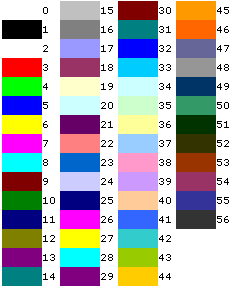
This property is set to 1 by default and will automatically convert Clarion color equates (such as color:red, color:black and so on) to Excel palette colors. In order to use RGB colors and Excel palette colors (swatches) you should set this property to zero. See the GetPaletteColor method for more information on colors and Excel. The Color Equates section shows the default Excel colors and a set of equates that can be used for them.
Unlike MS Word, Excel stores colors in a palette - you can only use the colors contained in that palette. If the default palette for a given worksheet does not contain the colors you want to use, you can change them using the SetPaletteColor method.
Important: By default, Office Inside supports using standard Clarion color equates, so long as you're using the default Excel palette, so you would simply pass COLOR:YELLOW to an Office Inside method, and it would then use the closest match to that color from the default palette. If you would rather use the palette directly (which means that passing standard Clarion color equates would no longer work), so can do this by simply setting the InterpretClarionColorEquates property to false (after calling oiExcel.Init, which will set it to true). If you do that, then any color parameter that you pass in needs to be the color swatch number, as explained in the next point.
Note: The color swatches are the "blocks" of color you see when you click the "Font Color" droplist on the Excel toolbar. You will see there are 8 columns and 5 rows or swatches (totalling 40 swatches). We have labelled these swatches as 1 being column 1 row 1, 2 being column 2 row 1, 8 being column 8 row 1, 9 being column 1 row 2, and so on.
Example 1
curColor long code ! Let the user pick a color (RGB) if ColorDialog('Select a color', curColor)
MyExcel.SetPaletteColor(33, curColor) ! Set swatch 33 to this RGB color
MyExcel.InterpretClarionColorEquates = false MyExcel.SetCellBackgroundColor(33, 'B2') end
Example 2
TempLong = 0FFFF00h ! Use an RGB color (yellow)
MyExcel.SetPaletteColor(33, curColor) MyExcel.InterpretClarionColorEquates = false ! Set cell B2 to the color in swatch 33, which we just set MyExcel.SetCellBackgroundColor (33, 'B2')
See also
 The
oiExcel Class - Equates
The
oiExcel Class - Equates
| Toolbar Equates
( used in the ShowToolbar and HideToolbar methods ) oix:ToolbarWorksheetMenuBar oix:ToolbarChartMenuBar oix:ToolbarStandard oix:ToolbarFormatting oix:ToolbarPivotTable oix:ToolbarChart oix:ToolbarReviewing oix:ToolbarForms oix:ToolbarStopRecording oix:ToolbarExternalData oix:ToolbarAuditing oix:ToolbarFullScreen oix:ToolbarCircularReference oix:ToolbarVisualBasic oix:ToolbarWeb oix:ToolbarControlToolbox oix:ToolbarExitDesignMode oix:ToolbarRefresh oix:ToolbarDrawing oix:ToolbarQueryAndPivot oix:ToolbarPivotChartMenu oix:ToolbarWorkbookTabs oix:ToolbarCell oix:ToolbarColumn oix:ToolbarRow oix:ToolbarCell2 oix:ToolbarColumn2 oix:ToolbarRow2 oix:ToolbarPly oix:ToolbarXLMCell oix:ToolbarDocument oix:ToolbarDesktop oix:ToolbarNondefaultDragAndDrop oix:ToolbarAutoFill oix:ToolbarButton oix:ToolbarDialog oix:ToolbarSeries oix:ToolbarPlotArea oix:ToolbarFloorAndWalls oix:ToolbarTrendline oix:ToolbarChart2 oix:ToolbarFormatDataSeries oix:ToolbarFormatAxis oix:ToolbarFormatLegendEntry oix:ToolbarFormulaBar oix:ToolbarPivotTableContextMenu oix:ToolbarQuery oix:ToolbarQueryLayout oix:ToolbarAutoCalculate oix:ToolbarObjectPlot oix:ToolbarTitleBarCharting oix:ToolbarLayout oix:ToolbarPivotChartPopup oix:ToolbarPhoneticInformation oix:ToolbarWordArt oix:ToolbarPicture oix:ToolbarShadowSettings oix:Toolbar3DSettings oix:ToolbarBorders oix:ToolbarChartType oix:ToolbarPattern oix:ToolbarFontColor oix:ToolbarFillColor oix:ToolbarLineColor oix:ToolbarOrder oix:ToolbarNudge oix:ToolbarAlignOrDistribute oix:ToolbarRotateOrFlip oix:ToolbarLines oix:ToolbarConnectors oix:ToolbarAutoShapes oix:ToolbarCallouts oix:ToolbarFlowchart oix:ToolbarBlockArrows oix:ToolbarStarsAndBanners oix:ToolbarBasicShapes oix:ToolbarShapes oix:ToolbarInactiveChart oix:ToolbarExcelControl oix:ToolbarCurve oix:ToolbarCurveNode oix:ToolbarCurveSegment oix:ToolbarPicturesContextMenu oix:ToolbarOLEObject oix:ToolbarActiveXControl oix:ToolbarWordArtContextMenu oix:ToolbarRotateMode oix:ToolbarConnector oix:ToolbarScriptAnchorPopup oix:ToolbarAddCommand oix:ToolbarBuiltinMenus oix:ToolbarSystem |
||||||||||||||||||||||||
| Color Equates
( used in the SetCellBackgroundColor methods ) Below is a picture of the 56 default colors. Office Inside has 56 equates representing these colors, which are named as follows: oix:Color1, oix:Color2, oix:Color3, ..., oix:Color55, oix:Color56 We also have synonyms for the first 8 colors (equates), as follows: oix:ColorBlack ( same as oix:Color1
)
|
||||||||||||||||||||||||
| Cell Border Equates
( used in the SetCellBorders method ) oix:BorderInsideHorizontal oix:BorderInsideVertical oix:BorderDiagonalDown oix:BorderDiagonalUp oix:BorderEdgeBottom oix:BorderEdgeLeft oix:BorderEdgeRight oix:BorderEdgeTop
|
||||||||||||||||||||||||
| Line Styles
( used in the SetCellBorders method ) oix:LineStyleContinuous oix:LineStyleDash oix:LineStyleDashDot oix:LineStyleDashDotDot oix:LineStyleDot oix:LineStyleDouble oix:LineStyleSlantDashDot oix:LineStyleNone
|
||||||||||||||||||||||||
| Border Weights
( used in the SetCellBorders method ) oix:BorderWeightHairline oix:BorderWeightMedium oix:BorderWeightThick oix:BorderWeightThin
|
||||||||||||||||||||||||
| Underline Styles
( used in the SetCellFontUnderline method )
oix:UnderlineStyleDouble
|
||||||||||||||||||||||||
| GetInfo / Update Equates
( used in the GetInfo and Update methods )
|

Dll
Functions
At this time we have documented all functions for all the Office components in
the "main" OfficeInside.htm document. Click
here
to go to that section.
Useful
References
Tips
& FAQs
This section contains Tips and Frequently Asked Questions pertaining only to the MS Excel parts of Office Inside. For Tips and FAQ's pertaining to the product as a whole, or to other components, please click here.
| 1. | When using editable reports, I get the compile errors "Syntax error: Field Not Found: ADDITEM" and "Syntax error: Unknown procedure label". | |
|
|
If
you are using Legacy and would like to use the Editable Report Word and
Excel templates you need to ticked on "Enable the use of ABC classes" checkbox under Global Settings on the Classes tab. |
| 2. | What do I need to use the Word and Excel editable report templates? | |
|
|
Clarion 5.5 is not supported for the editable report template, as it does not ship with the Report Generator interface. |
How Tos and Code Examples
This section provides code for common task using Office inside.
Color
Management in Excel and Cell Formatting (required
reading
reading)
One of the most frequent problems that people have when formatting cells in Excel is setting the cell colour, only to have it end up black, rather than the color selected. This is because te deafult behaviour is to translate Clarion color equates to Excel colors.The first property that you have to make sure is set correctly when using color in Excel is oiExcel.interpretClarionColorEquates. This property defaults to 1 (enabled) and allows you to pass Clarion color equates to the various methods. To use the Excel equates or RGB colors you must set this property to 0. Also note that you do not have to use the Excel default palette, you can create your own palette, which avoids the rather hideous Excel default colors.
Not setting interpretClarionColorEquates is the most frequent mistake when using colors to format excel spreadsheets. Always remembet to set oiExcel.interpretClarionColorEquates! It is recommended that you store your own palette and use the functions provided below to manage the colors in the palette. This creates a "palette", which is an array of longs and is used to store the colors used, and the functions to get/set the colors ensure that the Excel palette remains sychronised. In versions of Excel prior to Excel 2007 this was limited to 40 colors (which is handled in the docs below).
The oiExcel object in this example is named ExcelDoc.
numColors long ! number of colors used in the custom excel palette
colorPalette long, dim(40) ! colors in the excel palette
curColor long ! the current color in the excel palette
palettePos long ! position of the current color in the palette
cellFontColor long ! The color to set the cell to
curCell string(5) ! The current cell
columnNumber long ! The current column number
rowNumber long ! The current row number
code
ExcelDoc.intepretClarionColorEquates = 0 ! Important: Treat passed colors as RGB
numColors = 1 ! First color in the Excel palette is always black
palettePos = 1 ! The current position in our palette
colorPalette[1] = color:black ! An array of colors (256)
curColor = color:black ! the current color
! Each time I need to use a specific color I check whether
! it needs to be added to the palette:
if not ExcelDoc.GetPaletteColor(cellFontColor)
ExcelDoc.SetPaletteColor(cellFontColor)
end
ExcelDoc.SetCellFontColor(palettePos, currentCell) Methods and Properties for color managment:
Methods: GetPaletteColor, SetPaletteColor, SetCellFontColor, GetCellBackgroundColor, SetCellBackGroundColor
Properties: interpretClarionColorEquates
The Palette Management functions
The oiExcel Class provides two palette management methods. These allow a color to be retrieve from the palette by calling oiExcel.SetPaletteColor(). In addition GetPaletteColor() can be used to check if the color exists or not. The oiExcel.SetPaletteColor() method adds a color to the palette and keeps the objects's palettte synchronised with Excel's. Note that the exception is color:black, which is always the first entry in the palette and can always be used.
! Adds a color to the local and Excel paletteAddPaletteColor procedure(long pColor)
code
if NumColors > 39 and ExcelDoc.GetOfficeVersion < 12 ! Limit colors for old versions
! can do error handling here, or choose which color entry to replace etc.
return
end
numColors += 1
colorPalette[numColors] = pColor
curColor = pColor
palettePos = numColors
! add the color to the excel palette
ExcelDoc.SetPaletteColor(numColors, pColor)
! This locates a passed color in the palette and returns the position
GetPaletteColor procedure(long pColor)
i long
code
loop i = 1 to 40
if colorPalette[i] = pColor
curColor = colorPalette[i]
palettePos = i
return i
end
end
return 0
Writing to and formatting cells
! Store the cell name (Note that the new method is called ColumnName()
! instead of GetColumnAddressFromColumnNumber())
currentCell = ExcelDoc.ColumnName(columnNumber) & rowNumber
! Add the data:
ExcelDoc.WriteToCell(cellData), currentCell)
! Format the cell:
ExcelDoc.SetCellFontName(cellFontName, currentCell)
ExcelDoc.SetCellFontSize(cellFontSize, currentCell)
if Band(cellFontStyle, font:weight) >= font:bold
ExcelDoc.SetCellFontStyle('Bold', currentCell)
end
if Band(cellFontStyle, font:underline)
ExcelDoc.SetCellFontUnderline(oix:UnderlineStyleSingle, currentCell)
end
if cellFontColor > 0
if not ExcelDoc.GetPaletteColor(cellFontColor)
ExcelDoc.SetPaletteColor(cellFontColor)
end
ExcelDoc.SetCellFontColor(palettePos, currentCell)
end
if backgroundColor <> color:none
if not ExcelDoc.GetPaletteColor(backgroundColor)
ExcelDoc.SetPaletteColor(backgroundColor)
end
ExcelDoc.SetCellBackgroundColor(palettePos , currentCell)
end
Conditionally Deleting Rows from a Workbook
This code example loads a workbook, processes each row, and conditionally deletes the row. The workbook is saved on completion.
excel oiExcel
row long
tot long
code
excel.OpenWorkbook(myWorkbookFile) ! Open the workbook
tot = excel.CountUseRows() ! Get the number of used rows
loop row = 1 to tot
idNumber = excel.ReadCell('A' & row) ! Get the ID from a particular cell
if idNumber = someValue
excel.SelectRows (row)
excel.DeleteSelection(oix:up)
end
end
excel.Save()
Exporting a Table to an Excel spreadsheet.
By far the simplest way to export a table to an Excel workbook is to use the oiExcelImpEx class and simply call the Save method:
ieExcel oiExcelImpEx
code
ieExcel.Save(MyFile, 'MyFile') ! Export to MyFile.xls or .xlsx
The code below demonstrates a very simple manual export looping through a table to write two fields in a file to a workbook.
See the WriteToCell documentation, which also includes the below example.
This Example loops through a table and writes each row in the table to a row in Excel. The example only writes the first two fields, but each additional field is done in the same manner.
currentRow         long
  code
    MyExcel.NewWorkbook()
    currentRow = 1

    Set(MyFile)
    loop until Access:MyFile.Next()
        MyExcel.WriteToCell(MyFile.Field1, MyExcel.ColumnName(1) & currentRow)
        MyExcel.WriteToCell(MyFile.Field2, MyExcel.ColumnName(2) & currentRow)
        currentRow += 1
    end
    MyExcel.SaveAs(fileName)
The ColumnName() method called above converts a number to the column name in Excel, which are named alphabetically.
Tip: You can also use SendTo to export browses and lists to Excel, Word, PDF, Email etc. with all their formatting etc. SendTo uses Office Inside to export to Excel and Word, so it is a good example, and actually contains some very useful Office Inside code (SendTo ships are pure Clarion source code).
Limitations
in Excel, Workarounds and Version Differences.
The total number of available columns in Excel
Old Limit: 256 (2^8)
New Limit: 16k (2^14)
The total number of available rows in Excel
Old Limit: 64k (2^16)
New Limit: 1M (2^20)
Total amount of PC memory that Excel can use
Old Limit: 1GB
New Limit: Maximum allowed by Windows
Number of unique colours allowed a single workbook
Old Limit: 56 (indexed colour)
New Limit: 4.3 billion (32-bit colour)
Number of conditional format conditions on a cell
Old Limit: 3 conditions
New Limit: Limited by available memory
Number of levels of sorting on a range or table
Old Limit: 3
New Limit: 64
Number of items shown in the Auto-Filter dropdown
Old Limit: 1,000
New Limit: 10,000
The total number of characters that can display in a cell
Old Limit: 1k (when the text is formatted)
New Limit: 32k or as many as will fit in the cell (regardless of formatting)
The number of characters per cell that Excel can print
Old Limit: 1k
New Limit: 32k
The total number of unique cell styles in a workbook (combinations of all
cell formatting)
Old Limit: 4000
New Limit: 64k
The maximum length of formulas (in characters)
Old Limit: 1k characters
New Limit: 8k characters
The number of levels of nesting that Excel allows in formulas
Old Limit: 7
New Limit: 64
Maximum number of arguments to a function
Old Limit: 30
New Limit: 255
Maximum number of items found by “Find All”
Old Limit: ~64k (65472)
New Limit: ~2 Billion
Number of rows allowed in a Pivot Table
Old Limit: 64k
New Limit: 1M
Number of columns allowed in a Pivot Table
Old Limit: 255
New Limit: 16k
Maximum number of unique items within a single Pivot Field
Old Limit: 32k
New Limit: 1M
Length of the MDX name for a Pivot Table item; also the string length for
a relational Pivot Table
Old Limit: 255 characters
New Limit: 32k
The length at which fields’ labels are truncated when added to
PivotTable; this also includes caption length limitations
Old Limit: 255
New Limit: 32k
The number of fields (as seen in the field list) that a single PivotTable
can have
Old Limit: 255
New Limit: 16k
The number of cells that may depend on a single area before Excel must do
full calculations instead of partial calculations (because it can no longer
track the dependencies required to do partial calculations)
Old Limit: 8k
New Limit: Limited by available memory
The number of different areas in a sheet that may have dependencies
before Excel must do full calculations instead of partial calculations
(because it can no longer track the dependencies required to do partial
calculations)
Old Limit: 64k
New Limit: Limited by available memory
The number of array formulas in a worksheet that can refer to another
(given) worksheet
Old Limit: 65k
New Limit: Limited by available memory
The number of categories that custom functions can be bucketed into
Old Limit: 32
New Limit: 255
The number of characters that may be updated in a non-resident external
workbook reference
Old Limit: 255
New Limit: 32k
Number of rows of a column or columns that can be referred to in an array
formula
Old Limit: 65,335
New Limit: Limitation removed (full-column references allowed)