| |
|
 |
feEditor - HTML Editor
|
| |
|
File
Explorer Classes - feEditor
 |
The feEditor class is new in FileExplorer 5 and replaces the (now
deprecated) feHtmlEditor class. As much as possible this class maintains
backwards compatibility with the existing class, so all the old methods
should continue to work. In the Beta version of FileExplorer 5 not all
backward compatibility is complete, so a number of the old method may have
issues. If you find a method that is not working as expected please report
it to us.
The documentation for the old feHtmlEditor class is
still available.
Getting Started (Important)
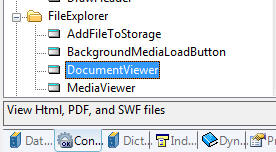
- When adding the new editor control, you should delete
the additional control populated by the template (the path, prompt and
lookup buttons). All that is needed is the Panel control which will be
used to position and size the editor.
- You must copy the required Editor Files into your application's data
directory (see the Distribution section below).
- Note: You cannot call code that uses the
editor before the EditorReady() callback method has been called.
Use the EditorReady method to execute any code that should run when the
editor has finished initialising. This is by far the most frequent
problem that people have using the editor. Add any code after the parent
call.
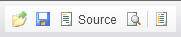
Tip: The new editor contains a built in toolbar, you don't need to
populate the additional toolbar that the old editor required. This
toolbar can be easily customised (a full guide and examples are coming
soon).
|
Distribution
Important: The new editor requires that
you ship the following files with your application (place these in the
application or Data directory for your application). All of these files are
shipped in the Editor Files directory in your examples folder:
Clarion\3rdparty\examples\FileExplorer\Editor Files\.
- These files can either be in the current path for your application,
or you can use set the feEditor.editorPath property to the directory
that contains them before the call to the feEditor.Init() method
initialises the editor.
- Make sure you update these files each time there is a new release,
as we will be improving the functionlity provided, as well as reducing
the number of files required.
- Copy both the feeditor.html file, and the feeditor
subfolder. Both are required for the editor to operate. If you do not
copy these files, the editor will not work. They are not optional, and
the entire contents of the Editor Files directory is required.
Customising
the Editor and Toolbar
The editor provides a great deal of flexibility, and is simple to
customise. We will be adding a number of guides to customising the editor in
a variety of ways.
1. Changing the Intial Editor Settings
All the settings for the editor are defined in the
feeditor.html file. This makes customising the editor, adding plugins,
modifying the toolbar and so on as simple and self contained as possible.
In KEDITOR.replace() all the settings are defined, and can be modifed as
needed. In the example below we are going to add a setting to cause the
toolbar to display as collapsed rather than expanded when the editor starts
up.
Each setting is made up of the setting name, a colon, and the value for
the setting, such as:
extraPlugins: 'Open',
Where extraPlugin is the name of the setting and the value is
"Open". For strings the setting is enclosed in single or double quotes, for
booleans and number values no quotation marks are needed. For settings that
take an array of values, the values are seperated by commas, and the array
is started and ended with a square bracket (see the
contentCss option below).
In our example below, we add the toolbarStartupExpanded option to the existing
options:
customConfig : '',extraPlugins: 'Open',skin: 'kama',uiColor:
'#DDDDDF',
toolbarStartupExpanded: false
Just add the comma after the last setting, and then add your own settings.
You can add as many as you like, they are just comma seperated.
2. Useful editor settings and customisation options
Directly below the currently used setting there is a section that is
commented out that contains a variety of other useful settings that you can
enabled:
baseHref: './',
contentsCss: ['/css/mysitestyles.css', '/css/anotherfile.css'],
fullPage: true,
newpage_html: '<p>Type your text here.</p>',
shiftEnterMode: CKEDITOR.ENTER_P,
enterMode: CKEDITOR.ENTER_BR,
startupMode: 'source',
startupOutlineBlocks = true,
tabIndex = 1,
tabSpaces = 4,
templates = 'my_templates',
templates_files =
[
'/editor_templates/site_default.js',
'http://www.example.com/user_templates.js'
],
theme: 'default',
templates_replaceContent: false,
toolbarCanCollapse: false,
toolbarStartupExpanded: true,
toolbarLocation: 'top',
undoStackSize: 50,
3. Toolbars and toolbar customisation
The feeditor.html file contains three toolbars, which are named:
toolbar
full_toolbar
min_toolbar
Any toolbar named "toolbar" will be used as the default, and the others
will be ignored. You can add as many toolbars as you like, as simply
renamed the one that you wish to enable, "toolbar", and name the others
anything that you prefer.
For example you can switch between the standard toolbar and one of the
others simply by renaming the toolbar that you want to use to "toolbar",
and the changing the one that was previously used to "_toolbar", or
anything else for that matter. You can fully customise these toolbars as
you need. The format for the toolbars is very simple:
- Each button name is wrapped in single quotes
- Buttons are seperated by commas
- Each set of buttons is an array, wrapped by squared brackets. Each
array has a comma before the next one
- You can add a divider between buttons using '-' as an entry in the
button list.
- You can split rows on the toolbar by adding '/' between the array
entries.
The main toolbar is a good example:
toolbar :
[
['Open','Save','NewPage','Source', 'Preview','-','Templates'],
['Cut','Copy','Paste','PasteText','PasteFromWord','-','Print'],
['Undo','Redo','-','Find','Replace','-','Link','Unlink','Anchor'],
'/',
['Bold','Italic','Underline','Strike','-','Subscript','Superscript'],
['NumberedList','BulletedList','-','Outdent','Indent','Blockquote'],
['JustifyLeft','JustifyCenter','JustifyRight','JustifyBlock'],
['Image','Flash','Table','HorizontalRule','SpecialChar','PageBreak'],
'/',
['Styles','Format','Font','FontSize'],
['TextColor','BGColor'],
['SelectAll','RemoveFormat', 'ShowBlocks']
],
You can move and arrange buttons as needed, for example the minimal
toolbar has most buttons removed, and the rest merged into a four groups on
one line:
min_toolbar :
[
['Undo','Redo', '-', 'Bold','Italic','Underline'],
['NumberedList','BulletedList','-','Link','Unlink','Anchor'],
['JustifyLeft','JustifyCenter','JustifyRight','JustifyBlock'],
['Format','Font','FontSize', '-', 'TextColor','BGColor'],
],
The toolbars themselves are actually part of a comma seperated list of
options, hence they end with a comma before the next setting.
The "Open" button is an example of how simple it is to add you own
buttons and "plugins":
- Add a new button to the toolbar
- In the extraPlugins setting just below the toolbar add the name of
your button (again, this is just a comma seperated list of plugins). So
"Open" would become: "Open, MyPlugin, SpecialButton", and so on.
- Find the Custom Plugins section further down in the file. This is where we add
the logic for the plugin.
- There are two sections:
- The call to CKEDITOR.plugins.add(), which adds the plugin and;
- The callback (event handler) function (open_onclick(e)
in the case of the Open button, which can be named anything that you
prefer).
- By default you don't need to add any code to the callback (event
handler) at all. FileExplorer will automatically call the TakeEvent
method with the name of the button that was pressed (the PreTakeEvent
method
will also be called before the JS code executes) .
- You can call your button/plugin simply by passing the feEditor.CallCommand()
method the name of your plugin.
For example, let's add a plugin called "Widget".
1. Add Our toolbar button by adding
CKEDITOR.plugins.add('Widget',{
init:function(a)
{
var
cmd = a.addCommand('Widget',
{exec:widget_onclick})
cmd.modes = {wysiwyg:1, source:1}
cmd.canUndo = false
a.ui.addButton('Open',{
label:'Run a Widget...',
command:'Widget',
icon:'Widget.gif'
})
}
})
function
widget_onclick(e)
{
}
Examples
Demo
The main Demo example demonstrates the bulk of the
functionality provided by FileExplorer, including the HTML editor provided
by the feEditor class. See the feHtmlEditor_MainExample procedure.
MailMerge (recommended)
A new example application that demonstrates the editor,
as well as a variety of techniques for using the editor, and creating simple
mail merge style functionality:
- Using the new FeEditor class for HTML editing.
- Loading from memory or disk directly after the editor has finished
initialising.
- Retreiving the HTML contents from the editor, setting the content of
the editor, and dynamically allocating memory for retrieving the
contents of the editor.
- Inserting text into existing HTML documents.
- Dynamically populating a list with fields from any table using Who()
and What().
- Dynamically locating fields in a table by name, and retrieving the
values of field in a table.
- Replacing the inserted place holders with the actual fields values.
- Writing a modified HTML document back to disk as a new file.
- Using the feFile generic file handling class.
- Displaying HTML documents on a new thread using the feBrowser class.
NetTalk
A simple HTML editor for creating and sending emails
using CapeSoft NetTalk.
feEditor
- Methods
| |
| Method |
Description |
Beta Notes |
| Edit |
The Edit command, allows Copy, Paste, Cut etc. to be performed |
Not fully backward compatible |
|
GetHtmlGraphicsInfo |
Retrieves the list of images used in the document (use
EmbedImages instead of this
method). |
Supported, and enhanced by the new
EmbedImagesmethod |
|
GetInfo |
Retreives properties of the document and control |
Supported, some properties may be deprecated or unsupported |
|
HideControl |
Hides the control |
|
| Init |
Intialises the object and control |
|
|
InsertHtml |
Inserts HTML into the control |
Supported |
|
InsertTable |
Inserts a table into the HTML |
In progress |
|
InsertText |
Inserts text into the control |
Needs testing |
|
KeyPressed |
Detects a key press |
Not tested |
| Kill |
Cleans up and destroys the control |
|
| Load |
Loads a document |
|
|
NewDocument |
Creates a new (blank document) |
In progress (can be done simply by blanking the HTML) |
|
PrintMe |
Prints the document |
Needs testing and possibly additional support |
|
Reload |
Reloads the document |
|
| Save |
Saves the document |
|
|
SetFocus |
Sets the focus to the control |
In progress, this is vastly improved in the new version |
|
Settings |
Allowed the background color to be set in the old editor, provides
access to all document properties in the new editor. |
In progress |
|
UnhideControl |
Unhides the control and refreshes the display |
|
|
Update |
Updates the properties of the document and control. The new editor
will provide methods for doing this directly for each property. |
Supported, some properties still need to be added. |
| |
|
|
| |
|
|
| New Methods |
|
|
|
BeforeEditorInit |
Called when the control and editor
have both loaded, but before the editor is initialised. |
|
|
BeforeEditorLoad |
Called when the control has
loaded,but before the editor has loaded. |
|
|
CallCommand |
Provides the ability to call any of the commands
available to the underlying editor, including any of the
toolbar buttons, plugins etc. |
|
| CollapseToolbar |
Collapses the editor toolbar |
|
| Debugging |
Enables or disabled debug logging and error messages
displayed |
|
| Log |
Outputs a string to the debug log |
|
| ErrorTrap |
Called class methods to indicate an error or warning |
|
| GetHtml |
Returns the HTML of the edited page |
|
| GetText |
Returns the plain text version of the document being
edited |
|
| GetPageTitle |
Returns the title of the edited page |
Not implemented |
| EditorReady |
Called by the object to indicate that the editor has
loaded and is ready to be used |
|
| EmbedImages |
Embeds the images and returns a string containing a
comma seperate list. Replaces and enhances the
GetHtmlGraphicsInfo method. |
Updated |
| ExpandToolbar |
Expands the editor toolbar |
|
| IsReady |
Returns whether the editor is fully loaded and ready to
be used |
|
| Load |
Loads document |
|
|
PreTakeEvent |
Identical to TakeEvent, but called with
the event before it is actually processed |
|
| Revert |
Reverts the document to the version of disk |
|
| SetHtml |
Sets the HTML content of the current document |
|
| SetPageTitle |
Sets the title of the page |
Not Implemented |
|
ReplaceInString |
Replaces one or all occurances of a substring with the
specified string |
|
| SetFileName |
Sets the filename used by the editor, typically not
called manually. |
|
| SetSkin |
Sets the skin for the editor, must be called from
BeforeEditorLoad. Cannot be done once the editor has loaded. |
Not implmented in the class in 5.20 Beta - this is
provided in the feeditor.html file itself. |
|
TakeEvent |
Event handling, allows all events provided by the editor
to be trapped |
|
| |
|
|
| |
|
|
| |
|
|
|
|
| |
|
|
New Methods of the feEditor class
Debugging (long debug)
Enables or disables debug logging and the display of
scripting error or warning messages by the IE control. The debug output and
whether the the control displays messages can also be set independantly by
setting the .debugging property of the feEditor directly, and by calling
Update() to change the SilentMode of the control itself. See the example
below.
Parameters
long debug
A value of 1 to enable debug logging by the class, and to
allow IE to display scripting (and other) errors and warnings. A value of
zero disables debug logging and sets IE to silent mode to ensure it does not
display prompts.
Return Values
None
Examples
htmlEditor.Debugging(true)
htmlEditor.Update('SilentMode',
true)
htmlEditor.debugging =
false
Remarks
Regardless of whether debug logging is enabled or not,
ther ErrorTrap method will still be called with any errors or warnings,
allowing them to be handled, although the output will not be sent to the
system debug log when this occurs.
In order to view the debug output a tool such as
DebugView is needed. DebugView is available free from Microsoft -
www.sysinternals.com.
Log (string info)
Outputs a string to the system debug log. In order to view the debug output a tool such as
DebugView is needed. DebugView is available free from Microsoft -
www.sysinternals.com. Output will
only be displayed if the .debugging property of the object is set to 1.
Parameters
string info
The string to output to the system debug log. There is
no limit on the length of this string. In order to identify the output as
coming from your application, and to allow the output to be highlighted and
filtered it is strongly recommended that you prepend an identifier to your
string that identifies it as having come from your application (see the
remarks section below).
Return Values
None
Examples
htmlEditor.debugging =
false
htmlEditor.Log('[FE] feEditor.Load(): Error
the file name specified did not exist.')
Remarks
In order to identify the output as coming from your
application, and to allow the output to be highlighted and filtered it is
strongly recommended that you prepend an identifier to your string that
identifies it as having come from your application. For example all
FileExplorer output begins with '[FE] '. This
makes it simple to identify the output, and also to filter it out if needed.
It is also recommended that you provide the ability to enable and disable
output at runtime, as the debug log is shared by all applications on the
machine and applications that use the bebug log indiscriminately as if it is
their own private log can be quite inconvenient, especially if the strings
being output have no identifier to allow them to be easily filtered out.
ErrorTrap (string
methodName, string errorMessage)
Called be the methods of the class when an error occurs.
This allows errors to be trapped and handled within your code. If the .debugging
property of the object is set to 1 to enable debug output then this method
will also log the message to the system debug log. See the
Log() method for more information.
Parameters
string methodName
A string containing the name of the method that the
error occured in
string errorMessage
A string containing the actual error message.
FileExplorer uses the convention that the string beings with 'Warning:' for
warning messages and 'Error' for error messages, which make it easy to
identify the severity of the error.
Return Values
None
Examples
feEditor.ErrorTrap
Procedure(string methodName, string errorMessage)
code
if Instring('Error:',
errorMessage, 1, 1)
Message('An
error occured in ' &
Clip(methodName) & ':
' & Clip(errorMessage))
end
parent.ErrorTrap(methodName, errorMessage)
Remarks
GetText (),
string
Returns the the plain text version of the document being
edited.
Parameters
None
Return Values
Returns a string that contains the plain text version of
the HTML file that is loaded in the editor. This is only the text contents,
and is formatted as close to the original page in terms of layout as plain
text allows.
Examples
textVersion
string(08000h)
! 32KiB string
code
HtmlEditor.Load(fileName)
textVersion = HtmlEditor.GetText()
Message('Text
Version: ' &
Clip(textVersion))
GetHtml (*string
htmlSource), long
Returns the actual HTML source of the document being
edited. If the passed string is not large enough then the HTML is trucated
to fit the string and the method returns the size required to store the
entire document.
Parameters
*string htmlSource
A string that will be populated the the HTML source for
the current document.
Return Values
Returns 0 for success. If the passed string is not large
enough then the HTML is trucated to fit the string and the method returns
the size required to store the entire document.
Examples
Example 1. Get the HTML from
the editor and store it in a fixed length string (the same approach also
applies to Memo fields).
htmlSource
string(4096)
code
HtmlEditor.GetHtml(htmlSource)
Example 2. This example
performs the same function as the first, however it dynamically allocates
the string so that any amount of data can be stored.
htmlSource
&string
reqSize
long
code
htmlSource &= new string(4096)
reqSize = HtmlEditor.GetHtml(htmlSource)
if
reqSize > 0
Dispose(htmlSource)
htmlSource &=
new string(reqSize)
HtmlEditor.GetHtml(htmlSource)
end
Dispose(htmlSource)
Example 3. Store the HTML
from the editor in a BLOB field in table.
HtmlEditor.GetHtml(MyTable.BlobField)
GetPageTitle (), string,
virtual
Not supported in the current release. Returns the title
of the loaded document.
Parameters
None
Return Values
None
Examples
pageTitle =
HtmlEditor.GetTitle()
EmbedImages (long
embedImages=1), string
EmbedImages (*string
htmlData, long
embedImages=1), string
This method is used to return a string containing a
comma seperated list of all images used in the document, and also to
optionally change the source for each image to use the format for embedding
the image when sending the HTML in an email. Note that if embedImages is set
to 1 this modies the actual HTML source of the document.
For example when using NetTalk the HTML file can be send
with all images simply by calling EmbedImages and assigning the returned
string to the embedList property of the the NetEmailSend object
(see the example below).
There are two forms of this method, the first fetches
the HTML from the editor, retrieves the list of images, and then optionally
updates the editor with the new HTML with the image references in the
embedded form.
The second (which takes a string reference as the first
parameter), does the same thing, but using the passed string. This is
indepedenant of the actual editor, and can be used with an editor control,
and with having to call the Init method. This is particularly useful when
loading the HTML from disk, or using this method with other tools such as
NetTalk, where you may not need an editor.
Parameters
long embedImages=1
Determines where the images will be embedded (the
default behaviour) or whether to just return the string containing the comma
seperated list of images used. If this is set to 1 then each image source is
changed to the format required for embedding. This allows the image list to
be retrieved and the image sources to be changed to use the 'cid:' format
required for embedding in a single step. Setting this to 0 will return the
image
Return Values
Returns a string containing a comma seperated list of
all files embedded. See Example 2 below, which uses the returned string with
NetTalk to send an HTML and text email with embedded images.
Examples
Example 1: Embedding the image list
when using the HTML Editor. Note that this modifies the actual documented
being edited. Typically called in a mail app when actually sending the mail,
the "embed" version would not be saved, rather the GetHtml would be called
to saved the HTML before embedding.
EmailSender.embedList =
HtmlEditor.EmbedImages()
HtmlEditor.GetHtml(htmlData)
Example 2: Embedding images in HTML
that is stored in a string. The HTML can of course be retrieved from the
editor, although an editor does not need to be used or intialised in order
to call this method. The example below uses an instance of the class without
creating an editor.
htmlEditor
Class(feEditor)end
htmlData
&stringcode
htmlData &=
new string(HtmlStore.DataBlob{prop:size})
htmlData = HtmlStore.DataBlob[0 :
HtmlStore.DataBlob{prop:size} - 1]
EmailSender.EmbedList =
htmlEditor.EmbedImages(htmlData)
EmailSender.SetRequiredMessageSize(Len(Clip(textData)),
Len(Clip(htmlData)),
0)
if not
EmailSender.error
EmailSender.messageText = textData
EmailSender.messageHtml = htmlData
EmailSender.SendMail(NET:EMailMadeFromPartsMode)
end
Dispose(htmlData)
Load (), long
Load (string
fileName), long
Loads a document. If no parameter is passed then a
FileDialog is displays to allow the user to select the document to load.
Parameters
string fileName
An optional parameter indicating the file name to load
(including the path). If no parameter is passed then a FileDialog is
displays to allow the user to select the document to load.
Return Values
Returns 1 for sucess and zero to indicate failure. If an
error occurs then the ErrorTrap() method is called
with the error message.
Examples
if
fileName = ''
HtmlEditor.Load()
else
HtmlEditor.Load(fileName)
end
Revert (long
promptUser=0)
Reverts to the previous version of the document
(whatever is currently on disk). Any unsaved changeds are lost.
Parameters
long promptUser=0
Determines whether or not the user is prompted before
the document is reverted to the last saved version. If this is set to 1 then
the user is prompted, and the user can then cancel the process and choose to
not allow the document to be reverted.
Return Values
None
Examples
HtmlEditor.Revert(true)
SetHtml (*string
htmlSource)
SetHtml
(*BLOB htmlSource)
Sets the HTML of the document to the passes string. The
string should contain a valid HTML document (although if the it only
contains HTML code the required html, head and body tags will be created).
This can be used in conjunction with GetHtml() to retreive the HTML source,
modify it, and then update the control. It can also be used to load the
control directly from memory rather than from disk. See the example below
for loading the editor from a BLOB field.
Parameters
*string htmlSource
*BLOB htmlSource
A string (or BLOB) containing the HTML to load into the control.
The string should contain a valid HTML document (although if the it only
contains HTML code the required html, head and body tags will be created)
Return Values
None
Examples
HtmlEditor.SetHtml(htmlString)
HtmlEditor.SetHtml(MyTable.BlobField)
! Load the data into the editor.
SetPageTitle (string
pageTitle)
Not supported in the current release. Sets the Title of
the current document. This is the contents of the <title> tag in the HTML.
Parameters
string pageTitle
A string that contains the title of the page.
Return Values
None
Examples
HtmlEditor.SetPageTitle('Hello
World')
ReplaceInString
(*string pText, string oldValue, string newValue, long replaceAll=1), long
Find and replaces one or all occurances of the specified
substring within the passed string.
Parameters
string pText
The text to search.
string oldValue
The value to search for
string newValue
The string to replace the found instance(s) with
long replaceAll = 1
Specifies whether all instances should be replaced, or
just the first instance found. Defaults to 1 to replace all instances. Pass
as zero to only replace the first instance found.
Returns
Returns 1 for success, or zero for failure (the method
will fail if the string is not large enough to contain the replacement
values).
IsReady (), long
This method returns the .editorReady
property of the editor, which indicates whether the editor has fully loaded
and is ready for use or not. Methods that interact with the editor cannot be called
before the EditorReady() callback is called and the
.editorReady property is set to
1.
When the editor intialises it does so in two stages.
First the actual control is intialised, and then the editor is loaded. Once
the control has loaded it calls the BeforeEditorLoad() method, which allows
last minute configuration to be done before the editor itself is loaded.
Once the editor is loaded, but before it intialises the
BeforeEditorInit() method is called and
finally the EditorReady() method is called to
indicate that the loading is complete. This allows code to be added in each
stage of the loading process.
Once editor is loaded completly the .editorReady property is set to 1 and the
EditorReady() method is called.
Parameters
None
Return Values
Returns 1 if the editor is intialised and ready to be
used, or zero if the editor either has not been initialising, or is still in
the process of doing so.
Examples
if
HtmlEditor.IsReady()
HtmlEditor.Load(myFileName)
end
SetFileName (string
fileName)
Sets the file name properties for the class based on the
passed file name. This method would not typically be called, except from
within the class when a new document is loaded. For file loading, saving and
file name and path handling the feFile class can be used.
Parameters
string fileName
The name of the file, including the path. This is then
parsed, split and stored in the object properties.
Return Values
None
Examples
n/a
SetSkin (string
skinPath)
Sets the skin (style) for the editor to use. The editor
ships with a number of different skin (style) options. This must be set in
the BeforeEditorInit() method in order to
work. One the editor has initialised the skin cannot be changed. The
Office2003 skin is currently the default.
Parameters
string skinPath
The path to one of the folders in the skin directory in
the Editor directory. For example: 'skins/aluminium/'
or 'skins/office2003'
Return Values
None
Examples
HtmlEditor.BeforeEditorInit
Procedure()
code
case
mySkinStyle
of 1
HtmlEditor.SetSkin('skins/Office2007Real')
of 2
HtmlEditor.SetSkin('skins/Office2003')
of 3
HtmlEditor.SetSkin('skins/Aluminium')
of 4
HtmlEditor.SetSkin('skins/silver')
else
HtmlEditor.SetSkin('')
end
parent.BeforeEditorInit ()
CallCommand (string
commandName)
Calls (executes) any of the command available to the
JavaScript based editor by name. This includes all toolbar commands and
plugins.
Parameters
string commandName
The name of the command to call (execute). The editor
supports the following values (not all possible values are included below as
any number of plugins may be added to the editor):
'Open', 'Save', 'NewPage',
'Source', 'Preview', Templates'
'Cut', 'Copy', 'Paste', 'PasteText', 'PasteFromWord', 'Print', 'Undo',
'Redo', 'Find', 'Replace', 'SelectAll', 'RemoveFormat'
'Form', 'Checkbox', 'Radio', 'TextField', 'Textarea', 'Select', 'Button',
'ImageButton', 'HiddenField'
'Bold', 'Italic', 'Underline',' Strike', 'Subscript', 'Superscript'
'NumberedList', 'BulletedList', 'Outdent', 'Indent', 'Blockquote'
'JustifyLeft', 'JustifyCenter', 'JustifyRight', 'JustifyBlock'
'Link', 'Unlink', 'Anchor'
'Image', 'Flash', 'Table', 'HorizontalRule', 'SpecialChar', 'PageBreak'
'Styles', 'Format', 'Font', 'FontSize'
'TextColor', 'BGColor'
'ShowBlocks'
Return Values
None
Examples
HtmlEditor.CallCommand('Bold')
CollapseToolbar ()
Toggles the toolbar state. The new CKEditor doesn't not
provide "collapse/expand", instead the toolbar state can be toggled using
the CollapseToolbar() and ExpandToolbar() methods, which are now both
identical in function.
Parameters
None
Return Values
None
Examples
HtmlEditor.CollapseToolbar()
ExpandToolbar ()
Toggles the toolbar state. The new CKEditor doesn't not
provide "collapse/expand", instead the toolbar state can be toggled using
the CollapseToolbar() and ExpandToolbar() methods, which are now both
identical in function.
Parameters
None
Return Values
None
Examples
HtmlEditor.ExpandToolbar()
Callback methods
_EventCallback (long
EventID, string Parm1, string Parm2, string Parm3, string Parm4, string
Parm5, string Parm6, string Parm7), long
The internal event callback method, this is not
typically a method that would be called directly or overrriden. Additional
methods will be provided to handle each specific event
Parameters
long EventID
The identifier for the particular event generated by the
control
string Parm1...string Parm7
The list of parameter values associated with the event.
Return Values
Returns 1 for success and zero for failure
Examples
n/a
EditorReady ()
Called once the editor has loaded and initialised. This
indicates that the editor is actually ready to be used. If you need to
execute code as soon as the editor has loaded, then this is the method to
use.
Parameters
None
Return Values
None
Examples
HtmlEditor.EditorReady
Procedure()
code
HtmlEditor.Load(myFileName)
parent.EditorReady()
BeforeEditorInit ()
This method is called once the control has loaded, and
the editor has loaded, but not been intialised. It provides a point at which
any last minutes changes to the configuration can be made. For example the
SetSkin() method can be called to change the skin (style) of the editor.
When the editor intialises it does so in two stages.
First the actual control is intialised, and then the editor is loaded. Once
the control has loaded it calls the BeforeEditorLoad()
method. Once the editor is loaded, but before it intialises, the
BeforeEditorInit() method is called and
finally the EditorReady() method is called to
indicate that the loading is complete. This allows code to be added in each
stage of the loading process.
Once editor is loaded completely the .editorReady property is set to 1 and the
EditorReady() method is called.
Parameters
None
Return Values
None
Examples
HtmlEditor.BeforeEditorInit
Procedure()
code
case
mySkinStyle
of 1
HtmlEditor.SetSkin('skins/Office2007Real')
of 2
HtmlEditor.SetSkin('skins/Office2003')
of 3
HtmlEditor.SetSkin('skins/Aluminium')
of 4
HtmlEditor.SetSkin('skins/silver')
else
HtmlEditor.SetSkin('')
end
parent.BeforeEditorInit ()
BeforeEditorLoad ()
This method is called once the control has loaded and
before the actual editor is loaded.
When the editor intialises it does so in two stages.
First the actual control is intialised, and then the editor is loaded. Once
the control has loaded it calls the BeforeEditorLoad()
method. Once the editor is loaded, but before it intialises, the
BeforeEditorInit() method is called and
finally the EditorReady() method is called to
indicate that the loading is complete. This allows code to be added in each
stage of the loading process.
Once editor is loaded completely the .editorReady property is set to 1 and the
EditorReady() method is called.
Parameters
None
Return Values
None
Examples
Additional Methods of the feEditor class
Edit (long
EditType)
This method has been replaced by the
CallCommand() method.

GetHtmlGraphicsInfo
( *string HtmlSource), string
This method is deprecated and the functionality
is expanded int he new EmbedImages methods. Calling this method will
call EmbedImages to return a string containing the image files used in
the HTML document. This is usually done in order to then embed the
images when sending an email. The EmbedImages method also allows each
image SRC in the HTML to be modified to the format required for
embedding when sending the email.
This method was written primarily to make it easier to use File
Explorer with NetTalk, to create and send emails. The idea is that you use File Explorer to create / view an email
(html). To send this email (using NetTalk), you need to set several NetTalk
properties. Two of these properties are a comma separated list
of graphics in the html (ThisEmailSend.EmbedList), and a modified
version of the html code (ThisEmailSend.MessageHtml), where image
paths are changed from qualified paths to paths prefixed with "cid".
This File Explorer method simply updates two File Explorer properties,
self.Source and self.GraphicsList. Also look at the notes below on the "RootFolder" property.
Parameters
string HtmlSource
A string that contains the HTML document to extract
the images from
Return Value
Returns a string containing a comma seperated list of
all images used in the HTML document.
Example
HtmlEditor.GetHtml(htmlString)
HtmlEditor.GetHtmlGraphicsInfo (htmlString)
ThisEmailSend.MessageHtml = htmlStringe
ThisEmailSend.EmbedList = HtmlEditor.GraphicsList

GetInfo
(long property)
GetInfo ()
This method is deprecated with the new editor. It will still be supported,
but the specific methods should be called to fetch the required properties
where possible. See GetHtml() and
GetText().
This method queries the object and updates properties with information.
Think of this as updating the properties (variables) at a moment in
time.
Parameters
long property
This optional parameter used to specify which values should be
retrieved.
If no parameter is passed them all the values are retrieved. Can be one of
the following values:
- fe:outerHtml or
fe:HtmlSource - retrieves the source code and stores it in the
.outerHtml property (which can also be accessed using the .source property).
The GetHtml() method should be
used to retrieved this.
- fe:outerText or fe:innerText
- retrieves the text version of the document. For the moment
these act the same, however it is recommended that
fe:outerText be used for fetching the entire document's text as
fe:InnerText will apply to the current
element in future versions. The GetText()
method shoudl be used to retrieve this value.
Other values are not supported at this time.
Return Values
None.
Example
ThisViewer1.GetInfo ()

HideControl
( )
Hides the File Explorer viewer control. Note: ?feControl{prop:hide}
= true will not work. This is becuase the panel control that is
placed on the window is replaced entirely with the COM control.
Parameters
None.
Return Value
None
Examples
ThisViewer.HideControl()

Init
( )
Init ( long CurrentControl, <string
LoadPath>, long Handle1=0, long Handle2=0, byte SkipCallbacks=false)
Called to initialise the control and load the editor. Must be called
before any other methods are called. The second prototype is provided for
backward compatibility with the old editor. The parameters are optional and
ignored by the new editor.
The editor is NOT loaded once
this method has been called. Use the EditorReady
method for code that should run as soon as the editor has initialised.
Parameters
None. No parameters are needed with the new editor, however the old
prototype for the method is still supported for backward compatibility. Any
passed parameters are ignored.
Return Value
None
Example
HtmlEditor.Init()
Notes
When the editor
Init() method is called the control is loaded followed
by the actual editor. The Init() method is asynchronous,
so it completes and returns control to your application while the editor is
being initialised in the background. Any calls to the methods while the
editor is still loading will be ignored. Just before the editor is actually
loaded the Init() methods calls the
BeforeEditorLoad() callback method. This is
where you can add code to modify the editor just before it is loaded. For
example you can call SetSkin() to change the skin
being used.
Once the initialisation is complete and the editor is loaded and ready to
use the EditorReady() method is called. You can
embed your code in this method that needs to execute as soon as the editor
is ready to be used. The .editorReady property of the object is also set to
1, and you can call the IsReady(() method to check
whether the editor has is ready to be used at any time.
InsertHtml
(long location,
string htmlToInsert )
This method enables you to insert html into the loaded document.
The TextToInsert parameter that you pass can be either actual "html",
or a variable containing the html to insert (as illustrated in the
examples below).
Parameters
byte location
This parameter is not currently
supported by the new editor, the text is always inserted at the current
cursor position.
One of the following values:
- 1 - Inserts the html at the current position of the cursor.
- 2 - Immediately before the current element
- 3 - After the start of the current element, but before the content
of the element
- 4 - Immediately before the end of the element, but after all
the content inside the element
- 5 - Immediately after the end of the element
string htmlToInsert
A string containing the HTML to insert into the document.
Return Value
None
Example
HtmlEditor.InsertHtml(myHtmlString)

InsertTable
()
Use CallCommand
to automatically trigger table insertion.
This method will be fully supported in future
releases.
Parameterssrsssss
n/a
Return Value
None.
Examples
n/a

InsertText
( byte location, string textToInsert )
This method enables you to insert text into the loaded document.
The TextToInsert parameter that you pass can be either actual
text, or a variable containing the text to insert (as illustrated
in the examples below).
Parameters
byte Location
This parameter is not supported in this release. In
future releases the following values will be supported:
- 1 - Inserts the text at the current position of the cursor.ursor.
- 2 - Immediately before the current element
- 3 - After the start of the current element, but before the content
of the element
- 4 - Immediately before the end of the element, but after all
the content inside the element
- 5 - Immediately after the end of the element
string textToInsert
The actual text to insert into the document.
Return Value
None
Examples
MyVar = 'I am here'
ThisViewer1.InsertText (1, MyVar)
Remarks
In order to insert multiple spaces the InsertHtml method
needs to be used. The HTML format ignores extraneous white space, so
multiple spaces will be displayed as a single space.

KeyPressed () ,long
This method will be provided in future version of
the HTML editor.

Kill
( )
Handles the "closing down" of an object.
Typically called as the window which contains the object
is closed. This method must be called before the object goes out of
scope in order to ensure that all allocated memory is released.
Parameters
None
Return Values
None
Examples
HtmlEditor.Kill
()

NewDocument ( )
Creates a new, blank document.
You can call this method before calling the Load
method (although it is not necessary as a new blank document is created
automatically). The Init() method must be called before any other
methods are called and will automatically create a new blank document,
so it is not neccessary to call NewDocument unless you would like to
clear the contents of the editor and create a blank document.
Parameters
None
Return Value
None
Examples
HtmlEditor.NewDocument()

PrintMe (byte showDialog=0)
Prints the loaded document. Identical to the user
pressing the Print button, and identical to calling
CallCommand('Print').
Parametersmeters
byte showDialog = 0
Not supported, defaults to 0.
Return Value
None
Examples
HtmlEditor.PrintMe
()

Reload ( )
Reloads the last document which you loaded, the
equivilent of the Revert() method, without the option to prompt the
user. This is identical to calling the Load() method with the same file
name as previously specified. It will load the document from disk and
any usaved changes will be lost.
Parameters
None
Return Value
None
Example
ThisViewer1.Reload()

Save
( *string saveLocation, byte
saveType, byte promptUser=true
), byte, proc
Saves the HTML document to disk, or into the passed string, depending
on the value of the saveType parameter.
If the saveType is set to 1 the function saves to disk.
- This method saves the loaded html document to either a variable
(field), or to a file (disk)
- The SaveType parameter sets whether you are saving to a file on
disk or to a variable, and can be one of these values:
- 1 - Save to a file on disk
- 2 - Save to a variable
- The SaveLocation parameter is either the name of the file that the
html should be saved to (if SaveType=1), or is the actual variable
which should store the html (if SaveType=2).
Parameters
None
Return Value
None
Example
fileName = LongPath()
& '\MyFile.htm'
HtmlEditor.Save(fileName, 1)
HtmlEditor.Save()

SetFocus
( )
Sets the focus to the window that contains the FileExplorer
control.
Parameters
None
Return Value
None
Examples
HtmlEditor.SetFocus()

Settings
( string bkgColor ) ,byte
This method is deprecated and not supported by the new editor. It
was provided to set the background colour of the page, which will be
exposed through SetBackgroundColor() and GetBackgroundColor()
methods in future versions.

UnhideControlontrol
( )
Unhides the FileExplorer control if it has been
hidden using the HideControl method. Note that the panel populated in
the Window Editor is purely a place holder, and has no relation to the
actual Com control, it ise used purely for positioning and visual
representation in the Window Editor in Clarion. Setting
?feControl{prop:hide} = false will have no impact on the visibility of
the control.
Parameters
None
Return Value
None
Examples
ThisViewer.UnhideControl()

Update
( string property, string propValue )
Use this method to update various properties / values.
This method is supported by the editor, but it is recommended that you
call the relevant methods directly rather than using this method. For
example use GetHtml(),
SetHtml() and
GetText() rather calling GetInfo() and
Update() to get or set the HTML.
Parametersameters
string property
The Property parameter can be one of the following strings
- 'PrinterHeader' -
Changes the printout header when printing the document (no
effect on the document loaded).
- 'PrinterFooter' -
Changes the printout foot when printing the document (no effect
on the document loaded).
- 'PrinterOrientation' -
Switch between landscape and portrait mode printing
- 'Source' - Update the
HTML source of the document with the HTML specified by the
propValue parameter
- 'InnerHtml' - Update the
HTML body of the document with the HTML specified by the
propValue parameter
- 'InnerText' - Update the
text portion of the document, not supported by the new editor
- 'OuterHtml' - The same
as specifying 'Source'
- 'OuterText' - Update the
text portion of the document, not supported
- 'ShowDetails' - Not
supported
- 'ShowBorders' - Not
supported
- 'Browser' - Not
supported
string propValue
The value to set the specified property to.
Return Value
None
Examples
code
htmlSource = '<html><head></head><body><h1>Hello
World</h1><p>This is an HTML document</p></body></html>'
HtmlEditor.Update('Source',
htmlSource)
Note: It is recommened that the new method are using in preference:
htmlSource = '<html><head></head><body><h1>Hello
World</h1><p>This is an HTML document</p></body></html>'
HtmlEditor.SetHtml(htmlSource)
Remarksemarks
The reason you use this method and don't just change the properties
"directly" is because using this method results in the changes
being implemented "immediately", and not for instance only
coming into effect the next time you load a document into the object
which is often the "default" behaviour.
This method should be considered largely deprecated,
and is primarily provided for backward compatibility.

feEditor
- Properties
active
byte
This property is deprecated and should not be used. Use
the EditorReady() callback method to determine
when the editor is ready for use, or check the .editorReady
property, which is set when EditorReady() is called and the editor has
completed initialisation and is ready for use. The .editorReady property can
be checked directly, or by calling IsReady().
browser
byte
No longer supported.
currentPath
string
The full path (including filename) of the file
currently loaded. If no file has been loaded, or a new document is
being edited that has not been saved, then this is blank. This property
should not be set directly, typically this property will be set
automatically by the Load and Save filenames, however it can be overridden
by calling SetFileName, which sets all the path properties of the object
based on the passed file name.
debugging
long
Enables or disables debug output. See the
ErrorTrap(), Log() and
Debugging() methods.
editorPath string
The path to load the editor from. By default this is the
current application directory.
Setting the .editorPath property overrides the default
location that the feEditor.html file is loaded from an allows the editor to
loaded from any location. The editorPath string should be set to the full
path that contains the feEditor files.
This value must be set before the call to the
feEditor.Init() method in order to have any effect.
Examples
htmlEditor.editorPath = 'C:\ProgramData\Company\MyApp'
htmlEditor.Init()
fileName string
|
The file name only, excluding the path
|
|
filePath string |
The path to the document (without the file name),
if a document is loaded by specifying a file name without a path
then the current application path is used. This property has URL
style forward slashs (/) for Windows style slashes use the pagePath
property
|
|
pagePath string |
The document path, but with normal Windows style
backslashes (\)
|
| docInnerText
cstring |
Same as the InnerText property, but this property
holds the InnerText component for the whole document, not just the currently
selected portion. Use this property if you're wanting the "text"
from an entire html page. Refreshed using the GetInfo method.
|
|
initialDocument string
The intial document to load into the editor when the
EditorReady method fires. This can be set directly at any point before of
after calling the Init() method (but before EditorReady is called), or the
Load() method can be called, and if the editor is not ready, it will set the
initialDocument property to the requested file, and load it when the editor
has intialised and is ready.
Examples
htmlEditor.initialDocument = 'C:\ProgramData\Company\MyApp\start.html'
htmlEditor.Init()
|
|
innerHtml
cstring |
Holds the HTML for the selected object, between the start
and end tags. See the GetInfo and Update methods.
|
|
innerText
cstring |
Holds the text for the selected object, between the start
and end tags. See the GetInfo and Update methods.
|
|
editorReady long |
Whether the editor is ready for use or not. Can
also be retrieved by calling the IsReady()
method
When the editor intialises it does so in two stages.
First the actual control is intialised, and then the editor is loaded. Once
the control has loaded it calls the BeforeEditorLoad()
method. Once the editor is loaded, but before it intialises, the
BeforeEditorInit() method is called
and finally the EditorReady() method is
called to indicate that the loading is complete. This allows code to
be added in each stage of the loading process.
The editor is then loaded and once complete the .editorReady
property is set to 1 and the EditorReady()
callback method is called.
Methods that interact with the editor cannot be called
before the EditorReady() callback is called and the isReady property
is set to 1.
|
| objType
string |
Not supported in the
current version
This property holds the selected object type within the
current document. It can be one of three things:
- "Text" - Selection is text based
- "None" - Nothing selected
- "Control" - An image or a form control is selected
|
|
outerHtml
cstring |
Use the GetHtml() method to
retrieve the HTML source.
Holds the selected (html) object's html content See
the GetInfo and Update methods.
|
|
outerText
cstring |
Holds the selected (html) object's text content See
the GetInfo and Update methods.
|
|
pageTitle
cstring |
Not supported in the current version, will be
replaced by the GetPageTitle() method.
Holds the title of the page being displayed. See
the GetInfo method.
|
|
picAlign
cstring |
Not supported in the
current version
Holds the "Alignment" setting for the currently
selected image in an html document. Use the GetInfo and
Update
methods.
|
|
picBorder
byte |
Not supported in the
current version
Holds the "Border" width for the currently selected
image in an html file. Use the GetInfo and Update
methods. (Setting the border to 0 will result in the image having
no border).
|
| picHSpacing
byte |
Not supported in the
current version
Holds the "Horizontal Spacing" setting for the
currently selected image in an html file. Use the GetInfo
and Update methods.
|
| picVSpacing
byte |
Not supported in the
current version
Holds the "Vertical Spacing" setting for the
currently selected image in an html file. Use the GetInfo
and Update methods.
|
|
picSource
string |
Not supported in the
current version
Holds the source (web url or filename) for the currently
selected image in an html file. Use the GetInfo and Update
methods.
|
|
picText
string |
Not supported in the
current version
Holds the "Alternate Text" (the text that displays
when you point at the image, and/or if the image fails to load) for the
currently selected image in an html file. Use the GetInfo
and Update methods.
|
| rootFolder
string |
This has been deprecated as the GetHtmlGraphicsInfo
method has been replaced by the enhanced
EmbedImages() method. See EmbedImages().
|
|
source cstring |
Use the GetHtml() method to
retrieve the source rather than this property.
Holds the html component (source / text) of the loaded
page. See the GetInfo and Update methods.
|
|
tagName
string |
Not supported in the
current version
Holds the Tag Name of the selected object (e.g. "STRONG",
"FONT", "A"). See the GetInfo method.
|
|
url string |
Replaces by the filePath property.
|

feEditor
- Templates
At this time there is quite an overlap
in terms of multiple File Explorer classes being implemented by the same templates.
In the future we may revisit this, but for now all templates are covered in
the main (FileExplorer.htm) help document, please click here.
Quick Guides
1. Loading a document at startup or creating a blank document
Use the EditorReady callback method for any code that needs to be called
as soon as the editor is ready for use. Note that you cannot call any of the
editor methods until EditorReady has been called (the editor initialization
happens in the background when the Init method is called - it is
asynchronous).
In the Editor.EditorReady() method:
if Exists(myFileName)
Editor.Load(myFileName)
else
Editor.NewDocument()
end
2.
Saving to an HTML file
fileName string(FILE:MAXFILENAME)
code
fileName = 'mypage.html' ! Can include the full path
Editor.SaveAs(fileName)
3. Retrieving the HTML (and
text) from the editor
htmlData string(04000h)
textData string(01000h)
code
Editor.GetHtml(htmlData)
Editor.GetText(textData)
Note that you can also get a plain text version (if you're sending email
that contains HTML then sending both the plain text and HTML parts is
recommended)
The above example declared two strings of fixed length for retrieving the
data, however this limits the amount of HTML that can be retrieved. The
GetHtml method returns the size required if the string is not long enough,
allowing the string to be dynamically resized:
htmlSource &string
reqSize long
code
htmlSource &= new string(4096)
reqSize = HtmlEditor.GetHtml(htmlSource)
if reqSize > 0
Dispose(htmlSource)
htmlSource &= new string(reqSize)
HtmlEditor.GetHtml(htmlSource)
end
Dispose(htmlSource) ! Dispose the string when done
Event Handling
FileExplorer 5.20 introduces entirely new event handling for the editor,
providing comprehensive handling of the events generated by the editor.
FileExplorer provides embeds for each of these callbacks methods to allow you to
add code when an event occurs.
BeforeEditorInit()
Called before the editor initialises during the loading process. Can be
used to modify settings or file just before the editor uses them.
See the full BeforeEditorInit()
document.
EditorReadyrReady()
Called when the editor has completed loading. Used to execute any code
that needs to run as soon as the editor is available.
See the full EditorReady()
documentation.
TakeEvent(string evt)
Called for all event handling. Allows any events to be trapped and
responded to - such as the user pressing toolbar buttons. Receives the name
of the event, such as "save", "print", "bold" and so on, including:
'Open', 'Save', 'NewPage',
'Source', 'Preview', Templates'
'Cut', 'Copy', 'Paste', 'PasteText', 'PasteFromWord', 'Print', 'Undo',
'Redo', 'Find', 'Replace', 'SelectAll', 'RemoveFormat'
'Form', 'Checkbox', 'Radio', 'TextField', 'Textarea', 'Select', 'Button',
'ImageButton', 'HiddenField'
'Bold', 'Italic', 'Underline',' Strike', 'Subscript', 'Superscript'
'NumberedList', 'BulletedList', 'Outdent', 'Indent', 'Blockquote'
'JustifyLeft', 'JustifyCenter', 'JustifyRight', 'JustifyBlock'
'Link', 'Unlink', 'Anchor'
'Image', 'Flash', 'Table', 'HorizontalRule', 'SpecialChar', 'PageBreak'
'Styles', 'Format', 'Font', 'FontSize'
'TextColor', 'BGColor'
'ShowBlocks'
PreTakeEvent(string evt)g evt)
Identical to TakeEvent(), but is called before the JavaScript code
actually executes in response to the event. Like TakeEvent(),
the string contains the event name.
Editor Use and Accessibility
CKEditor 3 is designed with people who have disabilities in mind.
In addition to be usable with a mouse, a keyboard and a monitor;
CKEditor is usable with a keyboard and a screenreader as well. JAWS
with IE7 and JAWS with Firefox 3 are currently supported.
Basic Navigation
- Tab and Shift+Tab
To move into and out of the editor among other form elements,
press tab and shift+tab. On supported browser and screenreader
combinations, the editor should behave just like any other form
elements in respect to tab and shift+tab key presses.
One exception to this rule is when config.tabSpaces is set to a
non-zero value. In this case, if the user presses tab from
inside the editor, spaces will be added to the editing area, and
the focus will not be moved out of the editing area. Shift-tab
would still work as expected when config.tabSpaces is set to a
non-zero value.
- Alt+F10
Pressing Alt+F10 when the editing area is focused will move the
focus to the editor toolbar.
- Shift+F10
Pressing Shift+F10 will open the context menu inside the editing
area.
- Alt+F11
Pressing Alt+F11 will put focus to the element path bar, usually
at the bottom of the editor. While the element path bar is being
focused, pressing tab and shift+tab will select HTML elements
that are parents of the current element. Pressing Esc will move
the focus back to the editing area without changing selection;
while pressing Enter will select the element in the editing
area.
Navigating Toolbar
- Tab, Shift+Tab, Left Arrow and Right Arrow
Once the toolbar is focused by Alt+F10 from the editing area,
Tab and Shift+tab will move focus forward and backward among
toolbar items. Toolbar item focus is cyclic so going backwards
from the first item will put focus to the last item, and vice
versa.
Left Arrow and Right Arrow works in the same manner as Tab and
Shift+Tab.
- Enter and Esc
Pressing Esc will put the focus back to the editing area without
executing any commands. Pressing Enter will activiate the
selected toolbar item.
Navigating Dialogs
- Tab and Shift+Tab
Pressing Tab and Shift+Tab when dialog tabs are not focused will
move the focus among input element in the dialog; when a dialog
tab is focused, Tab and Shift+Tab will cycle through tab pages
in the dialog.
Focus order in dialogs is cyclic so when the first tab or first
input elements is focused and Shift+Tab is pressed, then the
last tab or last input element will get the focus. Dialog
buttons count as input elements as well.
- Left Arrow and Right Arrow
When a dialog tab is focused, Left Arrow and Rigth Arrow can
also be used to cycle between tabs like Tab and Shift+Tab.
- Alt+F10
Pressing Alt+F10 in a dialog will put focus to the currently
active tab.
- Enter and Esc
Pressing Esc in a dialog is equivalent to pressing the Cancel
button or the Close button.
Pressing Enter in a dialog when a single-line text input is at
focus is equivalent to pressing the OK button.
Pressing Enter in a dialog when a dialog tab is focused puts
focus back to the first input element inside that tab page.
Navigating Context Menus
- Tab, Shift+Tab, Down Arrow and Up Arrow
When a context menu is opened, press Tab to cycle through menu
items forward, Shift+Tab to cycle backwards.
Down Arrow and Up Arrow work in the same manner as Tab and
Shift+Tab respectively.
- Enter and Esc
Press Enter to activate a menu item or open a sub-menu.
Press close a context menu without executing any command.
Navigating Style Combo Boxes
- Tab, Shift+Tab, Down Arrow and Up Arrow
Press Tab and Shift+Tab to cycle through items in a combo box
forward and backwards, respectively.
Down Arrow and Up Arrow work in the same manner as Tab and
Shift+Tab.
- Enter and Esc
Press Enter to activate the selected item in a combo box and put
the focus back to the editing area.
Press Esc to close the combo box without executing any command,
and put the focus back to the toolbar.
Navigating Color Selection Boxes
- Tab, Shift+Tab, Left Arrow and Right Arrow
Press Tab and Shift+Tab to cycle through colors forward and
backwards, respectively.
Down Arrow and Up Arrow work in the same manner as Tab and
Shift+Tab.
- Enter and Esc
Press Enter to apply the selected color to the current selection
in the editing area. Enter puts the focus back to the editing
area as well.
Press Esc to close the color selection box and put focus back to
the toolbar.
Editor Hotkeys
Here is a list of hotkeys that you can use inside the editing
area in addition to the more common text editing keyboard commands
(i.e. arrow keys to move the caret, end to move to the end of line,
etc.).
- Ctrl+Z
Undo command.
- Ctrl+Y and Ctrl+Shift+Z
Redo command.
- Ctrl+L
Open link dialog.
- Ctrl+B
Bold command.
- Ctrl+I
Italics command.
- Ctrl+U
Underline command.
- Ctrl+C or Ctrl+Insert
Copy.
- Ctrl+V or Shift+Insert
Paste.
- Ctrl+X or Shift+Delete
Cut.
- Ctrl+Left or Ctrl+Right
Move to the previous or next word.
- Ctrl+Backspace
Remove the previous word.
- Ctrl+Delete
Remove the current word.
- Shift+Enter
Create a new line in the same paragraph or list item.
- Alt+-
Toggle collapse toolbar.
JAWS
- Editing Mode vs. Non-editing Mode
JAWS has the distinction between editing mode and non-editing
mode for text boxes and rich text areas. When JAWS is entering
editing mode, a high pitched 'pop' sound is played to notify the
user of the mode switch. Similarly, when JAWS is entering
non-editing mode, a lower pitched 'pop' sound is played.
It is up to JAWS to decide whether to put a text box or a rich
text area to editing mode on the initial focus. When it happens
that JAWS has put the initial focus to CKEditor in non-editing
mode, the user will find that he/she cannot type into the
editor, and no 'pop' sound is played when focus was put into the
editing area. To fix that, simply press Enter to switch JAWS to
editing mode, and a high pitched 'pop' sound should be played.
Pressing Esc inside CKEditor will switch JAWS to non-editing
mode, along with a lower pitched 'pop' sound to indicate the
mode switch.
- Refreshing the Virtual Cursor
JAWS keeps an internal model of the browser's view, and along
with it, a virtual cursor, to facilitate reading of the contents
in a web browser. The internal model kept by JAWS, however, is
not always in sync with the displayed contents in the browser
window. This is especially true for dynamically generated web
contents written in JavaScript, which CKEditor depends on.
When JAWS's virtual cursor is out-of-sync with the browser's
displayed contents, the user will be unable to move correctly
among the web page's contents. The user will also find that
JAWS's voice reading out unpredictable garbage from the web
browser - e.g. it may be reading out the raw HTML code in the
web page, or it may be reading out the same element over and
over despite the user's actions to move the virtual cursor away
from that element.
To refresh JAWS's internal model and to keep the virtual cursor
back in sync with the browser, the user will need to press
Insert+Esc. In cases where even Insert+Esc fails to refresh
JAWS's virtual cursor correctly, the user can press Insert+Z
twice, slowly, to disable and re-enable the virtual cursor.
There are a few points in CKEditor usage in which JAWS will get
out-of-sync with the browser window contents:
- When an editor is newly created in the middle of a browsing
session.
- When a dialog is opened.
- When a dialog is closed.
- When a context menu is opened.
- When a combo box menu is opened.
In all of the above events, it is recommended that the user press
Insert+Esc to keep JAWS's virtual cursor in sync with the browser
display.
- Arrow Keys
Arrow keys have special meaning in JAWS when virtual cursor is
mode is on. Arrow hotkeys (like left arrow and right arrow for
cycling through toolbar items) will stop working when JAWS is
opened and in virtual cursor mode. Equivalent hotkeys like Tab
and Shift+Tab should be used instead.